1. Pengenalan
This manual provides detailed instructions for the installation, operation, and maintenance of your ZWNAV Qualcomm Android 11 Tesla Style Touch Screen Car Radio. This unit is designed as a stereo replacement and GPS navigation unit for Chevrolet Silverado and GMC Sierra models manufactured between 2014 and 2019. Please read this manual thoroughly before installation and use to ensure proper functionality and to maximize your experience.

Image 1.1: ZWNAV Tesla Style Car Radio main unit with 8+128GB, 8 Core, Qualcomm Snapdragon, and Android 11 branding.
2. Ciri-ciri Utama
- Keserasian Model: Designed for Chevrolet Silverado and GMC Sierra 2014-2019 (Black trim). Supports original camera, seat heating, and steering wheel heating.
- Qualcomm Processor: Android 11 System with Snapdragon 665 Model (Quad-Core Cortex-A73 2.0GHz + Quad-Core Cortex-A53 1.8GHz). Features 8GB RAM and 128GB ROM with LPDDR4 memory for faster read and write speeds.
- DSP and Audio Output: Integrated Digital Sound Processor (DSP) with 16-segment EQ adjustment. Supports Subwoofer/Treble/Midrange/Bass Crossover adjustment. Equipped with a 7850 Power Amplifier IC, providing 4-channel audio output up to 50W, including subwoofer output.
- CarPlay & Android Auto: Built-in wireless CarPlay and wired Android Auto for seamless smartphone integration.
- paparan: 14.4-inch HD Touch Screen with LED technology, wide viewing angle, and 1920*1080 resolution. Supports 4K video playback.
- 4G LTE Support: Direct insertion for calling card, enabling continuous and uninterrupted network support without manual Wi-Fi connection. Facilitates online music, video, and other internet-dependent functions.
- Dynamic GUI: User-friendly graphical interface with various display modes including main page, FM/AM Radio, CarPlay, DSP settings, Music player, and APPS.
- Navigasi GPS: Supports various navigation applications.
- Skrin Pisah: Allows for simultaneous display of two applications.
- Bluetooth 5.0: Enhanced connectivity for calls and audio streaming.
- Multilingual Voice Control: Supports English, Spanish, Portuguese, Italian, and French.
3. Spesifikasi Teknikal
| Ciri | Spesifikasi |
|---|---|
| Sistem Operasi | Android 11 |
| Pemproses | Qualcomm Snapdragon 665 (Quad-Core Cortex-A73 2.0GHz + Quad-Core Cortex-A53 1.8GHz) |
| RAM | 8GB LPDDR4 |
| Storan Dalaman | ROM 128GB |
| Saiz Paparan | 14.4 inci |
| Resolusi Paparan | 1920x1080 |
| Ketersambungan | Bluetooth 5.0, Wi-Fi, 4G LTE |
| Mod Keluaran Audio | Stereo (4-channel, 50W max per channel) |
| Ciri Khas | Touchscreen, Built-in DSP, Wireless CarPlay, Wired Android Auto, GPS Navigation, Split Screen, Voice Control |
| Input Antara Muka Manusia | Skrin sentuh |
| Jenis Perkhidmatan Kenderaan | Car (Chevrolet Silverado, GMC Sierra 2014-2019) |
| Pengeluar | ZWNAV |
4. Persediaan dan Pemasangan
The ZWNAV car radio is designed for direct replacement in compatible vehicles. All necessary installation kits are included in the package, eliminating the need for additional purchases of accessories or cables.

Image 4.1: Visual comparison of OEM 4.2-inch (Type A), 7-inch (Type B), and 8-inch (Type C) car radios before installation, and the ZWNAV unit after installation in a vehicle dashboard.
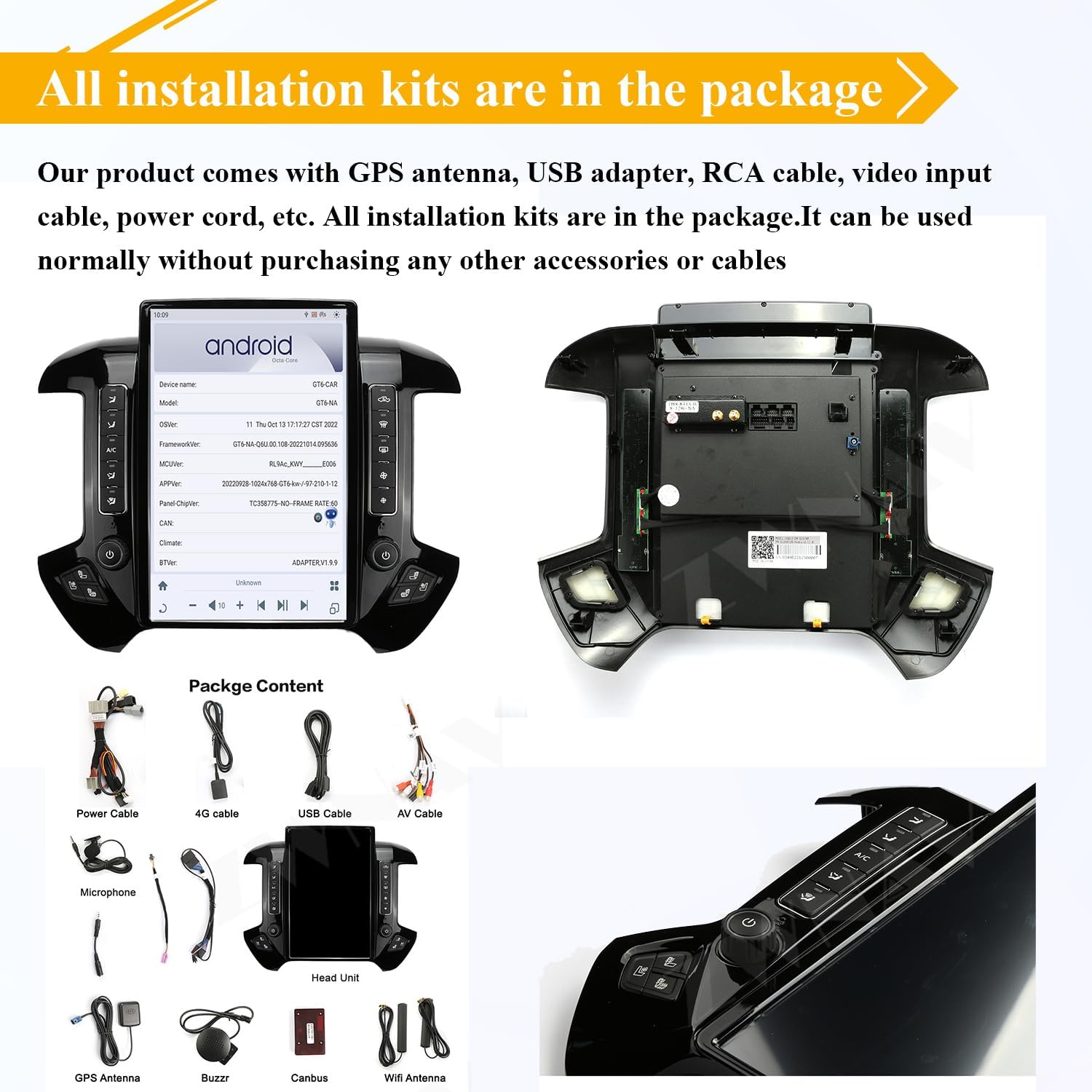
Image 4.2: The package content includes the head unit, power cable, 4G cable, USB cable, AV cable, microphone, GPS antenna, buzzer, Canbus, and WiFi antenna.
4.1. Senarai Semak Prapemasangan
- Ensure your vehicle is a Chevrolet Silverado or GMC Sierra model from 2014-2019.
- Verify that all components listed in the package content (Image 4.2) are present.
- Putuskan sambungan bateri kenderaan sebelum memulakan pemasangan untuk mengelakkan kerosakan elektrik.
4.2. Langkah Pemasangan (Umum)
- Carefully remove the original car radio and dashboard trim according to your vehicle's service manual.
- Connect the provided wiring harnesses (power cord, 4G cable, USB cable, AV cable) to the corresponding ports on the ZWNAV head unit and your vehicle's wiring.
- Install the GPS antenna, microphone, and WiFi antenna in suitable locations, ensuring clear signal reception.
- Mount the ZWNAV head unit into the dashboard opening.
- Reconnect the vehicle's battery and test the unit's basic functions before fully reassembling the dashboard trim.
- Ensure all connections are secure and the unit powers on correctly.
5. Arahan Operasi
This section details the primary functions and how to operate your ZWNAV car radio.

Imej 5.1: Cthamples of the user interface in both Day Mode and Night Mode, showcasing different themes and layouts.
5.1. Navigasi dan Antara Muka Asas
- Hidupkan/Mati Kuasa: Tekan dan tahan butang kuasa pada unit atau gunakan penyalaan kenderaan.
- Skrin Sentuh: Navigate through menus and applications by tapping, swiping, and pinching on the 14.4-inch HD touch screen.
- Skrin Utama: The main page provides quick access to frequently used functions like radio, music, and navigation.
- Kawalan Kelantangan: Adjust volume using the physical buttons on the unit, steering wheel controls, or on-screen controls.

Image 5.2: Dynamic Graphical User Interface (GUI) examples, illustrating the main page, FM/AM Radio, CarPlay interface, DSP settings, music player, and application screen.
5.2. CarPlay & Android Auto
The unit supports both wireless CarPlay and wired Android Auto for seamless integration with your smartphone.
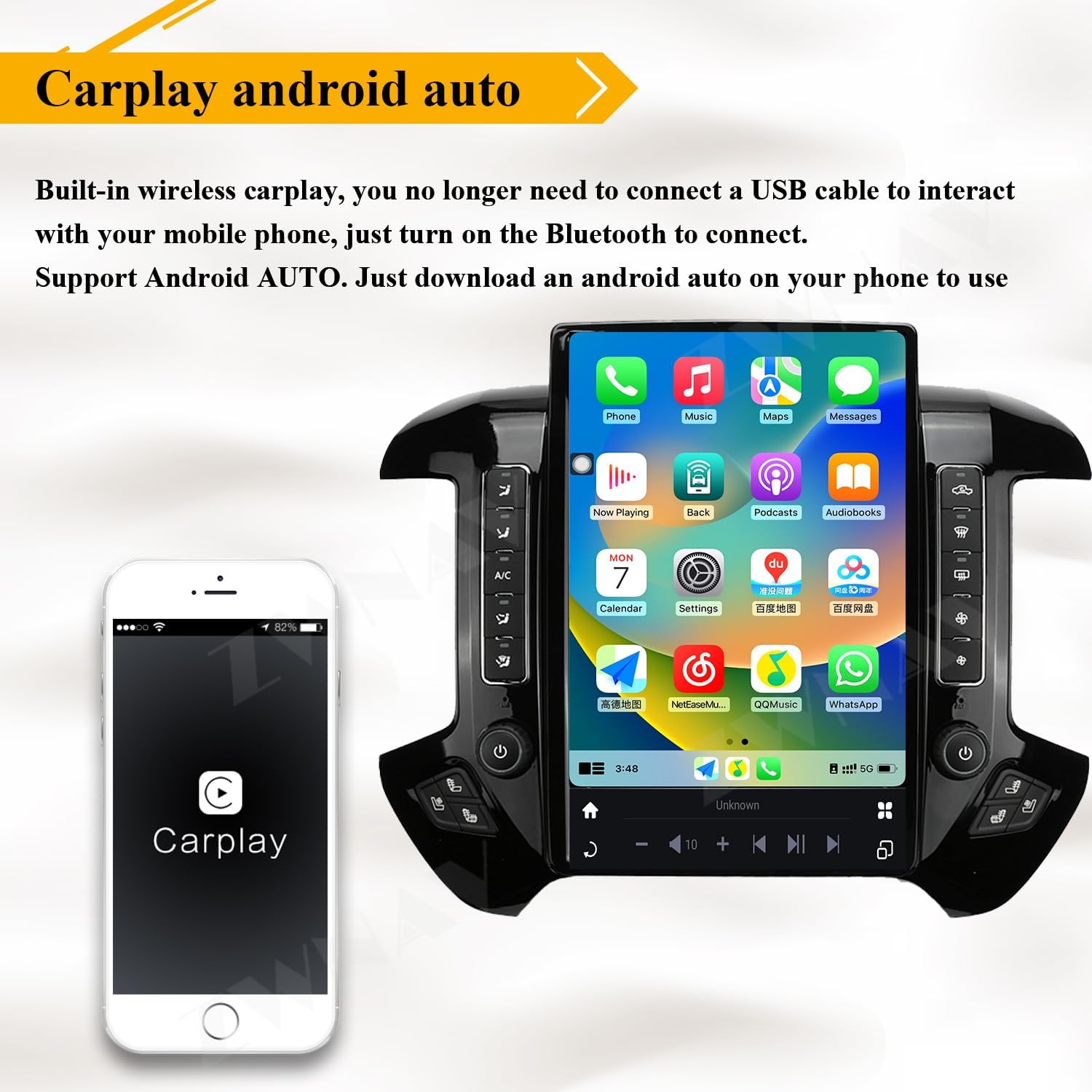
Image 5.3: The CarPlay interface shown on the ZWNAV car radio screen, demonstrating smartphone integration.

Image 5.4: Visual representation of CarPlay and Android Auto functionality, showing app icons and typical screen layouts.
- CarPlay Tanpa Wayar: Turn on Bluetooth on your iPhone and connect to the car radio. Follow the on-screen prompts to enable CarPlay.
- Android Auto berwayar: Connect your Android phone to the unit via a USB cable. Ensure Android Auto is installed on your phone.
- Once connected, you can access navigation, music, calls, and messages directly from the car radio screen.
5.3. Pemproses Bunyi Digital (DSP)
The built-in DSP allows for advanced audio customization.

Image 5.5: DSP interface displaying a 16-band equalizer, sound effect settings, and speaker delay adjustments for optimal sound positioning.

Image 5.6: Icon representing the built-in DSP feature.
- Access the DSP settings from the main menu.
- Adjust the 16-segment equalizer to fine-tune audio frequencies.
- Utilize the subwoofer, treble, midrange, and bass crossover adjustments for precise sound control.
- Configure speaker delay settings to optimize the sound stage dalam kenderaan anda.
5.4. Navigasi GPS
The unit supports various GPS navigation applications.

Image 5.7: GPS Navigation icon with a map illustration, indicating navigation capabilities.
- Open your preferred navigation app from the app drawer.
- Enter your destination using the on-screen keyboard or voice control.
- Follow the audio and visual directions for guidance.
5.5. Kawalan Suara
The unit features multilingual voice control for hands-free operation.

Image 5.8: Multilingual voice control feature, showing a driver using voice commands for various functions like navigation and climate control.
- Activate voice control by saying the wake-up phrase or pressing the voice command button (if available).
- Issue commands such as "Go to airport," "Play music," or "Turn on the air conditioner."
- The default voice control language is English. To switch languages, navigate to the voice control software settings and select your desired language.
5.6. Kefungsian Skrin Pisah
Utilize the split-screen feature to run two applications simultaneously.

Image 5.9: Split Screen icon illustrating two applications, such as navigation and music, displayed concurrently.
- To activate split screen, open an application, then swipe from the side or use the recent apps button to drag another compatible app onto the screen.
- Adjust the size of each application window as needed.
5.7. Bluetooth 5.0
Connect your mobile device via Bluetooth for hands-free calling and audio streaming.

Image 5.10: Bluetooth 5.0 icon, indicating support for wireless phone calls and music playback.
- Enable Bluetooth on your smartphone and on the car radio.
- Cari untuk available devices on your phone and select the ZWNAV unit.
- Sahkan kod gandingan pada kedua-dua peranti.
- Setelah berpasangan, anda boleh membuat/menerima panggilan dan menstrim audio secara wayarles.
5.8. 4G LTE Connectivity
The unit supports 4G LTE connectivity for continuous internet access.

Image 5.11: 4G LTE icon, showing a SIM card slot and antenna, indicating cellular data connectivity.
- Insert a compatible calling card into the designated slot on the unit.
- The unit will automatically connect to the 4G network, providing internet access for online applications, streaming, and updates.
6. Penyelenggaraan
Proper maintenance ensures the longevity and optimal performance of your ZWNAV car radio.
- Pembersihan Skrin: Gunakan kain lembut yang tidak berbulu untuk mengelap skrin sentuh dengan lembut. Untuk calitan degil, sedikit dampen the cloth with a screen cleaner solution (avoid harsh chemicals).
- Kemas Kini Perisian: Semak dan pasang kemas kini perisian secara berkala untuk memastikan sistem berjalan dengan cekap dan mempunyai ciri terkini serta tampung keselamatan.
- Keadaan Persekitaran: Elakkan daripada mendedahkan unit kepada suhu yang melampau, cahaya matahari langsung untuk tempoh yang lama, atau kelembapan yang berlebihan.
- Sambungan Kabel: Ensure all cables are securely connected and free from damage. Loose connections can lead to intermittent issues.
7. Penyelesaian masalah
Bahagian ini menangani isu biasa yang mungkin anda hadapi dan menyediakan penyelesaian yang berpotensi.
| Masalah | Kemungkinan Punca | Penyelesaian |
|---|---|---|
| Unit tidak dihidupkan | Sambungan kuasa longgar, fius pecah, masalah bateri kenderaan | Periksa sambungan kabel kuasa. Periksa fius kenderaan. Pastikan bateri kenderaan dicas. |
| Tiada keluaran bunyi | Volume too low, mute activated, incorrect audio source, loose speaker wires | Naikkan kelantangan. Periksa sama ada bisu aktif. Pilih sumber audio yang betul. Sahkan sambungan wayar pembesar suara. |
| Isyarat GPS hilang atau tidak tepat | GPS antenna obstruction, poor satellite reception, outdated maps | Pastikan antena GPS mempunyai jernih view of the sky. Move to an open area. Update navigation maps. |
| CarPlay/Android Auto tidak bersambung | Bluetooth/USB connection issue, phone software issue, incompatible phone | For wireless CarPlay, ensure Bluetooth is on and paired. For wired Android Auto, try a different USB cable. Restart phone and unit. Ensure phone OS is up to date. |
| Skrin sentuh tidak bertindak balas | Software glitch, screen damage | Restart the unit. If issue persists, contact customer support. |
| Kawalan suara tidak bertindak balas | Microphone issue, incorrect language setting, background noise | Check microphone connection. Verify voice control language setting. Reduce cabin noise. |
If you encounter an issue not listed here or if the suggested solutions do not resolve the problem, please contact ZWNAV customer support.
8. Waranti dan Sokongan
ZWNAV provides a one-year warranty for this product. This warranty covers manufacturing defects and ensures the product functions as intended under normal use.
- Tempoh Waranti: Satu tahun dari tarikh pembelian.
- Perkhidmatan Selepas Jualan: Lifetime after-sales service is provided.
- Hubungi Sokongan: For any questions, technical assistance, or warranty claims, please contact ZWNAV customer service. Refer to your purchase documentation for specific contact details or visit the official ZWNAV webtapak.