pengenalan
Thank you for choosing the Azpen 8 Inch Unlocked LTE Tablet. This device is designed to provide a versatile and powerful mobile computing experience, featuring an Android 12 OS, Octa-Core CPU, 3GB RAM, and 32GB storage. Its IPS HD display offers clear visuals, and built-in 4G LTE connectivity ensures you stay connected on the go. This manual provides essential information for setting up, operating, and maintaining your tablet.

Imej: Depan dan belakang view of the Azpen 8 Inch Unlocked LTE Tablet, showcasing reka bentuknya yang anggun.
Ciri-ciri Produk
- Kesambungan Lanjutan: Stay connected with built-in 4G LTE and Wi-Fi. LTE bands B2/B4/B5/B7/B12/B17/B66 are compatible with T-Mobile and AT&T networks. (SIM card not included; check carrier compatibility before purchase).
- Prestasi Kuat: Experience stunning performance with the quick and powerful Android 12 OS, driven by an Octa-Core 8 x 1.6 GHz CPU & GPU.
- Ample Storage & RAM: Equipped with 3GB of DDR4 RAM and 32GB of internal storage, expandable up to 128GB via Micro SD Slot, providing ample space for movies, songs, and games.
- Paparan Cergas: The stunning 8-inch HD (1280 x 800) IPS display delivers a crisper and brighter image for an enhanced viewpengalaman dalam.
- Jangka Hayat Bateri: A 4000 mAh battery allows for up to 6 hours of watching or browsing without frequent recharging.
- Dual Cameras & Bluetooth: Features Bluetooth connectivity and dual cameras (front and rear) for versatile use.
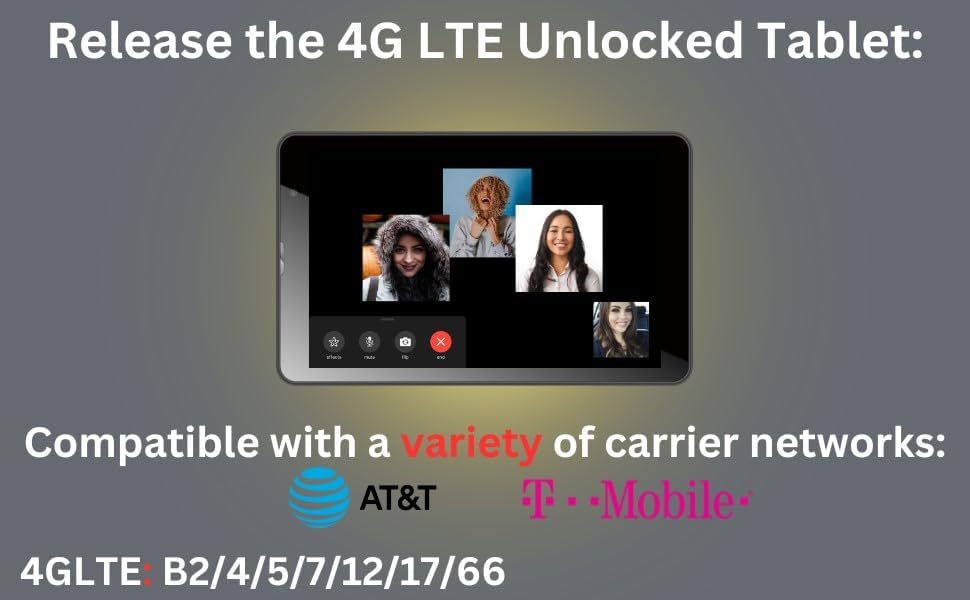
Image: The tablet highlighting its 4G LTE compatibility with major carrier networks like AT&T and T-Mobile.
Kenali Peranti Anda
Familiarize yourself with the physical components and ports of your Azpen Tablet.
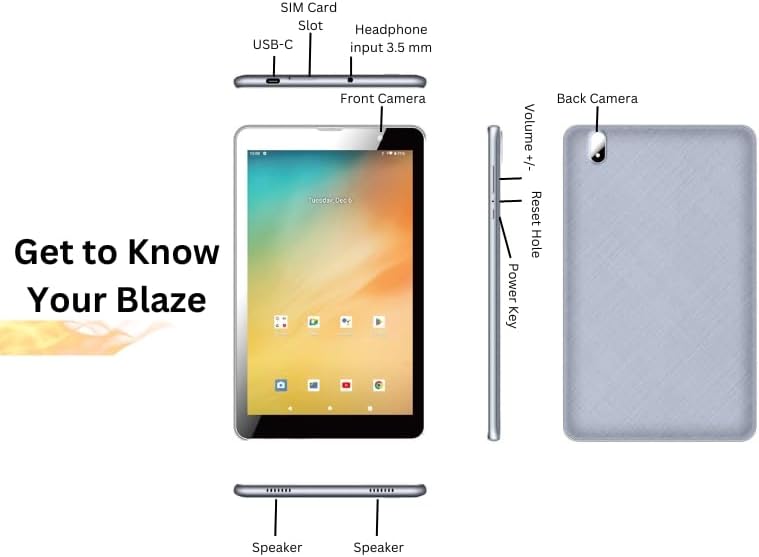
Image: Detailed diagram illustrating the location of the SIM Card Slot, USB-C port, 3.5mm Headphone input, Front Camera, Back Camera, Volume buttons, Reset Hole, Power Key, and Speakers on the Azpen Tablet.
- Slot Kad SIM: Insert your 4G LTE SIM card here for cellular data connectivity.
- Port USB-C: Used for charging the tablet and connecting to a computer for data transfer.
- Headphone Input (3.5 mm): Connect your wired headphones or external speakers.
- Kamera Depan: Untuk panggilan video dan swafoto.
- Kamera Belakang: Untuk mengambil gambar dan video.
- Jilid +/-: Laraskan kelantangan audio.
- Set Semula Lubang: A small pinhole for performing a hard reset if the device becomes unresponsive.
- Kekunci Kuasa: Press and hold to power on/off or restart the device. Short press to wake/sleep the screen.
- Penceramah: Terletak di bahagian bawah untuk output audio.
Persediaan
Kuasa Hidup dan Wizard Persediaan Awal
- Cas Tablet: Before first use, fully charge your tablet using the provided USB-C cable and power adapter. The battery indicator will show charging status.
- Hidupkan kuasa: Press and hold the Power Key until the Azpen logo appears on the screen.
- Ikuti Gesaan Pada Skrin: The Android 12 setup wizard will guide you through selecting your language, connecting to a Wi-Fi network, setting up your Google account, and configuring basic settings.
Inserting SIM Card and Micro SD Card
To utilize cellular data or expand storage, insert the respective cards into their designated slots.
- Matikan: Ensure the tablet is powered off before inserting or removing cards.
- Cari Slot: Refer to the "Get to Know Your Device" diagram for the exact location of the SIM card slot and Micro SD card slot.
- Masukkan Kad SIM: Gently push your nano-SIM card into the SIM card slot until it clicks into place. Ensure the correct orientation.
- Masukkan Kad SD Mikro: Gently push your Micro SD card into the Micro SD card slot until it clicks into place.
- Hidupkan kuasa: Power on the tablet. The device should automatically detect the inserted cards.
Arahan Operasi
Navigasi Asas
- Gerak isyarat skrin sentuh: Navigate the Android 12 interface using taps, swipes, pinches, and long presses.
- Skrin Utama: Akses aplikasi, widget dan pemberitahuan anda daripada skrin utama yang boleh disesuaikan.
- Tetapan Pantas: Swipe down from the top of the screen to access quick settings for Wi-Fi, Bluetooth, brightness, and more.
Menyambung ke Wi-Fi dan Bluetooth
- Wi-Fi: Pergi ke
Settings > Network & internet > Internet. Select your desired Wi-Fi network and enter the password if prompted. - Bluetooth: Pergi ke
Settings > Connected devices > Connection preferences > Bluetooth. Turn Bluetooth on and select a device to pair with.
Menggunakan Kamera
The tablet features both front and rear cameras for photos and video.
- Buka Aplikasi Kamera: Ketik ikon Kamera pada skrin utama atau laci aplikasi anda.
- Tukar Kamera: Gunakan ikon suis kamera untuk bertukar antara kamera hadapan dan belakang.
- Take Photo/Record Video: Ketik butang pengatup untuk mengambil foto atau butang rakam untuk memulakan/menghentikan rakaman video.
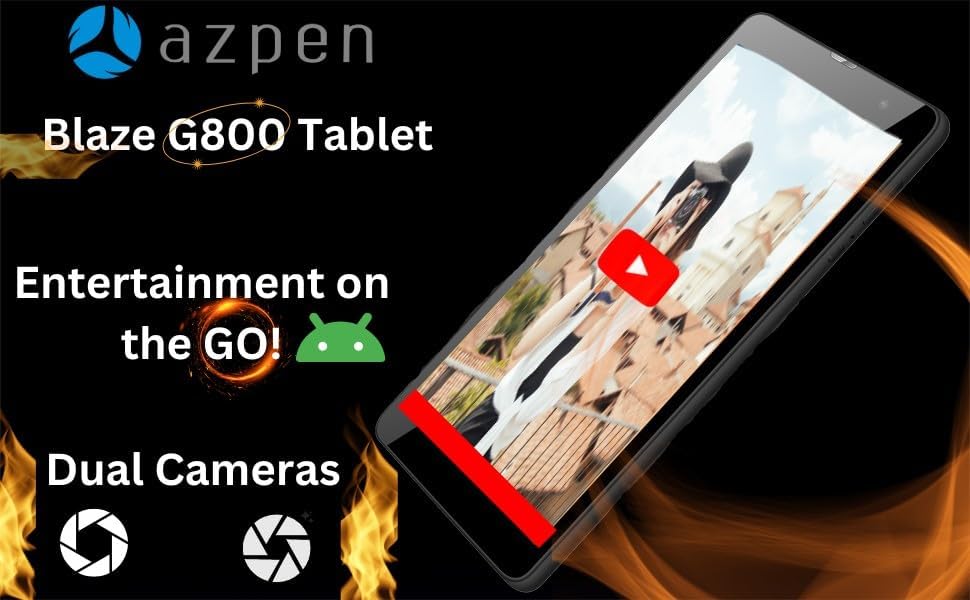
Imej: Tablet itu menunjukkanasing its capability for entertainment on the go, featuring dual cameras and a video playing on screen.

Image: Multiple Azpen tablets displaying different applications and media, emphasizing the Octa-Core CPU's power for gaming, HD shows, and multitasking.
Penyelenggaraan
Penjagaan Bateri
- Pengecasan Optimum: Use the original charger and cable. Avoid overcharging or letting the battery drain completely too often.
- Suhu: Elakkan mendedahkan tablet kepada suhu yang melampau, kerana ini boleh menjejaskan hayat bateri.
- Storan: If storing the tablet for an extended period, charge it to about 50% before turning it off.
Pengurusan Storan
- Kosongkan Cache: Regularly clear app caches to free up space. Go to
Settings > Apps > [App Name] > Storage & cache > Clear cache. - Delete Unused Apps: Nyahpasang aplikasi yang tidak lagi anda gunakan.
- Pemindahan Files: Bergerak besar files (photos, videos) to the Micro SD card or cloud storage to free up internal memory.

Imej: Tablet itu menunjukkanasing its storage and RAM capabilities, ideal for playing intense games, powered by Android 12.
Menyelesaikan masalah
| Masalah | Penyelesaian yang Mungkin |
|---|---|
| Tablet tidak akan dihidupkan. | Ensure the battery is charged. Connect the charger and wait a few minutes before attempting to power on again. If unresponsive, press and hold the Power Key for 10-15 seconds. |
| Tablet is frozen or unresponsive. | Press and hold the Power Key for 10-15 seconds to force a restart. If that doesn't work, use a thin pin to press the Reset Hole. |
| Isu sambungan Wi-Fi. | Restart the tablet and your Wi-Fi router. Forget the network in Settings > Network & internet > Internet and reconnect. Ensure you are within range. |
| Prestasi perlahan. | Close unused apps, clear app caches, and free up storage space. Consider a factory reset as a last resort (backup data first). |
| Kad SIM tidak dikesan. | Ensure the SIM card is correctly inserted and activated with your carrier. Restart the tablet. Verify carrier compatibility (T-Mobile and AT&T networks supported). |
Tetapan Semula Kilang
Tetapan semula kilang akan memadamkan semua data daripada tablet anda dan memulihkannya kepada tetapan kilang asalnya.
- Data Sandaran: Before proceeding, back up all important data to a computer or cloud storage.
- Navigate to Reset: Pergi ke
Settings > System > Reset options > Erase all data (factory reset). - Sahkan: Follow the on-screen instructions to confirm the reset. The tablet will restart and begin the reset process.
Spesifikasi
| Ciri | Perincian |
|---|---|
| Nama Model | TF800 (TFBLAZE) |
| Sistem Operasi | Android 12 |
| CPU | Octa-Core 8 x 1.6 GHz |
| RAM | 3 GB DDR4 |
| Storan Dalaman | 32 GB |
| Storan Boleh Dikembangkan | Up to 128 GB via Micro SD Slot |
| Saiz Paparan | 8 Inci |
| Resolusi Paparan | 1280 x 800 pixels (IPS HD) |
| Komunikasi Tanpa Wayar | 4G LTE (Bands B2/B4/B5/B7/B12/B17/B66), Wi-Fi, Bluetooth |
| Kamera | Dual Cameras (Front and Rear) |
| Kapasiti Bateri | 4000 mAh |
| Dimensi Produk | 10.2 x 6.2 x 0.38 inci |
| Berat Barang | 1.23 paun |
| warna | Hitam |
Waranti dan Sokongan
For warranty information and technical support, please refer to the documentation included with your product packaging or visit the official Azpen webtapak.
Pengeluar: Richwoods
Tarikh Mula-mula Tersedia: 3 September 2023


