1. Pengenalan
This manual provides detailed instructions for the setup, operation, maintenance, and troubleshooting of your CUPEISI YQ10S MAX Android 15 Tablet. Please read this manual thoroughly before using your device to ensure proper functionality and to maximize your user experience. Keep this manual for future reference.

Image 1.1: CUPEISI YQ10S MAX Android 15 Tablet with included accessories (keyboard, mouse, stylus, and protective case).
2. Kandungan Pakej
Sahkan bahawa semua item yang disenaraikan di bawah terdapat dalam pakej produk anda:
- CUPEISI YQ10S MAX Android 15 Tablet
- Papan Kekunci Tanpa Wayar
- Mouse Bluetooth
- Foldable Protective Cover
- Stylus
- Kabel Jenis-C
- Pengecas
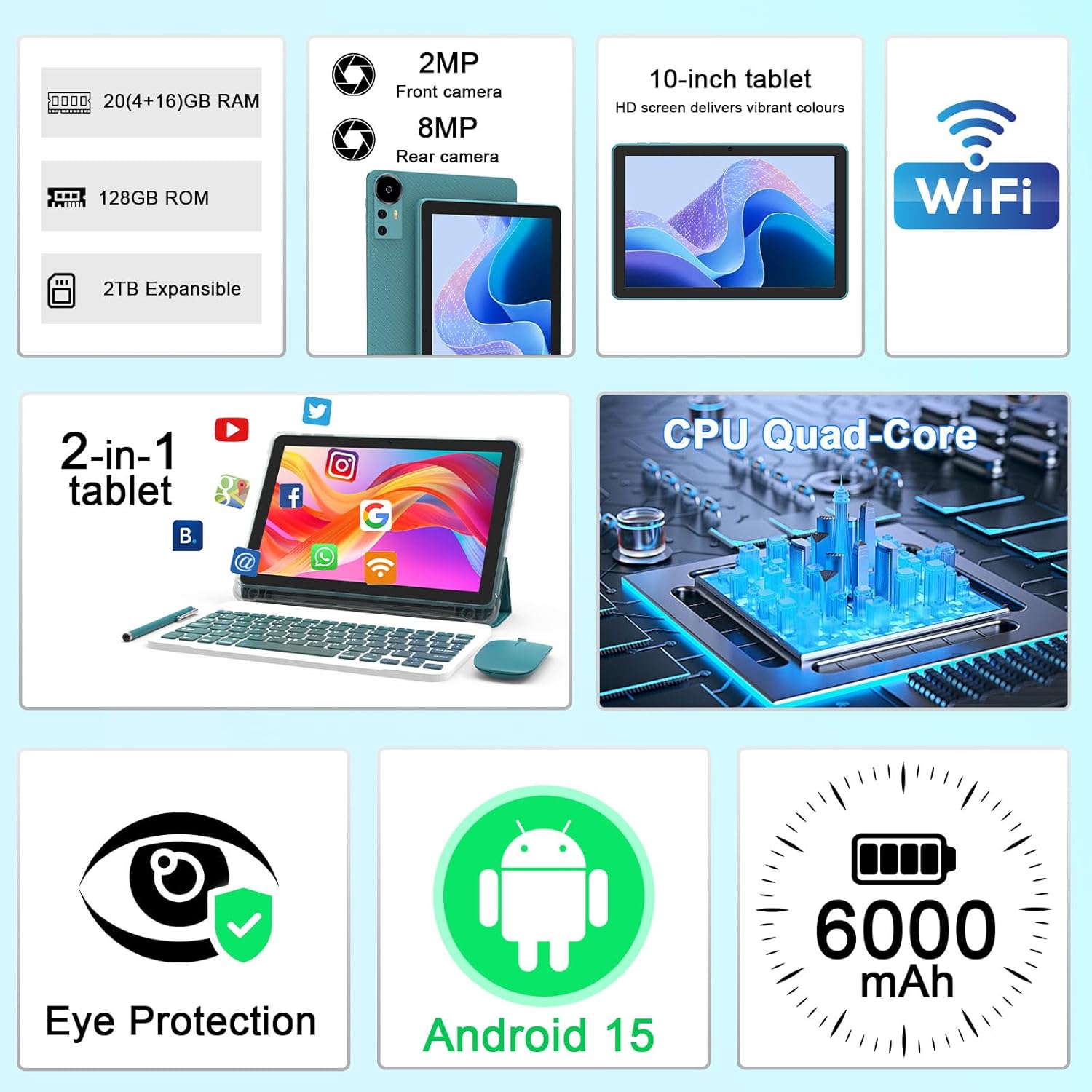
Imej 2.1: Selesaiview of key features and included components.
3. Persediaan Awal
3.1 Menghidupkan/Mematikan
- Untuk Menghidupkan: Tekan dan tahan butang kuasa yang terletak di sisi tablet sehingga skrin menyala.
- Untuk Mematikan: Tekan dan tahan butang kuasa, kemudian pilih 'Matikan' daripada pilihan yang muncul pada skrin.
- Untuk Mulakan Semula: Press and hold the power button, then select 'Restart' from the options.
3.2 Mengecas Tablet
Sebelum penggunaan pertama, cas sepenuhnya tablet. Gunakan kabel dan pengecas Jenis-C yang disediakan.
- Sambungkan kabel Jenis-C ke port pengecasan tablet.
- Sambungkan hujung kabel yang lain ke penyesuai kuasa.
- Palamkan penyesuai kuasa ke salur keluar dinding.
- The battery icon on the screen will indicate charging status. A full charge typically takes several hours.

Image 3.1: Battery and charging information.
3.3 Connecting Accessories (Keyboard, Mouse, Stylus)
The tablet supports Bluetooth connectivity for the included keyboard and mouse.
- Dayakan Bluetooth: Pergi ke tetapan > Peranti yang disambungkan > Bluetooth dan hidupkannya.
- Pair Keyboard/Mouse: Put the keyboard or mouse into pairing mode (refer to their individual instructions if needed). Select the device name from the list of available Bluetooth devices on your tablet to pair.
- Stylus: The included stylus is typically passive and does not require pairing. It can be used directly on the screen for navigation or drawing.
3.4 Sambungan Wi-Fi
Connect your tablet to a Wi-Fi network for internet access.
- Pergi ke tetapan > Rangkaian & internet > Wi-Fi.
- Hidupkan Wi-Fi. Tablet akan mengimbas rangkaian yang tersedia.
- Pilih rangkaian yang anda inginkan daripada senarai.
- Jika digesa, masukkan kata laluan rangkaian dan ketik Sambung.
4. Operasi Asas
4.1 Menavigasi Android 15
Your tablet runs on Android 15, offering an intuitive user interface. Swipe gestures, tap actions, and the navigation bar (Back, Home, Recents) are standard for interaction. The Google Mobile Services (GMS) certification ensures access to the Google Play Store and other Google applications.

Image 4.1: Android 15 operating system features.
4.2 Tetapan Paparan
The 10.1-inch IPS display with 1280x800 resolution provides clear visuals. You can adjust display settings to suit your preferences:
- Kecerahan: Laraskan kecerahan skrin daripada panel tetapan pantas atau dalam tetapan > Paparan.
- Mod Bacaan: Enable 'Reading Mode' in display settings to reduce blue light emission, which can enhance comfort during extended reading sessions.
- Saiz Font: Customize text size for better readability.

Image 4.2: Details of the 10.1-inch HD screen display.
4.3 Pengurusan Storan
The tablet features 128GB of internal storage and 20GB RAM (4GB physical + 16GB virtual expansion). Storage can be expanded up to 2TB using a microSD card (not included).
- Semak Storan: Pergi ke tetapan > Penyimpanan kepada view penggunaan storan dalaman dan luaran.
- Masukkan Kad MicroSD: Locate the microSD card slot on the tablet, insert the card gently until it clicks into place.

Imej 4.3: Konfigurasi storan dan RAM.
4.4 Penggunaan Kamera
The tablet is equipped with an 8MP rear camera and a 2MP front camera.
- Buka Aplikasi Kamera: Ketik ikon Kamera pada skrin utama atau laci aplikasi anda.
- Tukar Kamera: Use the camera switch icon to toggle between front and rear cameras.
- Capture Photos/Videos: Ketik butang pengatup untuk mengambil foto atau memulakan/menghentikan rakaman video.

Image 4.4: Camera specifications and modes.
4.5 Main Semula Multimedia
The tablet supports Widevine L1, enabling high-definition streaming from platforms like Netflix, Hulu, YouTube, and Prime Video.
- Ensure a stable internet connection for optimal streaming quality.
- Download streaming apps from the Google Play Store.

Image 4.5: Widevine L1 support for multimedia streaming.
4.6 Berbilang tugas
Android 15 enhances multitasking capabilities. Use the 'Recents' button to switch between open applications or utilize split-screen mode for running two apps simultaneously.
- Skrin Terpisah: From the 'Recents' view, tap the app icon at the top of an app's card and select 'Split screen'. Choose a second app to open alongside it.
- The included keyboard and mouse facilitate a laptop-like experience for productivity tasks.

Image 4.6: Tablet used in 2-in-1 mode with keyboard and mouse.
5. Penjagaan dan Penyelenggaraan
5.1 Pembersihan
- Gunakan kain lembut dan tidak berbulu untuk membersihkan skrin dan badan tablet.
- Elakkan menggunakan bahan kimia yang keras, pembersih yang melelas, atau semburan aerosol.
- Pastikan tablet dimatikan dan dicabut plagnya sebelum membersihkannya.
5.2 Penjagaan Bateri
- Avoid exposing the tablet to extreme temperatures (hot or cold).
- Jangan biarkan tablet dalam keadaan kosong sepenuhnya untuk tempoh yang lama.
- Use only the provided charger and cable to prevent damage to the battery.
5.3 Kemas Kini Perisian
- Semak dan pasang kemas kini perisian secara berkala untuk memastikan prestasi, keselamatan dan akses kepada ciri baharu yang optimum.
- Pergi ke tetapan > Sistem > Kemas kini sistem untuk menyemak kemas kini yang tersedia.
6. Penyelesaian masalah
If you encounter issues with your tablet, refer to the following common problems and solutions:
6.1 Isu Kuasa
- Tablet won't turn on: Pastikan bateri dicas. Sambungkan pengecas dan tunggu beberapa minit sebelum cuba menghidupkan semula.
- Tablet freezes: Tekan dan tahan butang kuasa selama kira-kira 10-15 saat untuk memaksa mulakan semula.
6.2 Masalah Kesambungan
- Wi-Fi tidak bersambung: Check if Wi-Fi is enabled in settings. Restart your router and the tablet. Ensure you are entering the correct password.
- Peranti Bluetooth tidak berpasangan: Ensure the Bluetooth accessory is in pairing mode and within range. Restart Bluetooth on the tablet and try pairing again.
6.3 Performance Lags
- Prestasi perlahan: Close unused applications running in the background. Clear cache data for frequently used apps. Consider adding a microSD card for additional storage if internal storage is nearly full.
- Apl ranap: Ensure apps are updated to their latest versions. Clear the app's cache and data (tetapan > Apl > [Nama Apl] > Penyimpanan).
7. Spesifikasi Produk
| Ciri | Spesifikasi |
|---|---|
| Jenama | CUPEISI |
| Nama Model | CP31M (Item model number: YQ10S MAX) |
| Sistem Operasi | Android 15 |
| Saiz Skrin | 10.1 Inci |
| Resolusi Skrin | 1280 x 800 Piksel (HD) |
| Pemproses | Teras empat 2.0 GHz |
| RAM | 20GB (fizikal 4GB + pengembangan 16GB) |
| Storan Dalaman | 128 GB |
| Storan Boleh Dikembangkan | Up to 2TB with microSD card (not included) |
| Jenis Wayarles | 802.11ax (Wi-Fi 6.0, 2.4G/5G) |
| Bluetooth | BT 5.0 |
| Kamera Belakang | 8 MP |
| Kamera Depan | 2 MP |
| Kapasiti Bateri | 6000 mAh |
| Purata Hayat Bateri | 6-8 Hours (usage dependent) |
| Dimensi (LxWxH) | 9.7 x 6.5 x 0.3 inci |
| Berat Barang | 0.176 auns |
| warna | NavyBlue |
8. Waranti dan Sokongan
For warranty information, please refer to the warranty card included in your product packaging or contact CUPEISI customer support directly. If you require technical assistance or have questions not covered in this manual, please reach out to our support team through the contact information provided with your purchase.


