1. Pengenalan
The Thermaltake Smart BM3 650W 80Plus Bronze certified semi-modular power supply is designed to meet ATX 3.1 standards and includes one PCIe Gen 5 (12V-2x6) connector, supporting modern graphics cards. This power supply features a 120mm Fluid Dynamic Bearing (FDB) fan for efficient airflow and a Smart Zero Fan function to minimize noise under low loads. High-quality Japanese main electrolytic capacitors enhance durability and ensure stable, reliable power delivery.
2. Ciri-ciri Utama
- 80Plus Bronze Certified: Ensures up to 85% efficiency at 115Vac input.
- ATX 3.1 & PCIe Gen 5 Ready: Fully compatible with Intel ATX 3.1 standards and includes a 12V-2x6 connector for PCIe Gen 5 graphics cards.
- High Quality Japanese Capacitors: Features 105°C/221°F Japanese main electrolytic capacitors for improved durability and reliability.
- 120mm FDB Fan with Smart Zero Fan: Provides excellent airflow. The fan remains off until the load exceeds 20% of the power supply's capacity, ensuring quiet operation.
- Built-in Industrial Grade Protection: Includes OCP (Over Current Protection), OVP (Over Voltage Perlindungan), UVP (Di bawah Voltage Protection), OPP (Over Power Protection), OTP (Over Temperature Protection), and SCP (Short Circuit Protection).
- Semi-Modular Flat Cable Design: Soft flat black cables with sleeve cabling for easy installation and optimal cable management.
3. Kandungan Pakej
Selepas membuka bungkusan, pastikan semua item berikut ada:
- Thermaltake Smart BM3 650W Power Supply Unit
- Kord Kuasa AC
- Modular Cable Set (Main Power, ATX 12V, PCIe, SATA, Peripheral)
- Skru Pemasangan
- Pengikat Kabel
- Manual Pengguna
4. Panduan Pemasangan
Follow these steps to properly install your Thermaltake Smart BM3 650W Power Supply into your computer system.
4.1. Sediakan Sistem Anda
- Keselamatan Diutamakan: Always disconnect the AC power cord from the wall outlet before installing or removing any components.
- Buka Kes PC: Tanggalkan panel sisi casing komputer anda untuk mengakses komponen dalaman.
- Keluarkan PSU Lama (jika berkenaan): Putuskan sambungan semua kabel daripada bekalan kuasa lama anda dan keluarkannya daripada kes itu.
4.2. Pasang Unit Bekalan Kuasa
- Mount PSU: Carefully slide the new Thermaltake Smart BM3 650W Power Supply into the designated PSU bay in your PC case. Ensure the fan is facing the correct direction (usually downwards for bottom-mounted PSUs, or as per case design for optimal airflow).
- PSU selamat: Use the provided mounting screws to secure the power supply to the PC case.
- Sambungkan Kabel Modular: Attach only the necessary modular cables to the power supply unit. This semi-modular design allows for better cable management and airflow.
- Sambung ke Papan Induk:
- Connect the 24-pin Main Power connector to your motherboard.
- Connect the 4+4-pin ATX 12V CPU power connector(s) to your motherboard.
- Connect to Graphics Card (GPU):
- For modern GPUs, connect the 12V-2x6 (PCIe Gen 5) connector directly to your graphics card.
- For other GPUs, connect the appropriate 6+2-pin PCIe connectors.
- Connect to Storage Devices: Connect SATA power cables to your SSDs, HDDs, and other SATA-powered devices.
- Sambung Peranti: Connect peripheral 4-pin Molex connectors to any other devices requiring them (e.g., older fans, fan controllers).
- Pengurusan Kabel: Route cables neatly behind the motherboard tray or in designated channels to improve airflow and aesthetics. Use cable ties if necessary.

Figure 4.2.1: Thermaltake Smart BM3 650W Power Supply with its semi-modular cables connected.

Figure 4.2.2: Diagram illustrating the modular cable connections on the power supply unit.
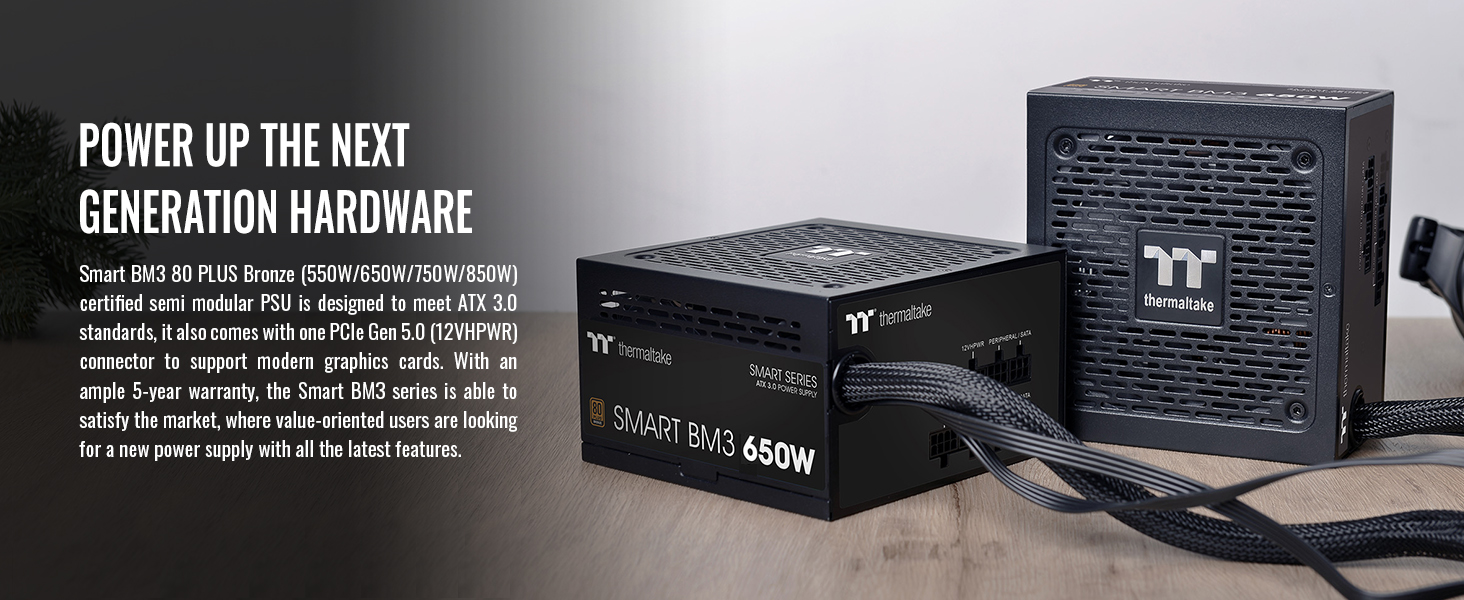
Figure 4.2.3: Close-up of the PCIe Gen 5.0 (12VHPWR) connector for modern graphics cards.
4.3. Langkah Akhir
- Tutup Kes PC: Pasang semula panel sisi casing komputer anda.
- Sambungkan Kuasa AC: Plug the AC power cord into the power supply unit and then into a wall outlet.
- Hidupkan kuasa: Flip the main power switch on the back of the PSU to the 'ON' position.
5. Arahan Operasi
5.1. Fungsi Kipas Sifar Pintar
The Smart Zero Fan function is designed to minimize noise. When enabled, the 120mm FDB fan will not spin until the power supply load exceeds 20% of its maximum capacity. This ensures silent operation during low-load tasks.
- To Enable/Disable: Locate the "Smart Zero Fan" switch on the back of the power supply unit.
- Kedudukan ON: Fan will only spin when load exceeds 20%.
- Kedudukan OFF: Fan will operate continuously regardless of load.

Figure 5.1.1: Location of the Smart Zero Fan switch on the power supply.
6. Penyelenggaraan
Penyelenggaraan yang betul memastikan ketahanan dan prestasi optimum bekalan kuasa anda.
- Pembersihan Habuk: Regularly clean the fan and ventilation grilles of the power supply to prevent dust buildup, which can impede airflow and lead to overheating. Use compressed air for best results.
- Pemeriksaan Kabel: Periodically check all connected cables for any signs of wear, damage, or loose connections.
- Keadaan Persekitaran: Ensure the power supply operates within recommended temperature and humidity ranges (Operating Temperature: 5°C to +40°C; Operating Humidity: 20% to 85%, non-condensing).
7. Penyelesaian masalah
Jika anda menghadapi masalah dengan bekalan kuasa anda, rujuk langkah penyelesaian masalah biasa berikut:
- Tiada Kuasa:
- Pastikan kord kuasa AC dipasang dengan selamat pada kedua-dua PSU dan alur keluar dinding.
- Verify the main power switch on the PSU is in the 'ON' position.
- Check all internal power connections (24-pin, ATX 12V, PCIe) to ensure they are firmly seated.
- Uji alur keluar dinding dengan peranti lain untuk mengesahkan ia mempunyai kuasa.
- Ketidakstabilan Sistem/Penutupan Rawak:
- This could indicate insufficient wattage or a faulty component. Ensure your total system power draw does not exceed the PSU's 650W capacity.
- Check for overheating. Ensure proper airflow within the case and that the PSU fan is operating (if Smart Zero Fan is off or under load).
- Verify all modular cables are correctly connected to the PSU and components.
- Fan Not Spinning (Smart Zero Fan ON):
- This is normal if the system load is below 20%. The fan will activate automatically when the load increases.
- If the system is under heavy load and the fan is still not spinning, try switching the Smart Zero Fan to 'OFF' to force it on. If it still doesn't spin, contact support.
If issues persist after following these steps, please contact Thermaltake customer support for further assistance.
8. Spesifikasi
| Nombor Model | PS-SPD-0650MNFABU-3 |
| Watt | 650W |
| Kecekapan | 80 PLUS® Bronze at 115Vac input |
| Faktor Bentuk | ATX |
| Dimensi (LxWxH) | 150mm(W) x 86mm(H) x 140mm(D) (5.9 x 3.4 x 5.5 inches) |
| Sistem Penyejukan | 12cm FDB Fan with Smart Zero Fan function |
| Main Capacitor | High quality Japanese 105°C/221°F electrolytic capacitor |
| PFC (Pembetulan Faktor Kuasa) | PFC aktif |
| Input Voltage | 100-240V~ |
| Julat Kekerapan Input | 50Hz/60Hz |
| MTBF | 100,000 jam minimum |
| Kelulusan Keselamatan | FCC/ICES/CB/cTUVus/Tanda-S |
| Penyambung PCI-E 6+2PIN | 4 |
| PCI-E 12+4PIN (12V-2x6) Connector | 1 (300W) |

Figure 8.1: Cable connector types, quantities, and lengths.
9. Ciri-ciri Perlindungan
The Thermaltake Smart BM3 650W Power Supply is equipped with multiple industrial-grade protection circuits to safeguard your system components:
- OCP (Perlindungan Atas Semasa): Protects against excessive current on output rails.
- OVP (Lebih Voltage Perlindungan): Shuts down the PSU if voltage on any rail exceeds a safe level.
- UVP (Di bawah Voltage Perlindungan): Shuts down the PSU if voltage on any rail drops below a safe level.
- OPP (Over Power Protection): Protects the PSU from operating beyond its maximum wattage.
- OTP (Perlindungan Lebih Suhu): Mematikan PSU jika suhu dalaman menjadi terlalu tinggi.
- SCP (Perlindungan Litar Pintas): Prevents damage to the PSU and components in case of a short circuit.

Gambar 9.1: Lebihview of built-in industrial grade protection features.
10. Waranti dan Sokongan
The Thermaltake Smart BM3 series power supplies come with an ample Waranti 5 tahun. This warranty covers defects in materials and workmanship under normal use. For detailed warranty terms and conditions, please refer to the warranty card included in your product packaging or visit the official Thermaltake webtapak.
For technical support, troubleshooting assistance, or warranty claims, please contact Thermaltake customer service through their official support channels.


