1. Produk Lebihview
The BPXX D465B is a versatile Bluetooth thermal label printer designed for small businesses, compatible with various e-commerce and shipping platforms. It supports both Bluetooth and USB connectivity for printing from Android, iOS, Windows, Mac OS, Chrome OS, and Linux devices.

Image: The BPXX D465B thermal label printer, shown in white, with a 4x6 inch shipping label being printed. A stack of 500 thermal labels is also visible, indicating the included accessories.
2. Kandungan Pakej
Selepas membuka kotak, sila pastikan semua item berikut ada:
- BPXX D465B Thermal Label Printer
- Penyesuai Kuasa
- Kabel USB
- 500 Thermal Labels (4x6 inches)
- Panduan Mula Pantas (tidak disertakan dalam manual ini)
3. Panduan Persediaan
3.1. Persediaan Perkakasan Awal
- Letakkan pencetak pada permukaan yang stabil dan rata.
- Sambungkan penyesuai kuasa ke pencetak dan pasangkannya ke salur keluar kuasa.
- Open the printer cover to access the label compartment.
- Load the thermal labels into the printer. Ensure the labels are facing up and aligned correctly with the guides. The printer supports fan-fold and roll labels.
- Close the printer cover. The printer will automatically detect the label size.

Image: Illustration of the easy-load and replaceable design, showing how to insert a label roll and replace the printer head. This highlights the user-friendly maintenance aspects.
3.2. Pilihan Kesambungan
The BPXX D465B printer offers flexible connectivity via Bluetooth for mobile devices and USB for computers.

Image: Visual representation of the printer's connectivity options, including Bluetooth for phones and tablets, and USB for Windows, Mac OS, Chrome OS, and Linux systems. No Wi-Fi connection is supported.
- Sambungan Bluetooth: Ideal for wireless printing from Android and iOS smartphones/tablets.
- Sambungan USB: For direct connection to Windows, Mac OS, Chrome OS, and Linux computers.
4. Arahan Operasi
To print labels, you will need to download the "4Barcode" application on your mobile device or install the appropriate drivers for your computer.
4.1. Printing from Android Devices
Follow these steps to print from your Android smartphone or tablet:
- Download the "4Barcode" app from the Google Play Store.
- Open the PDF label file anda ingin mencetak.
- Select "More" from the share/open options and choose "4Barcode" to open the file dalam apl.
- In the app, select the "4*6 inch Express list" paper size.
- Click on "Settings" to customize printing options such as orientation, paper mode, and command type (ZPL command is recommended for optimal compatibility).
- Adjust print density (Thin, Medium, Dense) and paper offset as needed.
- Confirm print settings and select "Bluetooth Connection".
- Allow the app to discover and connect to nearby devices.
- Choose your printer's Bluetooth name (e.g., "4B-2054N-C36D").
- Enter the password "0000" (if prompted) to connect.
- Once connected, click "Confirm Print".
Video: A detailed guide on how to install and use the BPXX D465B Thermal Printer with iOS and Android devices, covering app installation, file opening, settings configuration, and Bluetooth connection steps.
4.2. Printing from iOS Devices
Follow these steps to print from your iOS smartphone or tablet:
- Open the PDF label file dalam pelayar anda.
- Click the Share button.
- Scroll down and tap on "More".
- Scroll down further and tap on "4Barcode" to open the file dalam apl.
- Choose the "4x6 inch express sheet" and click on the Settings button.
- Set the printing orientation, paper mode, and other options as needed. If you choose the ZPL command mode, the task will be sent directly to the printer.
- Tap on "Print" to proceed.
- Select "Bluetooth" as the connection type.
- Choose the printer's Bluetooth name, which should be listed as "4B-2504N" (or similar).
- The app will confirm successful Bluetooth connection.
- The printing process will commence.
Video: A detailed guide on how to install and use the BPXX D465B Thermal Printer with iOS and Android devices, covering app installation, file opening, settings configuration, and Bluetooth connection steps.
5. Penyelenggaraan
5.1. Loading and Replacing Labels
The printer features an easy-load design for quick label replacement. Simply open the top cover, place the new roll or fan-fold labels, and ensure they are properly aligned before closing the cover. The printer will automatically calibrate.
5.2. Replacing the Printer Head
The BPXX D465B is equipped with a robust aluminum alloy print head designed for extended durability. In the rare event of needing replacement, the print head is user-replaceable. Refer to the detailed instructions provided with the replacement part or consult the manufacturer's support for guidance.
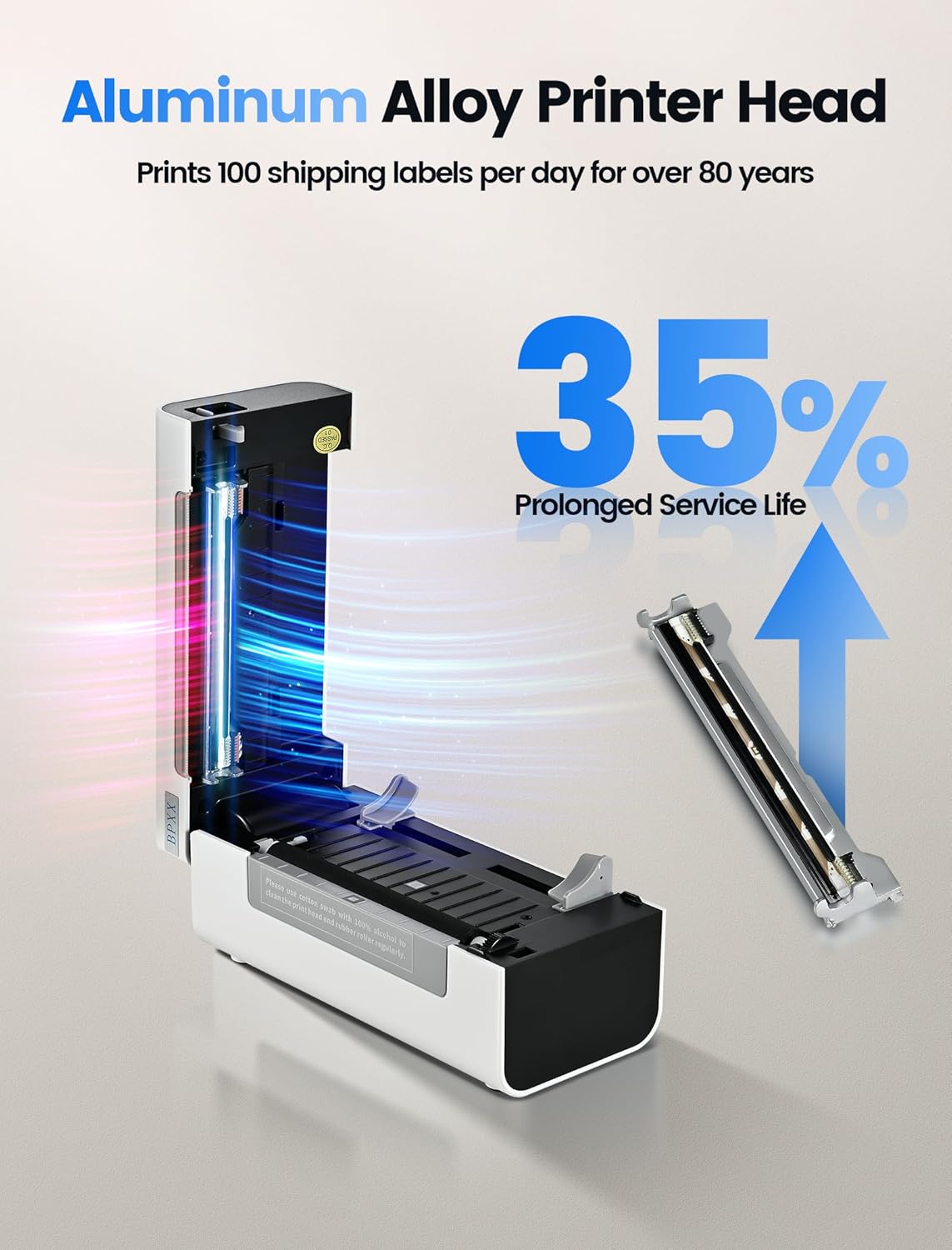
Image: This image emphasizes the durable aluminum alloy print head, which contributes to a 35% prolonged service life and the capability to print 100 shipping labels per day for over 80 years.
5.3. Membersihkan Pencetak
Regular cleaning helps maintain print quality and extends the life of your printer. Use a soft, lint-free cloth slightly dampened with isopropyl alcohol to gently wipe the print head and the platen roller. Ensure the printer is turned off and unplugged before cleaning. Allow all components to dry completely before resuming operation.
6. Penyelesaian masalah
| Isu | Kemungkinan Punca | Penyelesaian |
|---|---|---|
| Pencetak tidak bersambung melalui Bluetooth. | Bluetooth is off on device, printer is out of range, incorrect pairing password, or app permissions. | Ensure Bluetooth is enabled on your device. Move the device closer to the printer. Verify the pairing password (usually "0000"). Check app permissions for Bluetooth and location access. Restart both the printer and your device. |
| Poor print quality (faded, blurry). | Print head is dirty, incorrect print density setting, or low-quality labels. | Clean the print head (refer to Maintenance section). Adjust the print density setting in the 4Barcode app to "Dense" or "Dark". Use high-quality thermal labels. |
| Label tidak disumbat dengan betul. | Labels improperly loaded, or label sensor issue. | Ensure labels are loaded correctly and aligned with the guides. Recalibrate the printer by turning it off and on with labels loaded. |
| Printer not responding. | Printer is off, disconnected, or in an error state. | Check power connection and ensure the printer is on. Verify USB or Bluetooth connection. Restart the printer. |
7. Spesifikasi
| Ciri | Perincian |
|---|---|
| Jenama | BPXX |
| Teknologi Ketersambungan | Bluetooth, USB |
| Teknologi Percetakan | terma |
| Output Pencetak | Monokrom |
| Jenis Pengawal | Android, iOS |
| Media Cetak | Label |
| Peranti Serasi | Smartphones, Windows, Mac OS, Chrome OS, Linux |
| Resolusi | 203 x 203 DPI |
| Kaedah Kawalan | Apl |
| Kelajuan Mencetak | Up to 6 IPS (72 pcs 4"x6" labels/min) |
| Max. Printing Width | 4.1 inci |

Image: This graphic illustrates the printer's speed and resolution, capable of printing 72 4x6 inch labels per minute at 203 DPI, and 354 2x1 inch labels per minute.

Image: A visual guide to the maximum 4.1-inch label width supported by the printer, showcasing various label types such as shipping labels, stickers, document labels, barcode labels, and QR codes.
8. Keserasian
The BPXX D465B thermal label printer is designed to be highly compatible with a wide range of e-commerce and shipping platforms, making it an ideal partner for small businesses.

Image: This graphic highlights the printer's compatibility with major e-commerce and shipping platforms such as Amazon, Shopify, Shopee, Etsy, PayPal, Poshmark, ORDORO, Endicia, Kerry, Ninjavan, USPS, UPS, J&T Express, Stamps.com, ShipWorks, ShipStation, ShippingEasy, Flash, Easyship, Easypost, Shipwire, and Shippo.
9. Waranti dan Sokongan
For warranty information and technical support, please refer to the documentation included with your product or visit the official BPXX webtapak. Simpan resit pembelian anda untuk tuntutan waranti.


