1. Pengenalan
This manual provides detailed instructions for the setup, operation, and maintenance of your Logitech POP Mouse. The POP Mouse is a compact, wireless mouse designed for multi-device use with customizable features.

Image: The Logitech POP Mouse in Graphite, showcasing reka bentuknya yang padat dan ergonomik.
2. Kandungan Pakej
- Logitech POP Wireless Mouse
- 1x AA Battery (pre-installed)
- Dokumentasi pengguna

Image: The Logitech POP Mouse and a single AA battery, representing the items included in the product package.
3. Arahan Persediaan
3.1. Pemasangan Bateri
- Gently remove the top cover of the mouse. The cover is magnetically attached.
- Insert the included AA battery, ensuring correct polarity (+/-).
- Replace the top cover, ensuring it snaps securely into place.
3.2. Menyambung melalui Bluetooth
- Hidupkan tetikus menggunakan suis kuasa yang terletak di bahagian bawah.
- Press and hold one of the Easy-Switch buttons (1, 2, or 3) on the bottom of the mouse until the LED indicator starts blinking rapidly. This indicates pairing mode.
- On your device (computer, tablet, or phone), open Bluetooth settings.
- Select "Logitech POP Mouse" from the list of available devices to complete the pairing process.
- The LED indicator will glow solid for a few seconds, then turn off, confirming a successful connection.

Image: The underside of the POP Mouse, highlighting the Easy-Switch buttons for multi-device pairing.
4. Arahan Operasi
4.1. Fungsi Asas
- Klik Kiri: Primary selection and interaction.
- Klik kanan: Mengakses menu kontekstual.
- Roda Tatal: Menavigasi secara menegak melalui dokumen dan web muka surat.
4.2. Teknologi Senyap Sentuh
The POP Mouse features SilentTouch Technology, which significantly reduces click noise, providing a quieter user experience without compromising tactile feedback.

Image: A hand operating the POP Mouse, illustrating the quiet operation provided by SilentTouch Technology.
4.3. SmartWheel Scrolling
The SmartWheel automatically switches between two modes:
- Mod Ketepatan: For detailed, line-by-line navigation.
- Speed Scroll Mode: For rapid scrolling through long documents or web muka surat.

Image: A user's hand demonstrating the use of the SmartWheel for efficient navigation.
5. Penyesuaian
5.1. Customizable Top Button (Emoji Button)
The top button, located below the scroll wheel, is customizable. By default, it can be configured to open an emoji menu or assign other shortcuts.
- Download and install the Logitech Options+ Software from the official Logitech webtapak (logitech.com/optionsplus).
- Open the Logitech Options+ Software.
- Select your POP Mouse from the detected devices.
- Navigate to the button customization settings.
- Assign your desired function to the top button, such as an emoji shortcut, Snip Screen, Mic Mute, or Voice-to-Text.
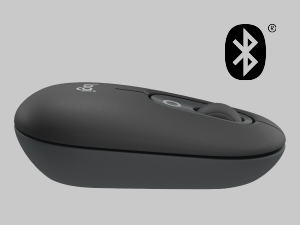
Image: A visual representation of the customizable top button on the POP Mouse, showing its function to access an emoji menu on a connected computer.
6. Kesambungan Berbilang Peranti
The Logitech POP Mouse can connect to up to three different devices simultaneously using Bluetooth. You can easily switch between these devices.
6.1. Menukar Peranti
To switch between paired devices, press the Easy-Switch button (1, 2, or 3) on the bottom of the mouse corresponding to the desired device. The LED indicator will briefly light up to confirm the selected channel.
6.2. Logitech FLOW (Advanced Feature)
For seamless control across multiple computers, install Logitech Options+ Software on all devices. With Logitech FLOW enabled, you can move your mouse cursor across screens as if they were a single desktop, even copying and pasting text, images, and files antara mereka.
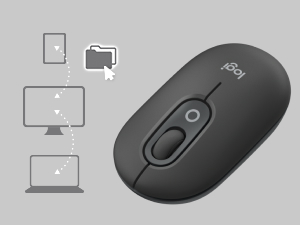
Image: A diagram showing how the POP Mouse can control multiple devices, illustrating the FLOW feature for cross-device interaction.
7. Penyelenggaraan
7.1. Penggantian Bateri
The POP Mouse operates on a single AA battery with an estimated life of up to 24 months. When the battery is low, the LED indicator on the bottom of the mouse may flash. Replace the battery by following the steps in Section 3.1.
7.2. Pembersihan
Untuk membersihkan tetikus anda, gunakan kain lembut dan tidak berbulu. Untuk kotoran degil, sedikit dampen kain dengan air. Elakkan menggunakan bahan kimia yang keras atau bahan yang melelas.
8. Penyelesaian masalah
| Masalah | Penyelesaian |
|---|---|
| Tetikus tidak boleh dihidupkan. | Ensure the power switch on the bottom of the mouse is in the 'ON' position. Check and replace the AA battery if necessary. |
| Tetikus tidak bersambung melalui Bluetooth. |
|
| Pergerakan kursor tidak menentu atau tidak responsif. |
|
| Custom button not working. | Ensure Logitech Options+ Software is installed and running on your computer, and the button is correctly configured. |
9. Spesifikasi
| Ciri | Perincian |
|---|---|
| Nombor Model | 910-007165 |
| Ketersambungan | Bluetooth 5.1 |
| Julat Tanpa Wayar | Sehingga 10 meter (32.81 kaki) |
| Teknologi Sensor | Logitech High Precision Optical Tracking |
| Bilangan Butang | 4 (Left/Right click, Scroll wheel click, Top customizable button) |
| Jenis Bateri | 1 x bateri AA |
| Hayat Bateri | Sehingga 24 bulan (mungkin berbeza mengikut penggunaan) |
| Dimensi (LxWxH) | 14.12 x 2.34 x 1.38 inci (35.86 x 5.94 x 3.51 cm) |
| Berat badan | 2.89 ounces (82g with battery) |
| Keserasian Sistem Pengendalian | Windows 10 or later, macOS 10.15 or later, iPadOS, Chrome OS, Android |

Image: Technical drawing displaying the length, width, and height measurements of the Logitech POP Mouse.
10. Waranti dan Sokongan
Untuk maklumat jaminan dan sokongan teknikal, sila lawati sokongan Logitech rasmi website or refer to the user documentation included in your product package.
- Sokongan dalam talian: support.logi.com
- Pendaftaran Produk: Registering your product can help you receive faster support and updates.


