pengenalan
This manual provides essential instructions for setting up, operating, maintaining, and troubleshooting your new Tesla 65-inch 4K UHD Smart TV (Model 65E635SUS). Please read this manual thoroughly before using the television to ensure proper operation and to maximize your viewpengalaman dalam. Simpan manual ini untuk rujukan masa hadapan.
Maklumat Keselamatan Penting: Always follow basic safety precautions when using this product to reduce the risk of fire, electric shock, and injury. Do not attempt to service this product yourself. Refer all servicing to qualified service personnel.
1. Persediaan
1.1 Pembukaan dan Pemeriksaan Kandungan
Keluarkan TV dari bungkusannya dengan berhati-hati. Pastikan semua komponen ada:
- Tesla 65-inch 4K UHD Smart TV
- Alat Kawalan Jauh
- Bateri AAA untuk Kawalan Jauh
- Stand TV (2 keping)
- Skru untuk Kaki TV
- Kord Kuasa
- Manual Pengguna (dokumen ini)

Imej 1.1: Depan view of the Tesla 65-inch Smart TV with its stand.
1.2 Memasang Stand TV
- Letakkan TV menghadap ke bawah pada permukaan yang lembut dan rata untuk mengelakkan kerosakan skrin.
- Jajarkan setiap bahagian dirian dengan slot yang sepadan di bahagian bawah TV.
- Pasangkan setiap bahagian penyangga dengan skru yang disediakan. Pastikan ia diketatkan dengan kuat.

Imej 1.2: Belakang view of the TV, illustrating the stand attachment points.
Nota: If you plan to wall-mount the TV, refer to the wall-mount kit instructions (sold separately) and skip this step. Ensure proper ventilation when wall-mounting.
1.3 Kuasa Penyambung
Sambungkan kord kuasa ke input kuasa TV dan kemudian ke saluran keluar dinding. TV akan memasuki mod siap sedia.
1.4 Persediaan Awal
Sebaik sahaja dihidupkan buat kali pertama, TV akan membimbing anda melalui proses persediaan awal:
- Pemilihan Bahasa: Pilih bahasa pilihan anda.
- Sambungan Rangkaian: Sambung ke rangkaian Wi-Fi anda atau gunakan kabel Ethernet untuk sambungan berwayar.
- Log Masuk Akaun Google: Sign in with your Google account to access Google Play Store, Google Assistant, and other Android TV features.
- Imbasan Saluran: Scan for available TV channels if you are using an antenna or cable connection.
- Tetapan Privasi: Review and adjust privacy settings as desired.
2. Arahan Operasi
2.1 Alat Kawalan Jauh Lebihview
The provided remote control allows you to navigate the TV's features. Insert the AAA batteries into the remote control before use.

Image 2.1: Bluetooth remote control for the Tesla Smart TV.
- Butang Kuasa: Menghidupkan atau mematikan TV (mod siap sedia).
- Pad Navigasi (Atas/Bawah/Kiri/Kanan/OK): Menavigasi menu dan memilih item.
- Butang Belakang: Kembali ke skrin sebelumnya.
- Butang rumah: Mengakses skrin utama Android TV.
- Kelantangan Naik/Turun: Melaraskan tahap kelantangan.
- Butang Bisukan: Membisukan atau menyahredamkan bunyi.
- Butang Pembantu Google: Mengaktifkan kawalan suara.
- Butang Pintasan Apl: Direct access to popular streaming services (e.g., Netflix, YouTube).
2.2 Android TV 11 Interface Navigation
The Android TV 11 interface provides access to apps, settings, and content. Use the navigation pad on your remote to move through the home screen.
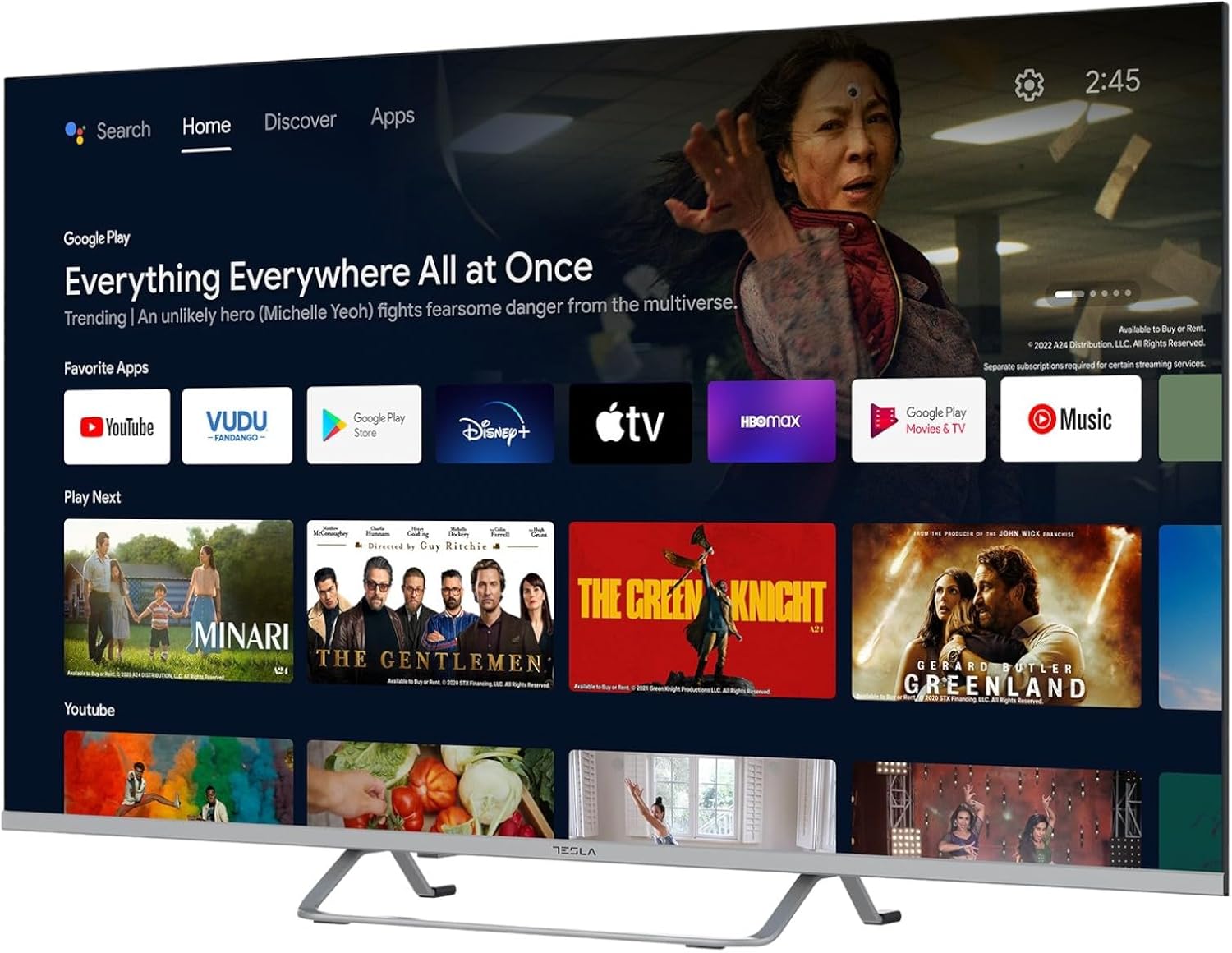
Image 2.2: The Android TV 11 home screen, displaying various applications and content suggestions.
- Skrin Utama: Memaparkan kandungan yang disyorkan, apl yang dipasang dan sumber input.
- Apps Section: Akses semua aplikasi yang dipasang.
- tetapan: Configure TV settings, network, accounts, and device preferences.
2.3 Menggunakan Google Assistant
Press the Google Assistant button on your remote and speak into the microphone to control your TV, search for content, get information, and more.
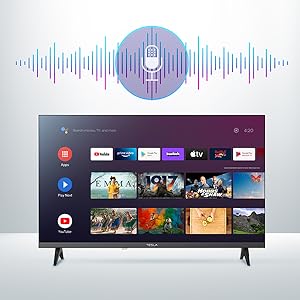
Image 2.3: Visual representation of Google Assistant activation on the TV screen.
Exampsedikit arahan:
- "Open Netflix"
- "Cari untuk action movies"
- "Bagaimana keadaan cuaca?"
- "Turn up the volume"
2.4 Chromecast Terbina dalam
Use Chromecast built-in to cast content from your compatible smartphone, tablet, or computer directly to your TV. Ensure your device is connected to the same Wi-Fi network as the TV.

Image 2.4: A smartphone casting content to the TV via Chromecast.
2.5 Menyambung Peranti Luaran
Your TV offers multiple connectivity options:
- Port HDMI (x4): Connect Blu-ray players, game consoles, set-top boxes, etc.
- Port USB (x2): Connect USB drives for media playback or external keyboards/mice.
- Ethernet (LAN): Untuk sambungan internet berwayar.
- Wi-Fi: Untuk sambungan internet tanpa wayar.
- Bluetooth: Sambungkan fon kepala tanpa wayar, pembesar suara atau peranti Bluetooth yang lain.

Imej 2.5: Pro sampinganfile of the TV, highlighting accessible ports.
2.6 Tetapan Gambar dan Bunyi
Access the TV's settings menu to customize picture and sound options.
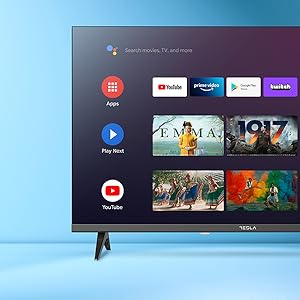
Imej 2.6: Cthample of the TV's settings menu for customization.
- Mod Gambar: Select from Standard, Vivid, Sport, Movie, Game, or User (custom) modes. Adjust brightness, contrast, color, and sharpness.
- HDR10: The TV supports HDR10 for enhanced contrast and color with compatible content.
- Mod Bunyi: Choose from Standard, Music, Movie, Sport, or User (custom) modes. Use the equalizer to fine-tune audio frequencies.
- Penceramah: The TV features 2 x 12W speakers.
3. Penyelenggaraan
3.1 Membersihkan TV
- Skrin: Lap skrin perlahan-lahan dengan kain lembut yang tidak berbulu. Untuk tanda degil, ringankan dampen kain dengan air atau pembersih skrin khusus. Jangan sekali-kali menyembur pembersih terus ke skrin.
- Badan: Lap badan TV dengan kain lembut dan kering. Elakkan menggunakan pembersih atau pelarut yang kasar.
- Sentiasa cabut plag TV dari salur keluar kuasa sebelum membersihkan.
3.2 Kemas Kini Perisian
Your Tesla Smart TV may receive software updates to improve performance and add new features. Ensure your TV is connected to the internet to receive these updates automatically or check for them manually in the settings menu.
4. Penyelesaian masalah
Sebelum menghubungi sokongan, cuba penyelesaian berikut untuk isu biasa:
| Masalah | Penyelesaian yang Mungkin |
|---|---|
| Tiada kuasa | Check if the power cord is securely connected to the TV and the wall outlet. Ensure the outlet is working. |
| Tiada gambar, tetapi bunyi hadir | Ensure the correct input source is selected. Check cable connections to external devices. Try restarting the TV. |
| Tiada bunyi, tetapi ada gambar | Check the volume level and ensure the TV is not muted. Verify audio settings and external speaker connections if applicable. |
| Alat kawalan jauh tidak berfungsi | Replace the batteries. Ensure there are no obstructions between the remote and the TV. Re-pair the Bluetooth remote if necessary (refer to TV settings). |
| Isu sambungan rangkaian | Mulakan semula penghala dan modem anda. Semak kata laluan Wi-Fi. Cuba sambungan Ethernet berwayar jika boleh. |
| Apl perlahan atau ranap | Close unused apps. Clear app cache (Settings > Apps > [App Name] > Clear cache). Restart the TV. |
5. Spesifikasi
| Ciri | Perincian |
|---|---|
| Jenama | TESLA |
| Nombor Model | 65E635SUS |
| Saiz Skrin | 65 Inci (165 cm) |
| Teknologi Paparan | LED |
| Resolusi | 4K (3840 x 2160) |
| Kadar Segar Semula | 60 Hz |
| Sistem Operasi | Android TV 11 |
| Ciri Khas | High Dynamic Range (HDR10), Google Play, Chromecast Built-in, Google Assistant, Personalized Surround Sound |
| Ketersambungan | Wi-Fi, Bluetooth, Ethernet (LAN) |
| Port HDMI | 4 |
| Port USB | 2 |
| Output Audio | Pembesar Suara 2 x 12W |
| Dimensi Produk (dengan pendirian) | 25D x 25W x 144.5H cm (approximate) |
6. Waranti dan Sokongan
For warranty information, please refer to the warranty card included with your product or visit the official Tesla webtapak. Simpan bukti pembelian anda untuk tuntutan waranti.
For technical support or service inquiries, please contact Tesla customer service through their official channels. Contact details can typically be found on the manufacturer's webtapak atau dalam pembungkusan produk.


