1. Pengenalan
Welcome to the user manual for your new ZZB ZB10 10.1-inch Android 14 Tablet PC. This guide provides essential information for setting up, operating, maintaining, and troubleshooting your device. Please read this manual thoroughly to ensure optimal performance and longevity of your tablet.

Rajah 1: Depan view of the ZZB ZB10 Tablet.
2. Apa yang ada di dalam Kotak
Upon opening your ZZB ZB10 Tablet PC package, please verify that all the following items are included:
- ZZB ZB10 10.1-inch Android 14 Tablet PC
- Kabel Jenis-C
- Manual Pengguna (dokumen ini)

Figure 2: The ZZB ZB10 Tablet and its packaging.
3. Produk Lebihview
Familiarize yourself with the physical components of your ZZB ZB10 Tablet.
3.1 Komponen Fizikal
- paparan: 10.1-inch IPS screen.
- Kamera Depan: Located above the screen.
- Kamera Belakang: Located on the back panel.
- Butang Kuasa: Typically on the side or top edge.
- Butang Kelantangan: Laraskan tahap audio.
- Port USB Jenis-C: Untuk pengecasan dan pemindahan data.
- Slot Kad MicroSD: Untuk storan yang boleh dikembangkan.

Rajah 3: Belakang view of the ZZB ZB10 Tablet, highlighting the camera and model information.
4. Persediaan
4.1 Mengecas Tablet
Before first use, fully charge your tablet. Connect the provided Type-C cable to the tablet's charging port and the other end to a compatible USB power adapter (not included) or a computer's USB port. The battery indicator on the screen will show charging status.
4.2 Hidupkan/Mati Kuasa
- Untuk Menghidupkan: Tekan dan tahan butang Power sehingga skrin menyala.
- Untuk Mematikan: Tekan dan tahan butang Kuasa sehingga menu muncul, kemudian pilih 'Matikan'.
- Untuk Mulakan Semula: Tekan dan tahan butang Kuasa sehingga menu muncul, kemudian pilih 'Mulakan Semula'.
4.3 Persediaan Awal
Upon first power-on, the tablet will guide you through the initial setup process. This typically includes:
- Memilih bahasa anda.
- Menyambung ke rangkaian Wi-Fi.
- Setting up your Google account (or skipping for later).
- Reviewmenerima dan menerima terma dan syarat.
5. Arahan Operasi
5.1 Navigasi Asas
The ZZB ZB10 Tablet runs on Android 14, offering an intuitive touch interface.
- Ketik: Pilih item atau buka apl.
- Leret: Navigasi melalui skrin atau tatal kandungan.
- Cubit-untuk-Zum: Besarkan atau kecilkan kandungan pada skrin.
- Tekan lama: Akses menu kontekstual atau alihkan ikon.
5.2 Menyambung ke Wi-Fi
- Pergi ke tetapan > Rangkaian & internet > Wi-Fi.
- Togol Wi-Fi On.
- Pilih rangkaian yang anda inginkan daripada senarai.
- Masukkan kata laluan jika digesa, kemudian ketik Sambung.
5.3 Berpasangan Bluetooth
- Pergi ke tetapan > Peranti yang disambungkan > Bluetooth.
- Togol Bluetooth On.
- Ensure the device you wish to pair is in pairing mode.
- Select the device from the 'Available devices' list and follow on-screen prompts.
5.4 Penggunaan Kamera
The tablet features a 2MP front camera and an 8MP rear camera.
- Buka Kamera apl.
- Ketik butang pengatup untuk mengambil foto.
- Bertukar antara kamera hadapan dan belakang menggunakan ikon kamera.
- Pilih mod video untuk merakam video.

Figure 4: Using the tablet's camera for photos or video calls.
5.5 Pengurusan Storan
The tablet comes with 32GB of internal storage and supports up to 1TB expandable storage via a MicroSD card.
- To insert a MicroSD card, locate the card slot on the side of the tablet.
- Gently insert the MicroSD card until it clicks into place.
- You can manage storage in tetapan > Penyimpanan.

Figure 5: The tablet supports extended storage up to 1TB.
5.6 Reading Mode
The tablet features a reading mode designed to reduce eye strain by adjusting screen colors and brightness. This mode can typically be activated from the quick settings panel (swipe down from the top of the screen) or within the display settings.
6. Penyelenggaraan
6.1 Pembersihan
Use a soft, lint-free cloth to clean the screen and body of the tablet. Avoid using harsh chemicals or abrasive materials, which can damage the device.
6.2 Penjagaan Bateri
- Elakkan daripada mendedahkan tablet kepada suhu yang melampau.
- Jangan biarkan bateri dicas sepenuhnya dengan kerap.
- Gunakan hanya kabel Jenis-C yang disediakan untuk pengecasan.
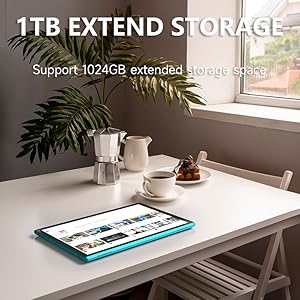
Figure 6: The tablet features a 6000mAh battery for extended use.
6.3 Kemas Kini Perisian
Periodically check for system updates to ensure your tablet has the latest features and security patches. Go to tetapan > Sistem > Kemas kini sistem.
7. Penyelesaian masalah
Jika anda menghadapi masalah dengan tablet anda, rujuk kepada penyelesaian biasa berikut:
| Masalah | Penyelesaian yang Mungkin |
|---|---|
| Tablet tidak boleh dihidupkan | Ensure the battery is charged. Connect to a power source for at least 30 minutes. |
| Skrin tidak bertindak balas | Restart the tablet by holding the power button for 10-15 seconds. |
| Isu sambungan Wi-Fi | Restart your Wi-Fi router. Forget the network in tablet settings and reconnect. |
| Apl ranap atau beku | Clear the app's cache (Settings > Apps > [App Name] > Storage > Clear cache). If the problem persists, uninstall and reinstall the app. |
| Prestasi perlahan | Tutup aplikasi latar belakang yang tidak diperlukan. Kosongkan cache dan sementara files. Pertimbangkan untuk menetapkan semula tetapan kilang jika masalah berterusan (sandaran data terlebih dahulu). |
8. Spesifikasi
Key technical specifications for the ZZB ZB10 Tablet PC:
- model: ZB10
- Sistem pengendalian: Android 14
- paparan: 10.1-inch IPS, 1280 x 800 pixels
- RAM: 6GB (including 4GB virtual memory)
- Storan Dalaman: ROM 32GB
- Storan Boleh Dikembangkan: Sehingga 1TB melalui kad MicroSD
- Kamera Belakang: 8 MP
- Kamera Depan: 2 MP
- Kesambungan Tanpa Wayar: Wi-Fi 802.11ac, Bluetooth
- Bateri: 6000mAh, up to 12 hours average life
- Dimensi: 12 x 7 x 0.3 inci
- Berat: 1 paun
Figure 7: The tablet's 10.1-inch IPS display.
9. Waranti dan Sokongan
For warranty information and customer support, please refer to the documentation provided with your purchase or visit the official ZZB webtapak. Simpan bukti pembelian anda untuk tuntutan waranti.


