1. Produk Lebihview
The Phomemo M02 Pro is a compact, portable thermal printer designed for high-resolution printing of photos, labels, notes, and more. It operates without ink or toner, utilizing thermal paper for printing. This device connects wirelessly via Bluetooth to smartphones and tablets, offering versatile printing capabilities for various applications, including study, creative projects, and organization.

Image: Phomemo M02 Pro Mini Thermal Printer in pink, shown with various printed outputs like a cat photo, a to-do list, and scientific diagrams, alongside rolls of thermal paper. A smartphone displaying the print preview juga kelihatan.
Kandungan Pakej:
- 1 x Phomemo M02 Pro Mini Printer
- 1 x 53mm White Thermal Paper Roll
- 1 x 53mm Transparent Thermal Paper Roll
- 1 x 53mm Semi-transparent Thermal Paper Roll
- 1 x Manual Pengguna
- 1 x Kabel Pengecas Jenis-C
- Kotak Hadiah 1 x

Image: The Phomemo M02 Pro Mini Printer package contents, including the printer, gift box, and three types of paper rolls (white, semi-transparent, transparent).
2. Panduan Persediaan
2.1 Mengecas Pencetak
Before first use, ensure the printer is fully charged. Connect the provided Type-C charging cable to the printer's charging port and a compatible USB power adapter (not included). The indicator light will show charging status.
2.2 Memasang Kertas Termal
- Buka penutup pencetak dengan lembut.
- Masukkan gulungan kertas terma ke dalam petak kertas, pastikan bahagian pencetakan menghadap kepala cetakan terma.
- Pull a small length of paper out of the printer and close the cover firmly.

Imej: Dari dekat view of the Phomemo M02 Pro printer showing the paper compartment and how to insert a thermal paper roll.
2.3 Pemasangan Aplikasi dan Sambungan Bluetooth
The Phomemo M02 Pro printer requires the "Phomemo" application for operation. Follow these steps to install the app and connect your printer:
- Download the "Phomemo" app from the App Store (untuk peranti iOS) atau Gedung Google Play (untuk peranti Android).
- Pastikan Bluetooth didayakan pada telefon pintar atau tablet anda.
- Open the Phomemo app. The app will guide you through connecting to the printer via Bluetooth. Select your M02 Pro printer from the list of available devices.

Image: A user connecting the Phomemo M02 Pro printer to a smartphone via Bluetooth, with icons for App Store and Google Play visible.
3. Arahan Operasi
3.1 Printing Photos and Images
The M02 Pro offers 300 DPI resolution for clear black and white prints.
- In the Phomemo app, select the "Image" or "Photo" function.
- Choose an image from your device's gallery or take a new photo.
- Edit the image using the app's tools (filters, cropping, text, etc.).
- Tap the print icon to send the image to the printer.

Image: A comparison showing the print quality of the Phomemo M02 Pro (300 DPI) versus other low-resolution printers, highlighting the clearer output of the M02 Pro.
3.2 Creating Labels and Notes
The printer supports various paper sizes (15mm, 25mm, 53mm) and offers templates for labels, memos, and to-do lists.
- Select the "Label" or "Note" function within the Phomemo app.
- Choose from a variety of pre-set templates or create your own design.
- Input your text, add graphics, or use the OCR function to extract text from images.
- Confirm the print settings and initiate printing.
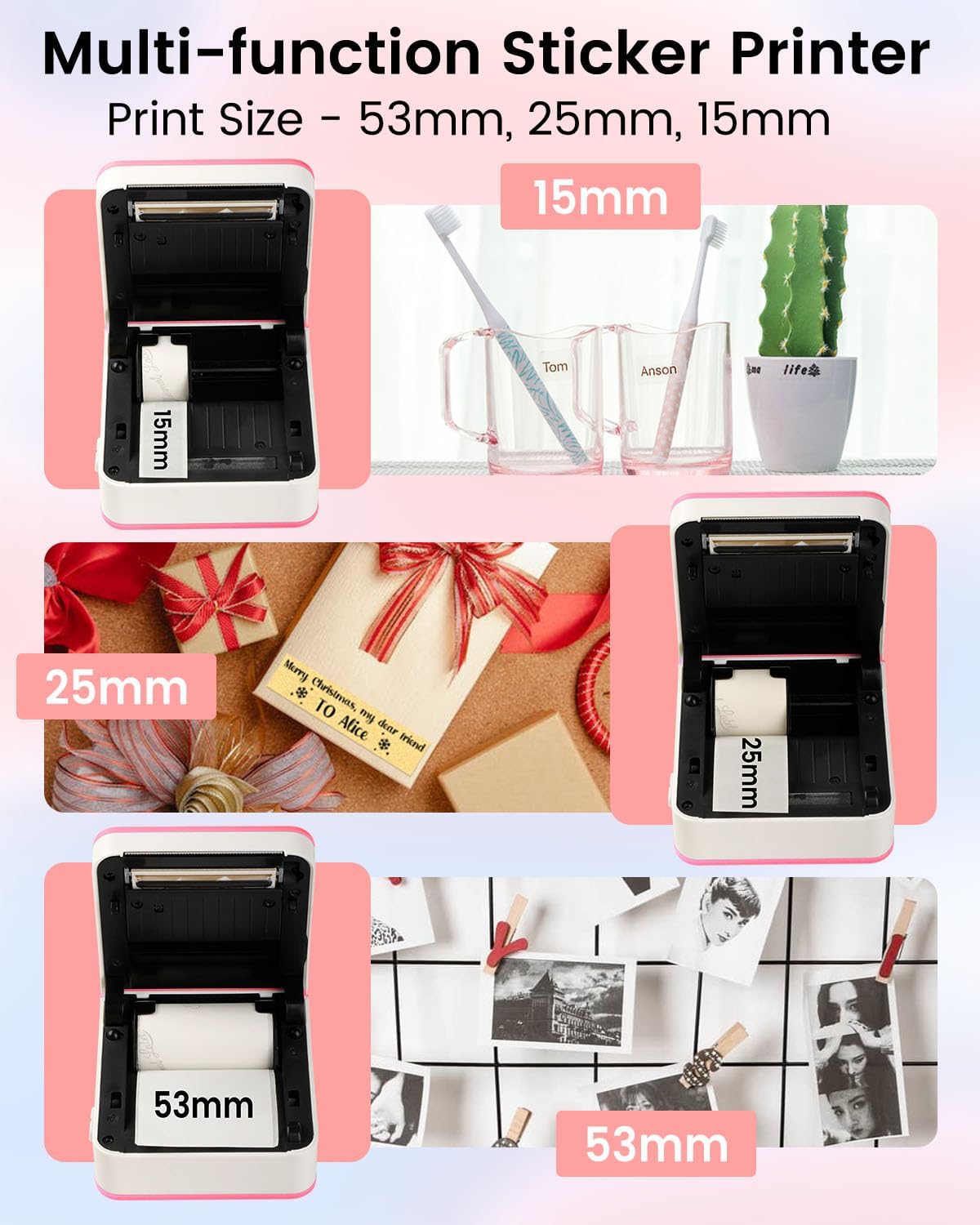
Image: The Phomemo M02 Pro demonstrating its compatibility with 15mm, 25mm, and 53mm paper sizes, showing examples of printed labels and images for each size.
3.3 Utilizing OCR and Scan Functions
- OCR Function: This feature allows you to extract editable text directly from printed documents or images using your phone's camera through the app.
- Fungsi Imbasan: Scan text from a book or document, and the app will convert it into an image for printing. This is useful for quickly digitizing and printing study materials.

Image: A screenshot of the Phomemo app interface showing various functions like "Edit Note", "Labels", "Banner", "Template Block", "OCR", "Scan", "Materials", "Image", and "Document".
4. Penyelenggaraan
4.1 Membersihkan Kepala Cetak
To maintain optimal print quality, regularly clean the thermal print head. Use a soft, lint-free cloth lightly dampditambah dengan isopropil alkohol. Lap permukaan kepala cetakan dengan perlahan. Pastikan pencetak dimatikan dan diputuskan daripada kuasa sebelum dibersihkan.
4.2 Paper Storage
Store thermal paper in a cool, dry place away from direct sunlight and heat sources. Improper storage can affect paper quality and print longevity.
4.3 Penjagaan Bateri
The printer is equipped with a 1000mAh lithium-polymer battery. For best battery life, avoid fully discharging the battery frequently. Charge the printer regularly, even if not in use for extended periods.
5. Penyelesaian masalah
| Masalah | Kemungkinan Punca | Penyelesaian |
|---|---|---|
| Pencetak tidak dihidupkan. | Masalah bateri atau kuasa lemah. | Charge the printer using the provided Type-C cable. Ensure the charging cable and adapter are functional. |
| Poor print quality (faded, blank lines). | Dirty print head, incorrect paper insertion, or low battery. | Clean the print head. Re-insert the paper roll correctly. Ensure the printer is sufficiently charged. |
| Tidak dapat menyambung melalui Bluetooth. | Bluetooth not enabled, app issue, or printer not discoverable. | Ensure Bluetooth is on for both devices. Restart the Phomemo app and the printer. Try pairing again. |
| Kertas jem. | Improper paper insertion or foreign object. | Turn off the printer. Open the cover and carefully remove any jammed paper. Re-insert paper correctly. |
6. Spesifikasi
| Ciri | Perincian |
|---|---|
| Nombor Model | M02PRO-PINK-3SET |
| Teknologi Percetakan | terma |
| Resolusi | 300 DPI |
| Ketersambungan | Bluetooth |
| Peranti Serasi | Telefon Pintar, Tablet (iOS, Android) |
| Saiz Kertas Disokong | 15mm, 25mm, 53mm |
| Kapasiti Bateri | Polimer Litium 1000mAh |
| Dimensi | 8.4 cm x 8.1 cm x 4.0 cm (lebih kurang) |
| Ink/Toner Required | Tidak |
7. Waranti dan Sokongan
For warranty information and customer support, please refer to the official Phomemo webtapak atau hubungi perkhidmatan pelanggan mereka secara langsung. Simpan resit pembelian anda sebagai bukti pembelian untuk tuntutan waranti.
Kedai Rasmi Phomemo: Kedai Phomemo di Amazon


