pengenalan
This manual provides comprehensive instructions for the setup, operation, and maintenance of your ASUSTOR AS5402T Network Attached Storage (NAS) device. The AS5402T is a high-performance 2-bay NAS designed for home and small office environments, featuring an Intel Quad-Core 2.0GHz CPU, four M.2 NVMe SSD slots, and dual 2.5 Gigabit Ethernet ports for efficient data management and multimedia streaming.

Figure 1: ASUSTOR AS5402T NAS Unit
The AS5402T NAS unit, shown from the front, highlighting its sleek black design and front-facing USB port.
Maklumat Keselamatan
Please read all safety instructions carefully before using the device. Failure to follow these instructions may result in electric shock, fire, or damage to the device.
- Ensure the power adapter is connected to a grounded outlet.
- Jangan dedahkan peranti kepada air atau kelembapan berlebihan.
- Jangan halang bukaan pengudaraan. Pastikan aliran udara yang betul di sekitar peranti.
- Gunakan hanya penyesuai kuasa yang disediakan bersama peranti.
- Elakkan meletakkan peranti di bawah cahaya matahari langsung atau berhampiran sumber haba.
- Jangan cuba membuka atau membaiki peranti sendiri. Rujuk semua servis kepada kakitangan yang berkelayakan.
Kandungan Pakej
Sahkan bahawa semua item yang disenaraikan di bawah disertakan dalam pakej anda. Jika terdapat sebarang item yang hilang atau rosak, hubungi peruncit anda.

Figure 2: AS5402T Package Contents and Dimensions
This diagram illustrates the AS5402T unit's dimensions and lists the included accessories: the NAS unit, Quick Installation Guide, AC Power Cord, AC Power Adapter, two RJ-45 LAN Cables (Cat 5e), and eight Flat Head Screws for 2.5" HDDs.
- ASUSTOR AS5402T Unit x1
- Panduan Pemasangan Pantas x1
- Kabel Kuasa AC x1
- Penyesuai Kuasa AC x1
- RJ-45 LAN Cable (Cat 5e) x2
- Flat Head Screw (for 2.5" HDD) x8
Perkakasan Selesaiview
Familiarize yourself with the components and ports of your AS5402T NAS.
Figure 3: AS5402T Front and Rear Panel Layout
This image displays the front and rear panels of the AS5402T, labeling key components such as the Power Button, various LED indicators (Power, System Status, Network, USB, Hard Drive), One Touch Backup Button, USB 3.2 Gen 2 ports, HDMI port, 2.5-Gigabit Ethernet ports, Reset Button, DC input, System Fan, and K-Lock security slot.
Panel Depan
- Butang Kuasa: Turns the NAS on or off.
- Penunjuk LED:
- LED Kuasa: Menunjukkan status kuasa.
- System Status LED: Shows system health.
- Network LED: Indicates network activity.
- USB LED: Indicates USB device connection.
- Hard Drive LEDs: Show status of installed hard drives.
- One Touch Backup Button: Initiates a quick backup from a connected USB device.
- Port USB 3.2 Gen 2: Untuk menyambungkan peranti USB.
Panel Belakang
- Port USB 3.2 Gen 2 (x2): Port USB berkelajuan tinggi tambahan.
- Port HDMI: Untuk menyambung ke paparan.
- 2.5-Gigabit Ethernet Ports (x2): Untuk sambungan rangkaian.
- Butang Tetapkan Semula: Resets the NAS to factory defaults (use with caution).
- Input DC: Sambungan penyesuai kuasa.
- Kipas Sistem: For cooling the system.
- K-Lock: Slot keselamatan Kensington.
Komponen Dalaman
- Drive Bays (x2): For 3.5" or 2.5" SATA HDDs/SSDs.
- M.2 NVMe SSD Slots (x4): For high-speed NVMe SSDs, ideal for caching or storage pools.
- RAM DDR4: 4GB DDR4-2933 RAM, expandable.
- Intel Celeron N5105 CPU: Quad-Core 2.0GHz processor.


Figure 4: Internal M.2 Slots and Dual 2.5GbE Ports
The left image shows the four internal M.2 NVMe SSD slots, providing high-speed storage expansion. The right image highlights the dual 2.5-Gigabit Ethernet ports on the rear panel, enabling fast network connectivity.
Persediaan
Follow these steps to set up your AS5402T NAS for the first time.
1. Pemasangan Perkakasan
- Install Hard Drives/SSDs:
Slide out the drive trays from the front of the NAS. Secure your 3.5" or 2.5" SATA HDDs/SSDs into the trays using the provided screws. Slide the trays back into the NAS until they click into place.
- Pasang M.2 NVMe SSD (Pilihan):
Locate the M.2 slots inside the NAS. Carefully insert the M.2 NVMe SSDs into the slots and secure them with the retaining screws.
- Sambungkan Kabel Rangkaian:
Connect one or both 2.5-Gigabit Ethernet ports on the rear of the NAS to your router or network switch using the provided RJ-45 LAN cables.
- Sambungkan Kuasa:
Connect the AC power adapter to the DC input port on the rear of the NAS, then plug the power cord into a grounded electrical outlet.
- Hidupkan kuasa:
Press the Power Button on the front panel to turn on the NAS. The Power LED will illuminate.
2. Initial Configuration (ADM Setup)
Once the NAS is powered on, you will need to access the ASUSTOR Data Master (ADM) operating system for initial setup.


Figure 5: ADM Setup Process and Control Center
The left image illustrates the four-step process for setting up the ASUSTOR NAS. The right image shows the ASUSTOR Control Center application, used to discover and manage your NAS on the network.
- Download ASUSTOR Control Center:
On a computer connected to the same network as your NAS, download and install the ASUSTOR Control Center utility from the official ASUSTOR webtapak (www.asustor.com/service/downloads).
- Discover NAS:
Launch ASUSTOR Control Center. It will automatically scan your network and display your AS5402T NAS. Select your NAS from the list.
- Initialize System:
Follow the on-screen prompts to initialize the system. This includes creating an administrator password, setting up network configurations, and installing the latest ADM firmware.
- Create Storage Pool and Volume:
After ADM installation, you will be guided to create a storage pool and volume. Choose your preferred RAID level (e.g., RAID 1 for data redundancy with two drives) and file system (e.g., Btrfs for advanced features like snapshots).
Operating the NAS
This section covers common operations and features of the ASUSTOR AS5402T NAS.
Mengakses Files dan Data

Figure 6: Cross-Platform Multi-User Access
The AS5402T supports access from various devices including desktops, laptops, tablets, and smartphones, enabling seamless file sharing across different operating systems.
- Network Shares: Access shared folders on your NAS directly from your computer's file explorer (Windows File Explorer, macOS Finder) using SMB/CIFS or NFS protocols.
- File Explorer (ADM): Gunakan terbina dalam File Explorer application within the ADM web interface to manage files directly from your browser.
- Apl Mudah Alih: Download ASUSTOR mobile apps (e.g., AiData) for convenient file access and management on your smartphone or tablet.
Pengurusan Pengguna dan Kumpulan
Manage user accounts and groups to control access permissions to shared folders and applications.
- Navigasi ke Access Control > Local Users or Local Groups in ADM.
- Create new users, assign passwords, and configure their access rights to specific folders.
- Organize users into groups for easier management of permissions.
Application Installation (App Central)
Extend the functionality of your NAS by installing various applications from App Central.

Figure 7: Personal Plex Media Center
The AS5402T can serve as a powerful media server, allowing you to stream and play videos, music, and photos across various devices using applications like Plex.
- Buka Pusat Aplikasi from the ADM desktop.
- Browse categories or search for specific applications (e.g., Plex Media Server, Download Center, Surveillance Center).
- Click "Install" to add the application to your NAS.

Figure 8: ASUSTOR Integration with Adobe Creative Cloud
ASUSTOR NAS devices are designed to integrate with professional creative workflows, including Adobe Creative Cloud, providing efficient storage solutions for content creators.
Data Backup and Synchronization
Protect your data by configuring backup and synchronization tasks.
- Sandaran & Pulihkan: Schedule backups to external USB drives, remote NAS devices, or cloud storage services.
- DataSync Center: Segerakkan files with public cloud services like Google Drive, Dropbox, and OneDrive.
- Snapshots (Btrfs): If using Btrfs, utilize Snapshot Center to create point-in-time copies of your data for quick recovery from accidental deletion or ransomware attacks.
Remote Access and Multimedia
Access your NAS content from anywhere and enjoy multimedia features.

Figure 9: Live Streaming Capabilities
The AS5402T supports live streaming setups, allowing users to broadcast content to various platforms like YouTube, Twitch, and Facebook.
- EZ-Connect: Simplify remote access setup without complex router configurations.
- LooksGood: Manage and stream your video collection.
- SoundsGood: Organize and play your music library.
- Galeri Foto: Browse and share your photo albums.
- Output HDMI: Connect the NAS directly to a TV or monitor for direct multimedia playback. The AS5402T supports 10-bit 4K hardware decoding.
Penyelenggaraan
Regular maintenance ensures optimal performance and data integrity of your NAS.
- Kemas kini Firmware: Regularly check for and install ADM firmware updates via Settings > EZ-Update to ensure your system has the latest features, security patches, and bug fixes.
- Pemantauan Kesihatan Sistem: Monitor system status, CPU usage, memory usage, and disk health using the Maklumat Sistem dan Pengurus Storan applications in ADM.
- Pemeriksaan Kesihatan Cakera: Periodically run S.M.A.R.T. tests on your hard drives through Pengurus Storan to detect potential issues early.
- Clean Ventilation: Ensure the NAS ventilation openings are clear of dust and obstructions to prevent overheating.
Menyelesaikan masalah
Bahagian ini menyediakan penyelesaian kepada isu biasa yang mungkin anda hadapi.
| Masalah | Kemungkinan Punca | Penyelesaian |
|---|---|---|
| NAS not powering on. | Power cable loose, power adapter faulty, power outlet issue. | Periksa semua sambungan kuasa. Cuba salur keluar kuasa yang berbeza. Pastikan penyesuai kuasa berfungsi. |
| Cannot find NAS on network. | Network cable disconnected, incorrect IP settings, firewall blocking. | Verify LAN cable connection. Use ASUSTOR Control Center to locate the NAS. Temporarily disable firewall on your computer. Ensure NAS and computer are on the same network segment. |
| Lambat file kelajuan pemindahan. | Network congestion, faulty cable, drive performance issues, network adapter settings. | Check network cable integrity. Ensure your network infrastructure (router, switch) supports 2.5GbE. Verify drive health in Storage Manager. Disable Jumbo Frames if not supported by all devices. |
| Hard drive LED blinking red. | Drive failure, bad sectors, RAID degradation. | Semak Pengurus Storan for detailed drive status. If a drive has failed, replace it and repair the RAID volume. Back up critical data immediately. |
| Forgot ADM password. | Kata laluan terlupa. | Use the reset button on the rear panel (refer to manual for specific reset procedure, usually a 3-second press for network settings reset, 10-second for factory reset without data loss). |
Spesifikasi
Detailed technical specifications for the ASUSTOR AS5402T NAS.
| Ciri | Penerangan |
|---|---|
| CPU | Intel Celeron N5105 Quad-Core 2.0GHz (Burst up to 2.9GHz) |
| RAM | 4GB DDR4-2933 (expandable) |
| Drive Bays | 2 x 3.5"/2.5" SATA III/II HDD/SSD |
| Slot M.2 | 4 x M.2 NVMe SSD slots |
| Pelabuhan Ethernet | 2 x 2.5 Gigabit Ethernet (2.5GbE) |
| Port USB | 3 x USB 3.2 Gen 2 (10 Gbps) |
| Output HDMI | 1 x HDMI 2.0b |
| Dimensi (HxWxD) | 170 x 114 x 230 mm (6.69 x 4.49 x 9.06 inci) |
| Berat badan | 2 kg (4.4 lbs) |
| Penggunaan Kuasa | (Varies by usage, refer to product page for specifics) |
| Tahap RAID yang disokong | Single, JBOD, RAID 0, RAID 1 |
| File Sistem | Internal: EXT4, Btrfs; External: FAT32, NTFS, HFS+, EXT3, EXT4 |
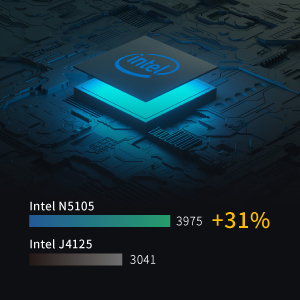
Figure 10: Intel N5105 CPU Performance
A visual representation of the Intel N5105 CPU's performance, indicating a significant improvement over previous generations like the Intel J4125.
Sokongan dan Waranti
For further assistance and warranty information, please refer to the following resources:
- Official ASUSTOR Webtapak: melawat www.asustor.com untuk maklumat produk, Soalan Lazim dan sumber sokongan.
- Manual Pengguna Dalam Talian: A detailed PDF user manual is available for download at ASUSTOR AS5402T User Manual (PDF).
- Sokongan Teknikal: Contact ASUSTOR technical support through their website for specific issues not covered in this manual.
- Maklumat Waranti: The ASUSTOR AS5402T comes with a standard manufacturer's warranty. Please refer to the warranty card included with your product or the official ASUSTOR webtapak untuk terma dan syarat tertentu.


