1. Pengenalan
This manual provides comprehensive instructions for the iClever MD179 Multi-Device Wireless Mouse. It covers setup, operation, maintenance, and troubleshooting to ensure optimal performance and a seamless user experience. Please read this manual thoroughly before using the product.
2. Kandungan Pakej
Sahkan bahawa semua item terdapat dalam pakej anda:
- iClever MD179 Wireless Mouse
- USB 2.4GHz Receiver (stored inside the mouse)
- Kabel Pengecas USB-C
- Manual Pengguna (dokumen ini)
3. Produk Lebihview
Biasakan diri anda dengan komponen dan kawalan tetikus:

Rajah 1: iClever MD179 Mouse Button Layout
- Butang Klik Kanan: Standard right-click functionality.
- Butang Klik Kiri: Standard left-click functionality.
- Scroll Wheel / Middle Click Button: For scrolling and middle-click actions.
- Butang ke hadapan: Navigasi ke hadapan web pelayar atau file explorers (Windows only).
- Butang Belakang: Navigasi ke belakang web pelayar atau file explorers (Windows only).
- Butang Suis DPI: Adjusts cursor sensitivity (DPI).
- Suis ON / OFF Kuasa: Located on the bottom of the mouse to turn it on or off.
- 2.4GHz / Bluetooth 1 / Bluetooth 2 Channel Indicator: Displays the active connection mode.
4. Persediaan
4.1 Mengecas Tetikus
Before initial use, fully charge the mouse.
- Connect the provided USB-C cable to the charging port on the front of the mouse and to a USB power source (e.g., computer USB port, USB wall adapter).
- Lampu penunjuk pengecasan akan menyala semasa pengecasan dan padam apabila dicas sepenuhnya.
- A full charge typically provides up to 2 months of use, depending on usage.
- The mouse can be used wirelessly while it is charging.
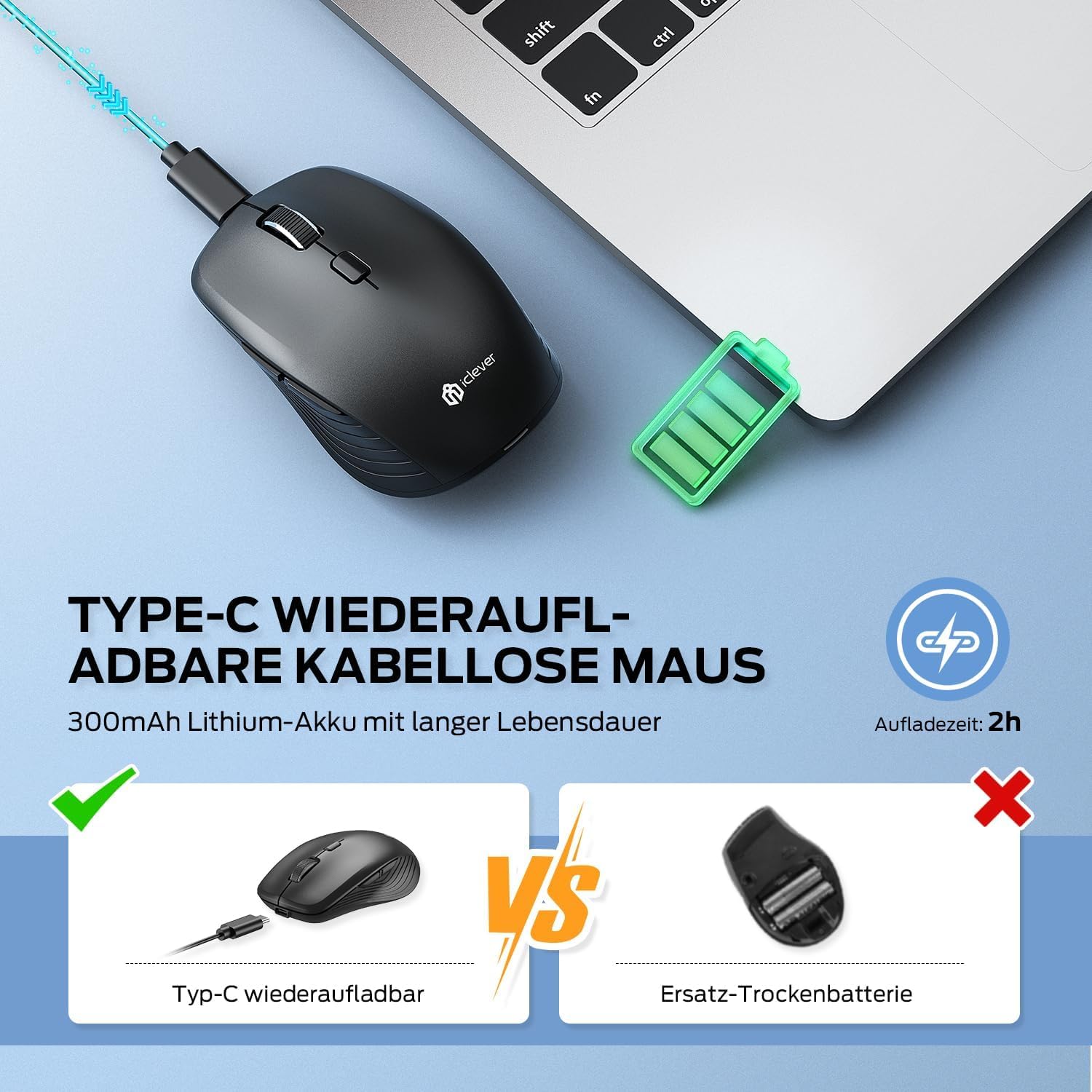
Rajah 2: USB-C Rechargeable Feature
4.2 Menyambung melalui Tanpa Wayar 2.4GHz
For a stable and quick connection:
- Locate the USB 2.4GHz receiver. It is stored in a compartment under the magnetic top cover of the mouse. Gently lift the top cover to access it.
- Masukkan penerima USB ke dalam port USB yang tersedia pada komputer anda.
- Hidupkan tetikus menggunakan suis ON/OFF di bahagian bawah.
- Switch the connection mode to 2.4GHz (refer to the channel indicator on the bottom).
- Tetikus sepatutnya bersambung secara automatik.

Rajah 3: Pilihan Sambungan
4.3 Menyambung melalui Bluetooth (BT1 / BT2)
The mouse supports two Bluetooth connections:
- Hidupkan tetikus menggunakan suis ON/OFF di bahagian bawah.
- Switch the connection mode to either Bluetooth 1 (BT1) or Bluetooth 2 (BT2) using the channel switch button on the bottom. The indicator light will confirm the selected channel.
- Press and hold the channel switch button for 3-5 seconds until the indicator light flashes rapidly. This indicates the mouse is in pairing mode.
- On your device (PC, Mac, laptop, tablet), go to Bluetooth settings.
- Cari untuk "iClever MD179" or a similar name in the list of available devices and select it to pair.
- Repeat these steps for a second Bluetooth device using the other Bluetooth channel (BT2).

Rajah 4: Kesambungan Berbilang Peranti
4.4 Bertukar Antara Peranti
Untuk bertukar antara peranti yang disambungkan:
- Use the channel switch button on the bottom of the mouse to cycle between the 2.4GHz, Bluetooth 1, and Bluetooth 2 connections.
- The indicator light will confirm the currently active channel.
5. Arahan Operasi

Rajah 5: Mouse in Use with Multiple Devices
5.1 Pelarasan DPI
Adjust the cursor sensitivity to match your preference or task:
- Press the DPI switch button (button 6 in Product Overview) to cycle through the available DPI settings: 800, 1200, 1600, and 2400 DPI.
- The indicator light may flash briefly to confirm the DPI change.
- Higher DPI settings result in faster cursor movement across the screen.
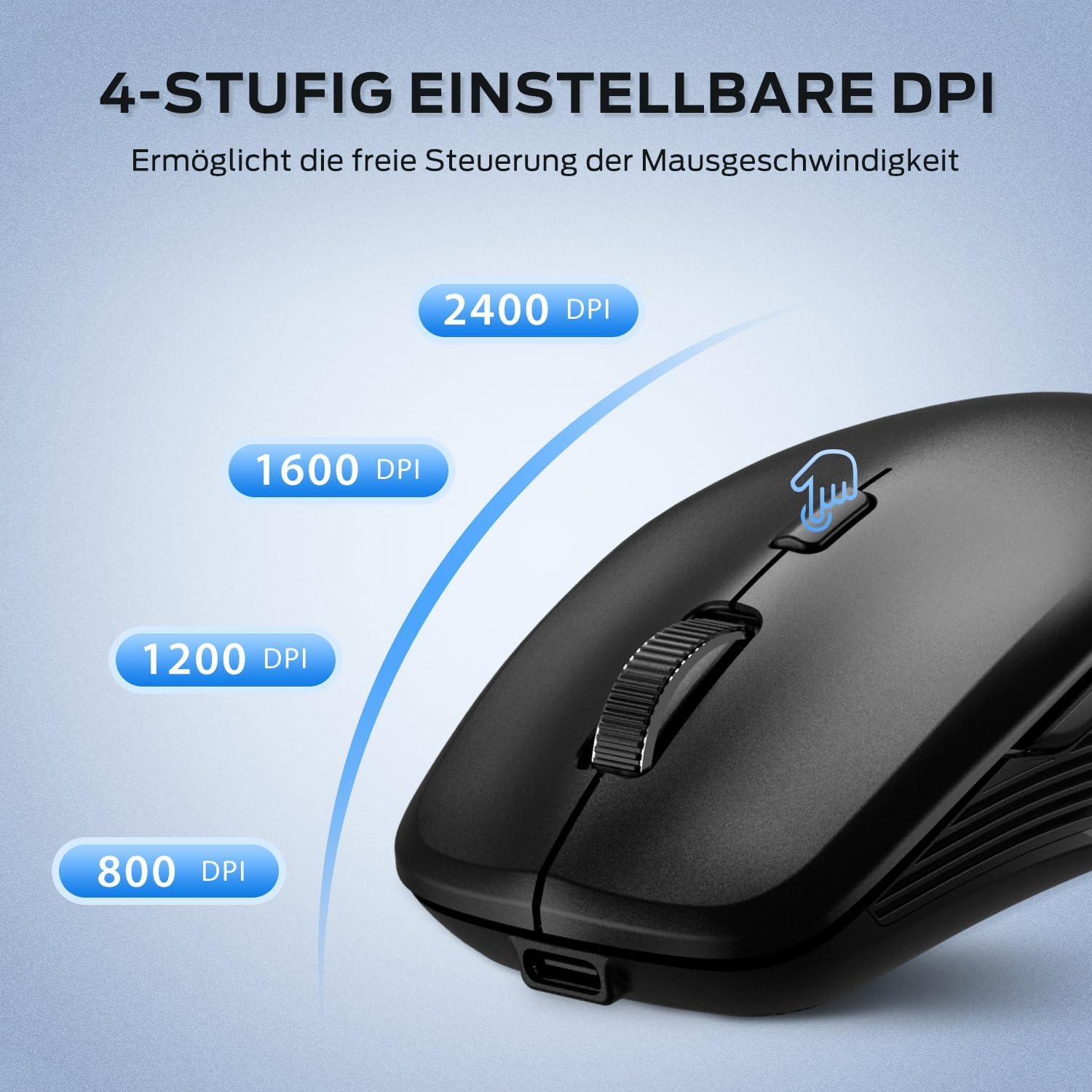
Rajah 6: Tetapan DPI Boleh Laras
5.2 Ciri Klik Senyap
The iClever MD179 mouse is designed with silent left and right click buttons to minimize noise, making it ideal for quiet environments such as libraries, offices, or late-night use at home.

Rajah 7: Silent Click Benefits
5.3 Side Buttons (Forward/Back)
The forward and back buttons (buttons 4 and 5 in Product Overview) provide convenient navigation in web pelayar dan file explorers. Please note that these buttons are primarily functional on Windows operating systems. Their functionality may vary or require specific software configuration on macOS or other operating systems.
5.4 Pengurusan Kuasa
The mouse incorporates features to optimize battery life:
- Mod Tidur Automatik: The mouse will enter an automatic sleep mode after a period of inactivity to conserve power. Move the mouse or click any button to wake it up.
- Suis ON / OFF: For extended periods of non-use, it is recommended to turn off the mouse completely using the ON/OFF switch (button 7 in Product Overview) located on the bottom.
6. Penyelenggaraan
6.1 Pembersihan
To keep your mouse in optimal condition:
- Gently wipe the mouse surface with a soft, slightly damp kain.
- Avoid using harsh chemicals, abrasive cleaners, or solvents, as these can damage the surface.
- Pastikan tiada cecair memasuki komponen dalaman tetikus.
- Periodically clean the optical sensor on the bottom of the mouse with a dry cotton swab to ensure accurate tracking.
6.2 Penjagaan Bateri
Proper battery care extends the lifespan of your mouse:
- Charge the mouse regularly and avoid letting the battery fully deplete frequently.
- If storing the mouse for an extended period, charge it to approximately 50% and turn it off using the power switch.
- Avoid exposing the mouse to extreme temperatures, which can affect battery performance.

Rajah 8: Storan Penerima USB
7. Penyelesaian masalah
If you encounter issues with your iClever MD179 mouse, refer to the following common solutions:
- Tetikus tidak bertindak balas:
- Ensure the mouse is powered on using the ON/OFF switch.
- Periksa tahap bateri dan cas tetikus jika perlu.
- For 2.4GHz connection: Verify the USB receiver is securely plugged into a working USB port and the mouse is set to 2.4GHz mode. Try a different USB port.
- For Bluetooth connection: Ensure Bluetooth is enabled on your device, the mouse is in the correct Bluetooth mode (BT1/BT2), and it is paired correctly. Try removing the mouse from your device's Bluetooth list and re-pairing it.
- Mulakan semula komputer atau peranti anda.
- Pergerakan kursor tidak menentu atau perlahan:
- Bersihkan penderia optik di bahagian bawah tetikus.
- Pastikan anda menggunakan tetikus pada permukaan yang sesuai (tidak reflektif, tidak telus).
- Adjust the DPI setting to a higher value using the DPI switch button if the cursor is too slow.
- Cannot switch between devices:
- Ensure the channel switch button on the bottom of the mouse is pressed firmly.
- Verify that each device is correctly connected to its respective channel (2.4GHz, BT1, BT2).
8. Spesifikasi
| Ciri | Penerangan |
|---|---|
| Jenama | iClever |
| Model | MD179 Bluetooth Mouse |
| Dimensi Produk | 10.1 x 6.1 x 3.4 cm |
| Berat Barang | 70 gram |
| Keserasian Sistem Pengendalian | Windows, macOS, ChromeOS |
| Platform Perkakasan | Linux, Mac, PC |
| Peranti Serasi | PC, Tablet |
| Ciri Khas | Wireless, Silent Click, Multi-Device Connectivity |
| Sumber Kuasa | Dikuasakan Bateri (Boleh dicas semula melalui USB-C) |
| Teknologi Ketersambungan | Bluetooth, Tanpa Wayar 2.4 GHz |
| Teknologi Penderia Pergerakan | Optik |
| Orientasi Tangan | Ambidextrous |
| Tetapan DPI | 800 / 1200 / 1600 / 2400 DPI |
| Kapasiti Bateri | 300 mAh Lithium |
9. Waranti dan Sokongan
iClever products are designed for reliability and performance. For detailed warranty information, technical support, or service inquiries, please visit the official iClever webtapak atau hubungi sokongan pelanggan mereka secara langsung. Simpan resit pembelian anda untuk tuntutan waranti.


