1. Pengenalan
The NELKO P110 is a portable Bluetooth thermal label printer designed for various labeling needs in home, office, and small business environments. It connects wirelessly to your Android or iOS smartphone via Bluetooth 4.0, allowing you to create and print custom labels using the dedicated "Qlabel" application. This device utilizes thermal printing technology, eliminating the need for ink or toner cartridges.
2. Apa yang ada di dalam Kotak
Upon unboxing your NELKO P110 Label Maker, please verify that all components are present:
- NELKO P110 Label Printer
- 1 Roll of Thermal Labels (40x30 mm)
- Kabel Pengecas USB (Jenis-C)
- Manual Pengguna / Panduan Mula Pantas

Image: Contents of the NELKO P110 package, including the label maker and a roll of labels.
Video: Tamatview of the items included in the NELKO P110 Label Maker package.
3. Persediaan
3.1. Memuatkan Label
- Slide to open the paper bin cover.
- Take out the paper holder from inside the printer.
- Load the label paper roll onto the paper holder, ensuring the printing side faces down.
- Insert the label paper tab into the buckle of the paper holder.
- Place the assembled paper holder back into the paper bin.
- Gently rotate the paper roll to retract any excess paper, leaving approximately 2mm of paper outside the machine.
- Close the paper bin cover securely.

Image: Visual instructions for loading the thermal label roll into the printer.
3.2. Menghidupkan Peranti
Press and hold the power button located on the front of the device until the screen illuminates and displays "Welcome P110".

Image: The NELKO P110 Label Maker powered on, showing the welcome message.
4. Pemasangan Aplikasi & Sambungan Bluetooth
4.1. Downloading the "Qlabel" App
The "Qlabel" app is essential for operating your NELKO P110. You can download it using one of the following methods:
- Method 1: Scan QR Code: Use your smartphone's camera to scan the QR code provided in the Quick Start Guide or on the product packaging.
- Method 2: Search App Store: Open your device's app store (Google Play Store for Android or Apple App Store for iOS) and search for "Qlabel".

Image: A smartphone displaying the Qlabel app download page, next to the label maker.
4.2. Menyambung melalui Bluetooth
- Pastikan Bluetooth didayakan pada telefon pintar anda.
- Open the "Qlabel" app.
- Navigate to the "Me" section or a similar connection setting within the app.
- Select "Connect machine" and choose "P110" from the list of available Bluetooth devices.
- Once connected, a Bluetooth icon will appear on the P110's display.
Video: Demonstrates the process of connecting the NELKO P110 Label Maker to an Android mobile device via Bluetooth.
Video: Illustrates how to connect the NELKO P110 Label Maker to an iOS mobile device via Bluetooth.
5. Arahan Operasi
5.1. Creating and Editing Labels
The "Qlabel" app offers a wide range of customization options:
- templat: Choose from various pre-designed templates for different categories (e.g., home, office, business, creative).
- Reka Bentuk Tersuai: Tap "New" to create a label from scratch.
- teks: Add text, customize fonts (20+ available), sizes, and alignment.
- Symbols & Icons: Incorporate symbols (300+ emojis, 200+ materials) and icons to enhance your labels.
- Kod Bar & Kod QR: Generate and add barcodes or QR codes.
- Other Elements: Add tables, dates, figures, pictures, shapes, and lines.

Image: The Qlabel app interface showcasing multiple custom print templates and design elements.
5.2. Mencetak Label
- After designing your label, click the "Preview" button to review ia.
- Click the "Print" button.
- In the print setup screen, you can adjust the number of copies, print density, and horizontal/vertical offsets.
- Confirm settings and click "Print" to send the label to the printer.
Video: A detailed operation tutorial for the NELKO P110 Label Maker, demonstrating label creation and printing.
6. Senario Penggunaan
The NELKO P110 Label Maker is versatile and suitable for a wide range of applications:
- Organisasi Rumah: Label storage bins, pantry items, spice jars, and personal belongings.
- Penggunaan Pejabat: menyusun files, folders, cables, and office supplies.
- Perniagaan Kecil: Create product labels, price tags, barcode labels, address labels, and shipping labels.
- Projek Kreatif: Design custom labels for gifts, crafts, and special occasions.
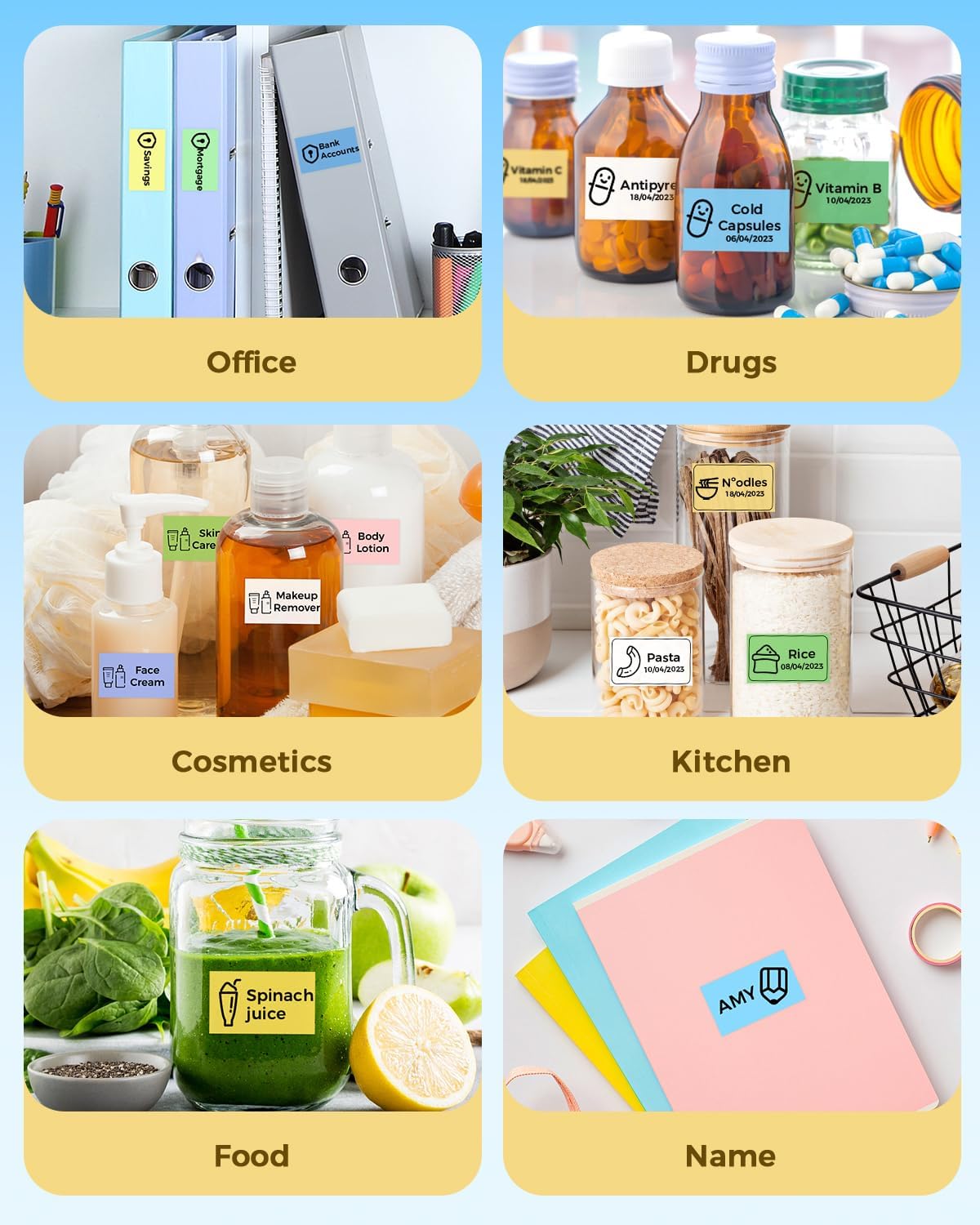
Imej: Cthamples of NELKO P110 labels used for organizing items in office, kitchen, and personal care.
Video: A brief demonstration of the NELKO P110 Label Maker in various practical applications.
7. Penyelenggaraan
To ensure optimal performance and longevity of your NELKO P110 Label Maker, follow these maintenance guidelines:
- Pembersihan: Regularly wipe the exterior of the printer with a soft, dry cloth. Avoid using harsh chemicals or abrasive materials.
- Penjagaan Kepala Cetak: If print quality degrades, gently clean the thermal print head with a cotton swab lightly dampdicairkan dengan alkohol isopropil. Pastikan pencetak dimatikan dan kering sepenuhnya sebelum digunakan.
- Storan: Simpan pencetak di tempat yang sejuk dan kering jauh dari cahaya matahari langsung dan suhu yang melampau.
- Bateri: Cas peranti dengan kerap, walaupun tidak kerap digunakan, untuk mengekalkan kesihatan bateri.
8. Penyelesaian masalah
If you encounter issues with your NELKO P110, try the following solutions:
- Printer Not Connecting: Ensure Bluetooth is enabled on your phone and the printer. Restart both devices and try connecting again through the "Qlabel" app.
- Kualiti Cetakan Lemah: Check if the label roll is inserted correctly with the printing side down. Clean the print head as described in the Maintenance section. Adjust the print density settings in the "Qlabel" app.
- Labels Not Feeding Correctly / Printing Offset: Ensure the label roll is properly seated in the paper holder and the paper holder is correctly installed in the bin. Calibrate the paper position if necessary (refer to app settings or quick start guide).
- Peranti Tidak Dihidupkan: Ensure the battery is charged. Connect the printer to a power source using the provided USB cable.
For further assistance, please refer to the official support resources.
9. Spesifikasi
| Ciri | Perincian |
|---|---|
| Nama Model | NELKO P110 Label Maker |
| Jenama | Nelko |
| Teknologi Ketersambungan | Bluetooth |
| Teknologi Percetakan | terma |
| Peranti Serasi | Telefon Pintar (Android, iOS) |
| Resolusi Cetakan Hitam dan Putih Maksimum | 300dpi |
| Saiz Media Maksimum | 1.1 x 5.9 inches (Supports 20mm-50mm width labels) |
| Output Pencetak | Single color (Black text) |
| Berat Barang | 1.12 paun (0.51 Kilogram) |
| Dimensi Produk | 5.11"D x 2.4"W x 3.3"H |
| Bateri | 1 bateri Polimer Litium (termasuk) |
10. Waranti dan Sokongan
The NELKO P110 Label Maker comes with a limited warranty. For detailed warranty information and support, please visit the official NELKO support page or contact customer service.
Halaman Sokongan Rasmi: https://www.nelkoprint.com/pages/support