1. Pengenalan dan Lebihview
The ViewSonic OMNI VX2428 is a 24-inch (23.8-inch viewable) Full HD monitor designed for gaming and entertainment. It features a sleek 3-sided frameless design, providing an immersive viewing experience, especially in multi-monitor setups. Key performance specifications include a 180Hz refresh rate and a 0.5ms (MPRT) response time, which, combined with AMD FreeSync Premium technology, aim to deliver a fluid and tear-free gaming experience. Connectivity options include two HDMI (v1.4) inputs and one DisplayPort (v1.2) input.

Imej: The ViewSonic VX2428 monitor showcasing its high refresh rate, low response time, and FreeSync Premium features during a gaming session.
Video: Seorang pegawai tamatview daripada ViewSonic OMNI VX2428 monitor, highlighting its key features such as adaptive synchronization, refresh rate, response time, and HDR10 support.
2. Arahan Persediaan
2.1 Apa yang ada di dalam Kotak
Sebelum memulakan, pastikan semua komponen hadir:
- ViewSonic VX2428 Monitor
- Power Cable (may vary by region)
- DisplayPort Cable
- Panduan Memulakan Pantas

Imej: The ViewSonic VX2428 monitor and its included accessories: power cable, DisplayPort cable, and QuickStart Guide.
2.2 Perhimpunan Berdiri
- Keluarkan komponen monitor dan berdiri dengan berhati-hati daripada pembungkusan.
- Pasangkan tapak penyangga pada leher penyangga, dengan memasangnya dengan skru yang disediakan.
- Sejajarkan penyangga yang telah dipasang dengan titik pemasangan di bahagian belakang monitor.
- Secure the stand to the monitor until it clicks into place or is fastened with screws, depending on the design.
2.3 Menyambung Kabel
Connect the necessary cables to the monitor and your computer or other devices:
- Kabel kuasa: Sambungkan satu hujung ke input kuasa monitor dan hujung yang satu lagi ke soket kuasa.
- Kabel DisplayPort: For optimal performance (180Hz refresh rate), connect the included DisplayPort cable from your computer's graphics card to the monitor's DisplayPort input.
- Kabel HDMI: Alternatively, connect up to two HDMI cables from your devices to the monitor's HDMI inputs.
- Keluar Audio: If using external speakers or headphones, connect them to the Audio Out port.
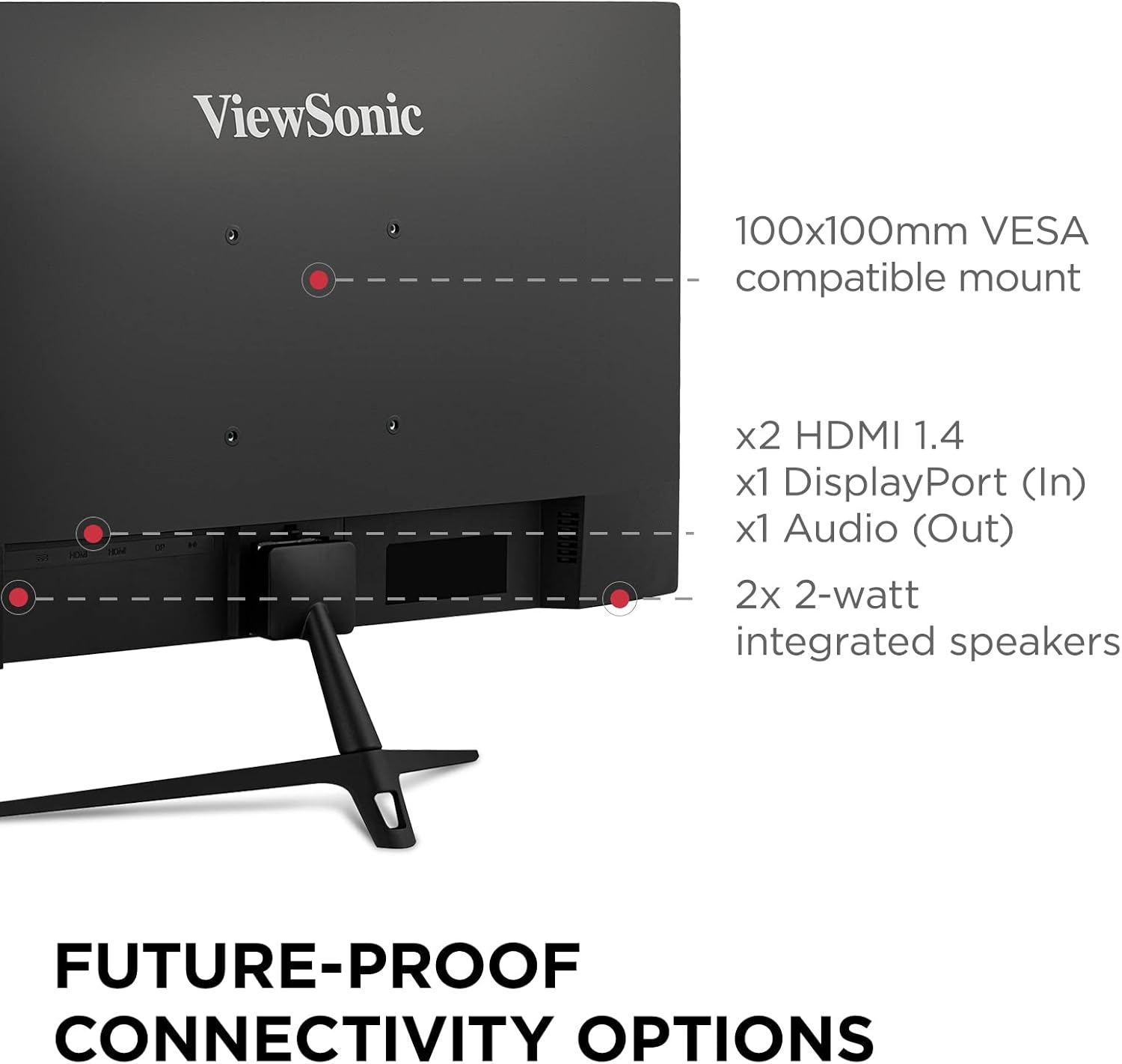
Imej: Terperinci view of the monitor's rear panel, highlighting the HDMI, DisplayPort, and Audio Out ports, along with the VESA mount and integrated speakers.

Image: Visual representation of the monitor's HDMI, DisplayPort, and Audio Out connectivity options.
3. Arahan Operasi
3.1 Hidupkan/Mati Kuasa
Press the power button located on the monitor's bottom right side to turn the monitor on or off. The power indicator light will illuminate when the monitor is on.
3.2 Navigasi Menu Paparan Pada Skrin (OSD).
Use the control buttons (usually located on the bottom or rear of the monitor) to access and navigate the OSD menu. The OSD menu allows you to adjust various display settings.
3.3 Melaraskan Tetapan Paparan
Within the OSD menu, you can customize settings such as:
- Kecerahan/Kontras: Adjust for desired image luminance.
- Tetapan Warna: Tala halus suhu warna, gamma dan tahap RGB individu.
- Pilihan Input: Tukar secara manual antara input DisplayPort dan HDMI.
- View Mod: Select pre-calibrated modes for different content types (e.g., Standard, Game, Movie, Text, Mono, Web).
- Masa Respons: Adjust the pixel response time for reduced motion blur.
- Penstabilan Hitam: Enhance visibility in dark scenes.
- Overclocking: Enable to achieve the maximum 180Hz refresh rate via DisplayPort.

Imej: Cthamples of various view modes (Movie, Mono, Text, Game, Web) available on the monitor.
4. Ciri Paparan
4.1 High Refresh Rate and Response Time
The VX2428 features a 180Hz refresh rate and a 0.5ms (MPRT) response time, crucial for smooth motion and reduced ghosting in fast-paced gaming scenarios.

Image: The monitor highlighting its 180Hz refresh rate, 0.5ms MPRT, and AMD FreeSync Premium for optimal gaming visuals.

Image: A visual demonstration of a high refresh rate, showing multiple frames for smoother motion.

Image: A comparison illustrating the difference between normal and fastest response times, demonstrating reduced motion blur.
4.2 AMD FreeSync Premium
AMD FreeSync Premium technology synchronizes the monitor's refresh rate with your graphics card's frame rate, eliminating screen tearing and stuttering for a seamless gaming experience.

Image: A visual comparison demonstrating the effect of AMD FreeSync Premium, showing a tear-free image when enabled.
4.3 Full HD IPS Panel
The 24-inch Full HD (1920x1080p) IPS panel delivers vibrant colors, enhanced contrast, and wide 178-degree viewsudut-sudut.

Image: The monitor highlighting its IPS panel for enhanced contrast and wider viewsudut-sudut.

Image: A visual representation of the monitor's wide 178-degree viewsudut-sudut.

Image: A comparison demonstrating the clarity of Full HD (1920x1080) resolution versus standard HD.
4.4 Teknologi Penjagaan Mata
The monitor incorporates Flicker-Free technology and a Blue Light Filter to reduce eye strain and fatigue during extended viewdalam tempoh.

Image: A visual explanation of eye-care technology, including Flicker-Free and Blue Light Filter features.
4.5 HDR10 Content Support
The monitor supports HDR10 content, providing deeper contrast, richer colors, and more vibrant details for compatible media.
5. Pilihan Kesambungan
The VX2428 offers versatile connectivity for various devices:
- 2 x HDMI (v1.4): For connecting gaming consoles, Blu-ray players, or other HDMI-enabled devices.
- 1 x DisplayPort (v1.2): Recommended for PC gaming to achieve the highest refresh rates and FreeSync Premium.
- 1 x Audio Out: Untuk menyambungkan pembesar suara luaran atau fon kepala.
5.1 Pembesar Suara Bersepadu
The monitor includes two 2-watt integrated speakers for basic audio output.

Image: The rear of the monitor, indicating the position of the integrated 2-watt speakers.
5.2 Keserasian Pemasangan VESA
The monitor is compatible with 100x100mm VESA mounts, allowing for flexible installation options such as wall mounting or multi-monitor setups.

Image: A monitor mounted on an arm, demonstrating its 100x100mm VESA mount compatibility for flexible setups.

Image: A multi-monitor setup demonstrating the seamless viewing experience provided by the monitor's frameless design.
6. Penyelenggaraan
Untuk memastikan jangka hayat dan prestasi optimum anda ViewSonic VX2428 monitor, follow these maintenance guidelines:
- Membersihkan Skrin: Lap skrin perlahan-lahan dengan kain lembut yang tidak berbulu. Untuk kesan degil, gunakan penyelesaian pembersihan khusus monitor yang digunakan pada kain, bukan terus ke skrin.
- Membersihkan Casing: Gunakan kain lembut dan kering untuk membersihkan monitor casing. Elakkan pembersih atau pelarut yang melelas.
- Pengudaraan: Pastikan bukaan pengudaraan monitor tidak disekat untuk mengelakkan terlalu panas.
- Matikan Apabila Tidak Digunakan: Matikan monitor apabila tidak digunakan untuk tempoh yang lama untuk menjimatkan tenaga dan memanjangkan jangka hayatnya.
- Elakkan Cahaya Matahari Terus: Jangan dedahkan monitor kepada cahaya matahari langsung atau suhu yang melampau.
7. Penyelesaian masalah
Jika anda menghadapi masalah dengan anda ViewSonic VX2428 monitor, refer to the following common troubleshooting steps:
7.1 No Image or "No Signal" Message
- Check if the monitor is powered on and the power indicator light is illuminated.
- Verify that the video cable (DisplayPort or HDMI) is securely connected to both the monitor and your computer/device.
- Pastikan sumber input yang betul dipilih pada monitor melalui menu OSD.
- Test with a different video cable or another device to rule out cable or source issues.
7.2 Display Problems (Flickering, Distorted Image, Incorrect Colors)
- Adjust the monitor's resolution and refresh rate settings in your computer's display settings.
- Reset the monitor to its factory default settings via the OSD menu.
- Kemas kini pemacu kad grafik anda kepada versi terkini.
- Check for any physical damage to the video cable or monitor ports.
7.3 Refresh Rate Not Reaching 180Hz
- Ensure you are using a DisplayPort connection. HDMI 1.4 may not support 180Hz.
- Verify that the refresh rate is set to 180Hz in your computer's display settings.
- Check the monitor's OSD menu for an "Overclocking" option and enable it if available.
- Ensure your graphics card supports 180Hz at 1080p resolution.
7.4 No Audio from Integrated Speakers
- Check the volume settings on both the monitor (via OSD) and your computer/device.
- Pastikan output audio dihalakan ke monitor dalam tetapan bunyi komputer anda.
- If using HDMI, ensure the HDMI cable supports audio transmission.
8. Spesifikasi
| Ciri | Spesifikasi |
|---|---|
| Saiz Skrin | 24 inches (23.8 inches viewmampu) |
| Resolusi | HD Penuh (1920x1080p) |
| Jenis Panel | IPS |
| Kadar Segar Semula | 180Hz (via DisplayPort) |
| Masa Tindak Balas | 0.5ms (MPRT) |
| Penyegerakan Adaptif | AMD FreeSync Premium |
| Sokongan HDR | HDR10 |
| Ketersambungan | 2x HDMI (v1.4), 1x DisplayPort (v1.2), 1x Audio Out |
| Penceramah | Pembesar suara bersepadu 2x 2-watt |
| Gunung VESA | 100x100mm |
| Dimensi (LxWxH) | 7.2 x 21.3 x 16.3 inci (dengan dirian) |
| Berat badan | 6.82 paun |
| warna | Hitam |

Imej: Dimensi fizikal bagi ViewSonic VX2428 monitor.
9. Waranti dan Sokongan
Untuk maklumat jaminan dan sokongan teknikal, sila rujuk kepada pegawai ViewSonic webtapak atau hubungi perkhidmatan pelanggan mereka. Simpan resit pembelian anda untuk tuntutan waranti.
rasmi ViewSonic Webtapak: www.viewsonic.com