1. Pengenalan
Thank you for choosing the Delton Ergonomic Vertical Rechargeable Wireless Mouse S12. This manual provides detailed instructions for setting up, operating, and maintaining your new mouse. Designed for comfort and efficiency, this vertical mouse promotes a more natural hand and wrist posture, reducing strain during extended computer use.
Please read this manual thoroughly before use to ensure optimal performance and longevity of your device.
2. Kandungan Pakej
Sahkan bahawa semua item terdapat dalam pakej anda:
- Delton Ergonomic Vertical Wireless Mouse
- USB Dongle (2.4GHz receiver)
- Kabel Pengecas USB
- Manual Pengguna (dokumen ini)
3. Produk Lebihview
The Delton S12 mouse features an ergonomic vertical design, six programmable buttons, and adjustable DPI settings for precise control. It connects wirelessly via a 2.4GHz USB dongle and is powered by a rechargeable battery.

Image: The Delton S12 Ergonomic Vertical Wireless Mouse, shown with its accompanying USB dongle.
3.1 Reka Bentuk Ergonomik
The vertical orientation of the mouse is designed to align your hand and wrist in a natural handshake position, which can help reduce muscle strain and discomfort often associated with traditional mice.

Image: A hand comfortably gripping the Delton vertical mouse, demonstrating the natural, ergonomic wrist position it promotes.
3.2 Kesambungan Wayarles
The mouse connects wirelessly to your device via a 2.4GHz USB dongle, offering a stable connection up to 30 feet (10 meters). This provides flexibility and reduces cable clutter.

Image: The Delton vertical mouse wirelessly connected to a laptop, with the USB dongle inserted into the laptop's port.
Bateri boleh dicas semula 3.3
Equipped with a built-in rechargeable Lithium-Ion battery, the mouse offers up to 30 days of daily use and 12 months of standby time on a single charge. It can also be used while charging.

Image: The Delton vertical mouse being charged via a USB cable, illustrating its rechargeable feature.
3.4 Six Buttons Functionality
The mouse features six responsive buttons for enhanced productivity:
- Klik Kiri
- Klik Kanan
- Scroll Wheel (with click function)
- Butang Suis DPI
- Butang Maju
- Butang ke belakang

Image: A detailed diagram highlighting the location and function of the six buttons on the Delton vertical mouse.
3.5 Customizable DPI Levels
Adjust the mouse sensitivity with three DPI settings: 800, 1200, and 2400. An indicator light changes color to show the current DPI level.
- Biru: 800 DPI
- merah: 1200 DPI
- hijau: 2400 DPI
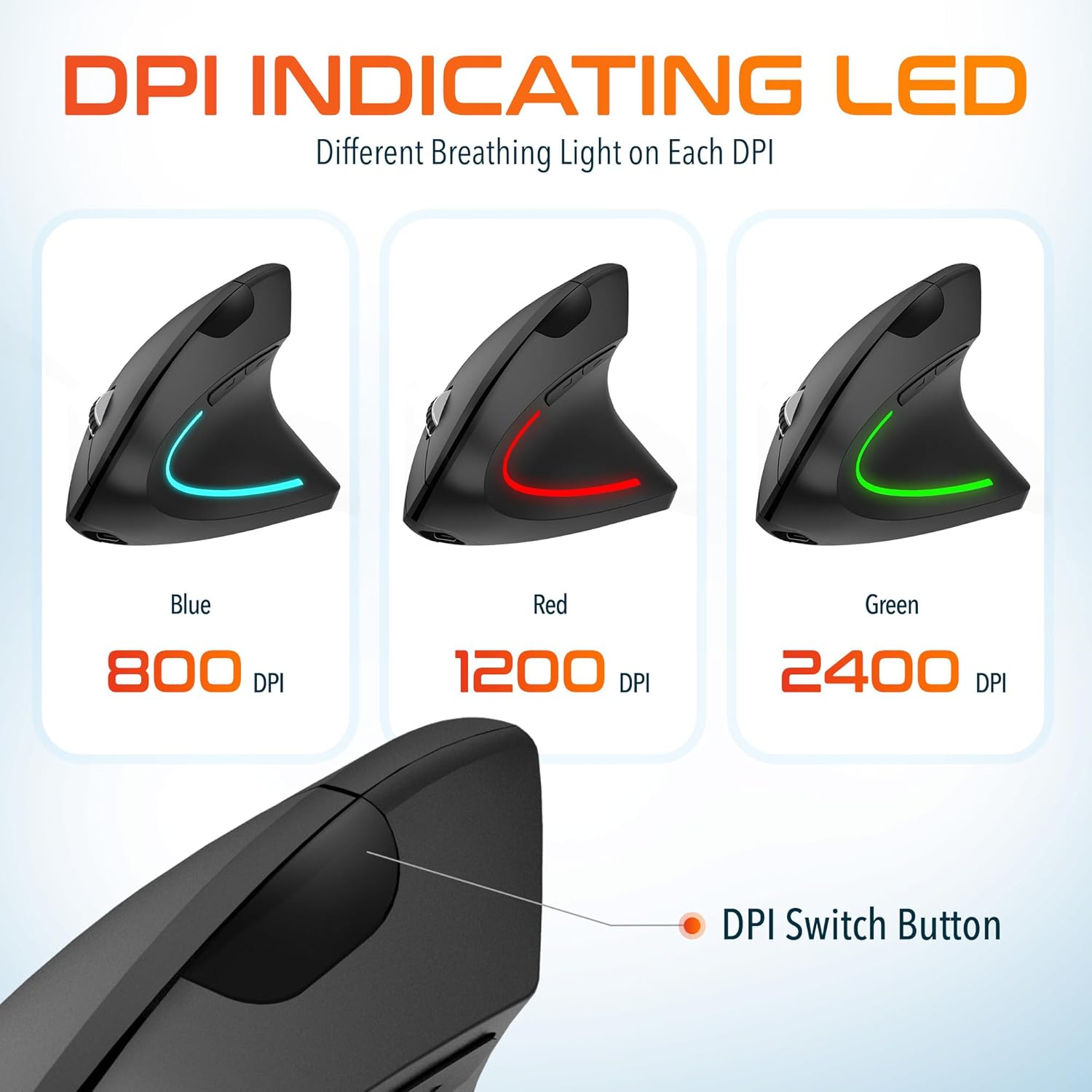
Image: The Delton vertical mouse displaying its LED indicator in blue (800 DPI), red (1200 DPI), and green (2400 DPI) to show current sensitivity settings.
4. Arahan Persediaan
4.1 Mengecas Tetikus
- Sambungkan kabel pengecas USB yang disediakan ke port pengecasan di bahagian hadapan tetikus.
- Plug the other end of the USB cable into a USB power source (e.g., computer USB port, wall adapter, power bank).
- The LED indicator will illuminate during charging and turn off when fully charged. A full charge typically takes approximately 1 hour.
4.2 Connecting the USB Dongle
- Locate the USB dongle, usually stored in a compartment on the underside of the mouse.
- Insert the USB dongle into an available USB port on your computer (PC, Laptop, Mac, Chromebook).
- Sistem akan mengesan dan memasang pemacu yang diperlukan secara automatik. Proses ini mungkin mengambil masa beberapa saat.
4.3 Menghidupkan/Mematikan
Locate the power switch on the underside of the mouse. Slide the switch to the 'ON' position to power on the mouse. Slide it to 'OFF' when not in use to conserve battery life.
5. Arahan Operasi
5.1 Pelarasan DPI
To change the mouse sensitivity (DPI), press the DPI switch button located on the top of the mouse, behind the scroll wheel. Each press cycles through the available DPI settings (800, 1200, 2400), indicated by the changing color of the LED light.
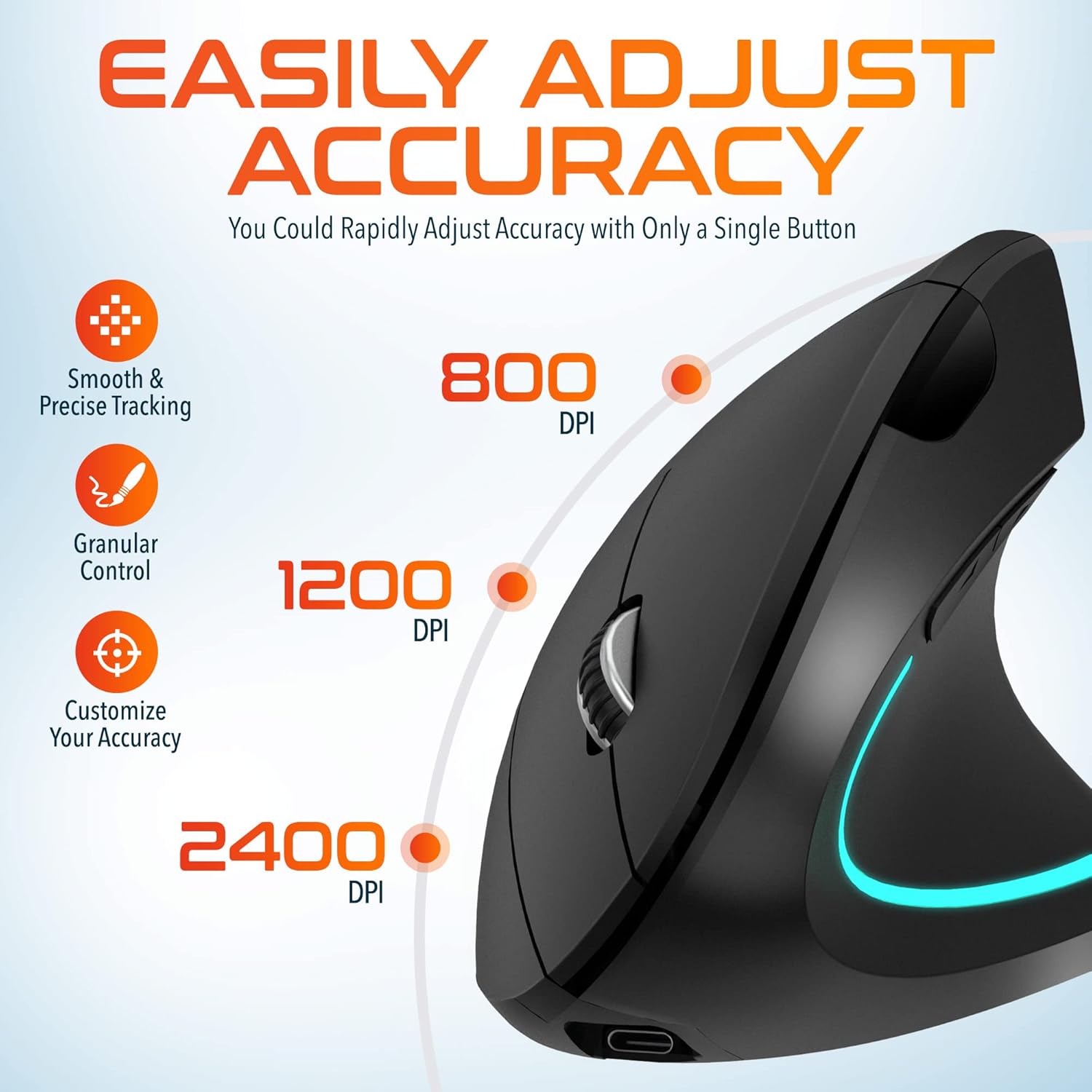
Image: A visual representation of the three adjustable DPI settings (800, 1200, 2400) and their corresponding cursor precision levels.
5.2 Fungsi Butang
- Klik Kiri: Fungsi klik utama standard.
- Klik kanan: Fungsi klik sekunder standard.
- Roda Tatal: Tatal ke atas atau ke bawah melalui dokumen dan web pages. Pressing the scroll wheel acts as a middle click.
- Butang ke hadapan: Navigasi ke hadapan web pelayar atau file penjelajah.
- Butang ke belakang: Navigasi ke belakang web pelayar atau file penjelajah.

Imej: Dari dekat view of the mouse's scroll wheel and the conveniently placed forward and backward shortcut keys.
6. Penyelenggaraan
- Pembersihan: Gunakan kain lembut dan kering untuk membersihkan tetikus. Untuk kotoran degil, sedikit dampen kain dengan air. Elakkan menggunakan bahan kimia yang keras atau bahan yang melelas.
- Storan: When not in use for extended periods, store the mouse in a cool, dry place. Ensure the power switch is in the 'OFF' position to preserve battery life.
- Penjagaan Bateri: Avoid fully discharging the battery frequently. Charge the mouse regularly to maintain battery health.
7. Penyelesaian masalah
| Masalah | Kemungkinan Punca | Penyelesaian |
|---|---|---|
| Tetikus tidak bertindak balas | Low battery; USB dongle not connected; Mouse not powered on; Driver issue | Charge the mouse; Ensure dongle is securely plugged in; Turn on the mouse; Try a different USB port; Restart computer |
| Sambungan terputus-putus | Interference; Dongle too far from mouse; Low battery | Move mouse closer to dongle; Remove obstacles; Charge the mouse; Avoid using near other 2.4GHz devices |
| DPI tidak berubah | DPI button not pressed correctly; Mouse unresponsive | Press the DPI button firmly; Check battery and connection |
| Mouse cursor erratic | Dirty optical sensor; Uneven surface | Clean the optical sensor with a soft cloth; Use on a clean, flat mouse pad or surface |
8. Spesifikasi
| Ciri | Perincian |
|---|---|
| Nombor Model | S12 |
| Ketersambungan | Tanpa Wayar 2.4GHz (Dongle USB) |
| Tahap DPI | 800 / 1200 / 2400 |
| Butang | 6 (Kiri, Kanan, Roda Tatal, DPI, Ke Hadapan, Ke Belakang) |
| Jenis Bateri | Rechargeable Lithium Ion (included) |
| Julat Tanpa Wayar | Sehingga 30 kaki (10 meter) |
| Dimensi Produk | 5 x 2.6 x 3.25 inci |
| Berat Barang | 4.9 auns |
| Keserasian | PC, Laptop, Mac, Chromebook (Windows, macOS, iOS) |
9. Waranti dan Sokongan
Delton products are designed for reliability and performance. For warranty information or technical support, please refer to the contact details provided with your purchase or visit the official Delton webtapak. Simpan resit pembelian anda sebagai bukti pembelian untuk tuntutan waranti.


