1. Pengenalan
This manual provides essential instructions for setting up, operating, and maintaining your Huawei H158-381 5G CPE Pro 5 Router. Please read this guide thoroughly before using the device to ensure proper functionality and safety.
2. Kandungan Pakej
Sahkan bahawa semua item berikut disertakan dalam pakej produk anda:
- Huawei H158-381 5G CPE Pro 5 Router
- Penyesuai Kuasa 12V 3A
- Panduan Mula Pantas (manual ini)
3. Produk Lebihview
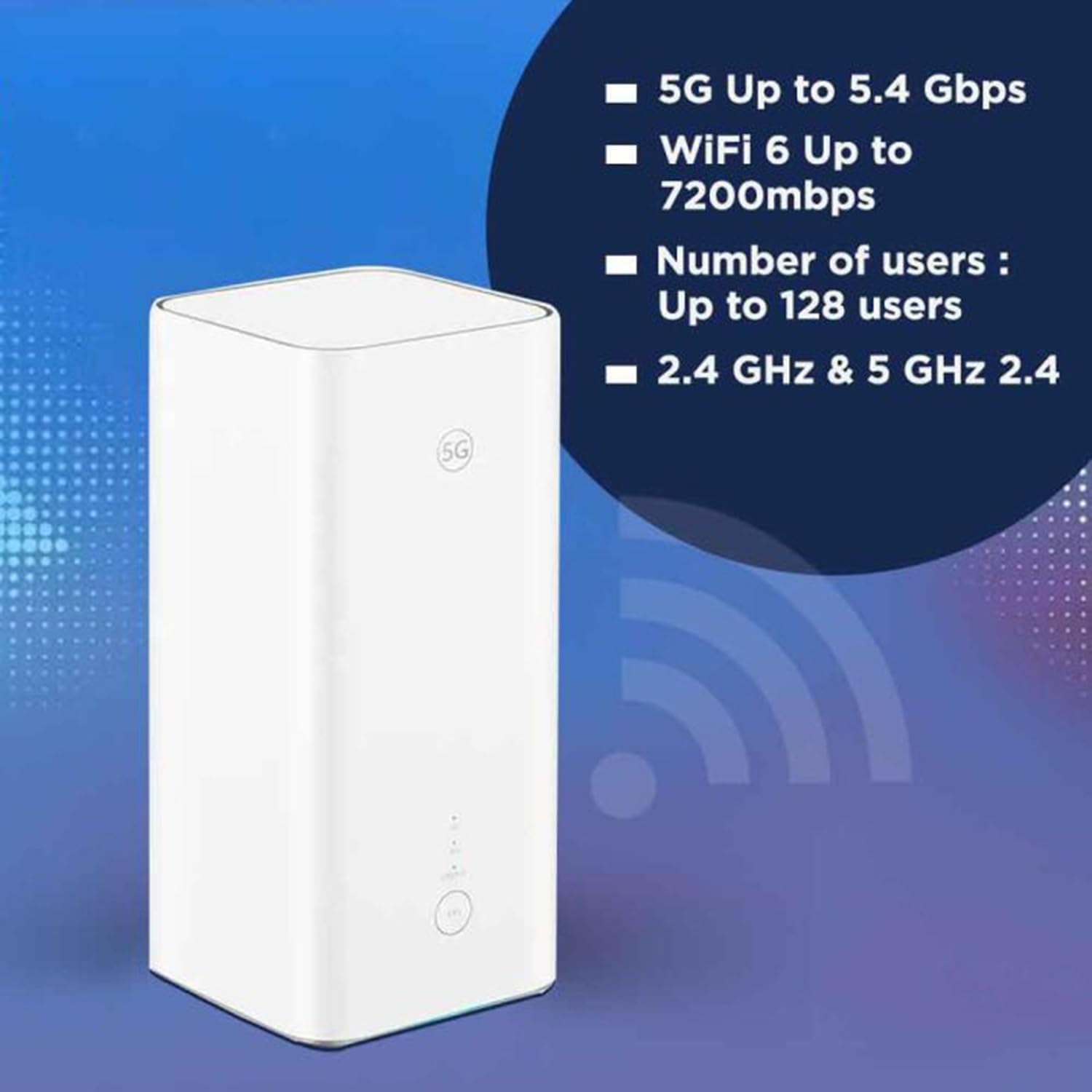
The Huawei H158-381 5G CPE Pro 5 Router is a high-performance wireless router designed for advanced internet connectivity. It supports both 5G and 4G networks, offering high-speed data transmission and robust Wi-Fi capabilities.
Ciri-ciri Utama:
- 5G and 4G Network Compatibility: Supports 5G frequencies in NSA and SA modes (n1/3/5/7/20/28/71/38/40/41/77/78/79) and 4G bands (B1/3/5/7/8/18/19/20/26/28/32/34/38/39/40/41/42/43). Note: 2G and 3G are not supported.
- Data Berkelajuan Tinggi: Achieves download speeds up to 5.4 Gbps and upload speeds up to 500 Mbps on 5G (network dependent).
- Wi-Fi 6 (AX7200): Provides Wi-Fi speeds up to 7200 Mbps across 2.4 GHz and 5 GHz bands, supporting up to 128 connected users.
- Keselamatan WPA3: Enhanced wireless security protocol for a safer network.
- Nano-SIM Slot: For mobile broadband connectivity.
- Integrated 5G NR Antenna: Features a 12 dBi internal antenna for optimized signal reception.
- Port Ethernet: Includes 2 Ethernet ports for wired connections.
Komponen Fizikal:


4. Panduan Persediaan
4.1 Pemasangan Kad SIM
- Locate the Nano-SIM card slot on your router.
- Insert a Nano-SIM card into the slot. Ensure the SIM card is correctly oriented according to the diagram near the slot.
- Penting: It is recommended to disable the PIN code of your SIM card using a mobile phone before inserting it into the router for a smoother setup process.
4.2 Sambungan Kuasa
- Connect the provided 12V 3A power adapter to the router's power input port.
- Palamkan penyesuai kuasa ke salur keluar elektrik yang sesuai.
- The router will automatically power on. Wait for the status indicators to stabilize.
4.3 Tatarajah Awal
Once powered on, the router will attempt to connect to the mobile network. You can access the router's web interface or use the dedicated mobile application for further configuration, such as changing Wi-Fi names and passwords.
5. Arahan Operasi
5.1 Menyambung Peranti melalui Wi-Fi
- Pada peranti anda (telefon pintar, komputer riba, tablet), cari rangkaian Wi-Fi yang tersedia.
- Select the Wi-Fi network name (SSID) corresponding to your router. The default SSID and password are usually found on a label at the bottom of the router.
- Masukkan kata laluan Wi-Fi apabila digesa.
- Peranti anda kini sepatutnya disambungkan ke Internet.
5.2 Menyambung Peranti melalui Ethernet
The router features two Ethernet ports for wired connections:
- Connect one end of an Ethernet cable to an Ethernet port on the back of the router.
- Connect the other end of the Ethernet cable to the Ethernet port on your device (e.g., computer, gaming console, smart TV).
- The device should automatically establish a wired network connection.
6. Ciri Lanjutan
6.1 External Antenna Support
The Huawei H158-381 router supports external 5G antennas to enhance signal reception. To utilize this feature:
- Install your external 5G antennas according to their respective instructions.
- Connect the external antennas to the designated external antenna ports on the router.
- Open the router's management application (e.g., Deco app), navigate to Advanced > External Antennas, and activate the external antennas option.
- When activated, the external antennas will replace a portion of the internal antennas for signal reception.
6.2 Product Summary Video
Tonton video ini untuk cepat selesaiview of the Huawei H158-381 5G CPE Pro 5 Router's features and benefits.
Video 6.1: A product summary video showcasing the Huawei H158-381 5G CPE Pro 5 Router's design and core functionalities.
7. Spesifikasi Teknikal
| Ciri | Spesifikasi |
|---|---|
| Jenama | HUAWEI |
| Pengeluar | HUAWEI |
| Siri | H158-381 |
| Dimensi Produk | 10.3 x 10.3 x 22.6cm; 915g |
| Nombor Model Item | H158-381 |
| warna | putih |
| Jenis Kesambungan | Wi-Fi |
| Jenis Wayarles | 802.11ax |
| Bilangan Port Ethernet | 2 |
| Voltage | 12 Volt |
| Sistem Operasi | RouterOS |
| Bateri Termasuk | Tidak |
| Kemas Kini Perisian Terjamin Sehingga | 23 Mei 2025 |
| Nama Model | H158-381 |
| Ciri Khas | WPS |
| Kelas Band Kekerapan | Dwi-band |
| Standard Komunikasi Tanpa Wayar | 802.11ax |
| Peranti Serasi | Game console, tablet, personal computer, smartphone, smart television, streaming device, security camera, printer, smart thermostat |
| Penggunaan Produk yang Disyorkan | Rumah, Perniagaan |
| Komponen yang Disertakan | Manual, 12V 3A Charger, Router H158-381 |
| Teknologi Sambungan | Ethernet, Wi-Fi |
8. Penyelenggaraan
To ensure the longevity and optimal performance of your router, consider the following maintenance tips:
- penempatan: Letakkan penghala di lokasi pusat, jauh daripada halangan dan peranti elektronik lain yang boleh menyebabkan gangguan.
- Pembersihan: Keep the router clean and free from dust. Use a soft, dry cloth for cleaning.
- Kemas kini Firmware: Regularly check for and install firmware updates to benefit from improved performance, security, and new features. This can usually be done through the router's web antara muka atau aplikasi mudah alih.
- Pengudaraan: Pastikan penghala mempunyai pengudaraan yang mencukupi untuk mengelakkan terlalu panas. Jangan tutup bukaan pengudaraan.
9. Penyelesaian masalah
Jika anda menghadapi masalah dengan penghala anda, cuba langkah penyelesaian masalah berikut:
- Tiada sambungan internet:
- Periksa sama ada kad SIM telah dimasukkan dan diaktifkan dengan betul.
- Ensure the router is powered on and all indicator lights are functioning as expected.
- Restart the router by unplugging it from the power source, waiting 30 seconds, and plugging it back in.
- Verify your mobile data plan is active and has sufficient data.
- Kelajuan Wi-Fi Perlahan:
- Bergerak lebih dekat ke penghala untuk meningkatkan kekuatan isyarat.
- Kurangkan bilangan peranti yang disambungkan atau aktiviti intensif lebar jalur.
- Semak gangguan daripada peranti elektronik lain.
- Pertimbangkan untuk menggunakan antena luaran jika kekuatan isyarat sentiasa rendah.
- Tidak Dapat Mengakses Tetapan Penghala:
- Pastikan peranti anda disambungkan ke rangkaian Wi-Fi penghala atau melalui kabel Ethernet.
- Verify you are entering the correct IP address (usually 192.168.8.1 or 192.168.1.1) in your web pelayar.
- Sahkan anda menggunakan nama pengguna dan kata laluan pentadbir yang betul.
If problems persist, consult the official Huawei support webtapak atau hubungi perkhidmatan pelanggan untuk bantuan lanjut.
10. Waranti dan Sokongan
Untuk maklumat waranti, sila rujuk kad waranti yang disertakan dengan produk anda atau lawati HUAWEI rasmi website. Technical support and customer service contact details can also be found on the HUAWEI support portal.


