1. Produk Lebihview
The Dopesplay Wireless Portable Monitor is a versatile and highly portable display solution designed to enhance your productivity and entertainment on the go. Featuring a 14.1-inch 1080P HDR IPS touchscreen, a built-in 10800mAh battery, and integrated keyboard and trackpad, it offers multiple connection options including wireless, USB-C, and HDMI. This manual provides essential information for setting up, operating, and maintaining your device.

Figure 1.1: The Dopesplay 14.1-inch Wireless Portable Monitor, showcasing its integrated keyboard and touchscreen capabilities.
2. Apa yang ada di dalam Kotak
Sila semak kandungan pakej anda untuk memastikan semua item ada:
- 1 x Dopesplay 14.1'' Portable Lapdock Monitor
- 1 x USB-C to USB-C Cable (Full-featured)
- 1 x Mini HDMI to HDMI Cable (Data transfer only)
- 1 x USB-C to USB-A Cable (For power supply only)
- 1 x Panduan Pengguna
3. Ciri-ciri Utama
3.1 Kesambungan Wayarles
The Dopesplay monitor offers advanced wireless connection capabilities via Wi-Fi and Bluetooth, providing freedom from cable constraints. It supports various modes to suit your needs, including Phone Mode (mirroring your phone screen) and Desktop Mode (turning your phone into a laptop-like experience).

Figure 3.1: Illustration of Phone Mode and Desktop Mode for wireless connection.
Video 3.1: Official Dopesplay video demonstrating the wireless connection capabilities of the portable monitor.
3.2 Built-in Battery & Reverse Charging
Equipped with a powerful 10800mAh battery, the monitor provides extended usage time and can also reverse-charge your mobile phone via its Type-C port. This feature is ideal for professionals requiring power on the go.

Figure 3.2: The monitor's built-in 10800mAh battery can reverse-charge compatible mobile devices.
3.3 10-Point Touch Screen
Experience precise and sensitive interaction with the 10-point capacitive multi-touch technology. This feature is compatible with various modes, including extend, duplicate, desktop, and game modes, enhancing usability without requiring additional drivers.

Figure 3.3: The 10-point touch screen provides high precision and sensitivity for various applications.
3.4 Integrated Keyboard & Trackpad
The lapdock monitor includes a full keyboard and trackpad, transforming it into a complete portable workstation. Note: iOS devices do not support keyboard and trackpad use when connected, only macOS does.
3.5 360° Adjustable Design
The monitor's design allows for 360-degree rotation, enabling flexible viewing angles and versatile usage scenarios, from traditional laptop mode to tablet mode.

Figure 3.4: The 360° adjustable keyboard and stand allow for flexible viewsudut-sudut.
3.6 FHD 1080P HDR IPS Display
Enjoy a superior visual experience with the Full HD 1920x1080 resolution, HDR support, and IPS panel technology, offering wide 178° viewsudut dan warna yang terang.

Figure 3.5: The FHD 1080P HDR IPS screen provides an ultimate viewpengalaman dalam.
3.7 Built-in 4 Speakers
The monitor features four built-in speakers, delivering immersive surround sound for movies, music, and games. You can also choose to output audio through your external device if preferred.
4. Persediaan dan Sambungan
4.1 Wireless Connection Steps
To connect your device wirelessly to the Dopesplay monitor, follow these steps:
- After the monitor is turned on, ensure your phone's Bluetooth is enabled.
- Connect your phone to the monitor via Bluetooth for both keyboard and screen functionality.
- On your phone, connect to the monitor's Wi-Fi network (e.g., "WLAN assistant FXXXXXX"). The default password is 12345678.
- Turn on mobile phone screen projection (casting) to connect to the monitor.
- You can then choose between copy mode (duplicate) or desktop mode.

Figure 4.1: Detailed steps for establishing a wireless connection with your mobile device.
4.2 Sambungan Berwayar
The monitor supports wired connections via USB-C and Mini HDMI for various devices.
- USB-C (Ciri-ciri lengkap): Connect compatible laptops, smartphones (e.g., Samsung Galaxy S/Note series with full-function Type-C port), and other devices for video, audio, touch, and power.
- Mini HDMI: Connect devices like PCs, gaming consoles (PS4, PS5, Xbox), and cameras for video and audio output.
- USB-C (Power Supply Only): Use this port for charging the monitor.
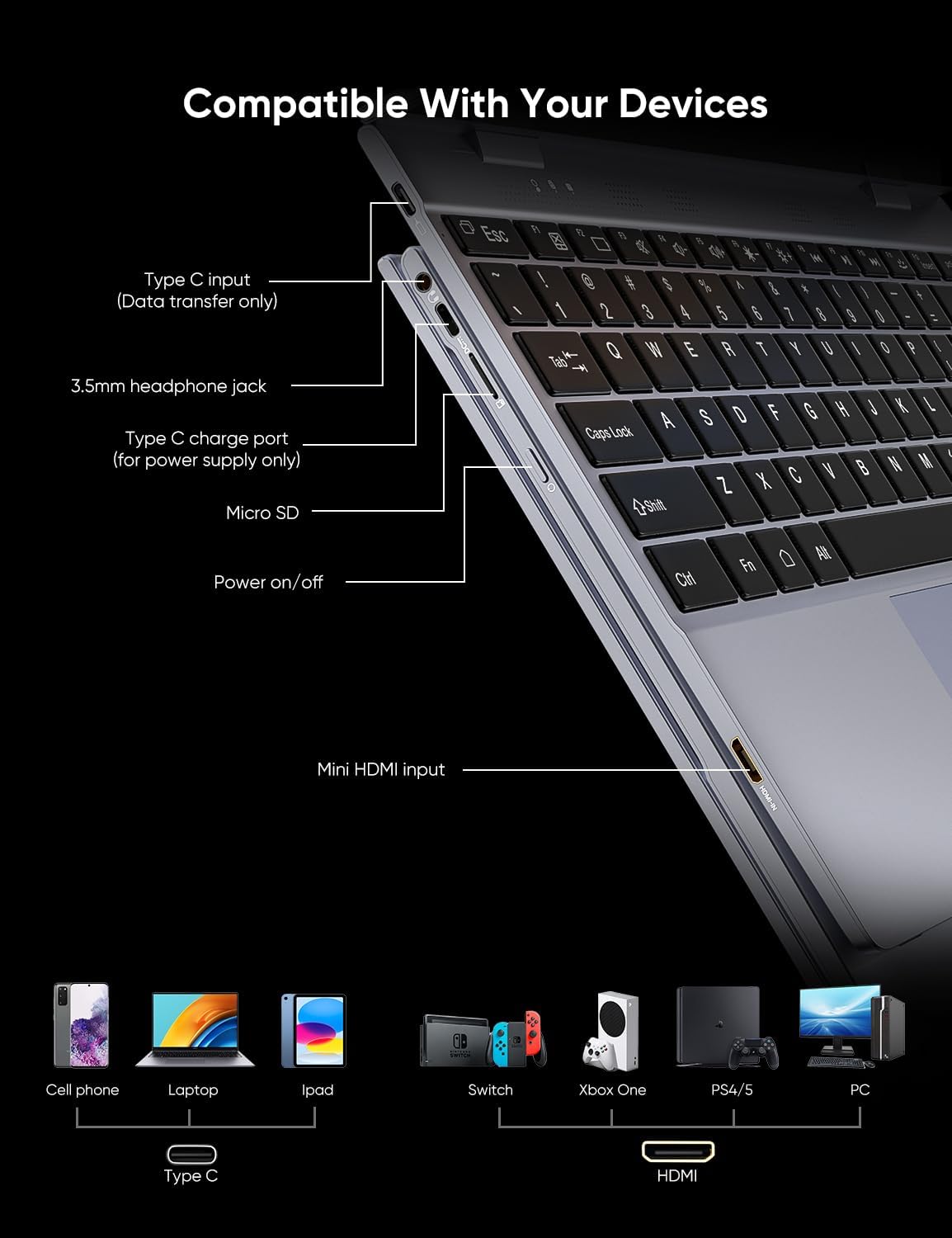
Gambar 4.2: Lebihview of monitor ports and wide device compatibility.
5. Arahan Operasi
5.1 Mod Paparan
The Dopesplay monitor supports various display modes to suit your workflow:
- Mod Telefon: Mirrors your smartphone screen.
- Mod Desktop: Transforms your smartphone into a desktop-like interface (e.g., Samsung DeX).
- Mod Pendua: Duplicates your laptop's screen.
- Mod Lanjutkan: Extends your laptop's screen, providing additional workspace.

Figure 5.1: The monitor can function as an external screen for laptops in both Duplicate and Extend modes.
5.2 Activating Touch Screen in Extend Mode (Windows)
To enable touch functionality when using the monitor in extend mode with a Windows PC, follow these steps:
- Ensure both the USB-C (full-featured) and HDMI cables are connected simultaneously. The full-function Type-C port is on the left side of the monitor, and the Type-C port for power supply only is on the right.
- On your laptop or PC, go to the 'Control Panel' and find 'Hardware and Sound', then 'View devices and printers'.
- Click on 'Tablet PC Settings'.
- In the Tablet PC Settings window, click 'Setup'.
- Follow the on-screen prompts to configure your pen and touch display. Tap the monitor screen when prompted to identify it.
- After this, the touch screen function will be available in Extend Mode.

Figure 5.2: Step-by-step guide for activating the touch screen function in extend mode on a Windows operating system.
6. Penyelenggaraan
To ensure the longevity and optimal performance of your Dopesplay Portable Monitor, follow these maintenance guidelines:
- Pembersihan: Use a soft, lint-free cloth to gently wipe the screen and exterior. For stubborn smudges, slightly dampen the cloth with water or a screen-safe cleaner. Avoid harsh chemicals, abrasive materials, or direct spraying onto the screen.
- Storan: When not in use, store the monitor in a cool, dry place away from direct sunlight and extreme temperatures. Use the provided protective cover or a soft pouch to prevent scratches.
- Pengendalian: Avoid dropping the device or subjecting it to strong impacts. Do not place heavy objects on top of the monitor.
- Penjagaan Bateri: For optimal battery life, avoid fully discharging the battery frequently. If storing for an extended period, charge the battery to about 50% before storage.
7. Penyelesaian masalah
For common issues and solutions, please refer to the official Troubleshooting Guide provided by Dopesplay. This document covers a range of problems and steps to resolve them.
8. Spesifikasi Teknikal
| Ciri | Spesifikasi |
|---|---|
| Dimensi Produk | 12.68 x 8.58 x 0.51 inci |
| Berat Barang | 2.71 paun |
| Pengeluar | Dopesplay |
| Nombor Model Item | DR148W silver |
| Bateri | 1 bateri AAA diperlukan (termasuk) |
| Saiz Paparan Skrin Berdiri | 14.1 Inci |
| Nisbah Aspek | 16:9 |
| Voltage | 12 Volt |
| Resolusi | 1920 x 1080 Piksel (FHD 1080p) |
| Kecerahan Imej | 250 Candela |
| Penerangan Permukaan Skrin | Berkilat |
9. Waranti dan Sokongan
For information regarding product warranty, returns, or technical support, please refer to the documentation included with your purchase or contact Dopesplay customer service directly through their official webtapak atau platform tempat produk itu dibeli.
Dopesplay has been developing screen solutions for over 10 years, focusing on improving work efficiency and life quality. They have attained more than 100 patents for appearance, utility, and software works.


