pengenalan
This manual provides comprehensive instructions for the setup, operation, and maintenance of your MageGee STAR98 Mechanical Gaming Keyboard and Mouse. Please read this manual thoroughly before using the product to ensure optimal performance and longevity.
Produk Selesaiview
The MageGee STAR98 Mechanical Gaming Keyboard and Mouse combo is designed for an enhanced gaming and computing experience, featuring responsive mechanical switches, customizable backlighting, and an ergonomic design.
Ciri Papan Kekunci
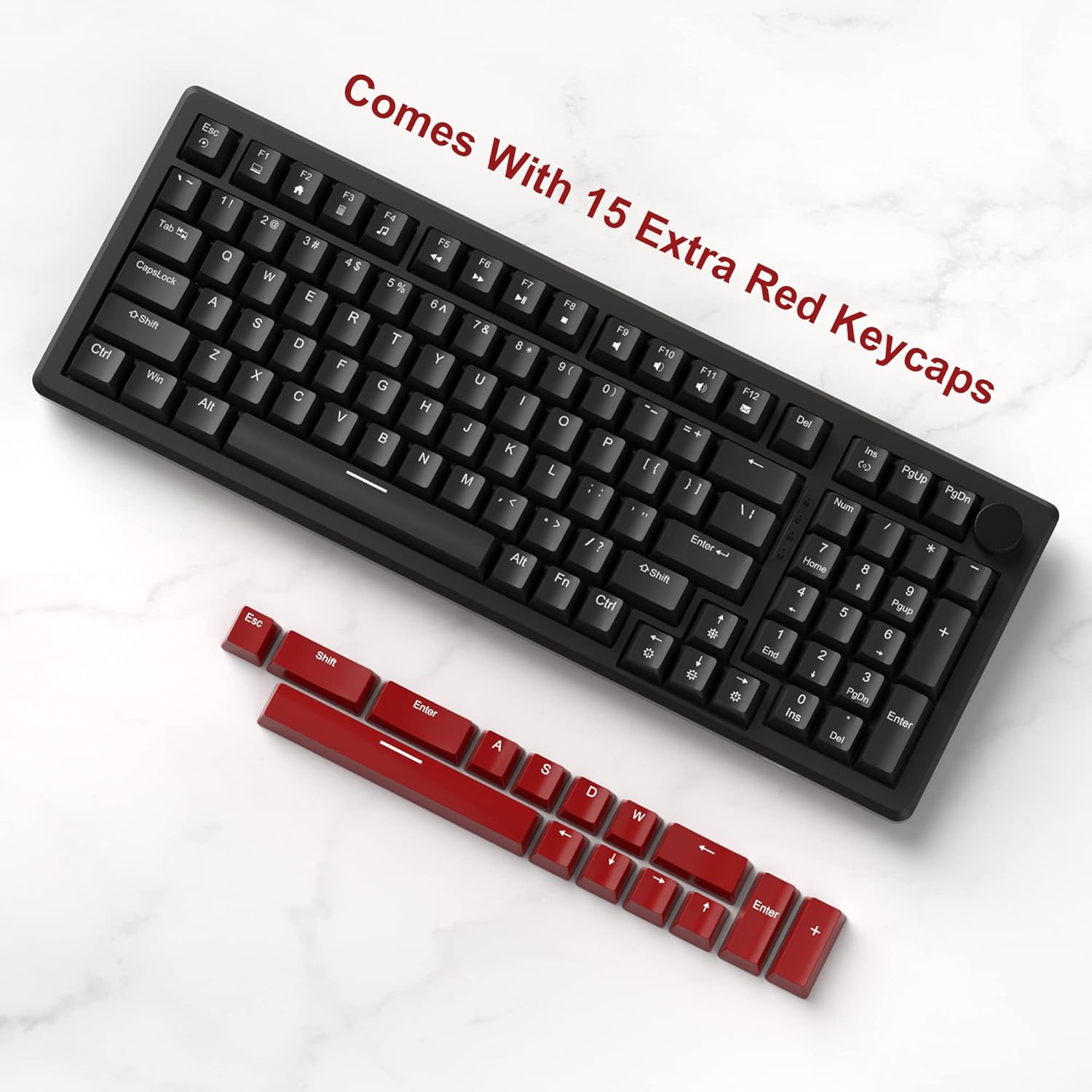
- 94% Layout with Number Pad: This keyboard features 98 keys, providing a compact design while retaining essential keys like arrow keys, number keys, and multimedia keys. It offers more desk space compared to a standard full-size keyboard.
- Adjustable Tilt Angles: Two-step rear feet allow for setting the keyboard at 3 different tilt angles for ergonomic comfort.
- 2-in-1 Multifunctional Knob: Located in the upper right corner, this knob controls both audio volume and backlight settings.
- Suis Merah Linear: Equipped with responsive red mechanical switches, offering a smooth and less audible keystroke, ideal for gaming and typing. These switches have an expected lifespan of 50 million actuations.
- 100% Anti-Ghosting: Ensures every keystroke is detected correctly, even when multiple keys are pressed simultaneously.
- Gorgeous Rainbow Backlighting: Features 8 light modes (static & dynamic), 5 brightness levels, and 4 speed levels for customizable illumination.
- Extra Keycaps: Includes an additional 15 red/yellow keycaps for DIY customization.
Ciri Tetikus
- Ergonomic Gaming Mouse: Designed for comfort and control, fitting perfectly in the palm with an anti-slip design.
- 7 Butang: Provides versatile control for various applications and games.
- 6 Speed Levels (DPI): Adjustable DPI settings (600/800/1200/1600/2400/3200) allow for easy customization of mouse speed to suit different scenarios.
- 7-Color Breathing LED Lights: The mouse features breathing LED lights in white, yellow, blue, purple, green, red, and cyan, enhancing the gaming atmosphere.
- Accurate Positioning and Stable Transmission: Ensures smooth and precise gameplay.
Persediaan
Follow these steps to set up your MageGee STAR98 Mechanical Gaming Keyboard and Mouse:
- Buka bungkusan Produk: Carefully remove the keyboard and mouse from their packaging. Ensure all components, including the additional keycaps and USB cable, are present.
- Sambungkan Papan Kekunci: Locate the USB cable attached to the keyboard. Plug the USB-A connector into an available USB port on your computer (desktop PC or laptop). The keyboard is plug-and-play and does not require additional drivers for basic functionality.
- Sambungkan Tetikus: Locate the USB cable attached to the mouse. Plug the USB-A connector into another available USB port on your computer. The mouse is also plug-and-play.
- Laraskan Kecondongan Papan Kekunci: Flip the keyboard over and extend the two-step adjustable feet to your preferred typing angle. There are three possible angles.
- Hidupkan Kuasa Awal: Once connected, the keyboard and mouse backlighting should illuminate, indicating they are powered on and ready for use.


Arahan Operasi
Operasi Papan Kekunci
- Kekunci Multimedia: The function keys (F1-F12) often have secondary multimedia functions. These are typically accessed by pressing the Fn key simultaneously with the desired function key. For example, Fn + F1 for Media Player, Fn + F2 for Volume Down, etc.
- Tombol pelbagai fungsi:
- Volume Control (Default): Turn the knob left to decrease volume, right to increase volume. Short press the knob to pause or play media.
- Mod Lampu Latar: Long press the knob to switch to backlight control mode. The 'M' indicator light will illuminate. In this mode:
- Turn the knob left or right to adjust backlight brightness.
- Short press the knob to cycle through different backlight effects/modes.
- Backlight Control (Fn Combinations):
- Tukar Mod Cahaya: Tekan Fn + Ins to cycle through 8 different light modes (static & dynamic).
- Hidupkan/Matikan Lampu: Tekan Fn + Del untuk menghidupkan atau mematikan lampu latar.
- Laraskan Kelajuan Cahaya: Tekan Fn + Anak Panah Kiri to decrease light speed, Fn + Anak Panah Kanan to increase light speed (for dynamic modes).
- Laraskan Kecerahan Cahaya: Tekan Fn + Anak Panah Atas untuk meningkatkan kecerahan, Fn + Anak Panah Bawah untuk mengurangkan kecerahan.
- Penyesuaian Kap Kunci: Use the provided keycap puller (if included) to carefully remove existing keycaps and replace them with the additional red/yellow keycaps for a personalized look.


Operasi Tetikus
- Pelarasan DPI: The mouse features a dedicated DPI button (usually located behind the scroll wheel). Press this button to cycle through the 6 available speed levels (600/800/1200/1600/2400/3200 DPI). The LED lighting may change color to indicate the current DPI setting.
- 7-Color Breathing LED: The mouse's LED lights automatically cycle through 7 colors, creating a breathing effect. There is no manual control for specific colors or modes for the mouse lighting.
- Reka bentuk ergonomik: Position your hand comfortably over the mouse, utilizing its ergonomic shape and anti-slip surface for extended use.

Penyelenggaraan
Proper maintenance ensures the longevity and optimal performance of your keyboard and mouse:
- Pembersihan:
- Putuskan sambungan peranti daripada komputer anda sebelum membersihkannya.
- Gunakan kain lembut dan tidak berbulu sedikit dampdicairkan dengan air atau larutan pembersih lembut untuk mengelap permukaan.
- Untuk papan kekunci, gunakan udara termampat untuk membuang habuk dan serpihan dari antara penutup kekunci.
- For deeper cleaning, keycaps can be carefully removed using a keycap puller and cleaned separately. Ensure they are completely dry before reattaching.
- Elakkan menggunakan bahan kimia yang keras, pembersih yang melelas, atau pelarut.
- Storan: Store the keyboard and mouse in a cool, dry place away from direct sunlight and extreme temperatures when not in use for extended periods.
- Pengendalian: Avoid dropping the devices or exposing them to excessive force, which can damage internal components or switches.
Menyelesaikan masalah
If you encounter issues with your MageGee STAR98 Mechanical Gaming Keyboard and Mouse, refer to the following common solutions:
| Masalah | Kemungkinan Punca | Penyelesaian |
|---|---|---|
| Papan kekunci/Tetikus tidak bertindak balas | Sambungan USB longgar, port USB rosak, isu pemandu. |
|
| Lampu latar tidak berfungsi atau berkelip-kelip | Backlight turned off, brightness too low, software conflict. |
|
| Kursor tetikus tidak menentu atau tidak responsif | Dirty sensor, incorrect DPI setting, surface issue. |
|
| Kunci tidak mendaftar atau menaip dua kali | Debris under keycap, faulty switch. |
|
Spesifikasi
- Jenama: MageGee
- model: STAR98
- Susun atur Papan Kekunci: 94% (98 kunci)
- Jenis Suis: Suis Merah Linear
- Lampu latar: Rainbow LED (8 modes, 5 brightness, 4 speed)
- Ketersambungan: USB berwayar
- Dimensi papan kekunci: Kira-kira 15.1 x 5.4 x 1.6 inci
- Butang tetikus: 7
- Tahap DPI Tetikus: 6 (600/800/1200/1600/2400/3200)
- Mouse Lighting: LED Pernafasan 7 Warna
- Dimensi tetikus: Kira-kira 5.1 x 2.8 x 1.6 inci
- Berat Barang: 2.44 pounds (Keyboard and Mouse combined)
- Peranti Serasi: Komputer riba, Komputer Peribadi
- Keserasian Sistem Pengendalian: Windows


Waranti dan Sokongan
MageGee products are manufactured to high-quality standards. For warranty information, technical support, or service inquiries, please refer to the contact information provided with your product packaging or visit the official MageGee webtapak. Sila simpan bukti pembelian anda untuk sebarang tuntutan waranti.


