1. Pengenalan
Thank you for choosing the ATTACK SHARK X2 Wireless Gaming Mouse. This manual provides detailed instructions for setting up, operating, and maintaining your mouse to ensure optimal performance. The X2 mouse features a transparent shell, 3-mode connectivity (2.4GHz wireless, Bluetooth 5.0, USB-C wired), adjustable DPI, 3D RGB lighting, and a rechargeable battery.

Image 1.1: The ATTACK SHARK X2 Wireless Gaming Mouse, showcasing its transparent design and vibrant RGB lighting. A USB receiver is also visible.
2. Produk Lebihview
2.1 Kandungan Pakej
- ATTACK SHARK X2 Wireless Gaming Mouse
- Kabel Pengecas USB-C
- 2.4GHz USB Receiver (stored in the mouse)
- Manual Pengguna
2.2 Komponen Tetikus

Imej 2.1: Bawah view of the X2 mouse, highlighting the USB receiver slot, mode switch, and light effect switch.
- Butang Klik Kiri
- Butang Klik Kanan
- Roda Tatal (also functions as a button)
- Butang DPI (below scroll wheel)
- Butang Maju (sebelah kiri)
- Butang ke belakang (sebelah kiri)
- Tukar Mod (bottom of mouse: OFF / 2.4G / Bluetooth)
- Suis Kesan Cahaya (bottom of mouse)
- Slot Penerima USB (bottom of mouse)
- Port Pengecasan USB-C (front of mouse)
3. Persediaan dan Sambungan
3.1 Mengecas Tetikus
The X2 mouse features an 800mAh rechargeable battery. Before first use, or when the battery is low, connect the mouse using the provided USB-C cable.
- Connect the USB-C end of the cable to the mouse's charging port.
- Sambungkan hujung USB-A kepada sumber kuasa (cth., port USB komputer, penyesuai dinding USB).
- Pengecasan penuh biasanya mengambil masa lebih kurang 4 jam.
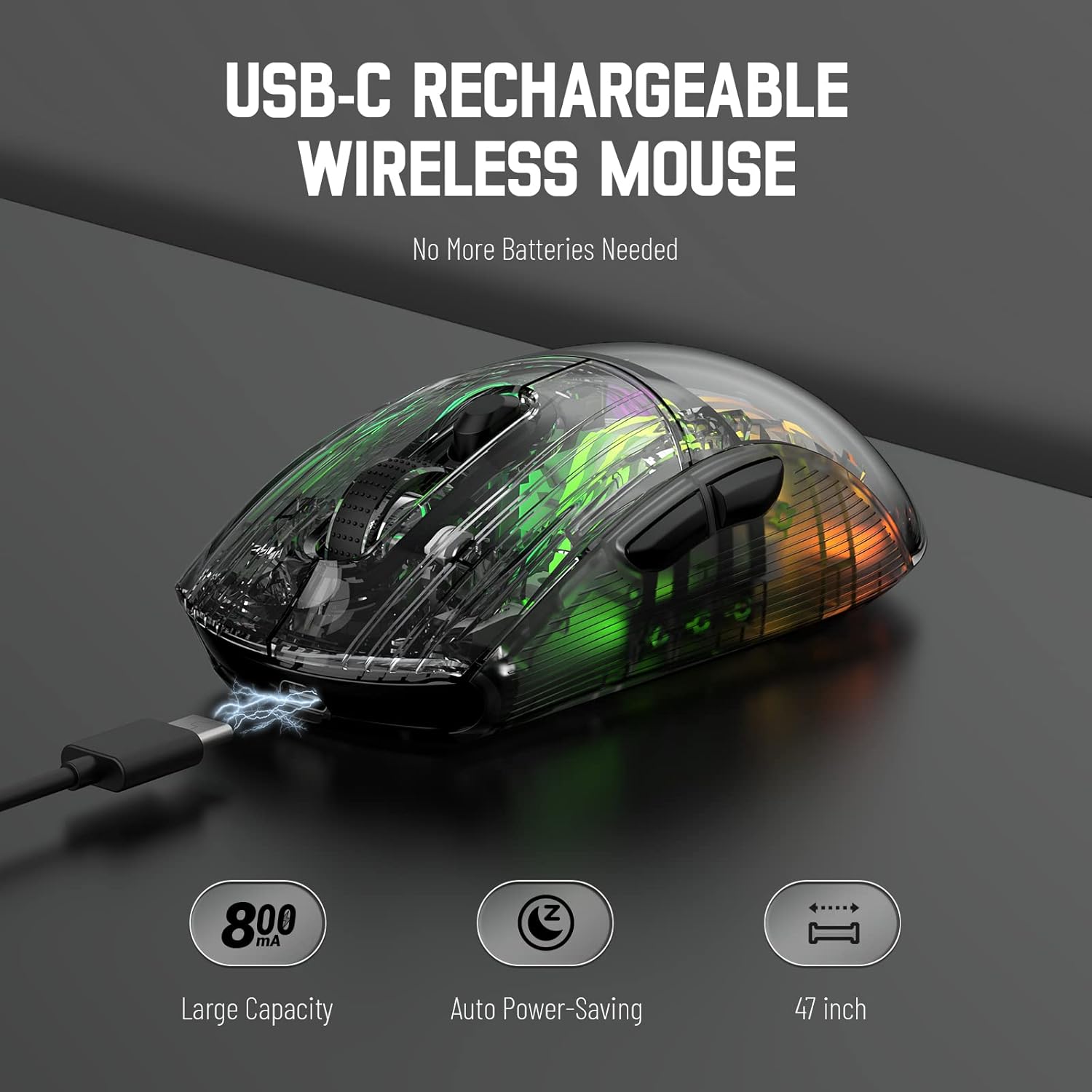
Image 3.1: The X2 mouse connected via its USB-C cable, illustrating the charging process.
3.2 Sambungan Wayarles 2.4GHz
For a stable and responsive wireless connection, use the 2.4GHz USB receiver.
- Cari penerima USB yang disimpan di slot di bahagian bawah tetikus.
- Push the mode switch on the bottom of the mouse to the "2.4G" position.
- Palamkan penerima USB ke dalam port USB yang tersedia pada komputer atau peranti anda.
- The computer should automatically detect and install the necessary drivers. The mouse is ready for use once installation is complete (typically plug-and-play).
- If the mouse is unresponsive, try plugging the receiver into a different USB port.
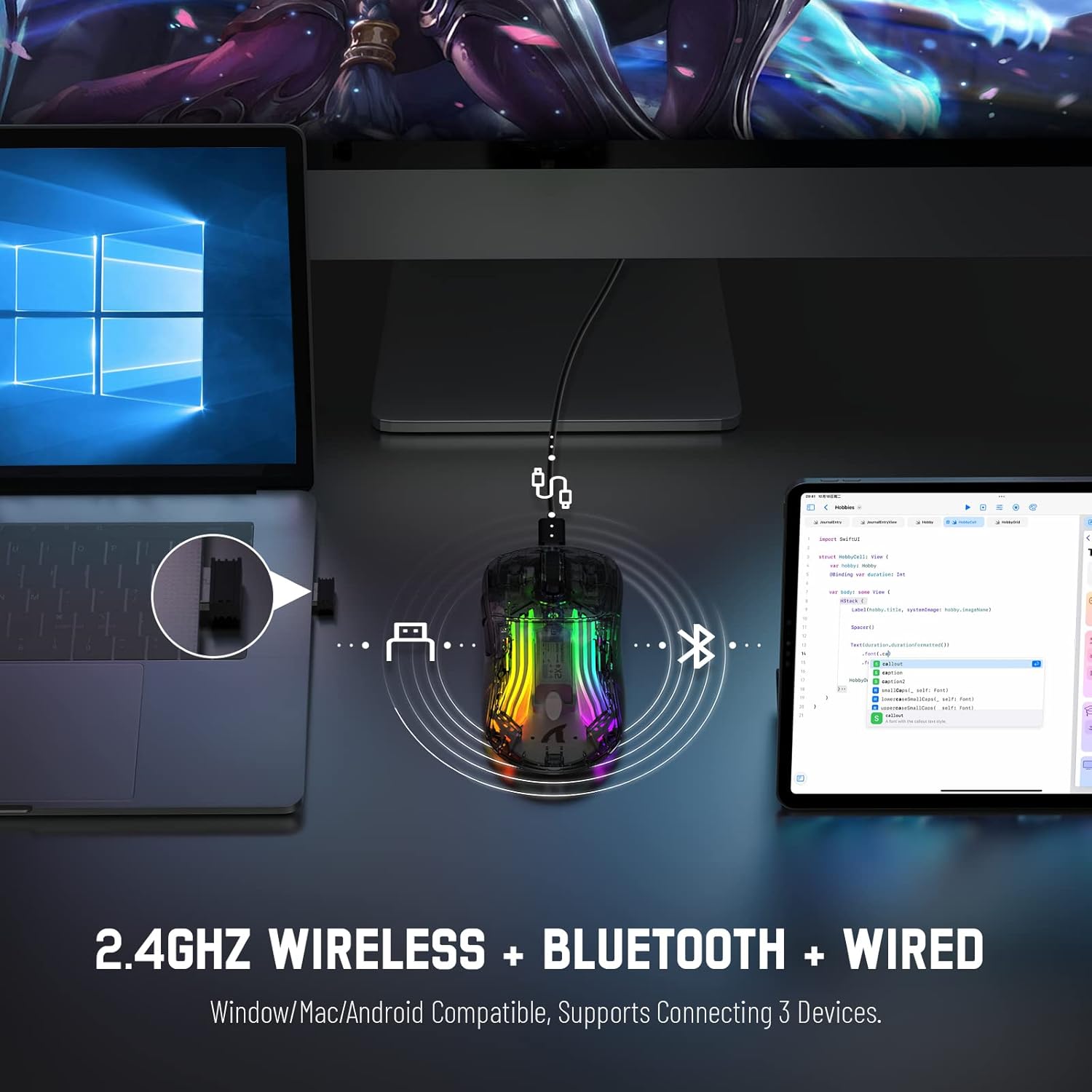
Image 3.2: Illustration of the 2.4GHz wireless connection, showing the USB receiver plugged into a laptop.
3.3 Bluetooth 5.0 Sambungan
Connect your X2 mouse via Bluetooth for devices that support it, such as laptops, tablets, or smartphones.
- Push the mode switch on the bottom of the mouse to the "Bluetooth" position.
- Tekan dan tahan butang Butang Klik Kiri + Butang Tatal Roda + Butang Klik Kanan simultaneously for approximately 3-4 seconds. The blue light on the mouse will flash rapidly, indicating it is in pairing mode.
- Pada peranti anda, navigasi ke tetapan Bluetooth dan dayakan Bluetooth.
- Cari untuk available devices. Select "X2 Mouse" from the list to connect.
- Once connected, the blue light will stop flashing and remain solid or turn off, depending on the lighting mode.
3.4 Sambungan Berwayar USB-C
For a direct and reliable connection, use the USB-C cable in wired mode.
- Connect the USB-C end of the cable to the mouse's charging port.
- Connect the USB-A end to an available USB port on your computer or device.
- The mouse will function immediately as a wired mouse (plug-and-play).
4. Arahan Operasi
4.1 Pelarasan DPI
The mouse features 5 adjustable DPI levels to suit various tasks and gaming preferences. The game chip used is PixArt 3212.
- Tekan ke Butang DPI (terletak di bawah roda skrol) untuk melihat tetapan DPI yang tersedia.
- Available DPI levels: 800 / 1200 / 1400 / 2000 / 2400.
4.2 Kawalan Pencahayaan RGB
The X2 mouse features 3D RGB lighting with 11 different light colors and various effects.
- Tekan ke Suis Kesan Cahaya (located on the bottom of the mouse) to cycle through the different RGB lighting modes and colors.

Image 4.1: The X2 mouse displaying its 3D RGB lighting, complementing a gaming setup.
4.3 Pengurusan Kuasa
The mouse is designed with auto power-saving features to conserve battery life.
- The mouse will enter a sleep mode after a period of inactivity.
- To wake the mouse, simply move it or click any button.
- When the battery is low, the mouse's indicator light may flash red.
4.4 Silent Clicks
The X2 mouse features silent click buttons, reducing noise during use.

Imej 4.2: Seorang profesional sampinganfile of the X2 mouse, emphasizing its ergonomic shape and silent click functionality.
5. Penyelenggaraan
5.1 Pembersihan
- Putuskan sambungan tetikus daripada peranti anda sebelum membersihkannya.
- Gunakan kain yang lembut, kering dan tidak berbulu untuk mengelap permukaan tetikus.
- Untuk kotoran degil, sedikit dampen kain dengan air atau larutan pembersih lembut. Elakkan bahan kimia yang keras.
- Jangan biarkan cecair memasuki bahagian dalam tetikus.
5.2 Penyimpanan
- Simpan tetikus di tempat yang sejuk dan kering jauh dari cahaya matahari langsung dan suhu yang melampau.
- When not in use, ensure the mode switch is set to "OFF" to conserve battery life.
- Keep the USB receiver stored in its designated slot on the bottom of the mouse to prevent loss.
6. Penyelesaian masalah
6.1 Tetikus Tidak Membalas
- Periksa Bateri: Ensure the mouse is charged. Connect it via USB-C cable to charge.
- Semak Suis Mod: Verify the mode switch on the bottom of the mouse is set to the correct connection mode (2.4G, Bluetooth, or OFF for wired).
- Sambungan 2.4GHz: Pastikan penerima USB dipasang dengan kukuh ke port USB yang berfungsi. Cuba port USB yang lain.
- Sambungan Bluetooth: Re-enter pairing mode (Left + Scroll + Right buttons for 3-4 seconds) and re-pair with your device. Ensure Bluetooth is enabled on your device.
- Sambungan Berwayar: Ensure the USB-C cable is securely connected to both the mouse and the device.
6.2 Intermittent Connection
- Jarak: Ensure the mouse is within the effective range (up to 50ft for 2.4GHz).
- Gangguan: Move the mouse and receiver away from other wireless devices or large metal objects that may cause interference.
- Tahap Bateri: Low battery can affect connection stability. Charge the mouse.
6.3 RGB Lights Not Working
- Check Light Switch: Press the Light Effect Switch on the bottom of the mouse to cycle through modes or turn lights on.
- Tahap Bateri: Ensure the mouse has sufficient charge, as low battery might disable lighting to conserve power.
7. Spesifikasi
| Ciri | Spesifikasi |
|---|---|
| Model | X2 |
| Ketersambungan | Tanpa Wayar 2.4GHz, Bluetooth 5.0, Berwayar USB-C |
| Tahap DPI | 800 / 1200 / 1400 / 2000 / 2400 (PixArt 3212 Chip) |
| Butang | 7 (Left, Right, Scroll Wheel, DPI, Forward, Backward, Light Effect Switch) |
| Pencahayaan | 3D RGB Lighting (11 light colors) |
| Bateri | 800mAh Boleh dicas semula |
| Masa Mengecas | lebih kurang 4 jam |
| Julat Operasi | Up to 50ft (2.4GHz) |
| Keserasian | Windows 7/8/10/XP, Vista 7/8, Mac OS, Linux (PC, Laptop, Tablet, PS4, PS5, Xbox One) |
| Berat Barang | 6.4 auns |
| Dimensi | 6.89 x 4.61 x 1.81 inci (Pakej) |
8. Waranti dan Sokongan
ATTACK SHARK products are designed and manufactured to high-quality standards. For warranty information or technical support, please refer to the warranty card included with your product or contact the seller directly through your purchase platform. Please retain your proof of purchase for any warranty claims.
For further assistance, please visit the official ATTACK SHARK store on Amazon: ATTACK SHARK Store


