1. Pengenalan
The Phomemo PM246S is a high-performance thermal label printer designed for efficiency and versatility. It offers inkless printing, making it a cost-effective solution for various labeling needs, from shipping labels to product barcodes. This manual provides detailed instructions for setting up, operating, maintaining, and troubleshooting your PM246S printer.

Image: Phomemo PM246S Label Printer in use, printing a round label.
2. Kandungan Pakej
Sila sahkan bahawa semua item terdapat dalam pakej anda:
- Phomemo PM246S Desktop Label Printer
- Kabel USB
- Power Cable + Adapter
- PM-246S Quick Start Guide
- Label Sample (20 pieces/pack)
3. Maklumat Keselamatan
To ensure safe operation and prolong the life of your printer, please observe the following:
- Gunakan hanya penyesuai kuasa dan kabel yang disediakan.
- Jangan dedahkan pencetak kepada air atau kelembapan yang berlebihan.
- Elakkan meletakkan pencetak di bawah cahaya matahari langsung atau berhampiran sumber haba.
- Jauhkan pencetak daripada habuk dan serpihan.
- Jangan cuba membuka atau membaiki pencetak sendiri. Hubungi khidmat pelanggan untuk mendapatkan bantuan.
4. Persediaan
4.1 Persediaan Perkakasan
- Sambungkan Kuasa: Palamkan penyesuai kuasa ke dalam port kuasa pencetak dan kemudian ke soket dinding.
- Sambungkan USB: Connect the USB cable from the printer to your computer. For Mac users, a Type-C converter is included if needed.
- Muatkan Label: Open the printer cover and insert your thermal labels. Ensure the labels are facing up and aligned correctly with the feeder. Close the cover.
Image: Phomemo PM246S Label Printer with a label roll inserted.
4.2 Pemasangan Perisian
The PM246S printer is compatible with Windows, Mac, Linux, and Chrome OS.
- Windows/Mac/Linux: Drivers and video tutorials are available to guide you through the setup process. Please visit the official Phomemo webtapak untuk pemandu terkini.
- OS Chrome: Users can install the "Labelife" extension from the Chrome Web Store to connect to the printer and print.

Image: Screenshot illustrating the installation of the Labelife Chrome extension for printer connectivity.
5. Arahan Operasi
5.1 Automatic Label Detection
The printer features automatic label detection to prevent wasting the first label:
- Insert the labels directly into the printer's feeder.
- Tekan dan tahan butang kuasa sehingga anda mendengar bunyi bip.
- The printer will automatically detect the label size and retract it to the correct starting position.

Image: The Phomemo PM246S printer performing automatic label detection.
5.2 Label Percetakan
The PM246S is compatible with major e-commerce platforms and shipping carriers, supporting label widths from 25.4 mm (1 inch) to 116 mm (4.6 inches).
- Platform yang Disokong: Shopify, Etsy, eBay, Amazon, Hermes, Royal Mail Click & Drop, Parcelforce, DPD, UPS, DHL, FedEx, and more.
- Jenis Label: Primarily used for 4x6 inch shipping labels, address labels, FBA labels, barcode labels, price tags, and custom labels.
- Labelife Software: Utilize the free "Labelife" label editing software to easily create and customize any label you wish to print.
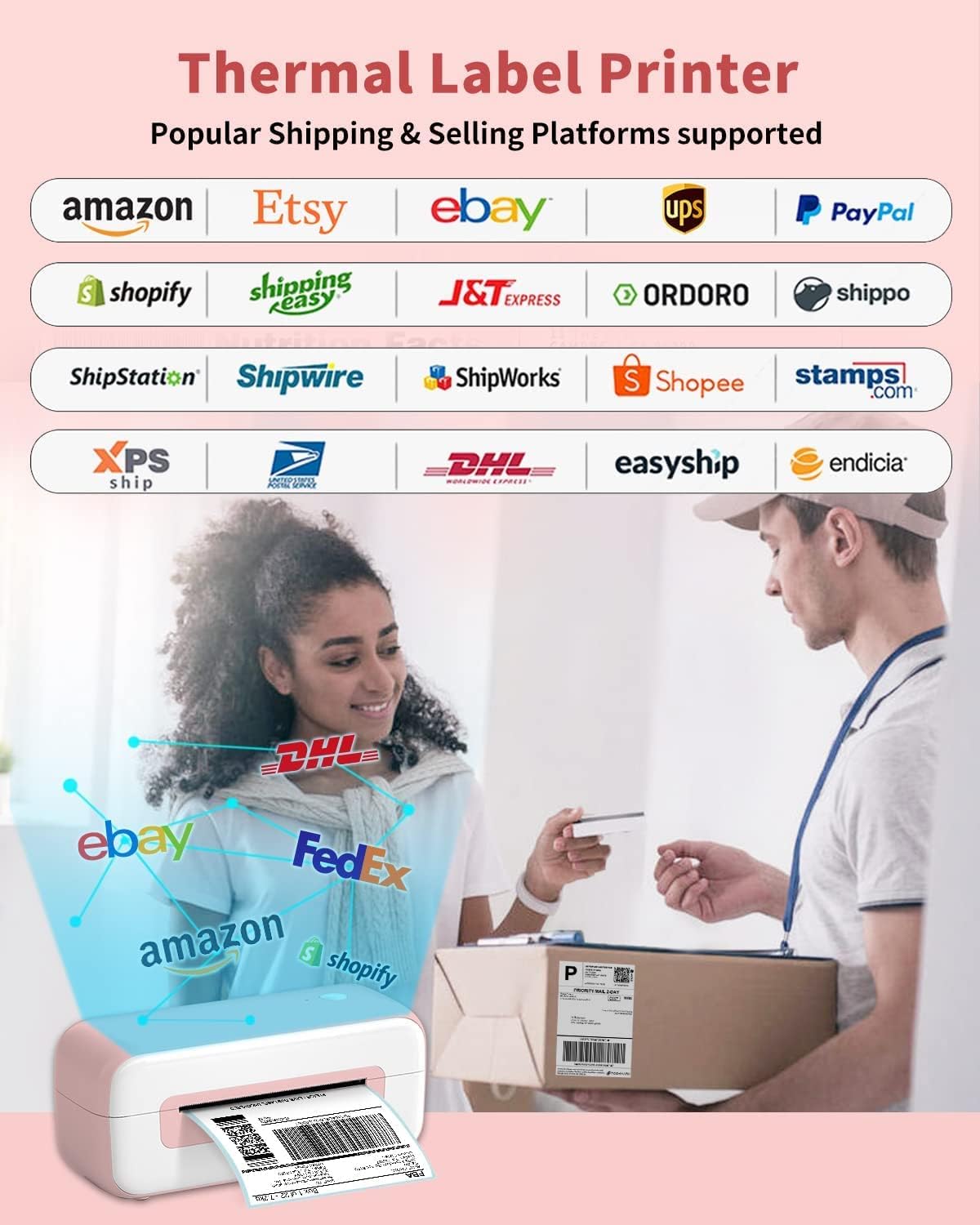
Image: Visual representation of various e-commerce and shipping platforms supported by the Phomemo PM246S printer.

Imej: Cthamples of different label sizes and types, including shipping, address, and round labels, printable with the Phomemo PM246S.

Image: The compact Phomemo PM246S printer positioned on a desk, demonstrating its small footprint.
6. Penyelenggaraan
6.1 Membersihkan Pencetak
Regular cleaning ensures optimal print quality and extends the printer's lifespan:
- Kepala Cetak: Use an alcohol swab or a specialized thermal print head cleaning pen to gently wipe the print head. Ensure the printer is off and cooled down before cleaning.
- Luaran: Lap bahagian luar pencetak dengan lembut, damp kain. Jangan gunakan pembersih atau pelarut yang melelas.
- habuk: Use a soft brush or compressed air to remove any dust or paper debris from inside the printer.
6.2 Storing the Printer
When not in use for extended periods, store the printer in a cool, dry place, away from direct sunlight and extreme temperatures. Keep the printer covered to prevent dust accumulation.
7. Penyelesaian masalah
7.1 Isu dan Penyelesaian Biasa
| Isu | Kemungkinan Punca | Penyelesaian |
|---|---|---|
| Pencetak tidak bertindak balas | Power cable loose, USB cable disconnected, printer off. | Check all cable connections. Ensure printer is powered on. Restart printer and computer. |
| Kualiti cetakan yang teruk (pudar, garisan) | Dirty print head, low-quality labels, incorrect print settings. | Clean the print head. Use high-quality thermal labels. Adjust print density settings in your software. |
| Label tidak memberi makan dengan betul | Labels loaded incorrectly, label path obstructed, automatic detection failed. | Reload labels correctly, ensuring they are aligned. Clear any obstructions. Perform automatic label detection again. |
| Pencetak luar talian | Driver issue, incorrect port selection. | Reinstall printer drivers. Verify the correct USB port is selected in printer settings. |
8. Spesifikasi
| Ciri | Perincian |
|---|---|
| Nombor Model | PM246S |
| Teknologi Percetakan | terma |
| Ketersambungan | USB |
| Resolusi Cetakan | 203 dpi |
| Kelajuan Cetakan Maks | 150 mm/s |
| Lebar Label Maksimum | 116 mm (4.6 inci) |
| Min Label Width | 25.4 mm (1 inci) |
| Keserasian Sistem Pengendalian | Windows, Mac, Linux, Chrome OS |
| Dimensi (L x W x H) | 23 x 8 x 10 cm (lebih kurang) |
| Berat badan | 1050 Gram |
| Ciri Khas | Inkless printing, Automatic label detection |
9. Waranti dan Sokongan
Phomemo is committed to providing excellent customer service:
- Perkhidmatan Pelanggan: Strong 24-hour customer service is available to help resolve any issues you may encounter.
- Pulangan: We support free returns for 30 days. Please do not hesitate to contact us if you have any questions or concerns.
- Kedai Rasmi: Untuk maklumat lanjut dan produk, sila layari Phomemo Store.


