1. Pengenalan dan Lebihview
The Calix GigaCenter 844E-1 is a high-performance wireless router and modem designed to provide robust and reliable internet connectivity for home and small office environments. It supports dual-band Wi-Fi (2.4GHz and 5GHz) for optimal wireless performance and includes multiple Ethernet ports for wired connections. This manual provides detailed instructions for setting up, operating, maintaining, and troubleshooting your GigaCenter 844E-1 device.
2. Ciri-ciri Produk
- Wi-Fi Dwi-Jalur: Supports 2.4GHz and 5GHz frequencies for flexible and high-speed wireless connections (802.11ac, 802.11n, 802.11a/g/b compatible).
- High LAN Data Rate: Capable of up to 1000 Mbps for fast wired connections.
- Berbilang Port: Includes Ethernet (RJ-45) ports (4 LAN ports), USB 2.0, and RJ-11 ports for versatile connectivity.
- Integrated Modem: Functions as both a router and a modem, simplifying network setup.
- Reka bentuk padat: Designed for efficient space utilization.
3. Kandungan Pakej
Sila sahkan bahawa semua item terdapat dalam pakej anda:
- Calix GigaCenter 844E-1 Wireless Router Modem
- Bekalan Kuasa Penyesuai AC
- (Optional: Ethernet Cable, Phone Cable - may vary by package)
4. Panduan Persediaan
Follow these steps to set up your Calix GigaCenter 844E-1:
- Meletakkan Peranti: Place the GigaCenter 844E-1 in a central location in your home, away from obstructions and sources of interference (e.g., microwaves, cordless phones). Ensure adequate ventilation.
- Sambungkan Kuasa: Connect the provided AC Adapter Power Supply to the "POWER" port on the back of the GigaCenter 844E-1 and then plug the adapter into a standard electrical outlet. The Power indicator light on the front panel should illuminate.

Rajah 4.1: Depan view of the Calix GigaCenter 844E-1 showing indicator lights and the included power adapter.
- Sambung ke Sumber Internet: Connect your internet service provider's (ISP) cable or fiber optic line to the appropriate WAN/Broadband port on the GigaCenter 844E-1. This port is typically labeled "ETH-WAN" or "Broadband". The Broadband indicator light should turn solid green once a connection is established.

Rajah 4.2: Sisi view of the GigaCenter 844E-1 highlighting the ETH-WAN, Power, and Phone ports.
- Sambungkan Peranti Berwayar (Pilihan): Use standard Ethernet cables to connect computers, gaming consoles, or other network devices to the "ETHERNET 1-4" ports on the back of the GigaCenter 844E-1. The corresponding Ethernet indicator light will illuminate when a device is connected and active.

Figure 4.3: Top/back view of the GigaCenter 844E-1 displaying the USB, Reset, Ethernet (LAN), and Phone ports.
- Connect Phone Devices (Optional): If your service includes voice, connect analog phones to the "PHONE 1" or "PHONE 2" ports using RJ-11 cables.
- Sambungan Wi-Fi Awal:
- Locate the Wi-Fi Network Name (SSID) and Password (WPA Key) on the label usually found on the bottom or back of your GigaCenter 844E-1.
- Pada peranti wayarles anda (komputer riba, telefon pintar, tablet), cari rangkaian Wi-Fi yang tersedia.
- Select your GigaCenter's SSID and enter the WPA Key when prompted.
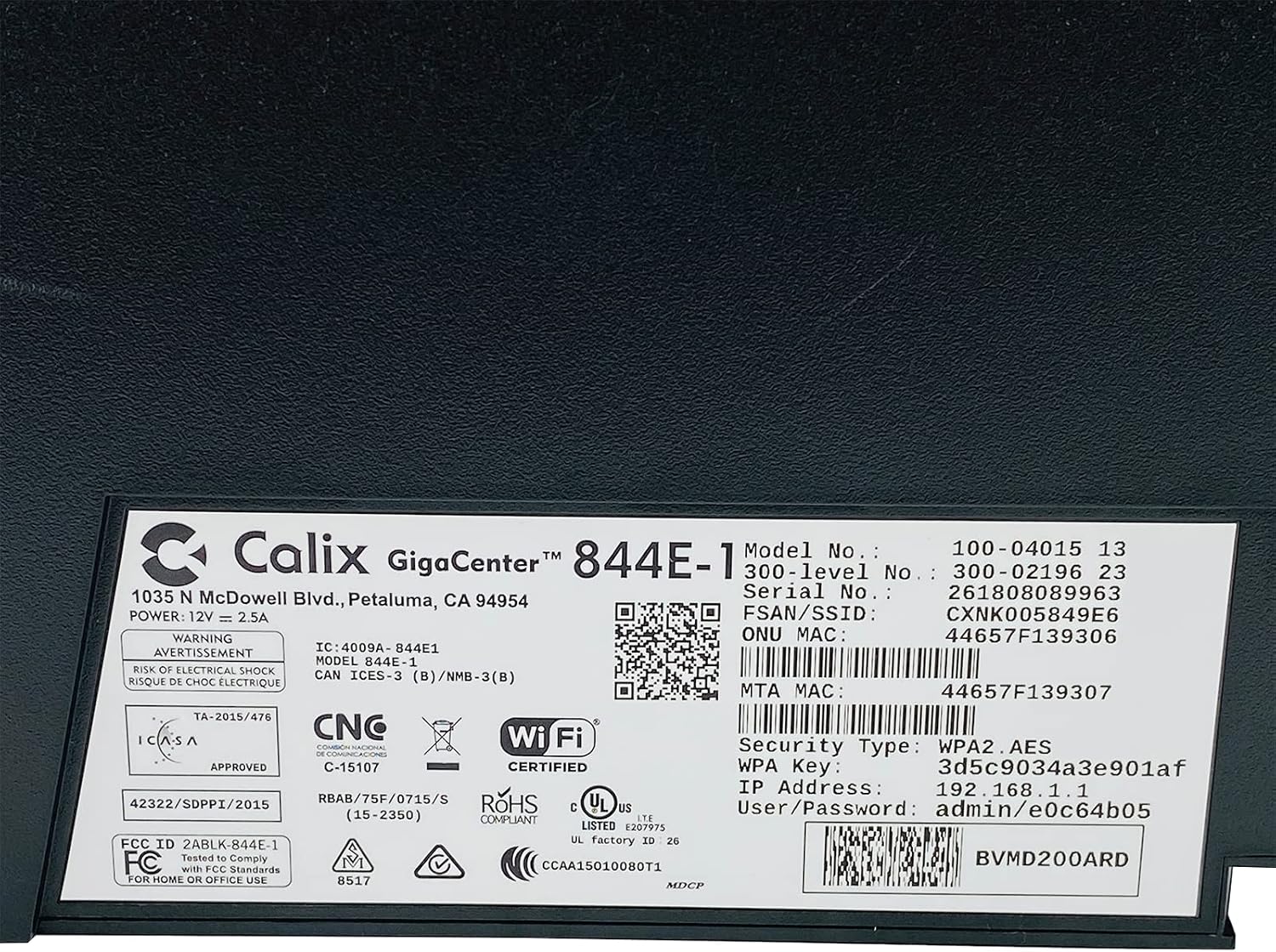
Rajah 4.4: Terperinci view of the bottom label, providing essential information such as model number, serial number, Wi-Fi SSID, and WPA Key for network access.
- Sahkan Sambungan: Setelah disambungkan, buka a web browser and try to access a webtapak (cth, www.google.com). If successful, your GigaCenter 844E-1 is set up and ready for use.
5. Arahan Operasi
5.1 Lampu Penunjuk
The front panel of the GigaCenter 844E-1 features several indicator lights that provide status information:
| Cahaya | Status | Penerangan |
|---|---|---|
| KUASA | Hijau Pejal | Peranti dihidupkan. |
| JALAN LEBAR | Hijau Pejal | Internet connection is active. |
| PERKHIDMATAN | Hijau Pejal | Service is active and provisioned. |
| WIFI 2.4GHz | Solid Green/Flashing | 2.4 GHz Wi-Fi is active/data transfer. |
| WIFI 5GHz | Solid Green/Flashing | 5 GHz Wi-Fi is active/data transfer. |
| ETHERNET 1-4 | Solid Green/Flashing | Wired connection active/data transfer. |
| PHONE 1-2 | Solid Green/Flashing | Phone service active/in use. |
| USB | Solid Green/Flashing | USB device connected/data transfer. |
| WPS | Berkelip | Gandingan WPS sedang berjalan. |
5.2 Mengakses ke Web Antara muka
To configure advanced settings, you can access the GigaCenter's web antara muka:
- Ensure your device is connected to the GigaCenter via Wi-Fi or Ethernet.
- Buka a web browser and enter the IP Address (e.g., 192.168.1.1) found on the product label into the address bar.
- Enter the User/Password (e.g., admin/e0c64b05) from the product label when prompted.
- You can now configure settings such as Wi-Fi name, password, port forwarding, and parental controls.
6. Penyelenggaraan
- Pembersihan: Gunakan kain lembut dan kering untuk membersihkan bahagian luar peranti. Jangan gunakan pembersih cecair atau aerosol.
- Pengudaraan: Ensure the device's ventilation slots are not blocked to prevent overheating.
- Kemas kini Firmware: Periodically check with your Internet Service Provider (ISP) for available firmware updates to ensure optimal performance and security.
- Memulakan semula: If you experience connectivity issues, try restarting the device by unplugging the power adapter for 10 seconds and then plugging it back in.
7. Penyelesaian masalah
Bahagian ini menangani isu biasa yang mungkin anda hadapi:
7.1 Tiada Sambungan Internet
- Semak Kabel: Ensure all cables (power, internet source, Ethernet) are securely connected.
- Lampu Penunjuk: Verify that the POWER, BROADBAND, and SERVICE lights are solid green. If not, refer to Section 5.1 or contact your ISP.
- Mulakan semula Peranti: Power cycle the GigaCenter 844E-1 by unplugging it for 10 seconds and plugging it back in.
- ISP Outage: Semak dengan ISP anda untuk sebarang perkhidmatan yang andatages di kawasan anda.
7.2 Wi-Fi Not Working or Slow
- Wi-Fi Lights: Ensure the WIFI 2.4 GHz and/or WIFI 5 GHz lights are solid green.
- kata laluan: Double-check that you are entering the correct Wi-Fi password (WPA Key).
- Kekuatan Isyarat: Move closer to the GigaCenter 844E-1 to improve signal strength.
- Gangguan: Kurangkan gangguan daripada peranti elektronik lain.
- Pengoptimuman Saluran: Akses ke web interface to change Wi-Fi channels if experiencing congestion.
7.3 Tidak Boleh Akses Web Antara muka
- Alamat IP: Confirm you are using the correct IP Address (e.g., 192.168.1.1).
- Sambungan: Ensure your device is connected to the GigaCenter's network.
- Bukti kelayakan: Verify the User/Password from the product label.
- Tembok Api/Antivirus: Lumpuhkan sementara mana-mana perisian firewall atau antivirus pada komputer anda yang mungkin menyekat akses.
7.4 WPS Functionality
The WPS (Wi-Fi Protected Setup) button allows for easy connection of WPS-compatible devices without manually entering the password. Press the WPS button on the GigaCenter 844E-1 and then activate WPS on your client device within two minutes. The WPS light will flash during the pairing process.
8. Spesifikasi
| Ciri | Perincian |
|---|---|
| Model | GigaCenter 844E-1 (100-04015 13) |
| Jenama | Calix |
| Teknologi Ketersambungan | Wireless-Wi-Fi 802.11ac, Ethernet (RJ-45) Hub/Switch, 5G |
| Piawaian Tanpa Wayar | 802.11ac, 802.11n, 802.11a/g/b |
| Kelas Band Kekerapan | Dwi-Jalur (2.4 GHz, 5 GHz) |
| Maximum LAN Data Rate | 1000 Mbps |
| Pelabuhan | 4 x Ethernet (RJ-45), 1 x USB 2.0, 2 x RJ-11 (Phone) |
| Peranti Serasi | Personal Computer, Network Devices |
| Penggunaan yang Disyorkan | Rumah |
| Komponen yang Disertakan | Bekalan Kuasa |
| Berat Barang | 3 paun |
9. Maklumat Keselamatan
- Jangan dedahkan peranti kepada air atau lembapan.
- Jangan buka peranti casing. Rujuk semua servis kepada kakitangan yang berkelayakan.
- Gunakan hanya penyesuai kuasa yang disediakan.
- Jauhkan peranti daripada sumber haba dan cahaya matahari langsung.
- Pastikan pengudaraan yang betul untuk mengelakkan terlalu panas.
10. Waranti dan Sokongan
For warranty information and technical support, please contact your Internet Service Provider (ISP) or the vendor from whom you purchased this device. The Calix GigaCenter 844E-1 is typically provided and supported by your ISP as part of your internet service package.
For general inquiries or to find more information about Calix products, you may visit the official Calix website (if available, search online for "Calix official website").


