1. Produk Lebihview
The Phomemo M08F is a lightweight and wireless thermal tattoo stencil printer designed for tattoo artists and beginners. It utilizes advanced thermal technology for inkless printing, ensuring clear and precise patterns. Its portable design and long-lasting battery make it ideal for on-the-go use.

Image: The Phomemo M08F printer actively printing a tattoo stencil, connected wirelessly to a smartphone displaying a design.
Ciri-ciri Utama:
- Wayarles & Mudah Alih: Lightweight design (approx. 1.58 lbs) for easy transport.
- Pencetakan Terma Tanpa Dakwat: No ink cartridges required, reducing mess and maintenance.
- Keserasian Tinggi: Connects via Bluetooth to Android/iOS smartphones and tablets, and via USB to Windows, MacOS, and ChromeOS PCs.
- Hayat Bateri yang Panjang: Built-in 1200mAh rechargeable battery supports printing up to 140 pages on a single charge.
- Dedicated Phomemo App: Features one-click printing, scanning, and editing functions for tattoo designs.
2. Maklumat Keselamatan
Please read and adhere to the following safety guidelines to ensure safe operation and prevent damage to the device:
- mengecas: Use a 5V2A charger. Do not use chargers with an output above 5V, as this may damage the printer or pose a safety risk.
- Persekitaran: Operate the printer in a clean, dry environment. Avoid exposure to extreme temperatures, humidity, or direct sunlight.
- Penyelenggaraan: Do not attempt to disassemble or repair the printer yourself. Refer to authorized service personnel for any repairs.
- kertas: Use only compatible thermal transfer paper designed for tattoo stencils to ensure optimal performance and prevent damage to the print head.
3. Bermula (Persediaan)
3.1 Kandungan Pakej
Sebelum anda mula, pastikan semua item terdapat dalam pakej:
- Phomemo M08F Wireless Thermal Tattoo Printer
- Kabel Pengecas USB-C
- 10 sheets of Tattoo Transfer Paper
- Manual Pengguna (dokumen ini)
3.2 Mengecas Pencetak
For first-time use, fully charge the printer. A full charge typically allows for printing up to 140 pages.
- Connect the USB-C cable to the printer's charging port.
- Connect the other end of the cable to a 5V2A USB power adapter (not included) or a computer's USB port.
- The indicator light will show charging status (refer to printer's LED indicator guide for specific colors/patterns).

Image: Various charging methods for the Phomemo M08F printer, including power bank, wall outlet, computer, and car charger.
3.3 Menyambung ke Peranti
3.3.1 Mobile Device Connection (Bluetooth)
The Phomemo M08F printer connects wirelessly to your smartphone or tablet via Bluetooth using the dedicated Phomemo App.
- Download the "Phomemo" App from the App Store (iOS) or Google Play Store (Android).
- Pastikan Bluetooth didayakan pada peranti mudah alih anda.
- Open the Phomemo App. Do not pair the printer directly through your phone's Bluetooth settings.
- Within the app, select your "M08F" printer from the device list to connect.

Image: A Phomemo M08F printer on a desk, wirelessly connected to a smartphone displaying the Phomemo app, ready for printing.
3.3.2 Computer Connection (USB)
For Windows, MacOS, and ChromeOS, connect the printer via USB cable and install the necessary drivers.
- Download the printer driver from tattoo.phomemo.com.
- Pasang pemacu yang dimuat turun pada komputer anda.
- Sambungkan pencetak ke komputer anda menggunakan kabel USB-C yang disediakan.
- The printer will be recognized as a printing device.
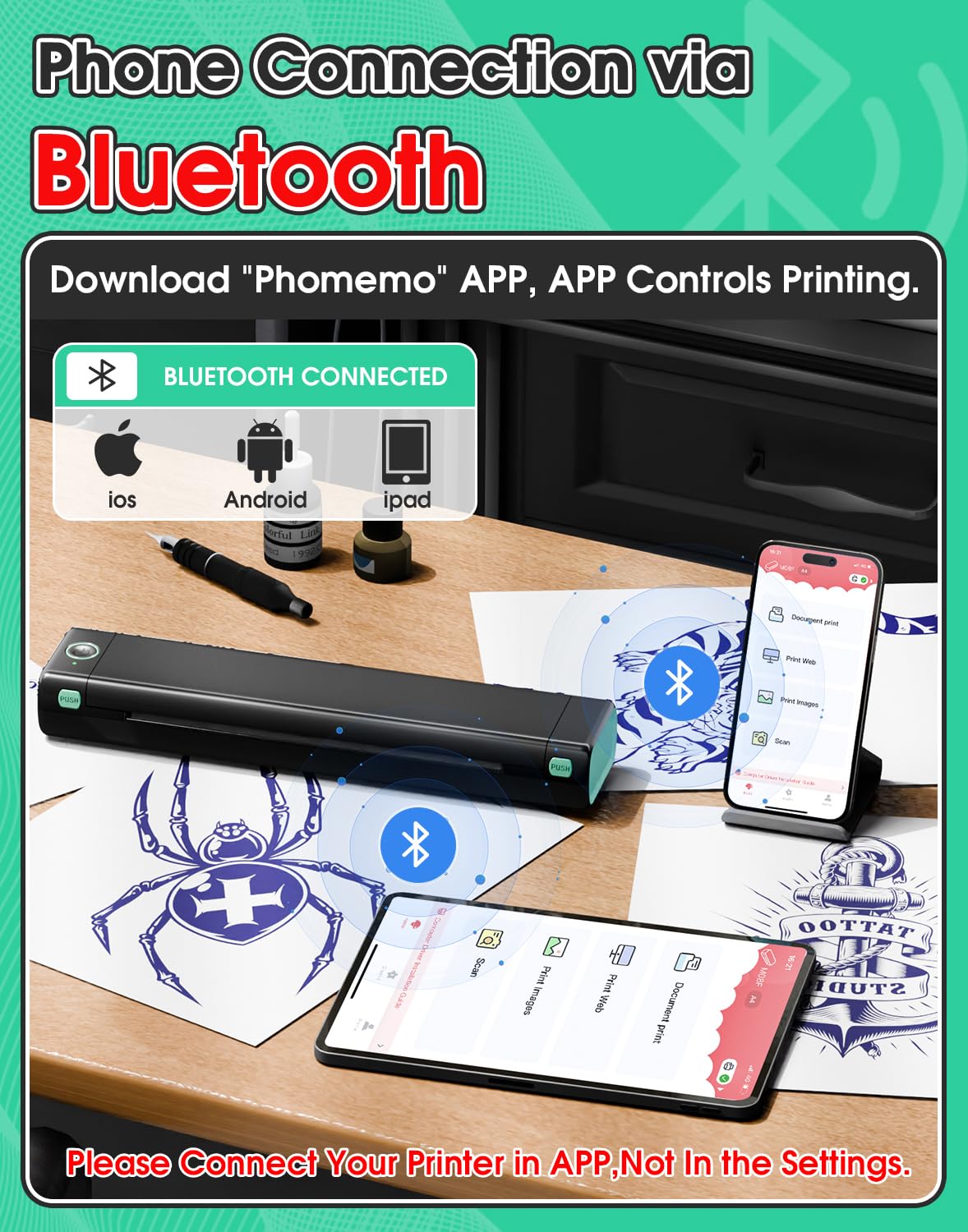
Image: A Phomemo M08F printer connected to a laptop via USB, with the laptop screen showing the Phomemo driver download page.
3.4 Loading Transfer Paper
Properly loading the transfer paper is crucial for clear stencil prints.
- Prepare the Transfer Paper: Remove the transparent protective paper from the transfer sheet.
- Peel Backing: Use a ruler or similar flat object to gently peel off the yellow backing paper from the transfer sheet.
- Turn On Printer: Press the power button to turn on the Phomemo M08F printer.
- Masukkan Kertas: Carefully insert the prepared transfer paper into the printer's paper slot, ensuring it lies flat and is aligned. The printer will automatically feed the paper into position.

Image: A visual guide demonstrating the steps for preparing tattoo transfer paper and loading it correctly into the Phomemo M08F printer.
4. Operasi
4.1 Printing Stencils
Once connected and paper is loaded, you can print your tattoo designs.
- Daripada Aplikasi Mudah Alih: Use the Phomemo App to select images or documents, utilize the scanning function for tattoo designs, and initiate one-click printing. The app allows for editing, resizing, and applying filters to your designs before printing.
- Dari Komputer: Open your desired image or document in a compatible program and select the Phomemo M08F printer from your print options. Adjust print settings as needed.

Image: The Phomemo mobile application interface, showcasing its various functions for scanning, image selection, and document printing.

Image: The Phomemo app's editing capabilities, including rotation, brightness and contrast adjustments, free resizing, and various filters for tattoo designs.
4.2 Optimizing Print Quality
For the best stencil results, consider the type of image you are printing. The M08F excels at clear lines and monochrome patterns.

Image: A visual guide illustrating the types of tattoo designs that print well (simple lines, monochrome, complex lines without shadow) versus those that may result in lower quality (shaded patterns, excessive color, black backgrounds).
Petua untuk Keputusan Terbaik:
- Use high-resolution images.
- Designs with clear lines and minimal shading work best.
- Avoid designs with excessive color or large black areas, as thermal printers are monochrome.
- Ensure the transfer paper is Phomemo Tattoo Transfer Paper for optimal results.

Image: A magnified comparison highlighting the high-definition print quality of the M08F Tattoo Printer compared to other printers, demonstrating superior line clarity.
4.3 Transferring Stencils to Skin
Follow these steps to successfully transfer your printed stencil onto the skin:
- Kulit bersih: Wipe off the skin area with wet wipes or alcohol to ensure it is clean and free of oils.
- Apply Transfer Cream: Apply a thin, even layer of tattoo transfer cream or gel to the cleaned skin area.
- Position Stencil: Carefully place the printed stencil onto the skin, design-side down, pressing firmly and evenly.
- Tanggalkan Stensil: Gently peel off the stencil paper after a few minutes, allowing the design to transfer completely.
- kering: Let the transferred stencil dry for several minutes before proceeding with tattooing.

Image: A step-by-step visual demonstration of the tattoo stencil transfer process, from skin preparation to drying the applied stencil.

Image: A guide on how to achieve clearer tattoo templates by correctly handling the carbon paper and transfer paper layers.
4.4 Demonstrasi Video
Watch this official video for a visual guide on using the Phomemo M08F printer and transferring stencils.
Video: A demonstration of the Phomemo M08F Tattoo Stencil Printer in action, showing the printing process and stencil transfer.
5. Penyelenggaraan
The Phomemo M08F printer requires minimal maintenance due to its inkless thermal technology.
- Pembersihan: Regularly wipe the exterior of the printer with a soft, dry, lint-free cloth. Do not use abrasive cleaners or solvents.
- Kepala Cetak: Avoid touching the print head directly. If necessary, gently clean with a cotton swab lightly dampened with isopropyl alcohol, ensuring it is completely dry before use.
- Storan: Store the printer in a cool, dry place away from direct sunlight and extreme temperatures when not in use for extended periods.
- Penjagaan Bateri: To prolong battery life, avoid fully discharging the battery frequently. Charge the printer regularly, even if not in constant use.
6. Penyelesaian masalah
If you encounter issues with your Phomemo M08F printer, refer to the following common problems and solutions:
| Masalah | Kemungkinan Punca | Penyelesaian |
|---|---|---|
| Pencetak tidak bersambung melalui Bluetooth. | Incorrect pairing method; Bluetooth off; App issue. | Ensure Bluetooth is on. Connect via the Phomemo App, not phone settings. Restart app/printer. |
| Poor print quality (faint/blurry). | Low battery; incorrect paper loading; low-resolution image; unsuitable design. | Charge printer. Re-load paper correctly. Use high-resolution, line-art designs. Use Phomemo transfer paper. |
| Kertas jem. | Paper inserted incorrectly; damaged paper. | Turn off printer. Gently pull out jammed paper. Re-insert new paper correctly. |
| Printer not responding. | Bateri lemah; sistem rosak. | Charge printer. Press and hold the power button for 10 seconds to reset. |
For further assistance, consult the Phomemo App's help section or contact customer support.
7. Spesifikasi
| Ciri | Perincian |
|---|---|
| Nama Model | M08F-WS |
| Jenama | Phomemo |
| Teknologi Percetakan | terma |
| Output Pencetak | Monokrom |
| Teknologi Ketersambungan | Bluetooth, USB |
| Kelajuan Cetakan Maks (Monokrom) | 12 ppm |
| Dimensi Produk | 10.4" L x 2.3" W x 1.2" H (26.4cm L x 5.8cm W x 3.0cm H) |
| Berat Barang | 1.58 Paun (715 Gram) |
| Bateri | 1 bateri Polimer Litium (termasuk) |
| Kapasiti Bateri | 1200mAh |
| warna | Hitam & Hijau |

Image: The physical dimensions of the Phomemo M08F printer, highlighting its compact size.
8. Waranti dan Sokongan
For warranty information, product registration, or technical support, please contact Phomemo customer service through their official channels. You can also refer to the official user manual PDF for additional details.
- Manual Pengguna Rasmi (PDF): Muat turun PDF
- Phomemo Brand Store: Lawati Kedai


