pengenalan
This manual provides essential information for the proper use and maintenance of your AUSDOM Magic-Style Keyboard Case. Please read these instructions carefully before use to ensure optimal performance and longevity of your device.
Keserasian
The AUSDOM Magic-Style Keyboard Case (Magkey12.9) is designed for the following iPad models:
- 2024 iPad Air 13-inch (M2): Model A2898, A2899, A2900
- 2022 iPad Pro 12.9-inch (6th Generation): Models A2436, A2437, A2764, A2766
- 2021 iPad Pro 12.9-inch (5th Generation): Models A2378, A2379, A2461, A2462
- 2020 iPad Pro 12.9-inch (4th Generation): Models A2069, A2229, A2232, A2233
- 2018 iPad Pro 12.9-inch (3rd Generation): Models A1876, A1895, A1983, A2014
Note: This keyboard case is not compatible with the iPad Pro 13-inch (M4) 2024.
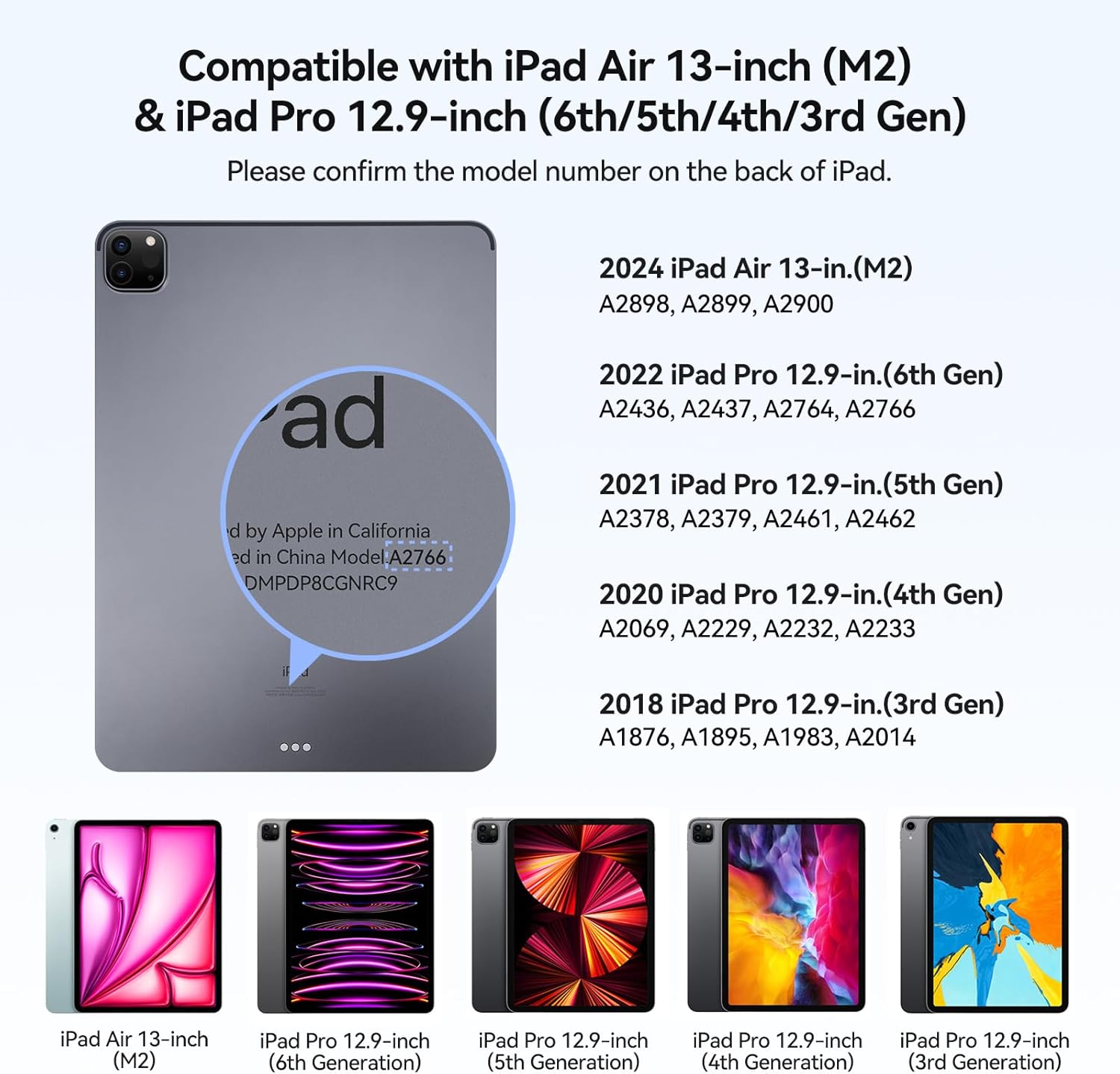
Image: Visual guide displaying compatible iPad models and their corresponding model numbers.
Kandungan Pakej
Sila sahkan bahawa semua item terdapat dalam pakej:
- AUSDOM Magkey12.9 Keyboard Case
- Kabel Pengecas USB-C
- Manual Pengguna (dokumen ini)
Persediaan
1. Memasang iPad Anda
- Buka bekas papan kekunci.
- Align your compatible iPad with the magnetic back panel of the case. The iPad will securely attach due to the powerful magnetism.
- Laraskan viewing angle. The magnetic floating cantilever design allows for a 130° viewing angle, transforming your iPad into a laptop-like setup.
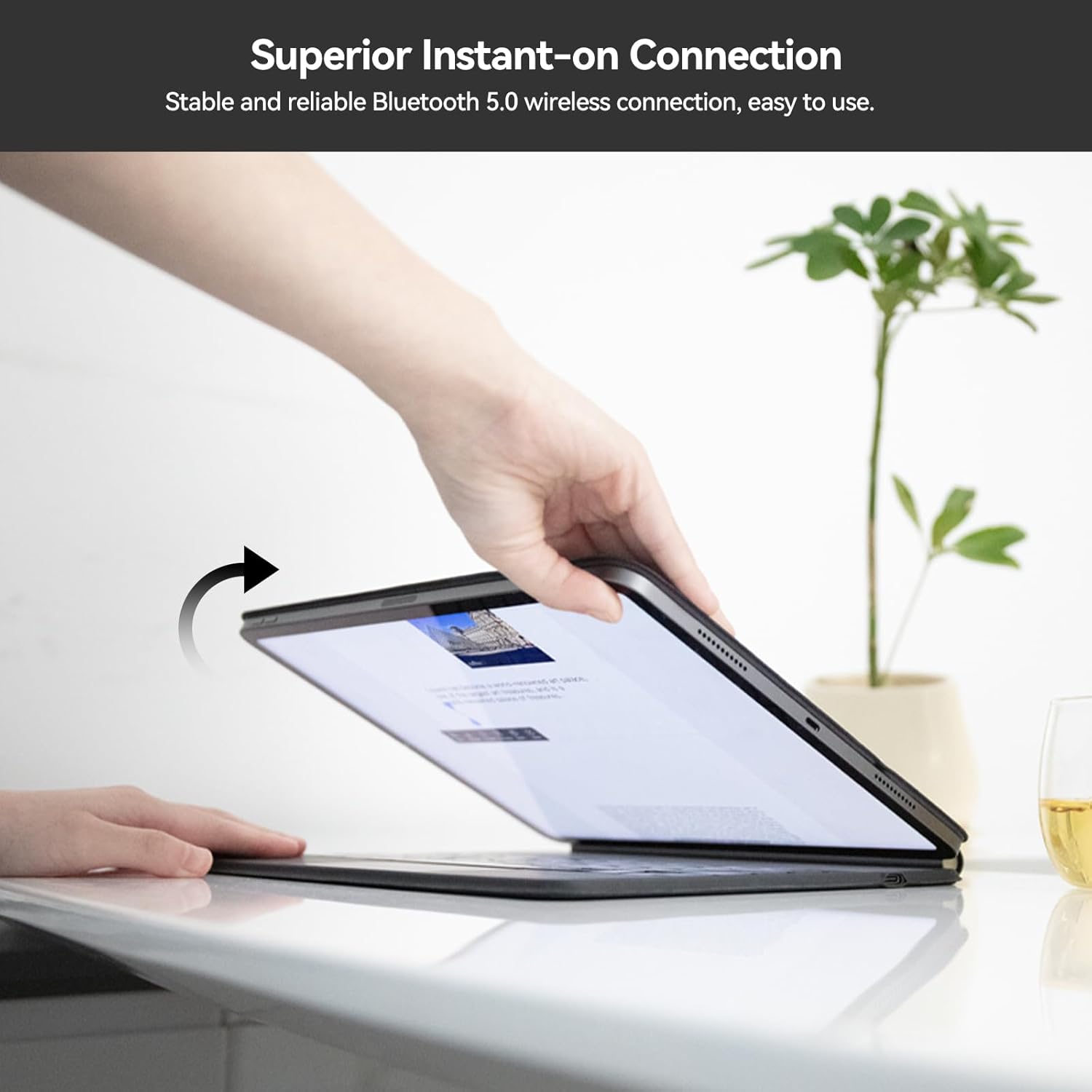
Image: A hand placing an iPad onto the magnetic back panel of the keyboard case, demonstrating the secure attachment.
2. Berpasangan Bluetooth
- Ensure your keyboard case is charged (refer to the Maintenance section for charging instructions).
- Open the keyboard case. The keyboard will automatically power on and enter pairing mode.
- Pada iPad anda, pergi ke tetapan > Bluetooth.
- Hidupkan Bluetooth.
- Look for "AUSDOM Keyboard" or a similar name in the "Other Devices" list and tap to connect.
- Once connected, the Bluetooth indicator light on the keyboard will turn off, and your iPad will show the keyboard as "Connected."

Image: The AUSDOM Magic-Style Keyboard Case with an iPad attached, showcasing the magnetic floating design and backlit keyboard.
Arahan Operasi
Penggunaan Papan Kekunci
The keyboard features a low-profile scissor-switch structure designed for a quiet, responsive, and comfortable typing experience. Simply begin typing after successful Bluetooth connection.

Imej: A terperinci view of the keyboard's scissor-switch mechanism, highlighting its low-profile reka bentuk.
Multi-Touch Trackpad
The integrated multi-touch trackpad allows for precise navigation and gesture control on your iPad. To optimize trackpad sensitivity, navigate to tetapan > Umum > Pad jejak > Ketik untuk klik pada iPad anda.
Gerak isyarat biasa termasuk:
- Tap to click: Single tap on the trackpad.
- Zum masuk dan keluar: Picit dengan dua jari.
- Drag to move: Tap and hold an item, then drag.
- Swipe to open App switcher: Leret ke atas dengan tiga jari.
- Swipe to open the docking station: Swipe up with one finger from the bottom edge.
- Switch between running apps: Leret ke kiri atau kanan dengan tiga jari.

Image: A visual guide demonstrating various multi-touch gestures for the trackpad, including tap, zoom, drag, and app switching.
Kekunci Bercahaya Belakang
The keyboard features adjustable 3-level backlighting for comfortable typing in various lighting conditions.
- To cycle through backlight brightness levels (Off, Low, Medium, High), press the Fn + Light Bulb icon kunci.
Fungsi Pintasan
Utilize the function (Fn) key in combination with other keys for quick access to various iPad features:
- Fn + &: Turn on/off the trackpad function.
- Fn + 1*: Kurangkan kecerahan skrin.
- Fn + 2*: Tingkatkan kecerahan skrin.
- Other Fn key combinations are indicated by icons on the top row of keys (e.g., media controls, search).

Image: A diagram of the keyboard layout, showing the function (Fn) key and various shortcut keys for trackpad control and brightness adjustment.
Penyelenggaraan
Mengecas Papan Kekunci
The keyboard case is equipped with a built-in rechargeable Lithium Polymer battery. It requires external charging via the provided USB-C cable.
- Connect the USB-C end of the charging cable to the charging port on the keyboard case.
- Sambungkan hujung kabel USB-C yang satu lagi ke penyesuai kuasa USB yang serasi (tidak disertakan) atau port USB komputer.
- Lampu penunjuk pengecasan akan menyala semasa pengecasan dan padam setelah dicas sepenuhnya.
Note: The iPad cannot charge the keyboard. They require separate charging.
Hayat Bateri:
- Up to 90 days of continuous use with backlight off.
- Up to 7 days of continuous use with backlight on.

Image: A close-up of the keyboard case showing the USB-C charging port with a cable connected, alongside battery life indicators for backlight on/off.
Pembersihan
To clean your keyboard case, gently wipe the surfaces with a soft, damp cloth. Avoid using harsh chemicals or abrasive materials that could damage the finish or electronic components.
Menyelesaikan masalah
- Papan kekunci tidak bersambung melalui Bluetooth:
- Pastikan papan kekunci dicas.
- Matikan dan hidupkan papan kekunci.
- On your iPad, forget the device in Bluetooth settings and attempt to re-pair.
- Mulakan semula iPad anda.
- Keys or trackpad not responding:
- Check Bluetooth connection status.
- Ensure the trackpad is not disabled (Fn + &).
- Cas semula papan kekunci.
- iPad not securely attaching:
- Ensure your iPad model is compatible with the case.
- Verify that no debris is obstructing the magnetic connection points.
If you encounter persistent issues not resolved by these steps, please contact customer support.
Spesifikasi
| Ciri | Perincian |
|---|---|
| Nombor Model | Magkey12.9 |
| Dimensi Produk | 11.22 x 9.02 x 0.69 inci (28.49 x 22.91 x 1.75 cm) |
| Berat Barang | 1.76 paun (0.8 kg) |
| Teknologi Ketersambungan | Bluetooth 5.0 |
| Penerangan Papan Kekunci | Wireless, Scissor-switch |
| Ciri Khas | Backlit (3-level), Rechargeable, Multi-Touch Trackpad, Magnetic Floating Cantilever Design, Auto Wake/Sleep |
| Jenis Bateri | Polimer Litium (termasuk) |
| Warna Lampu Latar Papan Kekunci | Warna Tunggal |
| Pengeluar | AUSDOM |

Image: Visual representation of the keyboard case's profile (0.25 inches), weight (1.76 pounds), and 130-degree adjustable viewsudut ing.
Waranti dan Sokongan
AUSDOM products are designed for quality and reliability. This product comes with a lifetime commitment to quality and customer satisfaction.
Sokongan Pelanggan
For technical assistance, troubleshooting, or warranty inquiries, please contact AUSDOM customer support. Our support team is available 24/7 to assist you.
Please refer to the official AUSDOM webtapak atau dokumentasi pembelian anda untuk maklumat hubungan terkini.


