pengenalan
The cellularline Keyboard Case is a versatile accessory designed for tablets up to 11 inches. It integrates a wireless keyboard and a touchpad, enhancing productivity and user experience. The case also features a robust stand function and a dedicated loop for a stylus, making it an ideal companion for various activities from typing to media consumption.
Ciri-ciri Utama
- Universal protective case compatible with tablets up to 11 inches.
- Integrated wireless keyboard for fast and smooth typing.
- Built-in touchpad for intuitive navigation.
- Elastic loop and magnetic closure to securely hold and protect your stylus.
- Foldable design that converts into a convenient stand for typing, watching movies, and web melayari.
- Internal silicone mounting system that adapts to the four corners of your device for a secure fit.
Persediaan
Membongkar
Carefully remove the Keyboard Case from its packaging. Ensure all components are present.
- cellularline Keyboard Case (Pack of 1)
Inserting Your Tablet
The case features an internal silicone mounting system designed to securely hold tablets of various sizes up to 11 inches. Gently stretch the silicone corner straps over the four corners of your tablet until it is firmly seated.
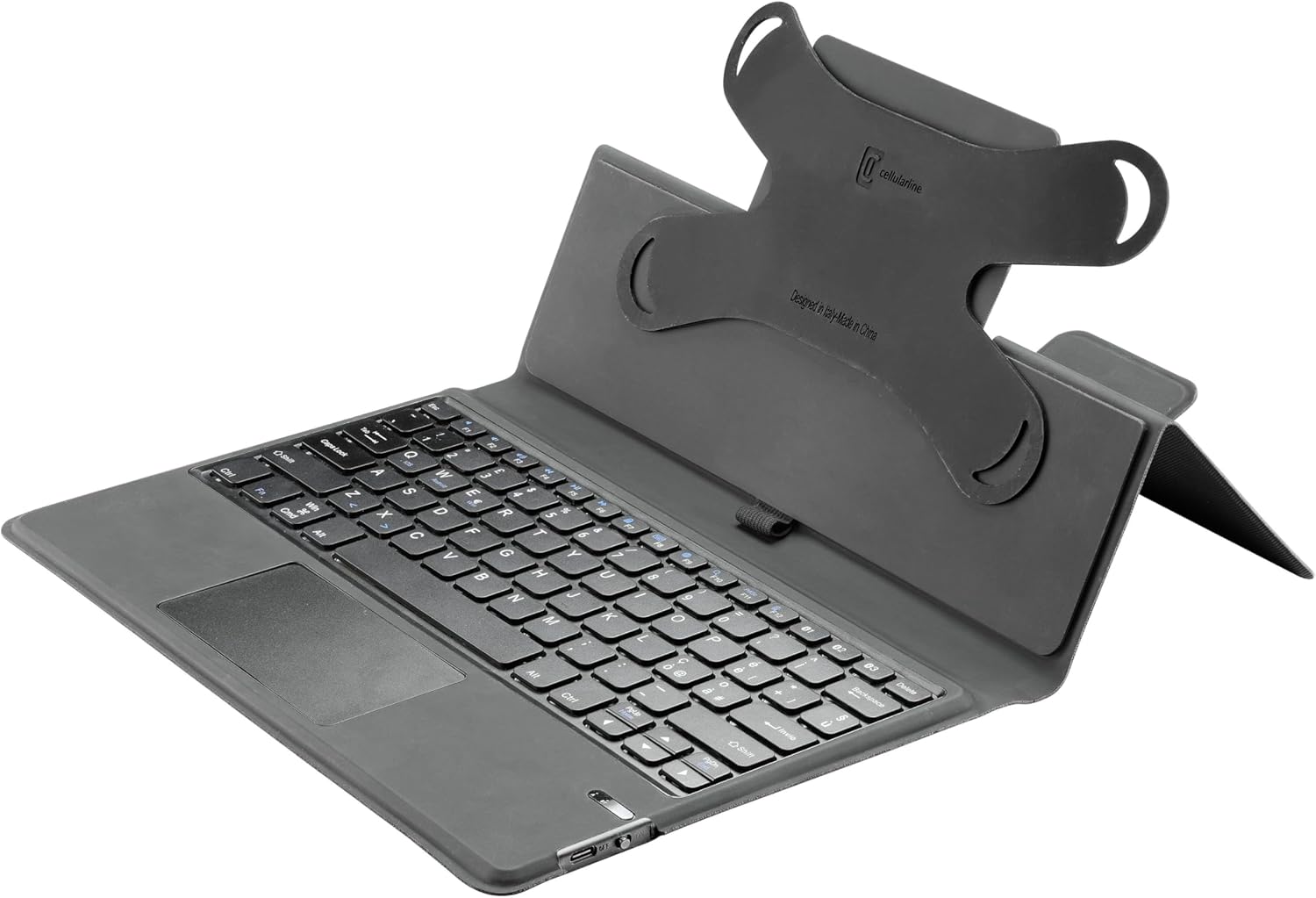
Imej: View of the case's interior, showing the flexible silicone corner mounts that secure the tablet.
Connecting the Wireless Keyboard
- Pastikan papan kekunci dicas.
- Turn on the keyboard using the power switch, usually located on the side or back of the keyboard.
- Activate Bluetooth on your tablet.
- Cari untuk available Bluetooth devices. The keyboard should appear as 'cellularline Keyboard' or similar.
- Select the keyboard from the list to pair. Follow any on-screen prompts to complete the pairing process.
Arahan Operasi
Menggunakan Papan Kekunci
The integrated QWERTY keyboard provides a familiar typing experience. It includes standard function keys and special keys for tablet control. Refer to your tablet's operating system for specific keyboard shortcuts.

Imej: Terperinci view of the QWERTY keyboard and touchpad.
Menggunakan Pad Sentuh
The integrated touchpad allows for precise cursor control and gesture-based navigation, similar to a laptop. Basic functions include single-finger tap for click, two-finger scroll, and pinch-to-zoom. Consult your tablet's settings for advanced touchpad gestures.
Utilizing the Stand Function
The case is designed to fold into a stable stand, offering optimal viewing angles for multimedia consumption or comfortable typing positions. Simply fold the back cover of the case to create a triangular support structure.

Image: The Keyboard Case in its stand configuration, ready for use.
Stylus Loop
An elastic loop is provided to securely hold your stylus. This loop, combined with a magnetic closure, ensures your stylus is protected and always accessible.
Penyelenggaraan
To ensure the longevity and optimal performance of your cellularline Keyboard Case, follow these maintenance guidelines:
- Pembersihan: Use a soft, dry, lint-free cloth to wipe the exterior of the case and keyboard. For stubborn marks, a slightly damp cloth with mild soap can be used, ensuring no moisture enters the keyboard or electronic components.
- Storan: Apabila tidak digunakan, simpan bekas di tempat yang sejuk dan kering, jauh daripada cahaya matahari langsung dan suhu yang melampau.
- Elakkan Cecair: Do not expose the keyboard case to liquids, as this can damage the internal electronics.
- Tangani dengan Berhati-hati: Avoid dropping the case or placing heavy objects on it, which could cause structural damage.
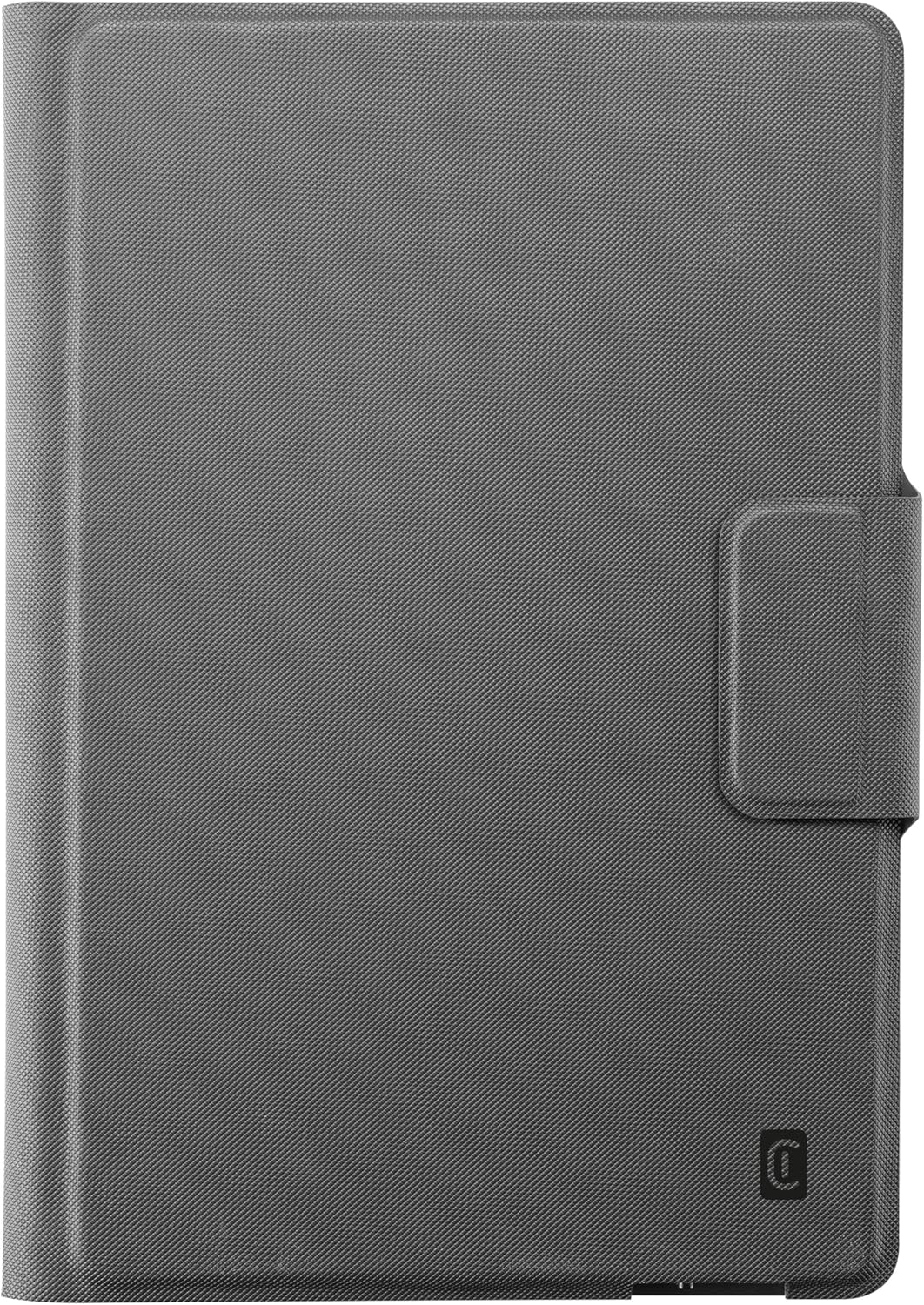
Image: The Keyboard Case in its closed, protective state.
Menyelesaikan masalah
Papan Kekunci Tidak Menyambung
- Periksa Bateri: Ensure the keyboard has sufficient battery charge. Recharge if necessary.
- Pasang semula Bluetooth: Go to your tablet's Bluetooth settings, forget the keyboard device, and then attempt to re-pair it following the 'Connecting the Wireless Keyboard' steps.
- Mulakan semula Peranti: Try restarting both your tablet and the keyboard.
- Kedekatan: Ensure the keyboard and tablet are within close proximity (typically within 10 meters) for a stable Bluetooth connection.
Tablet Not Fitting Securely
- Adjust Silicone Mounts: Gently stretch and position the silicone corner mounts to ensure they are snugly fitted around all four corners of your tablet.
- Check Tablet Size: Confirm your tablet's dimensions are within the specified range (up to 11 inches) for this universal case.
Spesifikasi
| Atribut | Perincian |
|---|---|
| Jenama | talian selular |
| Pengeluar | Cellularline SpA |
| Nombor Model | KEYBOARDCASETABK |
| warna | Hitam |
| Peranti Serasi | Tablet (up to 11 inches) |
| Teknologi Ketersambungan | Wayarles (Bluetooth) |
| Penerangan Papan Kekunci | QWERTY |
| Bilangan Kunci | 104 |
| bahan | Leather look |
| Dimensi Produk | 20.5 x 1.8 x 28.5 cm |
| Berat Barang | 600 g |
| Ciri Khas | Built-in wireless keyboard, magnetic pen holder |
Waranti dan Sokongan
Maklumat Waranti
This cellularline product is covered by a manufacturer's warranty against defects in materials and workmanship. Please retain your proof of purchase for warranty claims. Specific warranty terms and duration may vary by region. For detailed warranty information, please refer to the documentation included with your purchase or visit the official cellularline webtapak.
Sokongan Pelanggan
Should you encounter any issues or have questions regarding your cellularline Keyboard Case that are not addressed in this manual, please contact cellularline customer support. Contact details can typically be found on the cellularline official webtapak atau pada pembungkusan produk.


