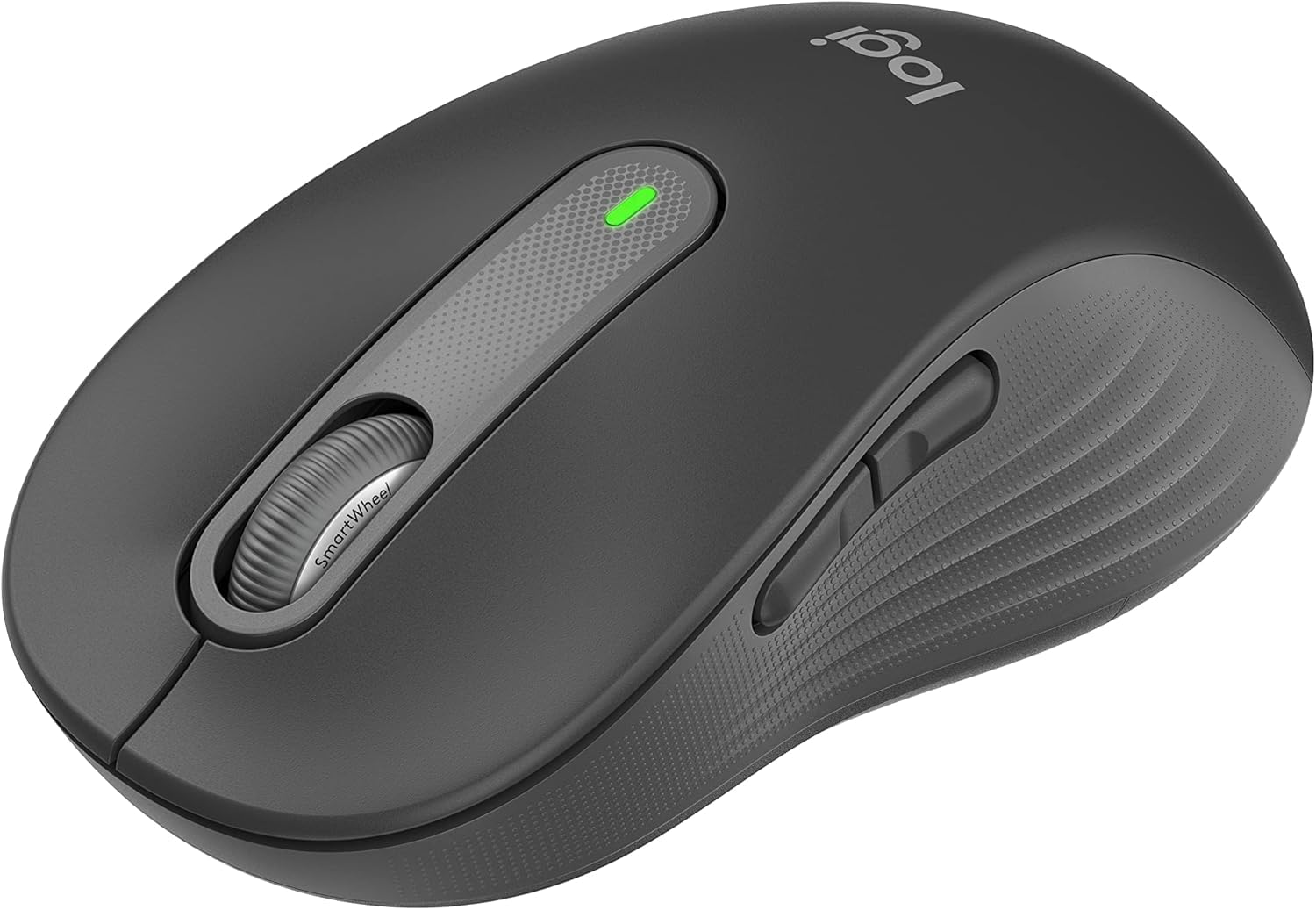
1. Persediaan
Follow these steps to set up your Logitech Signature M650 L Wireless Mouse.
1.1 Pemasangan Bateri
The mouse requires one AA battery. To install or replace the battery:
- Cari penutup petak bateri di bahagian bawah tetikus.
- Luncurkan penutup terbuka.
- Masukkan satu bateri AA, pastikan kekutuban yang betul (+/-).
- Tutup penutup petak bateri dengan selamat.

The underside of the mouse, revealing the battery compartment and the storage slot for the Logi Bolt USB receiver.
1.2 Ketersambungan
The mouse offers two connection options: Bluetooth Low Energy or the Logi Bolt USB receiver.
- Using Logi Bolt USB Receiver: Plug the Logi Bolt USB receiver into an available USB port on your computer. The mouse should connect automatically.
- Menggunakan Bluetooth: Turn on the mouse. On your computer, navigate to Bluetooth settings and select to add a new device. Choose the Logitech Signature M650 L from the list of available devices to pair.
1.3 Hidupkan/Mati Kuasa
A power switch is located on the underside of the mouse. Slide the switch to the 'On' position to activate the mouse and to the 'Off' position to conserve battery when not in use.
2. Mengendalikan Tetikus
The Logitech Signature M650 L is designed for comfort and efficiency.
2.1 SmartWheel Scrolling
The adaptive SmartWheel provides two modes of scrolling:
- Ketepatan Baris demi Baris: For detailed navigation in documents and spreadsheets.
- Super-Fast Free Spin: Automatically switches to free spin mode for rapid scrolling through long web pages or documents with a flick of the finger.
2.2 Silent Clicks
The mouse features SilentTouch technology, reducing click noise by 90% for a quieter work environment.

A user operating the Logitech Signature M650 L mouse, highlighting its silent click feature.
2.3 Customizable Side Buttons
The side buttons can be customized to perform various functions, such as navigating forwards and backwards in web browsers or activating specific application commands. Use the Logitech Options+ software to personalize these buttons.

The Logitech Options+ software interface, demonstrating how to customize the mouse's side buttons.
2.4 Reka Bentuk Ergonomik
Designed for larger hands, the contoured shape, soft thumb area, and rubber side grips provide comfort during long hours of use.
3. Penyelenggaraan
Proper maintenance ensures the longevity and optimal performance of your mouse.
3.1 Pembersihan
Untuk membersihkan tetikus anda:
- Gunakan kain lembut dan tidak berbulu.
- Dampen kain perlahan-lahan dengan air atau pembersih yang lembut dan tidak melelas.
- Wipe the surface of the mouse gently. Avoid getting moisture into openings.
- For the optical sensor, use a dry cotton swab to carefully remove any dust or debris.
3.2 Penggantian Bateri
Replace the AA battery when the mouse's indicator light signals low power or when performance degrades. Refer to section 1.1 for battery installation instructions.
4. Penyelesaian masalah
If you encounter issues with your mouse, try the following solutions:
4.1 Isu Ketersambungan
- Semak Kuasa: Ensure the mouse is turned on and has sufficient battery power.
- Pasangkan semula Peranti: If using Bluetooth, try unpairing and re-pairing the mouse in your computer's Bluetooth settings. If using the USB receiver, try unplugging and re-inserting it into a different USB port.
- Gangguan: Move the mouse closer to your computer and away from other wireless devices that might cause interference.
4.2 Jumpy or Erratic Cursor
- Penderia Bersih: Ensure the optical sensor on the underside of the mouse is clean and free of debris.
- permukaan: Use the mouse on a non-reflective, opaque surface. Highly reflective or transparent surfaces can interfere with tracking.
4.3 Butang Tidak Memberi Respons
- Bateri: Gantikan bateri jika ia lemah.
- Perisian: If customizable buttons are not working, check the Logitech Options+ software for correct configuration.
5. Spesifikasi
| Dimensi Produk | 4.7 x 2.6 x 0.04 inci |
| Berat Barang | 3.92 auns |
| Nombor Model Item | M650 |
| Bateri | 1 bateri AA diperlukan (termasuk) |
| Jenama | Logitech |
| warna | grafit |
| Teknologi Ketersambungan | Bluetooth, USB, Wireless |
| Ciri Khas | Tanpa wayar |
| Teknologi Pengesanan Pergerakan | Optik |
6. Waranti dan Sokongan
This product is a renewed item. Please refer to the seller's specific return policy for details. The typical return policy for renewed items is a 90-day refund/replacement period.
For further assistance or technical support, please visit the official Logitech support webtapak atau hubungi perkhidmatan pelanggan mereka.


