pengenalan
This manual provides essential information for the safe and efficient operation of your Saba SA40S77A11 40-inch Full HD Smart Android TV. Please read these instructions carefully before using the product and retain them for future reference. This television combines Full HD resolution with the Android 11 operating system, offering integrated smart features like Chromecast and Airplay, along with versatile connectivity options.
Maklumat Keselamatan Penting
Sentiasa patuhi langkah keselamatan berikut untuk mengelakkan kejutan elektrik, kebakaran atau kerosakan pada televisyen.
- Jangan dedahkan TV kepada hujan atau lembapan.
- Jangan buka TV casing; merujuk semua perkhidmatan kepada kakitangan yang berkelayakan.
- Pastikan pengudaraan yang betul di sekeliling TV. Jangan sekat bukaan pengudaraan.
- Letakkan TV pada permukaan yang stabil dan rata untuk mengelakkannya daripada jatuh.
- Lindungi kord kuasa daripada berjalan atau tersepit.
- Cabut palam TV semasa ribut petir atau apabila tidak digunakan untuk tempoh yang lama.
- Keep small objects and liquids away from the TV to prevent them from entering the unit.
Kandungan Pakej
Sahkan bahawa semua item terdapat dalam kotak:
- Saba SA40S77A11 40-inch Full HD Smart Android TV
- Remote Control (with 2x AAA 1.5V batteries)
- Mini AV Adapter Cable
- Kabel Kuasa
- TV Stand (if not pre-assembled)
- Manual Pengguna (dokumen ini)
Persediaan
1. Memasang Penyangga (Pilihan)
If your TV stand is not pre-assembled, carefully attach it to the bottom of the television using the provided screws. Ensure the TV is placed face down on a soft, clean surface to prevent screen damage during this process.

Imej: Depan view of the Saba SA40S77A11 TV with its silver stand attached, ready for placement.
Alternatively, the TV can be wall-mounted using a compatible VESA mount (sold separately). Refer to the wall mount's instructions for installation.
2. Menyambung Peranti
Sambungkan peranti luaran anda ke port yang sesuai di bahagian belakang atau sisi TV.
- HDMI: For Blu-ray players, game consoles, set-top boxes, etc.
- USB: For USB drives to play media or connect compatible accessories.
- Antena/Kabel: Connect an antenna or cable TV signal for DVB-T2/S2/C reception.
- Ethernet: Untuk sambungan internet berwayar.
- AV mini: Use the provided adapter cable for older analog devices.

Imej: Sisi view of the Saba SA40S77A11 TV, illustrating the various input and output ports for connecting external devices.
3. Menghidupkan dan Persediaan Awal
After connecting all necessary cables, plug the power cord into an electrical outlet. Press the power button on the remote control or on the TV itself.
The first time you turn on the TV, a setup wizard will guide you through initial configurations:
- Pemilihan Bahasa: Pilih bahasa pilihan anda.
- Sambungan Rangkaian: Connect to your Wi-Fi network or use an Ethernet cable for internet access.
- Akaun Google: Sign in with your Google account to access the Google Play Store and other Android TV features.
- Imbasan Saluran: Scan for available digital TV channels (DVB-T2/S2/C).
Arahan Operasi
1. Kawalan Jauh Lebihview
The remote control allows you to navigate the TV's interface and control various functions. Common buttons include:
- Kuasa: Menghidupkan atau mematikan TV.
- Input: Memilih sumber input (HDMI, AV, TV).
- Navigation (Up/Down/Left/Right) & OK: Untuk navigasi dan pemilihan menu.
- Kelantangan (+/-): Melaraskan tahap kelantangan.
- Channel (P+/P-): Menukar saluran TV.
- Rumah: Kembali ke skrin utama Android TV.
- Belakang: Kembali ke skrin atau menu sebelumnya.
- Pembantu Google: Mengaktifkan kawalan suara.
2. Smart Android TV Features
Your Saba TV runs on Android 11, providing access to a wide range of smart features.

Image: The Saba SA40S77A11 TV screen showing the Android TV home interface with various streaming app icons and content recommendations.
- Gedung Google Play: Download and install your favorite streaming apps, games, and utilities.
- Chromecast Terbina dalam: Cast content (videos, photos, music) from your compatible smartphone, tablet, or computer directly to the TV.
- Airplay: Stream content from Apple devices to your TV.
- Kawalan Suara: Use the Google Assistant button on your remote to search for content, control smart home devices, and get information using voice commands.
3. Pemilihan Sumber Input
Press the "Input" button on your remote control to cycle through available input sources (e.g., HDMI 1, HDMI 2, AV, TV Tuner). Select the desired source for your connected device.
Penyelenggaraan
1. Membersihkan TV
- Sentiasa cabut plag TV sebelum membersihkan.
- Gunakan kain lembut dan kering untuk mengelap skrin dan kabinet.
- Untuk tanda degil pada skrin, ringan dampen kain dengan air atau pembersih skrin khusus. Jangan sekali-kali menyembur cecair terus ke skrin.
- Elakkan daripada menggunakan pembersih yang melelas, lilin atau pelarut.
2. Kemas Kini Perisian
Your Android TV may receive software updates periodically to improve performance and add new features. Ensure your TV is connected to the internet to receive these updates. You can usually check for updates in the TV's settings menu under "About" or "System Update."
Menyelesaikan masalah
If you encounter problems with your TV, refer to the following common issues and solutions:
| Masalah | Penyelesaian yang Mungkin |
|---|---|
| Tiada kuasa | Check if the power cord is securely plugged into the TV and the wall outlet. Try a different outlet. Ensure the remote control batteries are not depleted. |
| Tiada gambar, tetapi bunyi hadir | Ensure the correct input source is selected. Check cable connections (HDMI, AV). Try restarting the TV. |
| Tiada bunyi, tetapi ada gambar | Check the volume level and ensure the TV is not muted. Verify audio settings in the TV menu. Check external audio device connections if applicable. |
| Mesej "Tiada Isyarat" | Verify the antenna/cable connection. Ensure the correct input source is selected. Perform a channel scan if using the TV tuner. |
| Tidak dapat menyambung ke Wi-Fi | Pastikan penghala Wi-Fi anda dihidupkan dan berfungsi. Masukkan semula kata laluan Wi-Fi. Cuba mulakan semula kedua-dua TV dan penghala. |
| Alat kawalan jauh tidak berfungsi | Gantikan bateri. Pastikan tiada halangan antara alat kawalan jauh dan penderia IR TV. |
Spesifikasi
Below are the technical specifications for the Saba SA40S77A11 TV:
| Ciri | Perincian |
|---|---|
| Jenama | Saba |
| Nombor Model | SA40S77A11 |
| Saiz Skrin | 40 inci (100.3 cm pepenjuru) |
| Teknologi Paparan | LED |
| Resolusi | 1920 x 1080 (HD Penuh) |
| Sistem Operasi | Android 11 |
| Kadar Segar Semula | 60 Hz |
| Ketersambungan | Wi-Fi, Ethernet, Bluetooth, HDMI, USB |
| Ciri Khas | Flat screen, Chromecast, Airplay |
| Jumlah Port USB | 1 |
| Komponen yang Disertakan | Mini AV adapter cable, Remote control with 2x AAA 1.5V batteries |
| Dimensi Produk (DxWxH) | 22.9 x 89.8 x 56.8 cm |
| Kelas Kecekapan Tenaga (SDR) | G |
| Penggunaan Kuasa (SDR) | 47.0 W / 1000h |
| Penggunaan Kuasa (Bersedia) | 0.4 W |
| Minimum Software Updates Guaranteed Until | Maklumat tidak tersedia |
| Minimum Spare Parts Availability | Maklumat tidak tersedia |

Image: EU Energy Label for the Saba SA40S77A11 TV, showing energy efficiency class G and power consumption of 47 kWh/1000h.
Untuk butiran lanjut, lawati Pangkalan data EPREL.
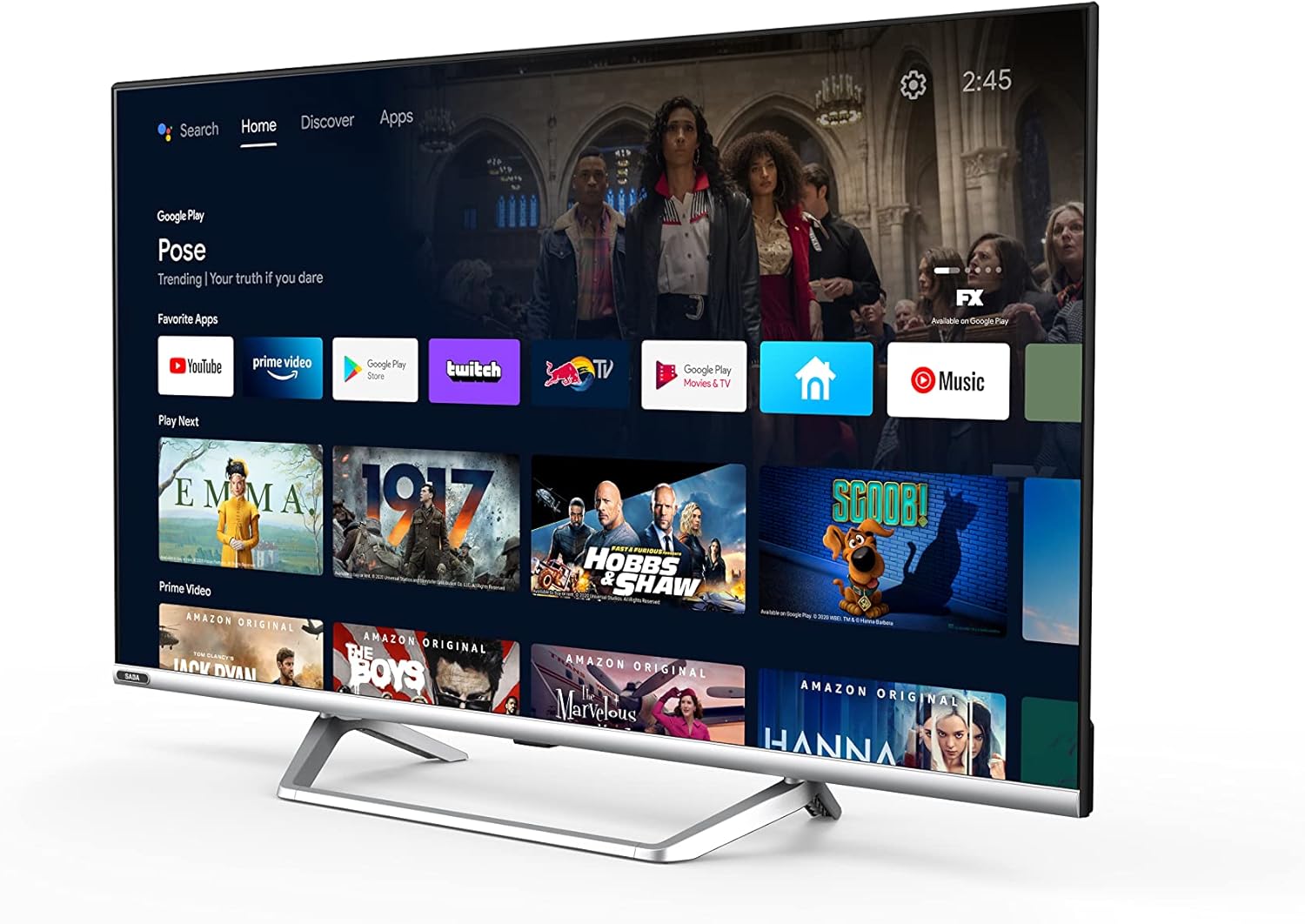
Image: Official product information sheet for the Saba SA40S77A11 TV, detailing various technical parameters and energy consumption data.
Waranti dan Sokongan
The manufacturer provides a minimum general warranty period of 2 tahun for this product. For specific warranty terms and conditions, please refer to the warranty card included with your product or contact the retailer where the TV was purchased.
For technical support, troubleshooting beyond this manual, or inquiries regarding spare parts and software updates, please contact Saba customer service or your local dealer. Information regarding the guaranteed availability of spare parts and software updates is not explicitly provided in the product specifications.


