pengenalan
This manual provides detailed instructions for the setup, operation, and maintenance of your AMBIR BR200 Wireless/USB Barcode Scanner. The BR200 is designed for efficient and reliable barcode scanning across various applications and operating systems.

Figure 1: AMBIR BR200 Wireless/USB Barcode Scanner with its USB dongle.
Ciri-ciri Utama
- Versatile Barcode Support: Scans 1D, 2D, PDF-417, and QR codes from both printed labels and digital screens (phones/tablets).
- Keserasian Sistem Operasi Luas: Compatible with Android OS, Linux, Mac OS, and Windows, ensuring adaptability across diverse computing environments.
- Human Interface Device (HID) Support: Offers plug-and-play functionality via USB dongle, requiring no complex driver installations.
- Strong Decoding Capability: High-speed processing for efficient and accurate barcode recognition, even for damaged or low-resolution codes.
- Wireless and USB Connectivity: Provides flexibility for both mobile and stationary scanning needs.
- Long-Usage Battery: Designed for extended operation without frequent recharging.
Arahan Persediaan
The AMBIR BR200 scanner is designed for quick and easy setup, functioning as a Human Interface Device (HID) for plug-and-play operation.
- Cas Pengimbas: Before initial use, ensure the scanner's internal battery is fully charged using the provided USB cable.
- Connect the USB Dongle: Insert the wireless USB dongle into an available USB port on your desktop or laptop computer. Note: The USB dongle is not supported on mobile phones or tablets.
- Hidupkan kuasa: Turn on the barcode scanner. It should automatically pair with the USB dongle. A successful connection is usually indicated by a specific sound or light indicator on the scanner.
- Kefungsian Ujian: Open a text editor or spreadsheet program on your computer. Scan any barcode. The barcode data should appear in the open application, confirming successful setup.

Figure 2: The AMBIR BR200 scanner in use, demonstrating its ease of integration into various workflows.
Arahan Operasi
The AMBIR BR200 is designed for intuitive operation. Follow these steps to scan barcodes effectively:
- Halakan Pengimbas: Point the scanner's window at the barcode you wish to read. Ensure the entire barcode is within the scanner's field of view.
- Press the Trigger: Press the trigger button located on the handle of the scanner. The scanner will emit a light beam or pattern to read the barcode.
- Pengesahan: Upon successful scan, the scanner will typically emit an audible beep and/or a visual indicator (e.g., a green light). The barcode data will then be transmitted to your connected device.
- Scanning Different Barcode Types: The BR200 supports 1D, 2D, PDF-417, and QR codes. It can read these from both physical labels and digital displays like smartphone or tablet screens.
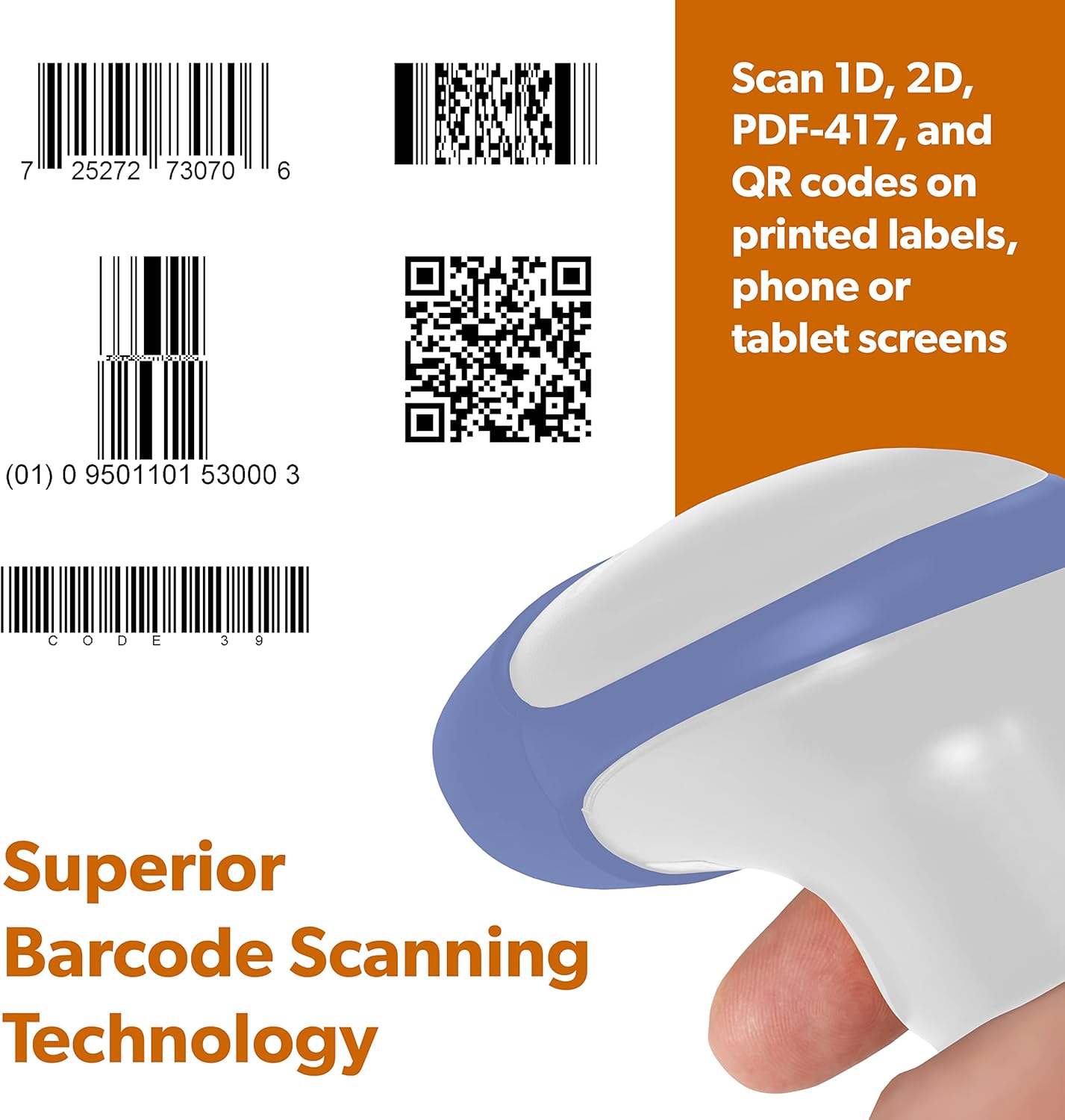
Figure 3: The AMBIR BR200 is capable of scanning various barcode types, including 1D, 2D, PDF-417, and QR codes.

Figure 4: The scanner's ability to read barcodes directly from digital screens enhances its versatility.
Produk Selesaiview Video
Video 1: Tamatview of the AMBIR barcode scanner family, demonstrating various models and their applications in different environments. This video highlights the versatility and ease of use of AMBIR scanners for diverse data capture needs.
Penyelenggaraan
Proper maintenance ensures the longevity and optimal performance of your AMBIR BR200 barcode scanner.
- Pembersihan: Regularly wipe the scanner's exterior, especially the scanning window, with a soft, damp cloth. Avoid abrasive cleaners or solvents that could damage the device.
- Penjagaan Bateri: To prolong battery life, avoid fully discharging the battery frequently. Recharge the scanner when the battery indicator suggests low power. Store the scanner in a cool, dry place when not in use for extended periods.
- Storan: Store the scanner in a safe place to prevent drops or impacts. Keep it away from extreme temperatures and direct sunlight.
Menyelesaikan masalah
If you encounter issues with your AMBIR BR200 scanner, refer to the following common troubleshooting steps:
- Scanner Not Responding:
- Ensure the scanner is powered on and fully charged.
- Verify the USB dongle is securely plugged into your computer.
- If using wireless mode, ensure the scanner is within range of the dongle.
- Try restarting both the scanner and your computer.
- Kod Bar Tidak Mengimbas:
- Check if the barcode is damaged, smudged, or too small/large for the scanner's optimal reading distance.
- Ensure sufficient lighting on the barcode.
- Confirm the scanner is aimed correctly, covering the entire barcode.
- Verify the barcode type is supported by the BR200 (1D, 2D, PDF-417, QR).
- Data Not Appearing on Computer:
- Ensure a text input field (e.g., Notepad, Word, Excel) is active on your computer.
- Confirm the scanner is successfully paired with the USB dongle (check for confirmation beep/light).
- Try unplugging and re-plugging the USB dongle.
For persistent issues, please contact AMBIR customer support.
Spesifikasi
| Ciri | Perincian |
|---|---|
| Nombor Model | BR200 |
| Jenis Kod Bar yang Disokong | 1D, 2D, PDF-417, QR |
| Teknologi Ketersambungan | Wireless (USB Dongle), USB Cable |
| Peranti Serasi | Laptop, Desktop |
| Sistem Operasi | Windows, Mac OS, Linux, Android |
| Sumber Kuasa | Bateri boleh dicas semula |
| Berat Barang | 7.6 auns |
| Dimensi Pakej | 7.87 x 4.45 x 3.31 inci |
| Suhu Penyimpanan Maksimum | 70 Darjah Celsius |
| Pengeluar | Ambir |
Waranti dan Sokongan
AMBIR products are backed by a dedicated US-based Sales & Support Team. For assistance, warranty information, or to register your product, please visit the official AMBIR website or contact their support directly.
Pendaftaran Produk: Ambir Product Registration
For further support, refer to the contact information provided on the AMBIR webtapak.


