pengenalan
This manual provides comprehensive instructions for setting up, operating, maintaining, and troubleshooting your TP-Link Archer AX10000 WiFi 6 Tri-Band Gaming Router. Designed for large homes, this router offers advanced wireless capabilities, high-speed connectivity, and robust security features to ensure an optimal network experience.
Kandungan Pakej
Sahkan bahawa semua item terdapat dalam pakej anda:
- WiFi 6 Gaming Router Archer AX10000
- Penyesuai Kuasa
- Kabel Ethernet RJ45
- Panduan Pemasangan Pantas
Produk Selesaiview
The TP-Link Archer AX10000 is a high-performance router featuring a distinctive design with multiple antennas for enhanced coverage. It is equipped with various ports for wired connections and advanced internal components for efficient data handling.

Rajah 1: Atas ke bawah view of the TP-Link Archer AX10000 router, showcasing its eight extended antennas and central design.
Sambungan Fizikal
The rear panel of the router provides multiple connectivity options for both internet and local network devices.
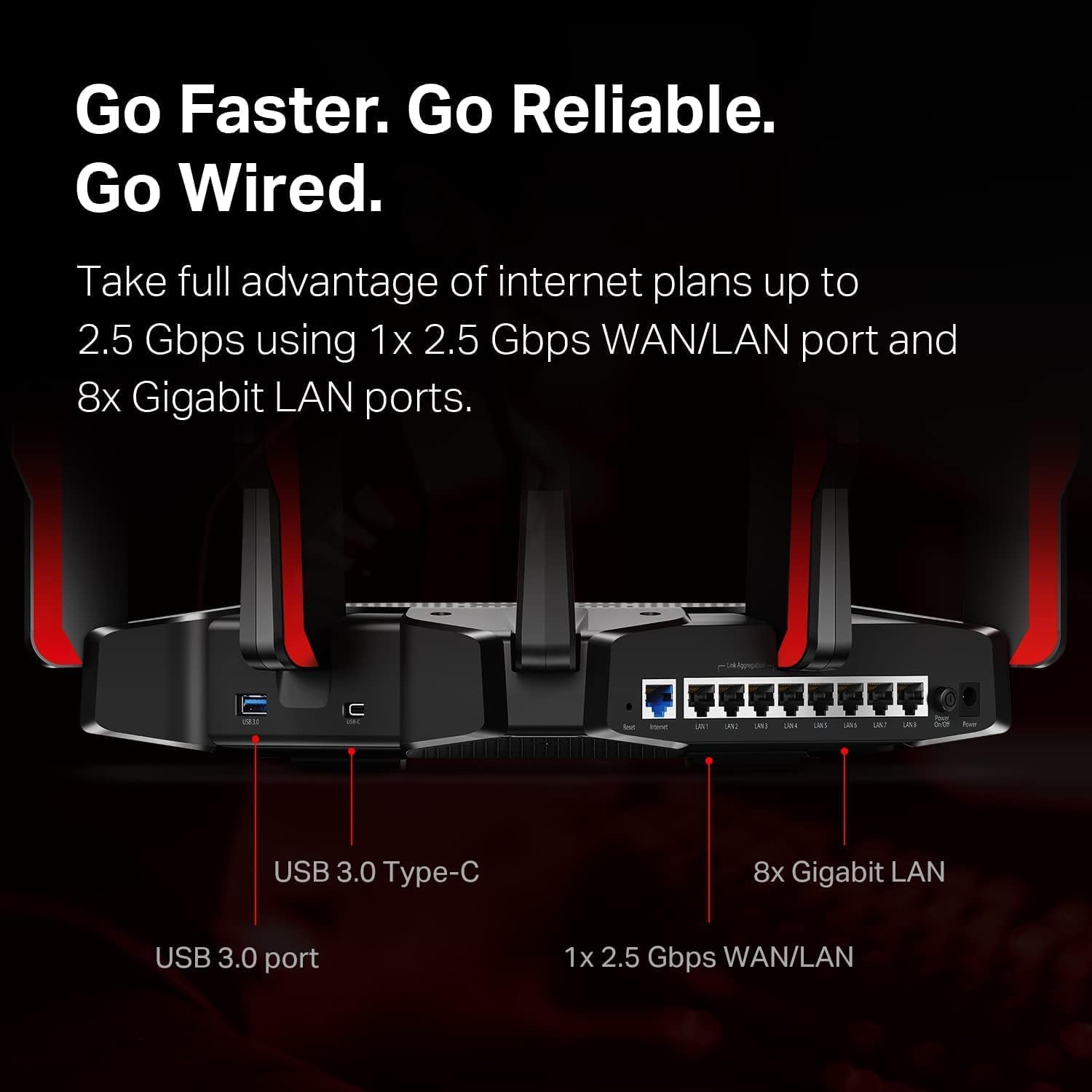
Rajah 2: Rear panel of the router, highlighting the USB 3.0 Type-C port, USB 3.0 port, 1x 2.5 Gbps WAN/LAN port, and 8x Gigabit LAN ports.
The bottom label contains essential information for initial setup and network access.
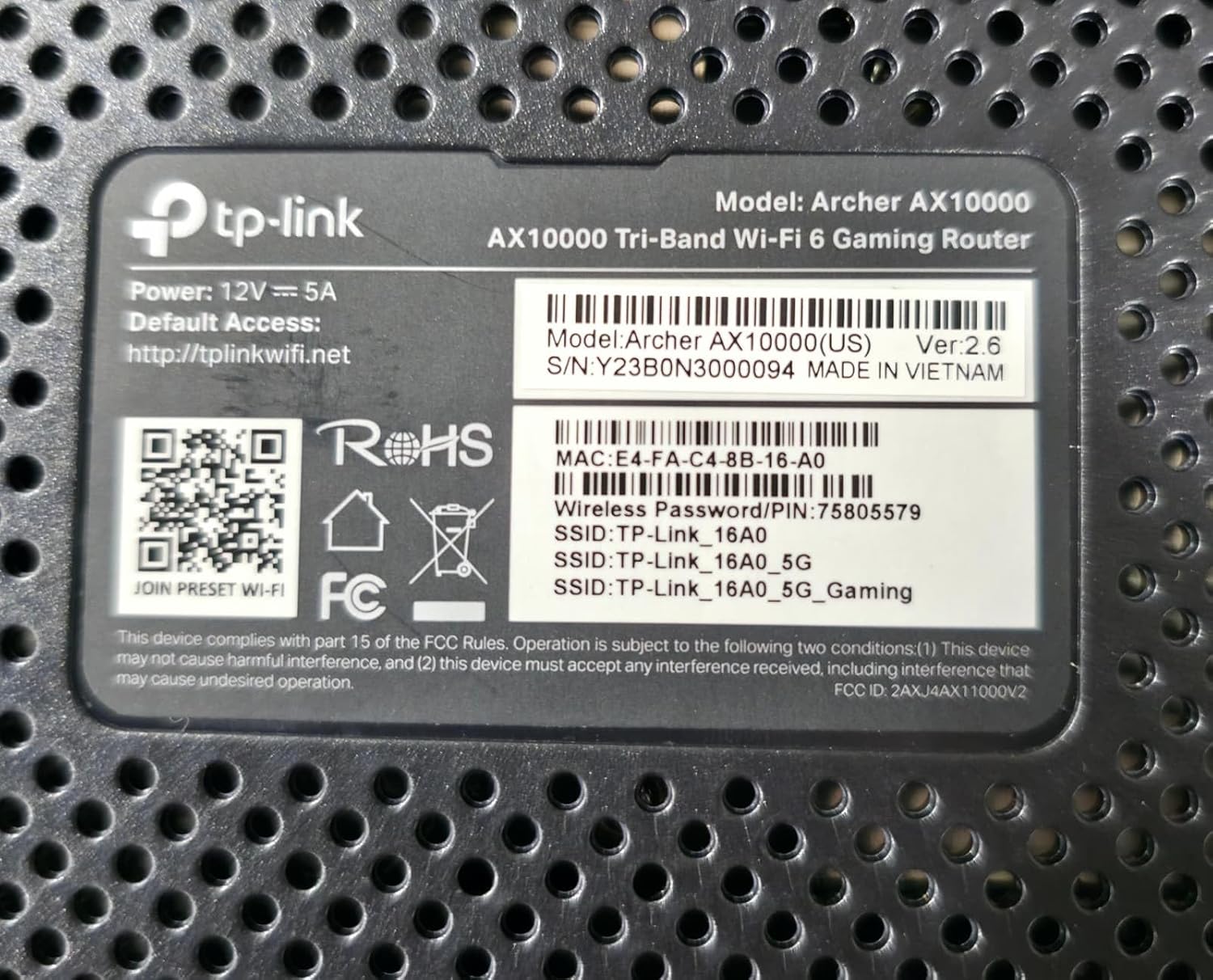
Rajah 3: Product label on the bottom of the router, displaying model number, default access information, and wireless password/PIN.
Persediaan
Follow these steps to set up your TP-Link Archer AX10000 router:
- Buka bungkusan Penghala: Keluarkan penghala dan semua aksesori dengan berhati-hati daripada pembungkusan.
- Letakkan Penghala: Place the router in a central location in your home, away from obstructions and devices that may cause interference. Ensure antennas are oriented for optimal signal.
- Sambung Perkakasan:
- Connect your modem's Ethernet cable to the router's 2.5G WAN/LAN port.
- Sambungkan penyesuai kuasa ke penghala dan palamkannya ke salur keluar kuasa.
- Power on the router. Wait for the LED indicators to stabilize, typically indicating a successful boot-up and internet connection.
- Sambung ke Penghala:
- wayarles: Connect to the default Wi-Fi network (SSID) printed on the router's label using the provided password.
- Berwayar: Connect a computer to one of the router's Gigabit LAN ports using an Ethernet cable.
- Konfigurasikan Penghala:
- Buka a web browser and enter the default access address (e.g., http://tplinkwifi.net) or use the TP-Link Tether app.
- Follow the on-screen instructions to create a new password, set up your Wi-Fi network name (SSID) and password, and complete the initial setup.
Video 1: A user demonstrating the unboxing and initial setup of a TP-Link Tri-Band Wi-Fi 6 Router, highlighting its components and connectivity options.
Arahan Operasi
Once your router is set up, you can optimize its performance and utilize its features:
- Mengakses ke Web Antara Muka Pengurusan: Buka a web pelayar dan navigasi ke http://tplinkwifi.net. Log in with your router password to access advanced settings.
- Using the TP-Link Tether App: Download the TP-Link Tether app from your mobile app store. The app allows for easy management of your network, including device prioritization, parental controls, and guest network setup.
- Optimizing for Gaming: The Archer AX10000 features a dedicated gaming band. Ensure your gaming devices are connected to this band for reduced latency and improved performance. Utilize the router's Quality of Service (QoS) settings to prioritize gaming traffic.
- Liputan meluas: The router's 8 high-performance antennas and Beamforming technology ensure strong and stable Wi-Fi signals throughout your home.
- Kawalan Ibu Bapa: Configure parental controls through the web interface or Tether app to manage internet access times and filter content for specific devices.
- Rangkaian Tetamu: Create a separate guest Wi-Fi network to provide internet access to visitors without sharing your main network password.
- Pelayan VPN: The router supports VPN functionality, allowing you to securely access your home network from remote locations.
- Keselamatan Dipertingkat: Your security is a priority with features like Game Protector and WPA3 encryption.
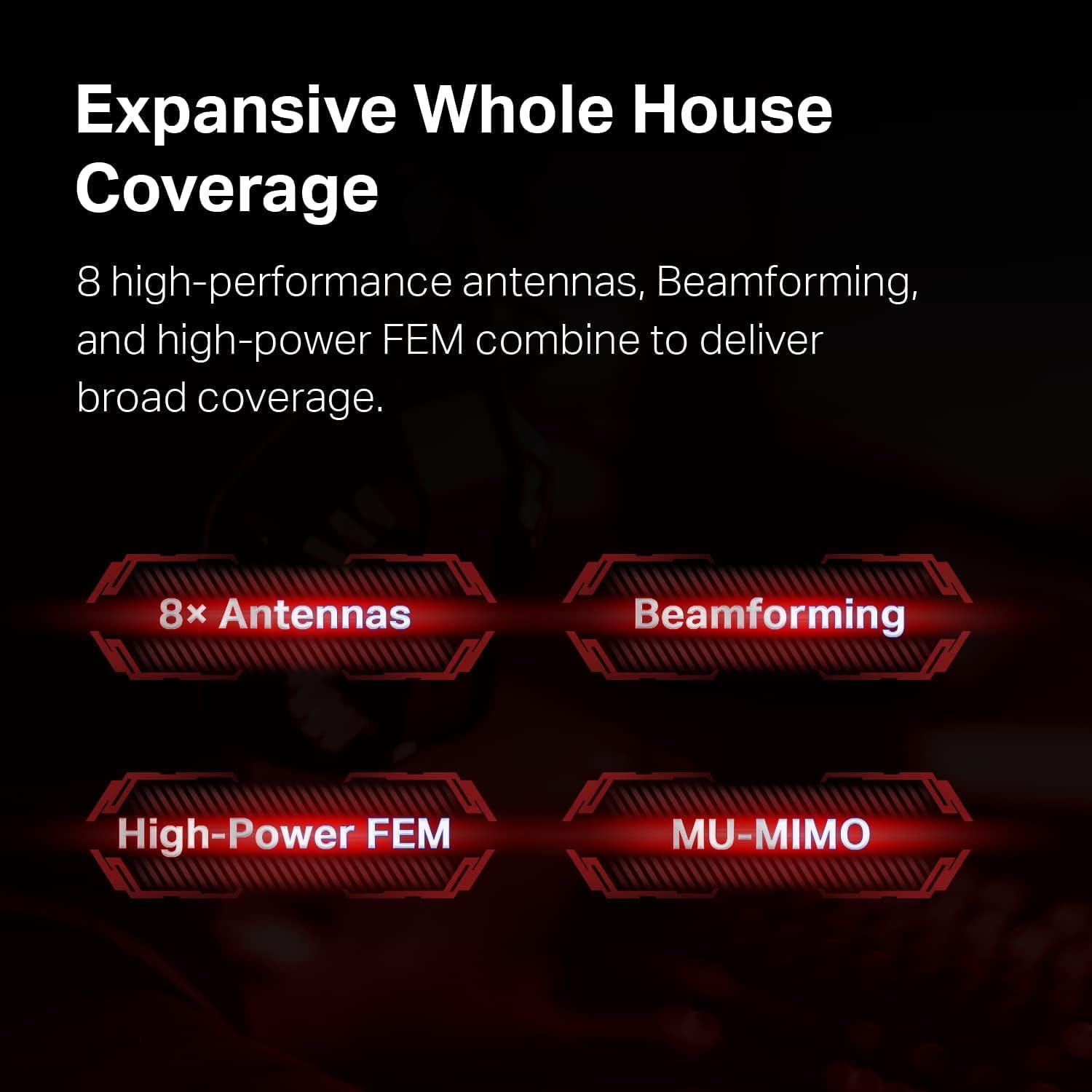
Rajah 4: Illustration of the router's features contributing to expansive whole house coverage, including 8 antennas, Beamforming, High-Power FEM, and MU-MIMO.

Rajah 5: Visual representation of the router's security features, HomeCare and WPA3, safeguarding connected devices.
Penyelenggaraan
Penyelenggaraan berkala memastikan prestasi optimum dan jangka hayat penghala anda:
- Kemas kini Firmware: Periksa dan pasang kemas kini perisian tegar secara berkala melalui penghala web management interface or the Tether app. Updates often include performance improvements and security patches.
- But semula biasa: Rebooting your router every few weeks can help clear its memory and resolve minor performance issues.
- Peletakan Optimum: Ensure the router remains in an open, central location, free from physical obstructions or electronic devices that could cause interference.
- Pembersihan: Pastikan penghala bersih dan bebas daripada habuk untuk mengelakkan terlalu panas. Gunakan kain lembut dan kering untuk pembersihan.
Menyelesaikan masalah
Jika anda menghadapi masalah dengan penghala anda, cuba penyelesaian berikut:
- Tiada Akses Internet:
- Check all cable connections between the router, modem, and power source.
- But semula modem dan penghala anda.
- Sahkan bahawa sambungan pembekal khidmat internet (ISP) anda aktif.
- Kelajuan Wi-Fi Perlahan:
- Ensure your devices are connected to the appropriate Wi-Fi band (5 GHz for faster speeds, 2.4 GHz for wider coverage).
- Reduce interference by moving the router away from other electronic devices.
- Periksa aplikasi intensif lebar jalur yang berjalan di latar belakang.
- Kemas kini perisian tegar penghala dan pemacu peranti.
- Pemotongan Sambungan yang Kerap:
- Ensure the router is placed optimally and not obstructed.
- Check for conflicting Wi-Fi channels and adjust if necessary via the router settings.
- Kemas kini perisian tegar penghala.
- Tidak Dapat Mengakses Halaman Pengurusan Penghala:
- Verify your device is connected to the router's network.
- Ensure you are using the correct default access address (http://tplinkwifi.net) dan kata laluan.
- Cuba kosongkan cache penyemak imbas anda atau gunakan penyemak imbas lain.
Spesifikasi
Detailed technical specifications for the TP-Link Archer AX10000 router:

Rajah 6: Internal hardware specifications, highlighting the 1.8 GHz Quad-Core CPU and 1 GB RAM for robust performance.
| Ciri | Perincian |
|---|---|
| Dimensi Produk | 12 x 10 x 4 inci |
| Berat Barang | 5.7 paun |
| Nombor Model Item | Pemanah AX10000 |
| Jenama | TP-Link |
| Nama Model | Pemanah AX10000 |
| Ciri Khas | WPS |
| Kelas Band Kekerapan | Tri-Band |
| Standard Komunikasi Tanpa Wayar | 2.4 GHz Radio Frequency, 5 GHz Radio Frequency, 802.11ax |
| Peranti Serasi | Komputer Peribadi |
| Kegunaan Disyorkan Untuk Produk | Permainan |
| Komponen yang Disertakan | Power Adapter, Quick Installation Guide, RJ45 Ethernet Cable, WiFi 6 Gaming Router Archer AX10000 |
| Teknologi Ketersambungan | Ethernet, USB, Wi-Fi |
| warna | Hitam dan Merah |
Waranti dan Sokongan
Untuk maklumat jaminan dan sokongan teknikal, sila rujuk perkara berikut:
- Polisi Pemulangan: This product is eligible for a 90-day refund/replacement return policy.
- Pengeluar: TP-Link. For detailed warranty terms and technical assistance, please visit the official TP-Link support webtapak atau hubungi perkhidmatan pelanggan mereka.


