1. Pengenalan
The SVANTTO IPM01 Portable Monitor is a 15.6-inch Full HD (1080P) display designed to extend your screen real estate and enhance productivity or entertainment on the go. Featuring 400 Nits brightness, 100% sRGB color reproduction, and a 178° IPS viewing angle, it delivers a vibrant and immersive visual experience. Its slim and lightweight design makes it an ideal companion for laptops, PCs, gaming consoles, and mobile devices.
2. Apa yang ada di dalam Kotak
Upon unboxing your SVANTTO IPM01 Portable Monitor, please ensure all the following items are present:
- Monitor Mudah Alih SVANTTO IPM01
- USB-C to USB-C Cable (Full-function)
- Kabel HDMI ke Mini-HDMI
- USB-A to USB-C Cable (for power)
- Power Adapter (Wall Wart)
- User Manual (Printed Guide)
- Screen Protector Kit (Wipes)

Figure 2.1: Included accessories with the SVANTTO IPM01 Portable Monitor.
3. Persediaan dan Sambungan
The SVANTTO IPM01 monitor offers versatile connectivity options for various devices. Ensure your device supports video output via USB-C (DisplayPort Alternate Mode) or HDMI.
3.1 Connecting via USB-C (Single Cable Solution)
For devices with a full-function USB-C port (supporting both video and power delivery), a single USB-C to USB-C cable is sufficient for both display and power.
- Connect one end of the provided USB-C to USB-C cable to the monitor's USB-C port.
- Connect the other end to your device's full-function USB-C port.
- Monitor sepatutnya mengesan isyarat secara automatik dan menghidupkannya.
3.2 Connecting via HDMI (with External Power)
For devices with an HDMI output, you will need to provide external power to the monitor.
- Connect one end of the provided HDMI to Mini-HDMI cable to the monitor's Mini-HDMI port.
- Connect the other end of the HDMI cable to your device's HDMI port.
- Connect the provided USB-A to USB-C cable to the monitor's second USB-C port (for power).
- Plug the USB-A end of the cable into the power adapter and then into a power outlet.
- The monitor should power on and display the signal.
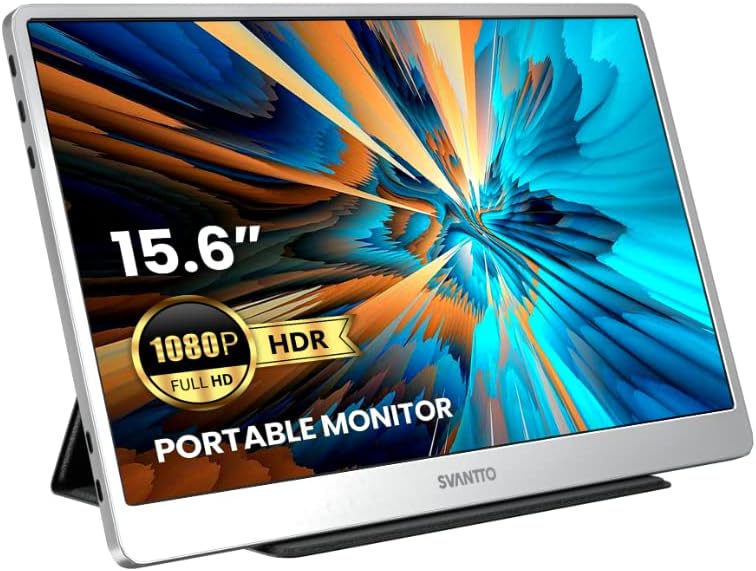
Figure 3.1: SVANTTO Portable Monitor connected and in use.
3.3 Produk Rasmi Lebihview Video
Video 3.1: Seorang pegawai tamatview of the SVANTTO IPM01 Portable Monitor, showcasing ciri-ciri dan kebolehgunaannya.
4. Arahan Operasi
4.1 Mod Paparan
The monitor supports both mirror and split-screen modes, allowing you to duplicate your primary display or extend it for increased workspace.
- Mod Cermin: Duplicates the content of your primary display onto the portable monitor.
- Split Screen (Extend) Mode: Extends your desktop, allowing you to drag windows between your primary display and the portable monitor.
These modes are typically configured through your device's display settings (e.g., Windows Display Settings, macOS System Preferences).

Figure 4.1: The monitor supports both landscape and portrait orientations for flexible use.
4.2 Menu Paparan Pada Skrin (OSD).
The OSD menu allows you to adjust various display settings. Typically, buttons on the side or back of the monitor control navigation and selection within the OSD.
- Kecerahan/Kontras: Laraskan kecerahan dan kontras keseluruhan paparan.
- Tetapan Warna: Perhalusi suhu warna, rona dan ketepuan.
- Sumber Input: Pilih sumber input (USB-C atau HDMI) secara manual jika pengesanan automatik gagal.
- Audio: Control volume for the built-in speakers.
5. Ciri-ciri Utama
5.1 Ultimate Picture Experience
The SVANTTO IPM01 features a 15.6-inch FHD (1920x1080P) IPS panel with 400 Nits high brightness and 100% sRGB color reproduction. This ensures vivid colors, sharp details, and a wide 178° viewing angle, making it ideal for various applications from professional work to multimedia consumption. HDR support further enhances picture quality by providing more realistic colors and stunning visuals.

Figure 5.1: High-quality display features for an optimal viewpengalaman dalam.
5.2 Slim and Portable Design
Designed for portability, the IPM01 is exceptionally thin and lightweight, making it easy to carry in your bag. Its elegant space silver color and delicate polishing process provide a premium feel.

Figure 5.2: The monitor's ultra-thin and lightweight profile.
5.3 Keserasian Luas
The monitor offers broad compatibility with a variety of devices, including laptops, PCs, smartphones, MacBooks, PS4, Xbox, and Nintendo Switch. Its dual full-function USB-C ports and HDMI port ensure flexible connection options for almost any setup.

Figure 5.3: Broad device compatibility for diverse usage scenarios.
5.4 Pengalaman Permainan yang Dipertingkatkan
With a 2ms quick response time and AMD FreeSync technology, the IPM01 provides smooth, tear-free visuals, making it an excellent choice for gaming on consoles or PCs.
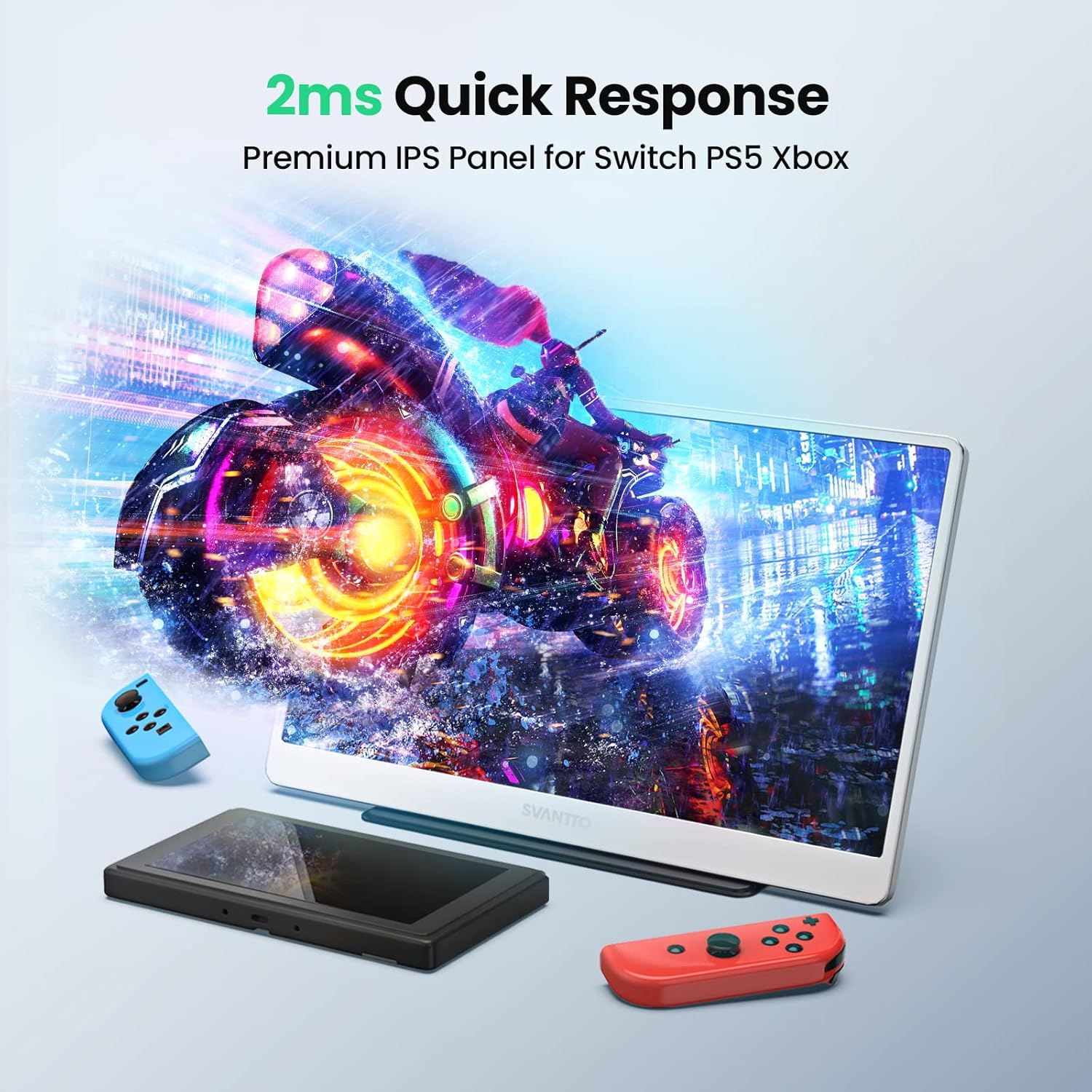
Figure 5.4: Optimized for gaming with fast response times.
6. Spesifikasi
| Ciri | Spesifikasi |
|---|---|
| Dimensi Produk | 14.17 x 8.86 x 0.3 inci |
| Berat Barang | 1.93 paun |
| Pengeluar | SVANTTO |
| ASIN | B0B7S1QDMZ |
| Nombor Model Item | IPM01 |
| Saiz Paparan Skrin Berdiri | 15.6 Inci |
| Nisbah Aspek | 16:9 |
| Resolusi | 1920 x 1080 Piksel (FHD 1080p) |
| Kecerahan Imej | 420 Candela (Nit) |
| Jumlah Port USB | 2 (USB-C) |
| Penerangan Permukaan Skrin | Berkilat |
| Tarikh Mula-mula Tersedia | 27 Julai 2022 |
7. Penyelenggaraan
To ensure the longevity and optimal performance of your SVANTTO Portable Monitor, follow these maintenance guidelines:
- Pembersihan: Gunakan kain lembut dan tidak berbulu untuk mengelap skrin dengan lembut. Untuk calitan degil, sedikit dampen the cloth with water or a screen-cleaning solution. Avoid harsh chemicals, abrasive materials, or direct spraying onto the screen.
- Pengendalian: Always handle the monitor with care. Avoid dropping it or subjecting it to strong impacts. When transporting, use the protective cover to prevent scratches and damage.
- Storan: Store the monitor in a cool, dry place away from direct sunlight, extreme temperatures, and high humidity.
- Kabel: Ensure cables are not bent sharply or tangled, as this can damage the internal wires.
8. Penyelesaian masalah
If you encounter issues with your SVANTTO Portable Monitor, refer to the following common troubleshooting steps:
8.1 Tiada Isyarat / Skrin Hitam
- Semak Sambungan: Pastikan semua kabel (USB-C, HDMI, kuasa) disambungkan dengan selamat ke monitor dan peranti anda.
- Bekalan Kuasa: If using HDMI, confirm the monitor is receiving adequate power from the power adapter. Insufficient power can lead to screen flickering or no display.
- Sumber Input: Verify that the correct input source is selected on the monitor via the OSD menu.
- Output Peranti: Confirm your source device (laptop, console, etc.) is configured to output video to an external display. Try restarting your source device.
8.2 Screen Flickering or Instability
- Kuasa: This is often due to insufficient power. Ensure the monitor is connected to a stable power source, especially when using HDMI. If using USB-C, ensure your device's USB-C port provides enough power or connect the external power adapter.
- Kualiti Kabel: Use the provided cables or high-quality certified cables to ensure stable signal transmission.
- Kadar Segar Semula: Check your device's display settings to ensure the refresh rate is compatible with the monitor's capabilities.
8.3 Tiada Audio
- Kelantangan: Check the monitor's volume settings in the OSD menu and your device's audio output settings.
- Peranti Keluaran: Ensure the SVANTTO monitor is selected as the audio output device on your computer or console.
8.4 Physical Screen Damage (e.g., lines, discoloration)
If the screen displays lines, discoloration, or other physical damage not caused by external impact, this may indicate an internal panel issue. As noted in some user experiences, such issues can occur over time. If this happens, please refer to the warranty and support section for assistance.
Video 8.1: A user demonstrating screen discoloration and lines after extended use, highlighting a potential issue that may require warranty support.
9. Waranti dan Sokongan
SVANTTO provides 18 months of product protection for your IPM01 Portable Monitor. For any technical assistance, product inquiries, or warranty claims, please contact SVANTTO customer support.
Sokongan Pelanggan: SVANTTO offers 24-hour America time tech support to assist you with any issues or questions you may have.
Untuk sumber tambahan, anda juga boleh merujuk kepada manual pengguna rasmi PDF yang tersedia dalam talian: SVANTTO IPM01 User Manual (PDF)


