1. Pengenalan
This manual provides detailed instructions for the operation and maintenance of your FLAMMA FX200 Multi Effects Guitar Processor. Please read this manual thoroughly to ensure proper usage and to maximize the potential of your device.
The FLAMMA FX200 is a versatile multi-effects processor designed for guitarists, featuring a 5-inch LCD touch screen, extensive input/output options, and a wide array of effects, amplifier models, and cabinet simulations.
2. Langkah-langkah Keselamatan
- Jangan dedahkan unit kepada hujan, kelembapan atau suhu yang melampau.
- Elakkan meletakkan unit berhampiran sumber haba atau di bawah cahaya matahari langsung.
- Gunakan hanya penyesuai kuasa yang ditentukan.
- Jangan cuba membuka atau mengubah suai unit. Rujuk semua servis kepada kakitangan yang berkelayakan.
- Jauhkan daripada kanak-kanak.
3. Kandungan Pakej
Sahkan bahawa semua item terdapat dalam pakej:
- FLAMMA FX200 Multi Effects Guitar Processor
- Penyesuai Kuasa
- Kabel USB-C
- Manual Pengguna (dokumen ini)

Figure 3.1: Contents of the FLAMMA FX200 package.
4. Peranti Lebihview
4.1 Panel Depan
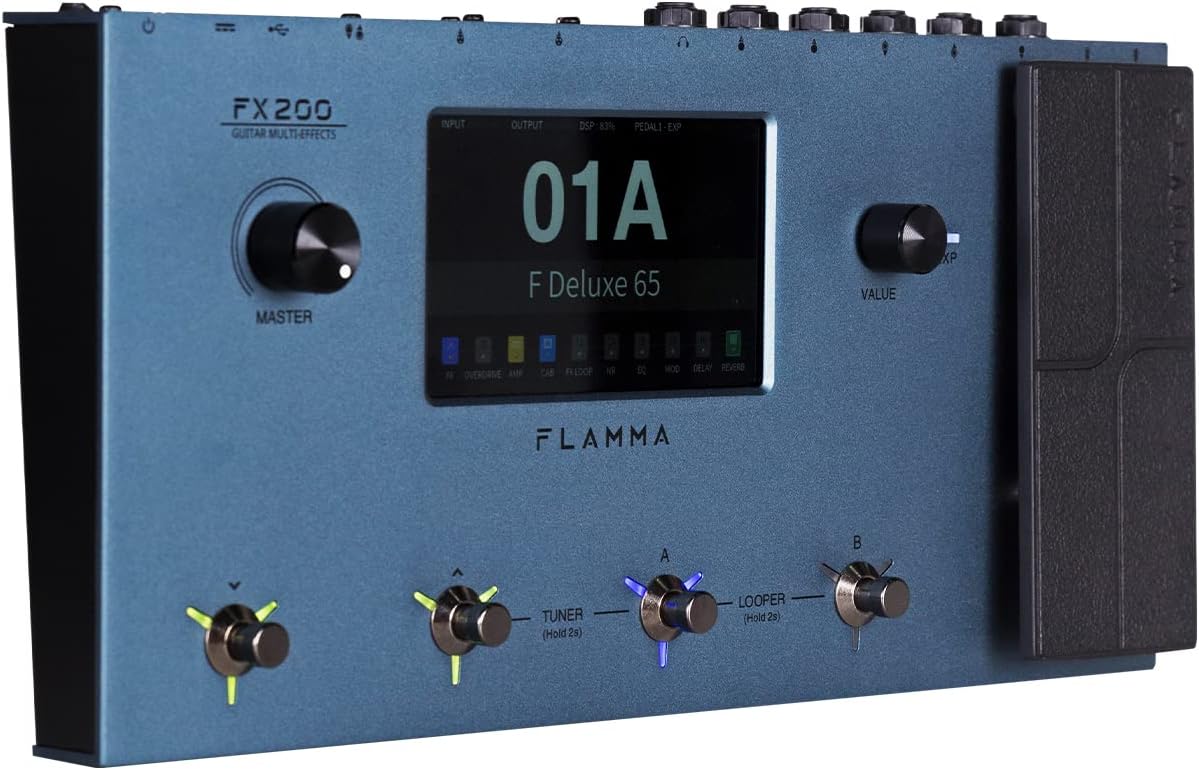
Figure 4.1: Front Panel Layout of the FX200.
- Tombol Master: Melaraskan volum keluaran keseluruhan.
- Skrin Sentuh LCD: 5-inch display for navigation, parameter editing, and preset management.
- Value Knob: Used for data entry and parameter adjustments.
- Footswitches (A, B, C, D): Control presets, effects, looper, and tuner functions.
- Pedal Ekspresi: Assignable for real-time control of various effects parameters.
4.2 Rear Panel (I/O)

Figure 4.2: Rear Panel Input/Output Connections.
- AUX DI: Input stereo 3.5mm untuk peranti audio luaran.
- EXP2: External expression pedal input.
- MASUKKAN: 1/4-inch mono input for guitar.
- SEND/RETURN: Stereo FX Loop for integrating external effects pedals.
- OUTPUT (L/MONO, R): 1/4-inch stereo outputs to amppenguat atau pengadun.
- TELEFON: Output fon kepala stereo 3.5mm.
- GND/LIFT: Ground lift switch to eliminate hum.
- XLR OUT (L, R): Balanced XLR stereo outputs for direct connection to PA systems or audio interfaces.
- MIDI MASUK/KELUAR: 5-pin MIDI connectors for external MIDI control.
- USB DC IN: USB-C port for power and connection to a computer.
- Suis kuasa: Menghidupkan / mematikan unit.
5. Persediaan
5.1 Kuasa Permulaan
- Connect the provided power adapter to the USB DC IN port on the rear panel.
- Palamkan penyesuai kuasa ke alur keluar AC yang sesuai.
- Flip the Power Switch to the ON position. The unit will power on and display the startup screen.
5.2 Connecting Your Guitar and Amplebih hidup
- Sambungkan gitar anda ke INPUT bicu menggunakan kabel instrumen standard 1/4 inci.
- Sambungkan OUTPUT L/MONO jack to your guitar amplifier's input using a 1/4-inch instrument cable. For stereo output, connect the KELUAR R bicu ke saat ampinput pengadun atau pencampur.
- Alternatively, for direct recording or PA system connection, use XLR cables from the XLR OUT L dan XLR OUT R ports to your audio interface or mixer.
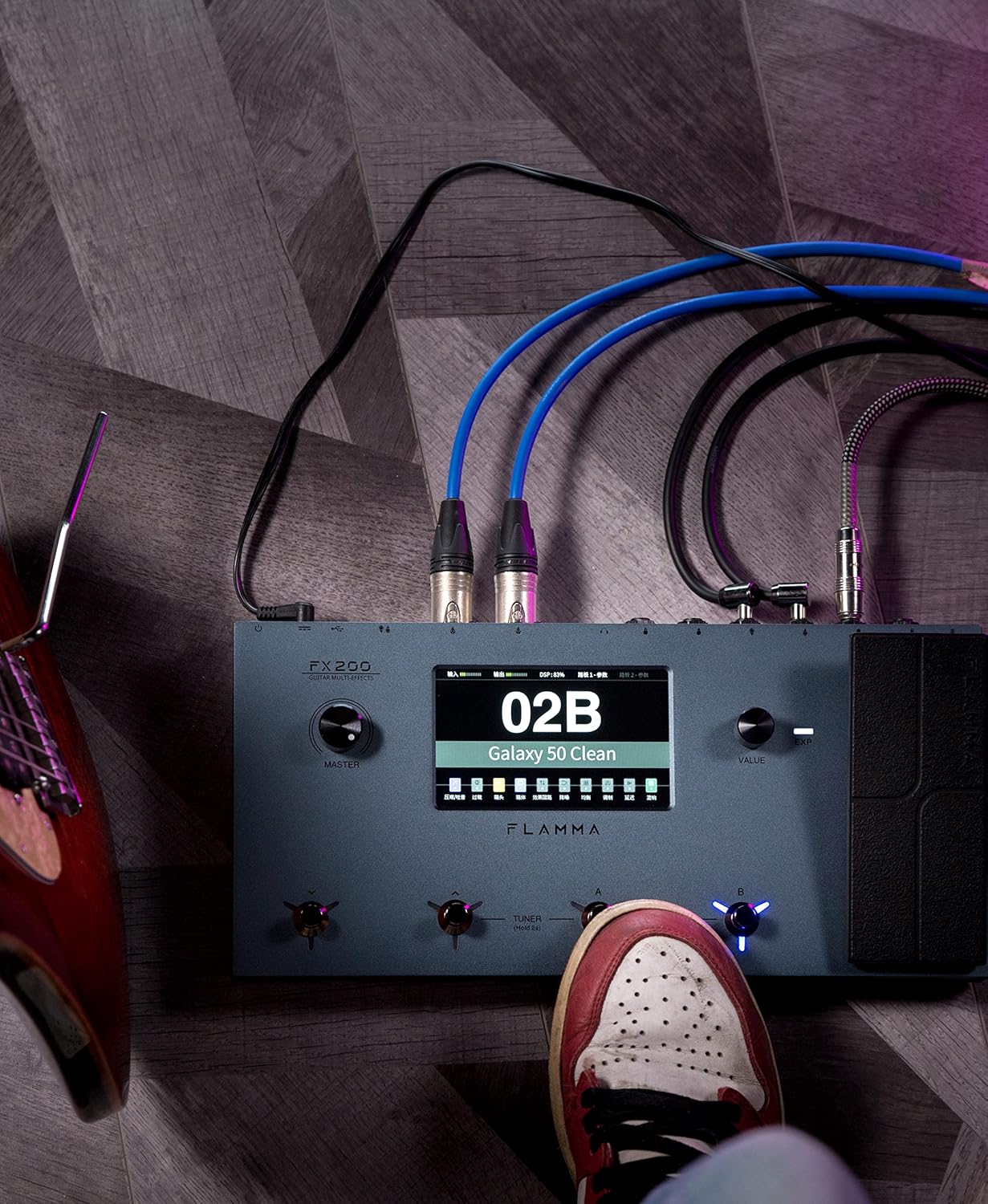
Figure 5.1: Typical connection setup for the FX200.
5.3 Menyambung ke Komputer
The FX200 can be connected to a computer for editing presets, firmware updates, and USB audio recording.
- Download the specialized editing software from the official FLAMMA webtapak.
- Connect the FX200 to your computer using the provided USB-C cable.
- Launch the editing software. The software will detect the FX200, allowing you to manage presets, effects, and perform firmware updates.

Figure 5.2: FX200 connected to a computer for software editing.
6. Arahan Operasi
6.1 Menavigasi Skrin Sentuh
The 5-inch LCD touch screen is the primary interface for controlling the FX200. Tap icons and parameters to select them, and use the Value Knob to adjust values.

Rajah 6.1: Berinteraksi dengan antara muka skrin sentuh.
6.2 Pengurusan Pratetap
The FX200 features 200 editable user preset slots. Presets can be selected using the footswitches or by navigating the touch screen.
- Memilih Pratetap: In Play mode, press footswitches A or B to cycle through presets within a bank. Press footswitches C or D to change banks.
- Mengedit Pratetap: Tap on an effect module icon on the touch screen to access its parameters. Adjust settings using the Value Knob.
- Menyimpan Pratetap: After editing, tap the 'Save' icon on the touch screen and follow the prompts to store your changes to a user preset slot.
6.3 Effect Modules and Chain
The FX200 includes 10 effect modules with over 160 different effect types, 58 preamp models, and 30 cabinet simulations. The effects chain can be customized.
- Module Order: Drag and drop effect module icons on the touch screen to change their order in the signal chain.
- Activating/Deactivating Modules: Tap an effect module icon to toggle it on or off within a preset.
- Third-Party IRs: The unit supports third-party impulse response files (up to 1024 sampling points) with 50 empty slots for custom cabinet simulations. Use the editing software to load IRs.

Figure 6.2: Customizable effects chain on the FX200.
6.4 Mesin Gelung dan Drum
The FX200 includes an integrated 52-second looper and 80 drum machine variations with 10 metronome styles.
- Looper: Access the looper function via a dedicated footswitch or the touch screen. Record, overdub, play, and stop loops.
- Mesin Drum: Select drum patterns and metronome styles from the touch screen interface. Adjust tempo and volume.
6.5 USB Audio Recording
The FX200 supports USB audio recording, allowing you to record directly to your computer.
- Connect the FX200 to your computer via USB-C.
- Select the FX200 as your audio input device in your Digital Audio Workstation (DAW) software.
- Adjust input levels on both the FX200 and your DAW for optimal recording.
7. Penyelenggaraan
- Pembersihan: Gunakan kain lembut dan kering untuk membersihkan unit. Jangan gunakan pembersih atau pelarut yang kasar.
- Storan: When not in use for extended periods, store the unit in a dry, cool place away from direct sunlight.
- Kemas kini Firmware: Regularly check the FLAMMA website for firmware updates to ensure optimal performance and access to new features. Updates are performed via the USB-C connection and editing software.
8. Penyelesaian masalah
| Masalah | Kemungkinan Punca | Penyelesaian |
|---|---|---|
| Tiada kuasa | Power adapter not connected or faulty; Power switch off. | Ensure power adapter is securely connected and plugged into a working outlet. Check power switch. |
| Tiada keluaran bunyi | Incorrect cable connections; Master volume too low; Amplifier off; Effect module bypassed. | Verify all audio cables are correctly connected. Increase Master volume. Check amplifier power. Ensure desired effect modules are active. |
| Humming or noise | Ground loop; Faulty cables; Interference. | Engage the GND/LIFT switch. Try different cables. Ensure power supply is stable and away from other electronics. |
| Skrin sentuh tidak bertindak balas | Gangguan perisian sementara. | Restart the unit by cycling the power switch. If the issue persists, contact customer support. |
| Tidak boleh menyambung ke komputer | USB-C cable issue; Driver not installed; Software not running. | Ensure USB-C cable is functional. Install necessary drivers. Launch the FLAMMA editing software. |
9. Spesifikasi
| Ciri | Perincian |
|---|---|
| Paparan | Skrin Sentuh LCD 5-inci |
| Modul Kesan | 10 modules, 160+ effect types |
| Praamp model | 58 |
| Cabinet Simulations | 30 (IR-based, 1024pts), 50 user IR slots |
| Pratetap Pengguna | 200 editable slots |
| Looper | 52 saat |
| Mesin Gendang | 80 variations, 10 metronome styles |
| Ketersambungan | AUX IN, EXP2, INPUT, SEND/RETURN, OUTPUT (L/MONO, R), PHONES, XLR OUT (L, R), MIDI IN/OUT, USB-C |
| USB Audio Recording | Disokong |
| Dimensi (L x W x H) | 13.5 x 6.6 x 2 inci (34.3 x 16.8 x 5.1 cm) |
| Berat badan | 3.9 paun (1.77 kg) |
| Bekalan Kuasa | 9V DC (via USB-C) |
| Bahan Badan | logam |
10. Waranti dan Sokongan
FLAMMA products are covered by a limited warranty. For detailed warranty information, product registration, and technical support, please visit the official FLAMMA webtapak atau hubungi perkhidmatan pelanggan mereka.
Official FLAMMA Webtapak: www.flamma.com
For any issues not covered in this manual, please refer to the online resources or contact FLAMMA customer support directly.