pengenalan
Thank you for choosing the cellularline Stand Keyboard Universal. This Bluetooth® keyboard is designed to enhance your productivity by providing a comfortable typing experience for your smartphone or tablet, complete with an integrated stand. Please read this manual carefully before using the product to ensure proper operation and maintenance.
Kandungan Pakej
- cellularline Stand Keyboard Universal
- Kabel Pengecas USB
- Manual Arahan
Produk Selesaiview
The cellularline Stand Keyboard Universal combines a full-sized keyboard with a convenient integrated stand, allowing you to position your device at an optimal viewing angle for typing, video calls, or media consumption. It connects wirelessly via Bluetooth, offering broad compatibility with various smartphones and tablets.

Image: The cellularline Stand Keyboard Universal with a smartphone securely placed in its integrated stand, demonstrating its primary use for typing and viewing.
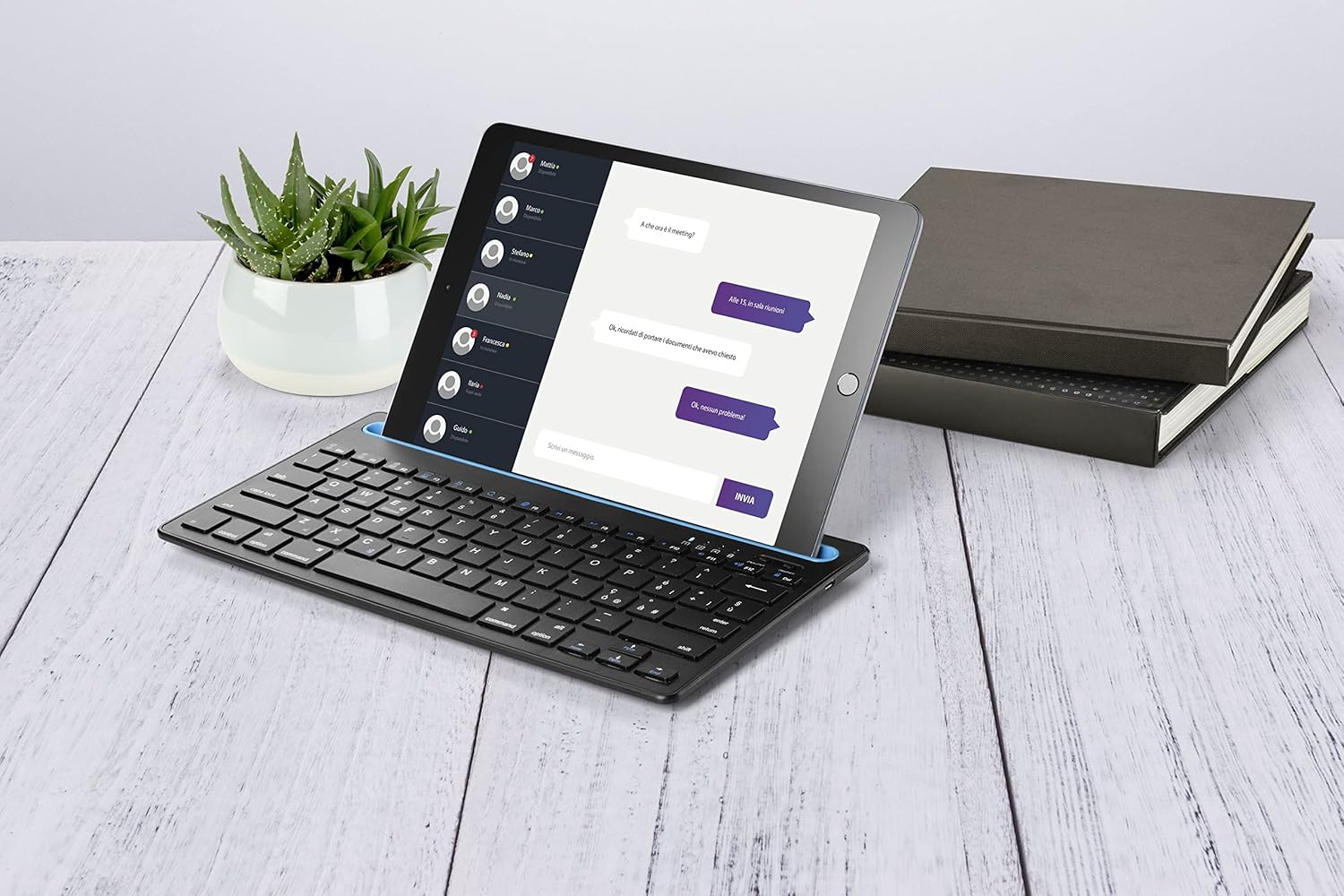
Image: The keyboard in use with a tablet, showcasing its versatility for larger devices and a typical desk setup.
Persediaan
1. Mengecas Papan Kekunci
Before first use, ensure the keyboard is fully charged. Locate the charging port (usually Micro-USB or USB-C) on the side or back of the keyboard. Connect the provided USB charging cable to the keyboard and the other end to a USB power source (e.g., computer USB port, USB wall adapter).
- Lampu penunjuk pengecasan biasanya akan menyala semasa pengecasan dan padam atau bertukar warna apabila dicas sepenuhnya.
- Charging time may vary, but usually takes 2-4 hours for a full charge.
2. Pairing with Your Device (Bluetooth Connection)
- Hidupkan Papan Kekunci: Locate the power switch (often on the side or back) and slide it to the "ON" position. A power indicator light may briefly flash.
- Aktifkan Mod Berpasangan: Press and hold the Bluetooth pairing button on the keyboard. This button is often labeled with a Bluetooth symbol or "Connect". The Bluetooth indicator light will start blinking, indicating it's in pairing mode.
- Dayakan Bluetooth pada Peranti Anda: On your smartphone or tablet, go to Settings > Bluetooth and ensure Bluetooth is turned "ON".
- Pilih Papan Kekunci: Your device will scan for available Bluetooth devices. Look for "cellularline Keyboard" or a similar name in the list of devices. Tap on it to connect.
- Sahkan Gandingan: Some devices may prompt you to enter a code displayed on your screen using the keyboard, then press Enter. Follow the on-screen instructions. Once connected, the Bluetooth indicator light on the keyboard will stop blinking and remain solid or turn off.
The keyboard should now be successfully paired and ready for use with your device. It will typically reconnect automatically to the last paired device when turned on and within range.
Arahan Operasi
Using the Integrated Stand
The integrated stand is designed to securely hold your smartphone or tablet in landscape or portrait orientation (depending on device size and stability). Simply place your device into the groove at the top of the keyboard.
- Ensure your device is stable in the stand before typing.
- The stand is suitable for devices up to a certain thickness and size. Refer to product specifications for maximum compatibility.
Fungsi Papan Kekunci
The keyboard features standard QWERTY layout keys, along with function keys (F1-F12) that often have secondary multimedia or system control functions when pressed in combination with the "Fn" key. Specific functions may vary slightly depending on your device's operating system (iOS, Android, Windows).
| Gabungan Kunci | Fungsi |
|---|---|
| Fn + F1 | Skrin Utama |
| Fn + F2 | Cari |
| Fn + F3 | Pilih Semua |
| Fn + F4 | salin |
| Fn + F5 | tampal |
| Fn + F6 | potong |
| Fn + F7 | Trek Sebelumnya |
| Fn + F8 | Main/Jeda |
| Fn + F9 | Trek Seterusnya |
| Fn + F10 | Redamkan Kelantangan |
| Fn + F11 | Kelantangan Kurang |
| Fn + F12 | Kelantangan Naik |
Note: Some function keys may require specific operating system support or app compatibility.
Penyelenggaraan
Pembersihan
- Matikan papan kekunci sebelum membersihkan.
- Gunakan kain lembut dan tidak berbulu sedikit dampdisapu dengan air atau larutan pembersih yang lembut dan tidak melelas.
- Jangan gunakan bahan kimia yang keras, aerosol atau pembersih yang melelas.
- Elakkan mendapatkan kelembapan ke dalam mana-mana bukaan.
Penyimpanan
- Simpan papan kekunci di tempat yang sejuk dan kering jauh dari cahaya matahari langsung dan suhu yang melampau.
- If storing for an extended period, ensure the keyboard is fully charged before storage and recharge it every few months to preserve battery life.

Image: The keyboard's compact design allows for easy portability, making it convenient for on-the-go use and storage.
Menyelesaikan masalah
| Masalah | Kemungkinan Punca / Penyelesaian |
|---|---|
| Papan kekunci tidak dihidupkan. |
|
| Papan kekunci tidak bersambung melalui Bluetooth. |
|
| Kekunci tidak bertindak balas atau menaip dengan salah. |
|
| Device does not fit in the stand. |
|
Jika anda terus mengalami masalah, sila rujuk bahagian sokongan atau hubungi khidmat pelanggan.
Spesifikasi
| Ciri | Perincian |
|---|---|
| Nama Model | KEYBSTANDHOMEITAK |
| Jenama | talian selular |
| Ketersambungan | Bluetooth |
| Peranti Serasi | Telefon Pintar, Tablet |
| Susun atur papan kekunci | QWERTY |
| Pendirian Bersepadu | ya |
| Sumber Kuasa | Bateri boleh dicas semula |
| Julat Operasi | Sehingga 10 meter (33 kaki) |
Note: Specifications are subject to change without notice. For the most up-to-date information, please refer to the product packaging or manufacturer's webtapak.
Waranti dan Sokongan
Maklumat Waranti
cellularline products are covered by a limited warranty from the date of purchase. Please retain your proof of purchase for warranty claims. The warranty typically covers defects in materials and workmanship under normal use. It does not cover damage caused by misuse, accidents, unauthorized modifications, or normal wear and tear.
For specific warranty terms and conditions, please refer to the warranty card included with your product or visit the official cellularline webtapak.
Sokongan Pelanggan
If you encounter any issues not covered in the troubleshooting section or require further assistance, please contact cellularline customer support. You can usually find contact information (phone number, email, or support portal) on the product packaging, the official cellularline website, or by searching for "cellularline support" online.
When contacting support, please have your product model number (KEYBSTANDHOMEITAK) and proof of purchase ready.