pengenalan
Welcome to the user manual for your new ZZB ZB10 10-inch Android Tablet. This guide provides comprehensive instructions to help you set up, operate, maintain, and troubleshoot your device. The ZZB ZB10 is a powerful and versatile tablet designed for various uses, from entertainment to productivity, featuring a 10.1-inch IPS display, Android 14, and robust performance capabilities.

Imej: Depan dan belakang view of the ZZB ZB10 10-inch Android Tablet, showcasing reka bentuk dan paparannya yang anggun.
Bermula: Persediaan Awal
- Mengecas Tablet: Before first use, fully charge your tablet. Connect the included Type-C cable to the tablet's charging port and the other end to a compatible USB power adapter (not included). The battery indicator on the screen will show charging status.
- Menghidupkan/Mematikan:
- To power on, press and hold the Power button until the screen lights up.
- To power off, press and hold the Power button until a power menu appears, then select "Power off".
- To restart, select "Restart" from the power menu.
- Konfigurasi Awal: Upon first power-on, follow the on-screen prompts to set up your tablet. This includes selecting your language, connecting to a Wi-Fi network, signing in with your Google account, and setting up screen lock options.
- Inserting a MicroSD Card (Optional): The tablet supports up to 1TB expandable storage. Locate the microSD card slot, gently insert the card until it clicks into place. You may need to format the card via tablet settings for optimal performance.

Imej: Bahagian belakang view of the ZZB ZB10 tablet, highlighting the camera and regulatory information, which includes the model number ZB10.
Mengendalikan Tablet Anda
Navigasi Asas
- Gerak isyarat sentuh: Ketik untuk memilih, leret untuk menatal, cubit untuk mengezum.
- Skrin Utama: Access your apps, widgets, and notifications.
- Panel Pemberitahuan: Leret ke bawah dari bahagian atas skrin untuk mengakses tetapan dan pemberitahuan pantas.
- Laci Apl: Leret ke atas dari bawah skrin ke view semua aplikasi yang dipasang.
Ketersambungan
- Wi-Fi: Connect to wireless networks via Settings > Network & internet > Wi-Fi. The tablet supports WiFi-6 for faster and more stable connections.
- Bluetooth: Gandingkan dengan peranti Bluetooth seperti fon kepala atau pembesar suara melalui Tetapan > Peranti yang disambungkan > Bluetooth.
Menggunakan Aplikasi
The ZZB ZB10 comes with Google Mobile Service (GMS) certification and pre-installed Google Play Store, allowing access to millions of apps.
- Memuat turun Apl: Open the Google Play Store app, search for desired applications, and tap "Install".
- Managing Apps: Go to Settings > Apps to manage permissions, storage, and uninstall applications.

Imej: Paparan tablet menunjukkanasing diverse functionalities such as remote conferencing, recording, gaming, listening to music, and general app usage.

Image: A visual representation of the tablet's compatibility with a wide range of applications, including popular social media and communication tools.
Display and Camera Features
The ZZB ZB10 features a 10.1-inch 1280x800 IPS display, offering clear visuals for all your content. It also includes dual cameras for photography and video calls.
- Paparan IPS: Enjoy wide viewing angles and vibrant colors. The tablet includes a "reading mode" to reduce eye strain during extended reading sessions.
- Dwi Kamera: Equipped with an 8-megapixel rear camera for capturing photos and a 2-megapixel front camera ideal for video chatting and selfies.

Image: The tablet displaying a serene beach scene, illustrating its eye protection technology and 10.1-inch IPS screen with 1280x800 resolution.

Image: Two ZZB ZB10 tablets, one showing the front display and the other highlighting the rear camera module, emphasizing the dual camera setup.
Penyelenggaraan dan Penjagaan
- Pembersihan: Gunakan kain lembut dan tidak berbulu untuk membersihkan skrin dan badan. Elakkan pembersih atau pelarut yang kasar.
- Penjagaan Bateri: To prolong battery life, avoid extreme temperatures. Do not let the battery fully drain frequently.
- Kemas Kini Perisian: Semak dan pasang kemas kini sistem secara kerap untuk memastikan prestasi dan keselamatan yang optimum. Pergi ke Tetapan > Sistem > Kemas kini sistem.
- Pengurusan Storan: Kosongkan secara berkala yang tidak perlu files dan nyahpasang apl yang tidak digunakan untuk mengosongkan ruang storan.
- Perlindungan: Pertimbangkan untuk menggunakan sarung pelindung dan pelindung skrin untuk melindungi daripada titisan dan calar.

Image: A screen protector kit for the ZZB ZB10 tablet, indicating the availability of accessories for device protection.
Menyelesaikan Masalah Isu Biasa
| Masalah | Penyelesaian |
|---|---|
| Tablet tidak dapat dihidupkan | Ensure the battery is charged. Connect to a power source and wait a few minutes before attempting to power on again. If unresponsive, press and hold the power button for 10-15 seconds to force a restart. |
| Apl perlahan atau ranap | Close background apps. Clear app cache (Settings > Apps > [App Name] > Storage & cache > Clear cache). Ensure sufficient storage space. Restart the tablet. |
| Isu sambungan Wi-Fi | Toggle Wi-Fi off and on. Restart your Wi-Fi router. Forget the network and reconnect (Settings > Network & internet > Wi-Fi > [Network Name] > Forget). |
| Skrin tidak bertindak balas | Restart the tablet by holding the power button. If the issue persists, perform a factory reset (backup data first). |
| Bateri cepat habis | Reduce screen brightness. Close unused apps. Disable Wi-Fi/Bluetooth when not in use. Check battery usage in Settings > Battery to identify power-hungry apps. |
Spesifikasi Teknikal
| Ciri | Perincian |
|---|---|
| Jenama | ZZB |
| Nama Model | ZB10 |
| Sistem Operasi | Android 14 |
| Saiz Skrin | 10.1 Inci |
| Resolusi Skrin Maks | 1280 * 800 IPS |
| RAM | 6GB (including 4GB extended memory) |
| Storan Dalaman (ROM) | 32GB |
| Storan Boleh Dikembangkan | Sehingga 1TB melalui kad microSD |
| Resolusi Kamera Belakang | 8 MP |
| Resolusi Kamera Depan | 2 MP |
| Jenis Wayarles | 802.11ax (WiFi-6) |
| Kapasiti Bateri | 6000mAh |
| Purata Hayat Bateri | Sehingga 12 Jam |
| Berat Barang | 1 paun |
| Dimensi Produk | 10 x 7 x 1 inci |

Image: A visual summary of the tablet's core specifications, including its Android 14 operating system, memory, camera, and display size.
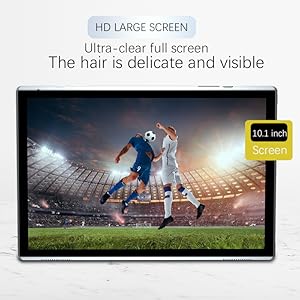
Image: An illustration emphasizing the tablet's 6000mAh battery capacity, indicating long-lasting power.
Apa yang ada dalam Kotak
The standard package for your ZZB ZB10 tablet includes:
- ZZB ZB10 10-inch Android Tablet
- Kabel Jenis-C
- Manual Pengguna (dokumen ini)
Waranti dan Sokongan
For warranty information, technical support, or service inquiries, please refer to the contact details provided on the product packaging or the official ZZB webtapak. Simpan resit pembelian anda sebagai bukti pembelian untuk tuntutan waranti.
For further assistance, please visit the manufacturer's support page or contact their customer service directly.


