1. Pengenalan dan Lebihview
This manual provides detailed instructions for the setup, operation, and maintenance of your AVer CAM550 Video Conferencing Camera. The CAM550 is a sophisticated 4K dual-lens camera designed to enhance video conferencing experiences in medium to large meeting rooms through advanced artificial intelligence (AI) features.
The camera integrates a Pan-Tilt-Zoom (PTZ) lens with 12X optical zoom and a secondary AI lens offering a 95° field of view, enabling comprehensive room coverage and intelligent participant framing. Its versatile connectivity options, including USB, HDMI, and IP streaming, ensure seamless integration into various conferencing setups.

Rajah 1: Depan view of the AVer CAM550 Video Conferencing Camera.
2. Ciri-ciri Utama
The AVer CAM550 incorporates several features designed for an optimized conferencing experience:
- Dynamic Auto Framing: A secondary AI lens detects all participants, and new participants trigger the PTZ lens to dynamically re-frame all individuals for optimal visibility.
- Pembingkaian Pratetap: Tracks both a preset area and the active speaker.
- Simultaneous 3-Way Output: Supports concurrent output via USB, HDMI, and IP connections.
- Kawalan Gerak Isyarat: Allows intuitive camera controls and AI function activation by holding up one finger on either side of your face.
- HDMI Picture-in-Picture (PIP) Function: Enables simultaneous viewing of the speaker and a panoramic room view.
- Galeri Pintar: Utilizes AI technology to crop participants' faces, offering individual visibility in the meeting room. Users can select between headshot and half-body modes.
- Cableless Access to Meetings: AVer virtual USB streaming technology allows IP streaming to USB via a single RJ45 cable, reducing cable clutter.
- Audio Tracking Support: Integrates with third-party ceiling microphones (e.g., Shure/Sennheiser) via the AVer Preset Link function.
3. Panduan Persediaan
3.1 Membongkar dan Semakan Komponen
Before proceeding with installation, carefully unpack all components and verify that the following items are present:
- AVer CAM550 Camera Unit
- Penyesuai Kuasa
- Kabel USB
- Alat Kawalan Jauh (jika disertakan dengan model anda)
- Dokumentasi (Panduan Permulaan Pantas, Kad Waranti)
3.2 Penempatan Fizikal
Position the CAM550 camera in a central location within your meeting room to ensure optimal coverage. The camera can be mounted on a display, wall, or ceiling using appropriate mounting hardware (sold separately). Ensure the camera has a clear line of sight to all participants.

Figure 2: AVer CAM550 installed in a conference room setting.
3.3 Menyambungkan Kamera
- Sambungan Kuasa: Connect the power adapter to the camera and then to a power outlet.
- Sambungan USB: For direct connection to a computer, plug the USB 3.1 cable into the camera and an available USB port on your computer.
- Sambungan HDMI: To enable dual display or for direct video output, connect an HDMI cable from the camera to your display device.
- IP Connection: For network streaming and virtual USB functionality, connect an RJ45 Ethernet cable from the camera to your network.
3.4 Pemasangan Perisian (jika berkenaan)
The AVer CAM550 is generally plug-and-play with most operating systems. However, for advanced features, firmware updates, or specific configurations, please visit the official AVer website to download any necessary software or drivers.
4. Arahan Operasi
4.1 Kawalan Kamera Asas
Once connected, the camera should be recognized by your video conferencing software. You can typically control basic pan, tilt, and zoom functions directly from your software interface or using the provided remote control.
4.2 Dynamic Auto Framing and Smart Gallery
The CAM550's AI features automatically adjust the camera's view to include all participants or focus on individual speakers. The Smart Gallery function can create individual frames for each participant, enhancing visibility in larger meetings. These features are typically enabled and configured within the camera's utility software or your conferencing platform settings.
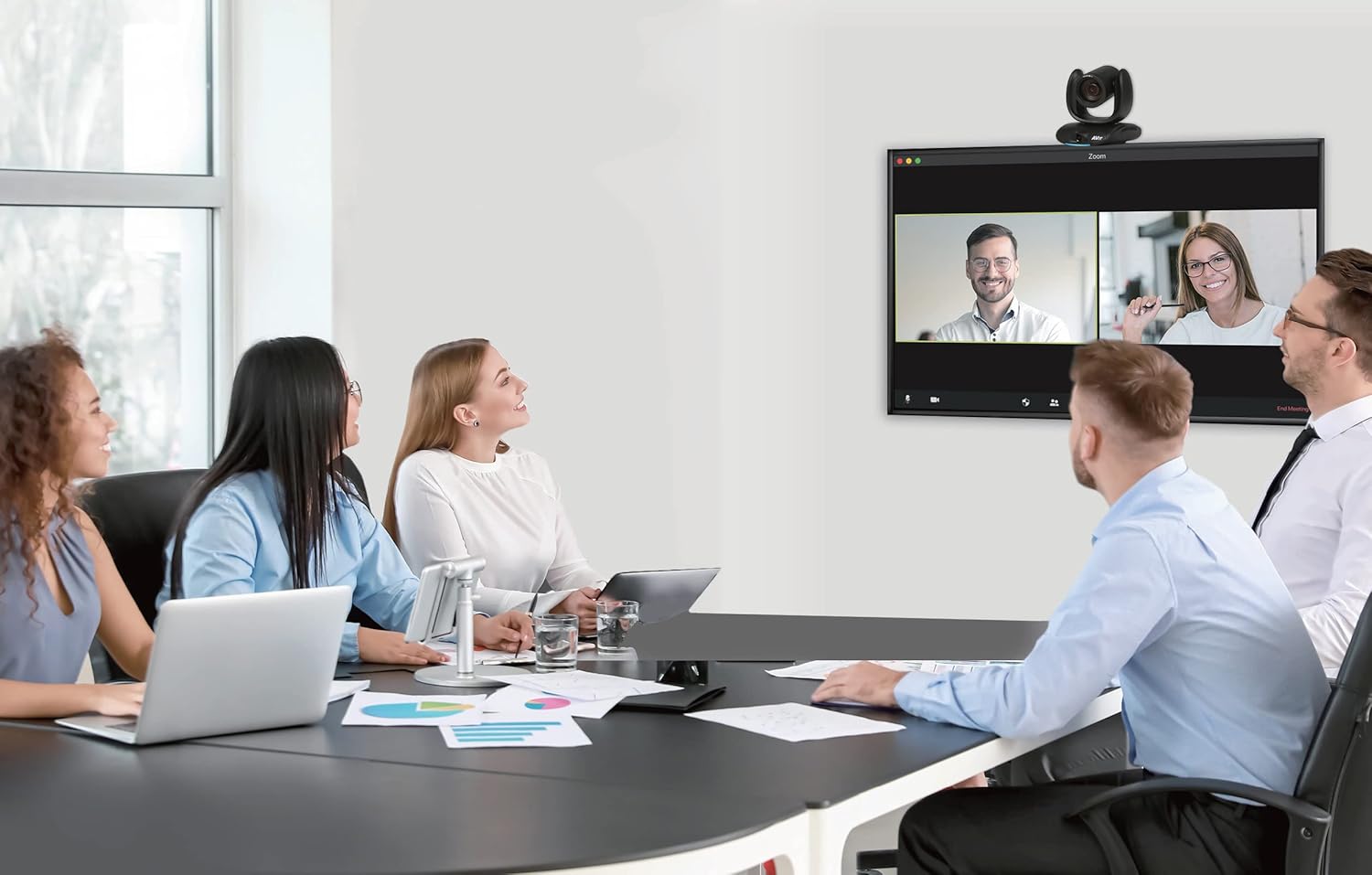
Figure 3: Smart Gallery feature in action, showing individual participant views.
4.3 Kawalan Gerak Isyarat
To activate certain AI functions or camera controls without a remote, the CAM550 supports gesture control. Hold up one finger on either side of your face to trigger predefined actions. Refer to the camera's software settings for a list of available gestures and their corresponding functions.
4.4 HDMI Picture-in-Picture (PIP)
When using the HDMI output, the PIP function allows you to display the main speaker's view alongside a wide-angle panoramic view of the room. This provides context and ensures no participant is missed.
4.5 Virtual USB Streaming
Leverage AVer's virtual USB streaming technology to transmit video and audio over an IP network, converting it to a USB signal at the receiving end. This allows for flexible camera placement and reduced USB cable runs.
5. Penyelenggaraan
To ensure the longevity and optimal performance of your AVer CAM550 camera, follow these maintenance guidelines:
- Pembersihan: Lap kanta dan badan kamera dengan lembut menggunakan kain lembut, kering dan tidak berbulu. Elakkan penggunaan bahan kimia yang keras atau bahan yang melelas.
- Storan: Apabila tidak digunakan untuk tempoh yang lama, simpan kamera di tempat yang sejuk dan kering, jauh daripada cahaya matahari langsung dan suhu yang melampau.
- Kemas kini Firmware: Regularly check the AVer website for firmware updates. Keeping your camera's firmware up-to-date ensures access to the latest features and performance enhancements.
6. Penyelesaian masalah
If you encounter issues with your AVer CAM550, refer to the following common troubleshooting steps:
- Tiada Output Video:
- Ensure all cables (power, USB, HDMI, IP) are securely connected.
- Verify the camera is powered on.
- Check your computer's device manager or conferencing software settings to confirm the camera is recognized and selected as the active video source.
- Kualiti Imej Lemah:
- Bersihkan lensa kamera.
- Ensure adequate lighting in the meeting room.
- Check video resolution settings in your conferencing software.
- Ciri AI Tidak Berfungsi:
- Pastikan perisian tegar kamera adalah terkini.
- Verify that AI features are enabled in the camera's utility software.
- Ensure participants are clearly visible to the camera and not obscured.
- Tiada Audio:
- If using external microphones, ensure they are properly connected and selected as the audio input in your conferencing software.
- Check volume levels on both the camera (if applicable) and your computer/conferencing system.
For further assistance, consult the AVer support webtapak atau hubungi perkhidmatan pelanggan mereka.
7. Spesifikasi
| Spesifikasi | Perincian |
|---|---|
| Nombor Model | CAM550 |
| Jenis Kamera | Dual Lens (PTZ + AI Lens) |
| Resolusi Video | 4K (main lens) |
| Zum Optik | 12X (PTZ lens) |
| Total Zoom | 24X (PTZ lens) |
| AI Lens Field of View (FOV) | 95° |
| Kadar Bingkai | 30 fps |
| Ketersambungan | USB 3.1, HDMI, IP |
| Dimensi (LxWxH) | 10.7 x 10.2 x 10 inci |
| Berat badan | 10.35 paun |
| Pengeluar | AVer Information Inc |
8. Waranti dan Sokongan
For information regarding the product warranty, please refer to the warranty card included with your AVer CAM550 or visit the official AVer website. For technical support, product registration, or additional resources, please visit www.averusa.com or contact AVer customer service directly.


