1. Pengenalan
This manual provides detailed instructions for setting up, operating, and maintaining your MINIX X35-i Plus 4K Ultra HD Industrial Android Player. This device is designed for reliable performance in digital signage and various industrial applications, offering robust connectivity and a pre-rooted Android 11 firmware.

Image 1.1: MINIX X35-i Plus Industrial Android Player. This image displays the compact black device alongside icons indicating its key features: 4K Ultra HD resolution, WiFi 6 connectivity, and Android 11 operating system.
2. Kandungan Pakej
Sila sahkan bahawa semua item yang disenaraikan di bawah disertakan dalam pakej anda:
- MINIX X35-i Plus Unit
- Antena Dwi-Jalur
- Kabel HDMI
- Kabel USB-C ke USB-A
- 12V 2A Power Adapter (with multiple plug types)
- Alat Kawalan Jauh
- Panduan Persediaan

Image 2.1: Contents of the MINIX X35-i Plus package. This image shows the main unit, a power adapter with interchangeable international plugs, a remote control, an HDMI cable, a USB-C to USB-A cable, a dual-band antenna, and a setup guide.
3. Produk Lebihview
The MINIX X35-i Plus features a compact design with various ports for comprehensive connectivity. Understanding the layout of these ports is essential for proper setup and operation.
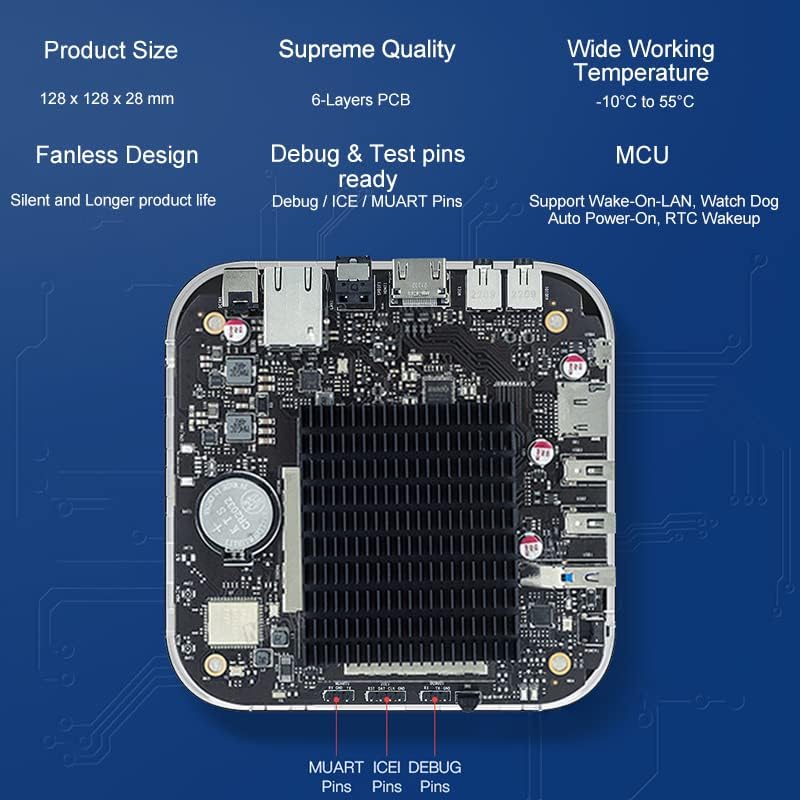
Image 3.1: MINIX X35-i Plus device with port labels and dimensions. The image highlights the device's dimensions (128mm x 128mm x 28mm) and labels its ports: Power Button, USB 3.0, 2x USB 2.0, TF Card Slot, OTG, Kensington Lock, Headphone Jack, Microphone Jack, HDMI 2.0, Gigabit Ethernet, S/PDIF, and DC 12V Power Jack.
Reka Bentuk Dalaman
The device incorporates industrial-grade components and a 6-layer PCB for stable, long-term operation. Its fanless design ensures silent operation and extended product life, suitable for continuous 24/7 use.

Imej 3.2: Dalaman view of the MINIX X35-i Plus PCB. This image shows the internal circuit board, highlighting the fanless heatsink design and debug/test pins (MUART, ICEI, DEBUG) for advanced users or developers.
4. Panduan Persediaan
Follow these steps to set up your MINIX X35-i Plus:
- Sambungkan Antena: Screw the dual-band antenna onto the designated connector at the rear of the device.
- Sambung ke Paparan: Connect one end of the HDMI cable to the HDMI port on the MINIX X35-i Plus and the other end to an HDMI input on your display (TV, monitor, projector).
- Sambung ke Rangkaian (Pilihan):
- Sambungan Berwayar: Connect an Ethernet cable from your router or network switch to the Gigabit Ethernet port on the device.
- Sambungan Wayarles: The device supports 802.11ax Dual-Band Wi-Fi 6. You will configure the Wi-Fi connection after initial power-on.
- Sambungkan Peranti Periferal (Pilihan):
- Peranti USB: Connect USB keyboards, mice, or other peripherals to the available USB 3.0 (x1) or USB 2.0 (x2) ports.
- Peranti Audio: Connect headphones or external speakers to the 3.5mm Headphone Jack. For digital audio, use the S/PDIF port.
- mikrofon: Connect a microphone to the 3.5mm Microphone Jack.
- Hidupkan kuasa: Connect the 12V 2A power adapter to the DC 12V Power Jack on the device, then plug the adapter into a power outlet. The device should automatically power on or can be turned on using the power button.
5. Arahan Operasi
5.1 Initial Boot and Android 11 System
Upon first power-on, the device will boot into the Android 11 operating system. Follow the on-screen prompts for initial setup, including language selection and network configuration. The device features a pre-rooted firmware, allowing for advanced customization.

Image 5.1: Android 11 operating system interface. This image illustrates the Android 11 system running on the MINIX X35-i Plus, emphasizing its 'rooted firmware' and 'customization accept' features.
5.2 Network Connectivity (Wi-Fi 6)
The MINIX X35-i Plus supports Wi-Fi 6 (802.11ax) for faster and more reliable wireless connections. To connect to Wi-Fi:
- Navigasi ke tetapan > Rangkaian & Internet > Wi-Fi.
- Turn Wi-Fi On.
- Pilih rangkaian yang anda inginkan daripada senarai dan masukkan kata laluan jika digesa.

Image 5.2: Illustration of Wi-Fi 6 capabilities. This image highlights the device's Wi-Fi 6 support, indicating speeds up to 2400Mbps, which is three times faster than Wi-Fi 5.
5.3 Ciri Lanjutan
- Bangun Pada LAN (WOL): Allows the device to be powered on remotely via a network message. Ensure this feature is enabled in the system settings if required.
- Kuasa Auto: Configures the device to automatically power on when electricity is supplied, ideal for unattended installations.
- RTC (Real-Time Clock) Wakeup: Enables scheduled power-on times.
- Pengawas: A hardware feature that monitors system operation and can automatically restart the device if it becomes unresponsive, ensuring continuous uptime.
- Sokongan Skrin Sentuh: The device supports touch screen displays, making it suitable for interactive digital signage applications.
Image 5.3: MINIX X35-i Plus connected to a touch screen display. This image demonstrates the device's compatibility with touch screen interfaces, suitable for interactive kiosks or digital signage.
5.4 Senario Aplikasi
The MINIX X35-i Plus is versatile and can be deployed in various industrial and commercial settings:
- Papan Tanda Digital
- Mesin Layan Diri
- Peralatan Perubatan
- Konsol Permainan
- Robot Assistance
- Digital POS Registers

Image 5.4: Various use cases for the MINIX X35-i Plus. This image depicts the device being used in diverse environments such as vending machines, medical equipment, game consoles, robot assistance, digital POS registers, and advertising machines.
6. Penyelenggaraan
The MINIX X35-i Plus is designed for low maintenance due to its fanless construction and robust components.
- Pembersihan: Use a soft, dry cloth to clean the exterior of the device. Avoid using liquid cleaners or aerosols directly on the unit.
- Pengudaraan: Although fanless, ensure the device is placed in a location with adequate airflow to prevent heat buildup, especially during continuous operation.
- Kemas kini Firmware: Periodically check the official MINIX webtapak untuk kemas kini perisian tegar bagi memastikan prestasi dan keselamatan yang optimum.
7. Penyelesaian masalah
If you encounter issues with your MINIX X35-i Plus, refer to the following common solutions:
- Tiada Kuasa:
- Pastikan penyesuai kuasa disambungkan dengan selamat pada kedua-dua peranti dan salur keluar kuasa yang berfungsi.
- Sahkan alur keluar kuasa berfungsi.
- Tiada Output Paparan:
- Check that the HDMI cable is firmly connected to both the device and the display.
- Pastikan paparan anda ditetapkan kepada sumber input HDMI yang betul.
- Cuba kabel atau paparan HDMI yang lain jika boleh.
- Alat Kawalan Jauh Tidak Responsif:
- Pastikan tiada halangan antara alat kawalan jauh dan penerima IR peranti.
- Gantikan bateri kawalan jauh.
- Consider using a USB keyboard and mouse for easier navigation if the remote remains problematic.
- Cannot Connect to Wi-Fi/Network:
- Verify that the Wi-Fi antenna is properly attached.
- Semak penghala dan sambungan internet anda.
- Pastikan anda memasukkan kata laluan Wi-Fi yang betul.
- Jika menggunakan sambungan berwayar, pastikan kabel Ethernet disambungkan dengan selamat.
- Issues with Google Account or Bluetooth Pairing:
- Ensure the device has a stable internet connection for Google account services.
- For Bluetooth, ensure the peripheral is in pairing mode and within range.
- Restart the device and attempt pairing again.
- Sistem Tidak Responsif:
- Tekan dan tahan butang kuasa selama 5-10 saat untuk menutup paksa, kemudian mulakan semula peranti.
- If the issue persists, a factory reset may be necessary (refer to advanced settings, this will erase all data).
8. Spesifikasi
| Ciri | Spesifikasi |
|---|---|
| Nama Model | X35-i Plus |
| CPU | RK3566 Cortex-A55 Quad-Core |
| GPU | Mali-G52-2EE |
| Ingatan | 2GB DDR4 |
| Storan Dalaman | 32GB eMMC 5.1 |
| Sistem Operasi | Android 11 (Pre-Rooted Firmware) |
| Output Video | HDMI 2.0, up to 4K@60Hz |
| Output Audio | HDMI 2.0, 3.5mm stereo jack, optical S/PDIF |
| Kesambungan Wayarles | 802.11ax Dwi-Jalur Wi-Fi 6, Bluetooth 5.0 |
| Rangkaian Berwayar | RJ-45 Gigabit Ethernet |
| Antara muka persisian | Micro SD card reader, USB 3.0 x1, USB 2.0 x2, OTG port x1, Kensington Lock, 3.5mm Headphone jack, 3.5mm Microphone jack, IR Receiver |
| Bekalan Kuasa | 12V/2A adapter (CE, FCC certified) |
| Ciri Khas | Wake On LAN, Auto Power, RTC, Watchdog, HDMI CEC, Portrait mode, Miracast, Electrostatic Prevention for interfaces, Gigabit Ethernet Port with lightning protection design, Over-voltage perlindungan |
| Dimensi Produk | 5.04 x 5.04 x 1.1 inci (128 x 128 x 28 mm) |
| Berat Barang | 1.61 paun (730 Gram) |
| warna | Hitam |
9. Maklumat Waranti
For detailed warranty information, please refer to the official MINIX webtapak atau hubungi tempat pembelian anda. Terma dan syarat jaminan mungkin berbeza mengikut wilayah dan peruncit.
10. Sokongan
If you require further assistance or have questions not covered in this manual, please utilize the following support channels:
- Official MINIX Webtapak: melawat www.minix.com.hk for product information, FAQs, and firmware downloads.
- MINIX Forum: Engage with the community and find solutions at www.theminixforum.com.
- Amazon Customer Support: For purchase-related inquiries, log in to your Amazon account, go to 'Your Orders', and select 'Ask Product Question' for the MINIX X35-i Plus.
- Media Sosial: Connect with MINIX on Facebook at http://www.facebook.com/minixtech.


