1. Pengenalan
Thank you for choosing the Vivitar Digital Clip-On Web Camera VWC107-BLK. This high-definition 1080P webcam is designed to enhance your virtual meetings, online classes, and video calls with clear video and audio. It features a built-in microphone, auto white balance, auto-focusing, and a versatile 360-degree rotating clamp for easy placement on laptops, LCD monitors, or desktops. This manual provides essential information for setting up, operating, and maintaining your webcam.
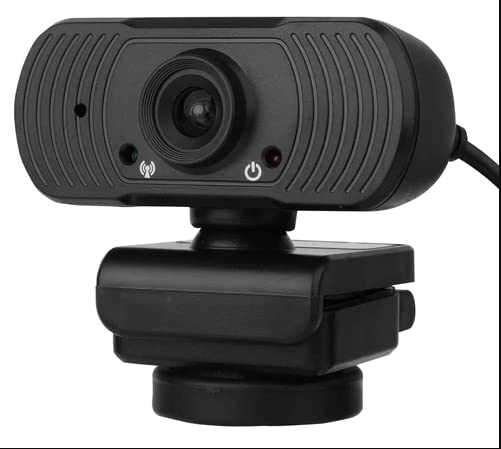
Image: The Vivitar Digital Clip-On Web Camera VWC107-BLK, showcasing its compact design and clip-on base.
2. Kandungan Pakej
Sila pastikan semua item ada dalam pakej anda:
- Vivitar Digital Clip-On Web Camera (VWC107-BLK)
3. Ciri-ciri Produk
- Video HD 1080P: Delivers clear and sharp video resolution.
- Mikrofon Berkualiti Tinggi: Integrated microphone with Right Sound Technology for clear audio capture.
- Keserasian Luas: Works with Windows and Mac operating systems.
- Pemasangan Serbaguna: 360-degree rotating clamp design suitable for laptops, LCD monitors, and desktops.
- Pelarasan Automatik: Features Auto White Balance and Auto-Focusing for optimal image quality.
- Kanta Tahan Lama: Equipped with a 4-layer glass lens.
- Optimized for Communication: Ideal for Zoom, Microsoft Teams, Skype, and other virtual meeting platforms.
- Privacy Indicator: Light indicator shows when the camera is in use.
- Lekapan Tripod: Includes a tripod screw mount for additional placement options.
4. Persediaan
4.1 Menyambungkan Webcam
- Unpack the Vivitar Digital Clip-On Web Camera from its packaging.
- Cari port USB yang tersedia pada komputer anda (desktop atau komputer riba).
- Pasangkan kabel USB daripada webcam into the USB port on your computer.
- The computer should automatically detect and install the necessary drivers. This process may take a few moments.
- Setelah dipasang, webcam will be ready for use with your preferred video conferencing software.
4.2 Memasang Webcam
- For Laptops/LCD Monitors: Open the clip base of the webcam. Place the webcam on top of your laptop screen or LCD monitor, ensuring the front lip rests securely on the screen and the back of the clip supports it from behind. Adjust the angle for optimal viewing.
- For Desktops: The clip base can also be folded to sit flat on a desk or other flat surface.
- Pemasangan Tripod: Jika dikehendaki, lampirkan webcam to a compatible tripod using the integrated tripod screw mount on the bottom of the clip base.
- The webcam features a 360-degree rotating base, allowing you to adjust the camera's direction without repositioning the entire unit.
5. Arahan Operasi
5.1 Using with Video Conferencing Software
- Open your preferred video conferencing application (e.g., Zoom, Microsoft Teams, Skype).
- Navigate to the application's settings or preferences menu, typically found under 'Audio & Video' or 'Devices'.
- Select the Vivitar VWC107-BLK as your primary camera and microphone device.
- Adjust any video or audio settings within the application as needed (e.g., resolution, volume).
- Begin your virtual meeting or video call. The webcam's light indicator will illuminate when the camera is active.
5.2 Petunjuk Cahaya
The webcam is equipped with a light indicator. This light will illuminate when the camera is actively in use by an application, providing a visual cue for your privacy and operational status.
6. Penyelenggaraan
- Membersihkan Lensa: Gently wipe the camera lens with a soft, lint-free cloth. For stubborn smudges, use a lens cleaning solution specifically designed for optical surfaces. Avoid abrasive materials or harsh chemicals.
- Membersihkan Badan: Gunakan kain lembut dan kering untuk membersihkan bahagian luar webcam. Jangan gunakan pembersih cecair terus pada peranti.
- Storan: Apabila tidak digunakan, simpan websimpan di tempat yang bersih dan kering, jauh daripada suhu ekstrem dan cahaya matahari langsung.
- Penjagaan Kabel: Elakkan membengkokkan atau mengelim kabel USB secara berlebihan untuk mengelakkan kerosakan.
7. Penyelesaian masalah
| Masalah | Penyelesaian |
|---|---|
| Webcam tidak dikesan oleh komputer. |
|
| No video or black screen in application. |
|
| Tiada audio atau kualiti audio yang lemah. |
|
| Imej kabur atau tidak fokus. |
|
8. Spesifikasi
| Ciri | Perincian |
|---|---|
| Nombor Model | VWC107-BLK |
| Resolusi Tangkapan Video | 1080p |
| Teknologi Penderia Foto | CMOS |
| Mikrofon | Built-in, High-Quality with Right Sound Technology |
| Jenis Fokus | Auto-Focusing |
| Imbangan Putih | Imbangan Putih Auto |
| Jenis Kanta | 4-Layer Glass Lens |
| Jenis Pemasangan | Clip-on (360-degree rotating), Tripod Screw Mount |
| Ketersambungan | USB (4.5 ft cable) |
| Keserasian | Windows, Mac |
| Berat Barang | 6.1 auns |
| Dimensi Pakej | 7.91 x 6.81 x 2.76 inci |
9. Waranti dan Sokongan
Vivitar products are designed for reliability and performance. For specific warranty information regarding your VWC107-BLK webcam, please refer to the warranty card included in your product packaging or visit the official Vivitar webtapak.
If you encounter any issues or require technical assistance, please contact Vivitar Customer Support through their official channels. Have your product model number (VWC107-BLK) and purchase information ready when contacting support.


