1. Pengenalan
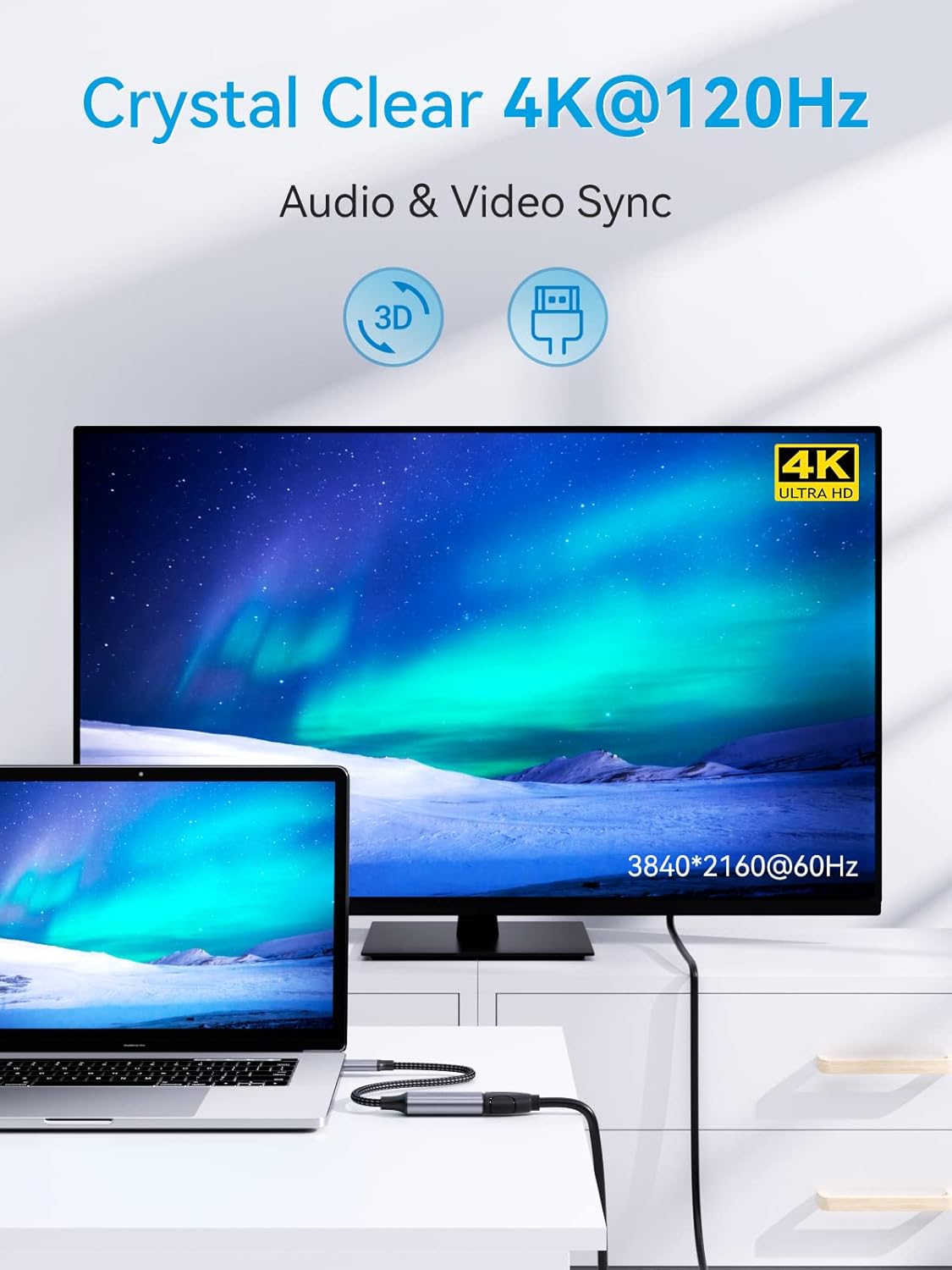
This manual provides instructions for the SOOMFON USB-C to HDMI 4K 120Hz Adapter (Model SF-VA002). This adapter allows you to connect a USB-C enabled device to an HDMI display, projector, or TV, enabling high-definition video and audio transmission. It supports resolutions up to 4K at 120Hz, 2K at 144Hz, and 1080p at 240Hz, offering a smooth visual experience for various applications.

2. Ciri-ciri Utama
- Output Resolusi Tinggi: Supports resolutions up to 3840 x 2160 @ 120Hz, including 4K @ 60Hz, 2K @ 144Hz, and 1080p @ 240Hz.
- Dynamic HDR and 3D Support: Enhances visual quality with dynamic HDR and 3D video capabilities.
- Penyegerakan Audio dan Video: Delivers synchronized high-definition audio and video.
- Pasang dan Main: No drivers or additional software required for operation.
- Mod Paparan: Supports both mirror mode (duplicate screen) and extended mode (expand desktop).
- Pembinaan Tahan Lama: Features a premium aluminum alloy casing for heat dissipation and a reinforced braided nylon cable for enhanced durability.
- Reka bentuk padat: Portable and easy to carry for on-the-go use.


3. Keserasian
The SOOMFON USB-C to HDMI adapter is designed for wide compatibility with various devices and operating systems that support USB-C video output (DisplayPort Alternate Mode).
3.1 Peranti yang Serasi (Sumber USB-C)
- Komputer riba:
- Microsoft: Surface Book, Surface Pro X / Pro 7, Surface Go
- Huawei: Matebook Series
- Google: Chromebook Pixel
- Lenovo: Lenovo Yoga, Thinkpad T470 / T480
- HP: HP Spectre, HP ZBook, HP ENVY 13
- Dell: XPS 12/13/15, Precision 15, Inspiron 15 7000, 13 5390, Vostro 5390
- MacBook: MacBook 2015 or later, MacBook Pro 2016 or later, MacBook Air 2018 or later, iMac Pro, iMac (2017 or later), Mac Mini 2018 2020
- Tablet:
- Apple: iPad Pro 2018 2020 2021, iPad Air 4th generation, iPad Mini 6
- Samsung: Samsung Galaxy Tab S4 / Tab S5e / Tab S6, Tab Pro S
- Fujitsu: ARROWS Tab Q509 / V, ARROWS Tab F-02
- Telefon pintar:
- HTC: HTC 10 / U11 / U11+ / U12+
- Aqua: R5G (Note: Other Aqua models may not be compatible)
- LG: G5 / G7 / G7+ / G8S ThinQ / Q8 / V20 / V30 / V35 / V35+ / V40
- Samsung: Galaxy S9+ / S10 / S10+ / S20 / S20+ / S21 / S21 Ultra / S22 / S22+ / S22 Ultra / Note 9 / Note10+ (Note: Many Samsung models may not be compatible; please verify device support for DisplayPort Alternate Mode over USB-C.)
- Huawei: P20 / P20 Pro / P30 / P30 Pro / P40 / P40 Pro / Huawei Mate Series (Note: Lite versions are not supported.)
3.2 Sistem Operasi yang Serasi
- Mac OS X 10.6 atau lebih baru
- Windows 10, 8, 7, Vista, XP
- OS Chrome
- Linux 2.6.14 atau lebih baru
- iPadOS
- Android (for compatible devices)

4. Arahan Persediaan
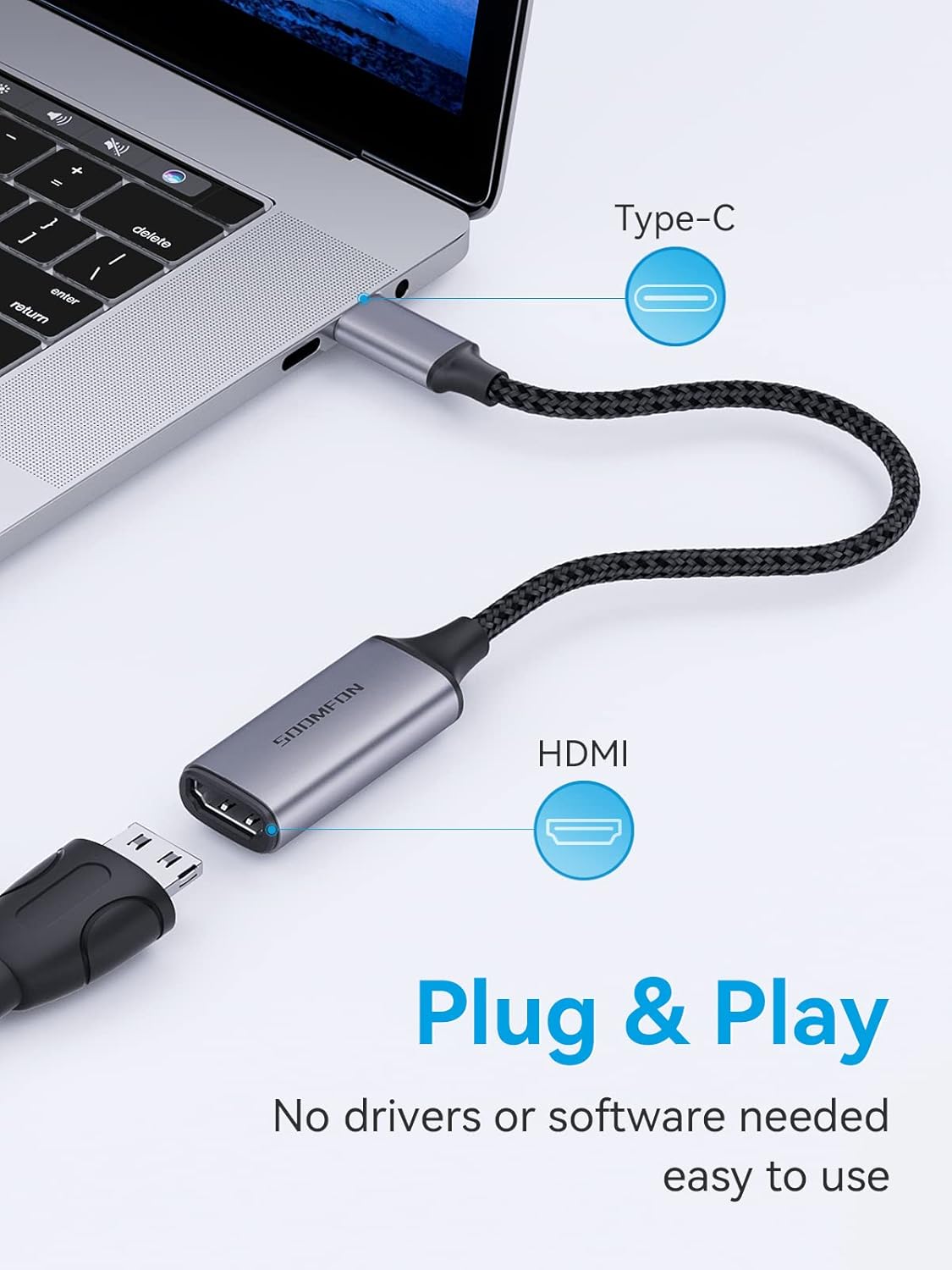
The SOOMFON USB-C to HDMI adapter is designed for simple plug-and-play operation. Follow these steps to connect your device to an HDMI display:
- Sambung ke Paparan: Plug the HDMI end of the adapter into an available HDMI port on your monitor, projector, or TV.
- Sambungkan ke Peranti Sumber: Insert the USB-C connector of the adapter into the USB-C port of your compatible laptop, tablet, or smartphone. Ensure the USB-C port on your device supports video output (DisplayPort Alternate Mode).
- Hidupkan Peranti: Ensure both your source device and the HDMI display are powered on.
- Pilih Input: On your HDMI display, select the correct HDMI input source that the adapter is connected to.
5. Arahan Operasi
Once connected, your device should automatically detect the external display. You can configure the display settings on your operating system.
5.1 Mod Paparan
- Mirror Mode (Duplicate): The external display shows the same content as your primary screen. This is useful for presentations or sharing content.
- Mod Lanjutan: The external display acts as an extension of your primary screen, providing more desktop space. This is ideal for multitasking.
To switch between display modes:
- Windows: Tekan Kunci Windows + P and select your desired display option (Duplicate, Extend, Second screen only).
- macOS: Go to System Settings (or System Preferences) > Displays. You can arrange displays and choose mirroring options.

6. Penyelesaian masalah
If you encounter issues while using the SOOMFON USB-C to HDMI adapter, consider the following common solutions:
- Tiada Paparan/Isyarat:
- Ensure both the USB-C and HDMI connections are secure.
- Verify that your source device's USB-C port supports video output (DisplayPort Alternate Mode). Not all USB-C ports support this feature.
- Check the input source selection on your HDMI display.
- Cuba mulakan semula peranti sumber anda.
- Uji dengan kabel atau paparan HDMI yang berbeza jika boleh.
- Flickering or Unstable Display:
- Ensure the HDMI cable is of good quality and securely connected.
- Reduce the resolution or refresh rate in your device's display settings to see if stability improves.
- Check for any potential interference from other electronic devices.
- Tiada Audio:
- Verify that the audio output is set to the HDMI display in your device's sound settings.
- Ensure the HDMI display has working speakers or is connected to external audio.
- Resolution/Refresh Rate Not as Expected:
- Confirm that both your source device and HDMI display support the desired resolution and refresh rate.
- Update graphics drivers on your source device.
7. Spesifikasi
| Ciri | Perincian |
|---|---|
| Jenama | SOOMFON |
| Nombor Model | SF-VA002 |
| warna | Kelabu |
| Jenis Penyambung | USB Type-C (Male) to HDMI (Female) |
| Resolusi Maks | 3840 x 2160 @ 120Hz |
| Resolusi yang Disokong | 4K @ 60Hz, 2K @ 144Hz, 1080p @ 240Hz |
| Ciri-ciri | Dynamic HDR, 3D, Audio & Video Sync, Plug & Play |
| Bahan Perumahan | Aloi Aluminium |
| Bahan Kabel | Nilon Jalinan |
| Bilangan Pelabuhan | 1 (HDMI output) |
8. Penyelenggaraan
To ensure the longevity and optimal performance of your SOOMFON USB-C to HDMI adapter, please follow these maintenance guidelines:
- Pembersihan: Use a soft, dry cloth to wipe the adapter. Avoid using liquid cleaners or solvents.
- Storan: Simpan penyesuai di tempat yang sejuk dan kering jauh dari cahaya matahari langsung dan suhu yang melampau.
- Pengendalian: Avoid bending or twisting the cable excessively, especially near the connectors, to prevent internal damage. Do not pull the cable to disconnect; always grasp the connector housing.
- Perlindungan: Jauhkan penyesuai daripada air, kelembapan dan bahan menghakis.
9. Waranti dan Sokongan
SOOMFON provides a Waranti 2 tahun for this product. For technical assistance or warranty claims, please contact SOOMFON customer support. We offer 7x24 hour support to help resolve any issues you may encounter in a timely manner.
Please refer to the contact information provided with your product packaging or visit the official SOOMFON webtapak untuk butiran sokongan.


