1. Pengenalan
The ACT AC7049 Dual Monitor Docking Station transforms your laptop into a complete workstation. This versatile 11-in-1 docking station allows you to connect up to two Full HD displays (max. 2048 x 1152 resolution) to your laptop via HDMI, using a single USB-C/A cable. It expands your laptop's connectivity with a Gigabit LAN port, microphone and headphone jacks, and six additional USB ports. Featuring DisplayLink® technology, it ensures advanced screen display on both MacOS and Windows computers.
2. Ciri-ciri Utama
- Sokongan Dwi Monitor: Connect up to two external displays with HDMI ports, supporting resolutions up to 2048x1152@60Hz.
- Keserasian Universal: Works with laptops featuring a USB-C or USB-A 3.2 Gen1 (USB 3.0) port, compatible with MacOS and Windows thanks to DisplayLink technology.
- Ketersambungan yang meluas: Includes 2x HDMI, 1x Gigabit Ethernet, 3x USB-A 3.2 Gen 1 (one with fast charging), 4x USB-A 2.0, and 3.5mm audio jacks for microphone and headphones.
- Peletakan Fleksibel: Designed for both vertical and horizontal placement to optimize desk space and port accessibility.
- Port Pengecasan USB: Dedicated USB port for charging smartphones and tablets.
3. Kandungan Pakej
Sila semak pakej untuk item berikut:
- ACT AC7049 Docking Station
- USB-C/A 3.2 Gen1 Connection Cable (USB-A to USB-C)
- Penyesuai Kuasa
- Pendirian menegak
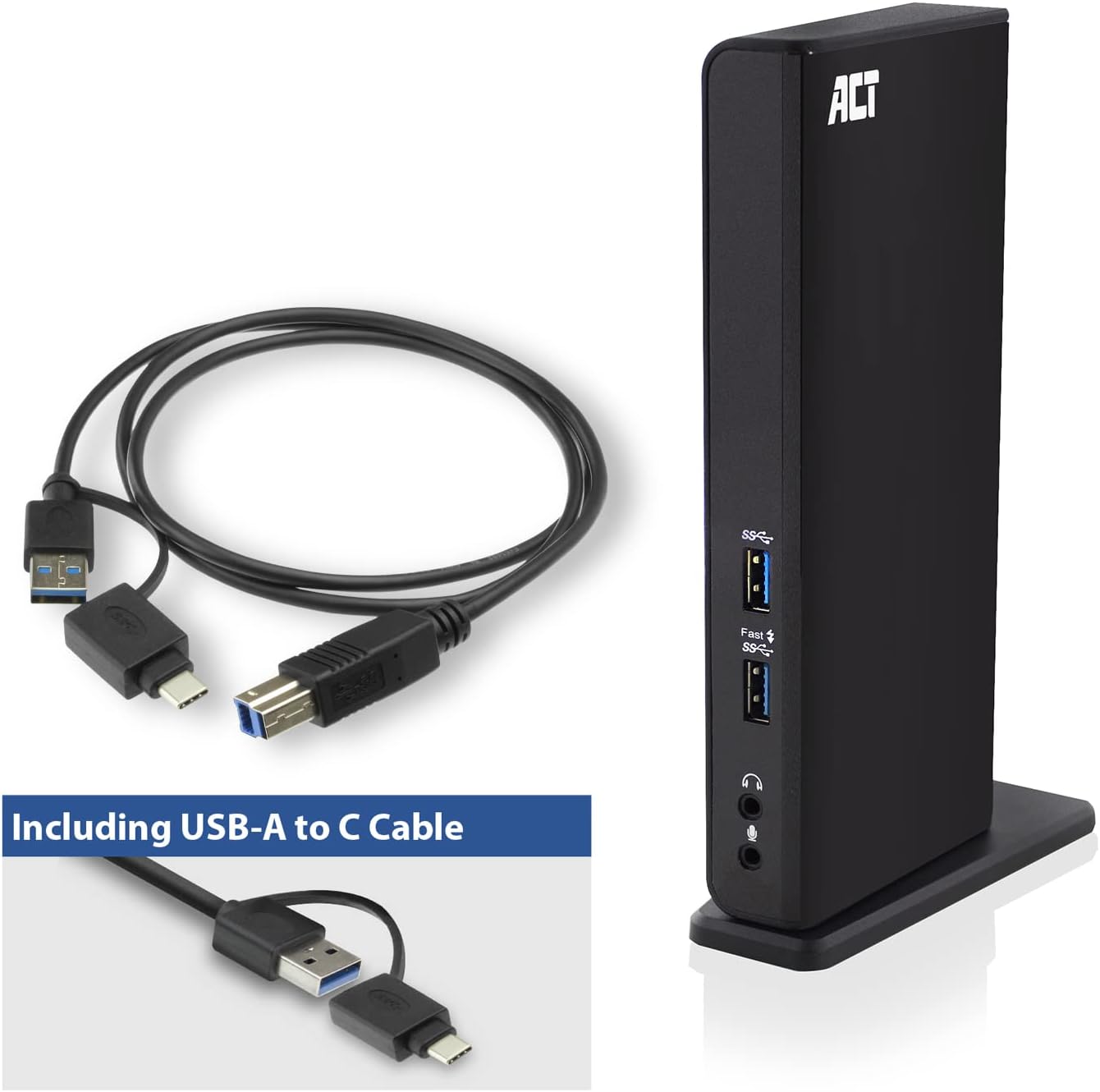
Image: The ACT AC7049 Docking Station shown with its included USB-A to USB-C connection cable and power adapter, highlighting the components provided in the package.
4. Panduan Persediaan
4.1. Menyambungkan Penyesuai Kuasa
- Connect the power adapter to the DC 5V input port on the back of the AC7049 docking station.
- Plug the power adapter into a wall outlet. The docking station will power on.
4.2. Connecting to Your Laptop
- Use the provided USB-C/A 3.2 Gen1 connection cable. Connect the USB-B end to the corresponding port on the docking station.
- Connect the other end (USB-A or USB-C, depending on your laptop's port) to an available USB 3.2 Gen1 (USB 3.0) or USB-C port on your laptop.
4.3. Driver Installation (DisplayLink)
The AC7049 utilizes DisplayLink technology for extended monitor functionality. Drivers are typically installed automatically on most operating systems. If not, please follow these steps:
- Lawati DisplayLink rasmi webtapak (www.displaylink.com/downloads) to download the latest drivers for your operating system (Windows or MacOS).
- Install the downloaded driver package and follow the on-screen instructions.
- Mulakan semula komputer anda jika digesa.

Image: The official DisplayLink 'Plug and Display' logo, indicating the technology used for multi-monitor support.
5. Arahan Operasi
5.1. Connecting External Displays
- Connect your HDMI monitors to the two HDMI ports on the back of the docking station.
- Once connected, your operating system should detect the new displays. You can configure display settings (extend, mirror, primary display) through your computer's display settings.

Image: A visual representation of the docking station enabling both 'Mirror your content' and 'Extend your content' display modes across a laptop and two external monitors.
5.2. Menyambung Peranti USB
- Port USB Depan: Two USB-A 3.2 Gen1 ports (one with fast charging capability) are located on the front for easy access to frequently used devices like USB drives, smartphones, or tablets.
- Rear USB Ports: Four USB-A 2.0 ports are located on the back for connecting peripherals such as keyboards, mice, printers, or other less frequently connected devices.
5.3. Sambungan Rangkaian
Connect an Ethernet cable from your router or network switch to the Gigabit Ethernet port on the docking station. Your laptop will automatically gain wired network access.
5.4. Sambungan Audio
Connect your headphones and/or microphone to the dedicated 3.5mm audio jacks on the front of the docking station.

Image: An isometric diagram showcasing the comprehensive connectivity of the ACT AC7049, demonstrating how a laptop, two monitors, a keyboard, mouse, network cable, headphones, and a smartphone can all be connected simultaneously.
6. Pilihan Penempatan
The ACT AC7049 docking station offers flexible placement options to suit your workspace:
- Peletakan Menegak: Use the included stand to position the docking station vertically. This saves desk space and provides easy access to all ports.
- Peletakan Mendatar: The docking station can also be placed horizontally if preferred.

Image: The ACT AC7049 Docking Station positioned vertically on its stand, highlighting its compact design and accessible ports.
7. Penyelenggaraan
To ensure optimal performance and longevity of your ACT AC7049 Docking Station, follow these maintenance guidelines:
- Pembersihan: Gunakan kain lembut dan kering untuk membersihkan bahagian luar stesen dok. Elakkan menggunakan pembersih cecair atau aerosol, kerana ia boleh merosakkan peranti.
- Pengudaraan: Pastikan stesen dok diletakkan di kawasan yang mempunyai pengudaraan yang baik untuk mengelakkan terlalu panas. Jangan halang sebarang bukaan pengudaraan.
- Storan: Apabila tidak digunakan untuk tempoh yang lama, simpan stesen dok di tempat yang sejuk dan kering, jauh daripada cahaya matahari langsung dan suhu yang melampau.
- Pengurusan Kabel: Keep cables organized and free from kinks or excessive bending to prevent damage to the cables and ports.
8. Penyelesaian masalah
If you encounter issues with your ACT AC7049 Docking Station, please refer to the following common troubleshooting steps:
- Tiada Output Paparan:
- Ensure the docking station is powered on and correctly connected to your laptop.
- Sahkan bahawa kabel HDMI disambungkan dengan selamat ke stesen dok dan monitor.
- Check your laptop's display settings to ensure the external monitors are detected and configured correctly (e.g., extended or mirrored).
- Reinstall or update the DisplayLink drivers from www.displaylink.com/downloads.
- Cuba sambungkan satu monitor pada satu masa untuk mengasingkan masalah tersebut.
- Peranti USB Tidak Berfungsi:
- Ensure the docking station is properly connected to your laptop and powered.
- Cuba sambungkan peranti USB terus ke komputer riba anda untuk mengesahkan ia berfungsi.
- Connect the USB device to a different USB port on the docking station.
- Mulakan semula komputer riba anda.
- Tiada Sambungan Rangkaian:
- Verify the Ethernet cable is securely connected to both the docking station and your router/switch.
- Semak tetapan rangkaian komputer riba anda untuk memastikan sambungan berwayar diaktifkan.
- Uji kabel Ethernet dengan peranti lain jika boleh.
- Audio Tidak Berfungsi:
- Ensure headphones/microphone are fully plugged into the correct 3.5mm jacks.
- Check your laptop's sound settings to ensure the docking station's audio output/input is selected as the default device.
9. Spesifikasi
| Ciri | Spesifikasi |
|---|---|
| Nombor Model | AC7049 |
| Jenama | BERTINDAK |
| warna | Hitam |
| Teknologi Ketersambungan | USB-A, USB-C |
| Output Video | 2 x HDMI (Max. 2048 x 1152 @ 60Hz) |
| Port USB | 3 x USB-A 3.2 Gen 1 (5Gbps, 1x Fast Charging), 4 x USB-A 2.0 (480Mbps) |
| Port Rangkaian | 1 x Gigabit Ethernet (RJ45) |
| Port Audio | 1 x 3.5mm Headphone Jack, 1 x 3.5mm Microphone Jack |
| Peranti Serasi | Laptop, Computer (with USB 3.2 Gen1 / USB 3.0 or USB-C port) |
| Sokongan Sistem Pengendalian | Windows, MacOS (via DisplayLink) |
| Dimensi (L x W x H) | 10.9 x 6 x 18.1 cm (lebih kurang) |
| Berat Barang | 317 Gram |
10. Waranti dan Sokongan
ACT products are designed for reliability and adhere to international standards and EU legislation. The ACT AC7049 Docking Station comes with a manufacturer's warranty, typically ranging from 2 to 5 years. For specific warranty details and support, please refer to the official ACT webtapak atau hubungi peruncit anda.
For technical support or further inquiries, please visit the official ACT connectivity webtapak: www.act-connectivity.com


