1. Pengenalan
Cisco Webex Desk Pro is an all-in-one collaboration device designed for video conferencing, content creation, and productivity. It features a 27-inch 4K multitouch display, an integrated HD camera, and an advanced microphone array for clear audio. This manual provides instructions for setting up, operating, and maintaining your Webex Desk Pro system.
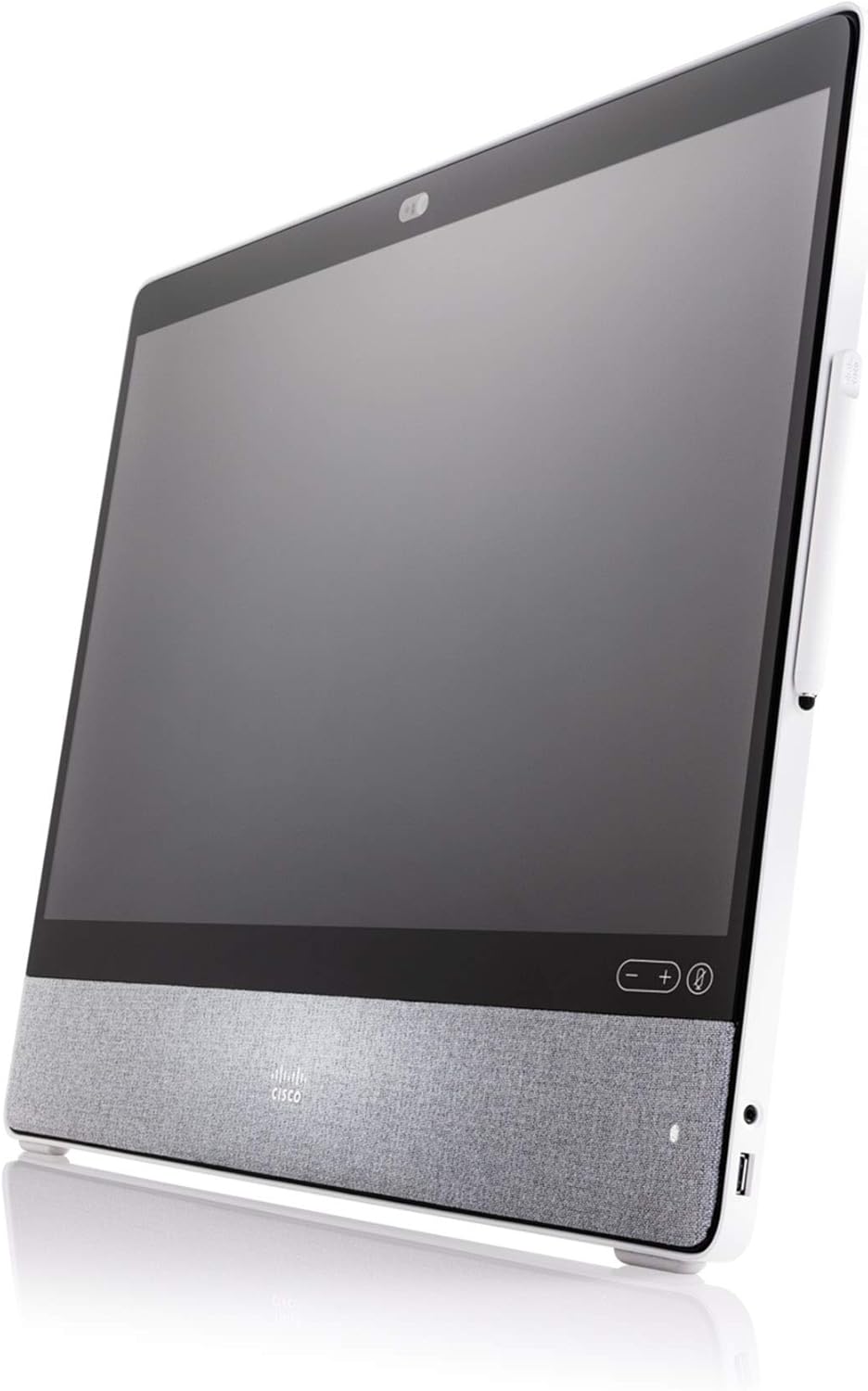
Rajah 1.1: bersudut view of the Cisco Webex Desk Pro, showcasing its sleek design and integrated speaker fabric.
Ciri-ciri Utama:
- 27-inch 4K Multitouch Display: Provides a high-resolution interactive surface for video calls and content.
- Integrated HD Camera: Captures clear video for conferencing.
- Superior Sound System: Menyampaikan output audio berkualiti tinggi.
- Advanced Noise-Cancelling Microphone Array: Ensures clear voice pickup by minimizing background noise.
- Kolaborasi Kognitif: AI-powered features enhance the meeting experience.
- Papan Putih Digital: Allows for co-creation using a dedicated stylus or finger.
- Kesambungan USB-C: Functions as a docking station and external display for laptops.
2. Persediaan
Ikuti langkah-langkah ini untuk menyediakan Cisco anda Webex Desk Pro system.
2.1 Membongkar
- Buang dengan berhati-hati Webbekas Desk Pro daripada pembungkusannya.
- Pastikan semua komponen ada: Webex Desk Pro unit, power adapter, power cable, and any included accessories (e.g., stylus).
2.2 Kuasa Penyambung
- Connect the power adapter to the power input port on the back of the Webbekas Meja Pro.
- Pasangkan kabel kuasa ke dalam penyesuai kuasa dan kemudian ke dalam soket elektrik yang sesuai.
2.3 Sambungan Rangkaian
The Webex Desk Pro requires an internet connection for full functionality.
- Sambungan Berwayar: Connect an Ethernet cable from your network router or switch to the Ethernet port on the Webbekas Meja Pro.
- Sambungan Wayarles: Upon initial power-on, you will be prompted to configure Wi-Fi settings through the on-screen interface.
2.4 Connecting Peripherals (Optional)
You can connect a laptop to the Webex Desk Pro using a USB-C cable to use it as an external display and docking station.
- Connect a USB-C cable from your laptop to the USB-C port on the Webex Desk Pro. This connection can provide video, audio, and data transfer.
2.5 Hidupkan Kuasa Awal
Once power and network are connected, the device should power on automatically or can be powered on using the power button (if available).
- Follow the on-screen prompts to complete the initial setup, which may include language selection, network configuration, and Weblog masuk akaun bekas.

Rajah 2.1: Depan view of the Cisco Webex Desk Pro, showing the 27-inch display, camera, and speaker grille.
3. Arahan Operasi
The Webex Desk Pro is optimized for Webbekas Mesyuarat. A Webex device subscription is required for full functionality and must be purchased separately.
3.1 Videoconferencing
The device seamlessly integrates with Webex for video calls. It can also be used with other video-conferencing solutions by connecting to your laptop via USB-C.
- Initiate or join Webex meetings directly from the device's interface.
- Utilize the integrated camera and microphone for clear communication.
3.2 Digital Whiteboarding
The multitouch screen supports interactive whiteboarding, allowing for collaborative content creation.
- Use the dedicated stylus or your finger to draw, write, and annotate on the screen.
- Content created on the whiteboard is automatically saved to a Webex Teams virtual space for easy access and sharing.

Rajah 3.1: A user interacting with the Webex Desk Pro screen using a stylus, demonstrating the digital whiteboarding feature during a collaborative session.
3.3 Using as a Laptop Display and Docking Station
Connect your laptop via USB-C to extend your workspace and utilize the Desk Pro's display and peripherals.
- The Webex Desk Pro acts as a primary monitor with touch-redirect capabilities.
- It can also function as a docking station, providing power and connectivity for your laptop through the single USB-C cable.
3.4 Cognitive Collaboration Features
AI-powered features are integrated to provide a streamlined meeting experience and contextual insights.
- Ciri-ciri seperti Webex Assistant and facial recognition contribute to a frictionless collaboration environment.

Rajah 3.2: Berakhirview of the Cisco Webex Desk Pro's core functionalities, including videoconferencing, productivity features, digital whiteboarding, and cognitive collaboration capabilities.
4. Penyelenggaraan
Penyelenggaraan yang betul memastikan ketahanan dan prestasi optimum peranti anda Webbekas Meja Pro.
4.1 Membersihkan Peranti
- Skrin: Gunakan kain lembut dan tidak berbulu sedikit dampdicairkan dengan air atau larutan pembersih skrin. Elakkan bahan kimia yang keras atau bahan yang kasar.
- Badan: Wipe the exterior surfaces with a soft, dry cloth. Do not allow liquids to enter openings.
- Pastikan peranti dimatikan dan dicabut plag sebelum dibersihkan.
4.2 Kemas Kini Perisian
Regular software updates are crucial for security, performance, and new features.
- The Webex Desk Pro typically receives automatic software updates when connected to the internet.
- Check the device settings for manual update options or to verify update status.
4.3 Pertimbangan Alam Sekitar
- Operate the device within recommended temperature and humidity ranges.
- Avoid exposing the device to direct sunlight, excessive heat, or moisture.
- Pastikan pengudaraan yang mencukupi di sekeliling peranti.
5. Penyelesaian masalah
Bahagian ini membincangkan isu-isu biasa yang mungkin anda hadapi dengan Webbekas Meja Pro.
5.1 Tiada Kuasa
- Verify that the power cable is securely connected to the device and the electrical outlet.
- Periksa sama ada alur keluar elektrik berfungsi dengan memasang peranti lain.
- Ensure the power adapter is correctly connected.
5.2 Tiada Paparan
- Sahkan peranti dihidupkan.
- If using as a laptop display, ensure the USB-C cable is properly connected and the laptop's display settings are configured to extend or duplicate the display.
- Cuba mulakan semula peranti.
5.3 Masalah Audio
- Check the volume settings on the device and within any active applications (e.g., Webex Meetings).
- Pastikan mikrofon tidak diredamkan.
- Verify that the correct audio input/output devices are selected in the system settings.
5.4 Isu Ketersambungan Rangkaian
- For wired connections, ensure the Ethernet cable is securely connected to both the device and the router/switch. Check router status.
- For wireless connections, verify the Wi-Fi network is available and you have entered the correct password. Try reconnecting to the network.
- Restart your router/modem if other devices are also experiencing network issues.
6. Spesifikasi
Detailed technical specifications for the Cisco Webex Desk Pro (CS-DESKPRO-K9).
| Ciri | Spesifikasi |
|---|---|
| Nama Jenama | Cisco |
| Nombor Model Item | CS-DESKPRO-K9 |
| Berat Barang | 42.8 paun |
| Dimensi Produk | 30.7 x 30.7 x 8.6 inci |
| Nama Warna | Hitam |
| Ciri Khas | Low Light Camera Performance |
| Saiz Skrin | 27 Inci |
| Resolusi | 4K UHD 2160p |
| Nisbah Aspek | 16:9 |
| Penerangan Permukaan Skrin | Berkilat |
7. Waranti dan Sokongan
7.1 Jaminan Diperbaharui Amazon
This product is part of the Amazon Renewed program. Renewed products are eligible for replacement or refund under the Amazon Renewed Guarantee if you are not satisfied with your purchase. Please refer to the Amazon Renewed Guarantee terms and conditions for full details regarding return policy and coverage.
7.2 Sokongan Teknikal
For technical assistance, software-related inquiries, or advanced troubleshooting beyond this manual, please refer to the official Cisco support resources or contact your Webex service provider. Ensure you have your device's model number (CS-DESKPRO-K9) and serial number available when seeking support.


