1. Pengenalan
This manual provides detailed instructions for the installation, configuration, and operation of your MoesGo WiFi Smart Wall Light Switch. This device allows you to control your lighting remotely via a smartphone application, voice commands, or directly through its touch panel. It supports multi-control functionality and integrates with popular smart home platforms.
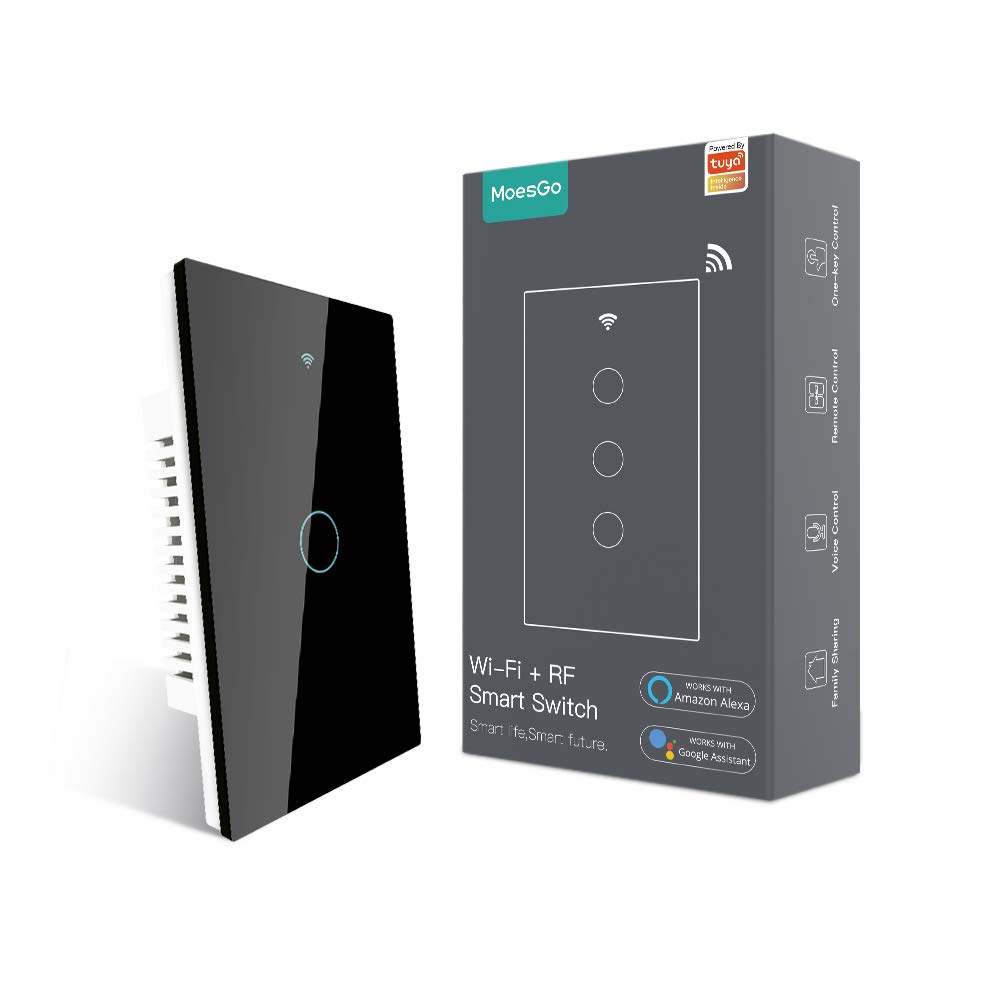
Image 1.1: MoesGo WiFi Smart Wall Light Switch and its retail packaging.
2. Maklumat Keselamatan dan Pertimbangan Penting
Before proceeding with installation, please read and understand the following safety guidelines. Improper installation can lead to electrical shock or damage to the device and your electrical system.
- Wayar Neutral Diperlukan: This smart switch requires a neutral wire for operation. Verify that your electrical box has a neutral wire (typically white) before purchasing atau cuba memasang.
- Wi-Fi 2.4GHz Sahaja: The switch operates exclusively on a 2.4GHz Wi-Fi network. It is not compatible with 5GHz Wi-Fi networks. Ensure your router supports 2.4GHz and that your device is connected to this frequency during pairing.
- Pemutusan Kuasa: Always turn off power at the circuit breaker before installing, removing, or servicing the switch. Failure to do so can result in serious injury or death.
- Pemasangan Profesional: Jika anda tidak biasa dengan pendawaian elektrik, rujuk juruelektrik yang bertauliah.
- Bukan Suis Dimmer: This device is an ON/OFF switch and does not support dimming functionality.
- Not for Traditional 3-Way Wiring: This switch uses a multi-control association via the app for 3-way functionality, not traditional 3-way wiring.

Image 2.1: Visual summary of critical installation requirements and limitations.
3. Spesifikasi
| Ciri | Perincian |
|---|---|
| Jenama | MoesGo |
| Nombor Model | AUB088K9T82Z |
| Dimensi Produk | 4.7 x 2.9 x 1.5 inci |
| Berat badan | 7.83 auns |
| Mod Operasi | ON-OFF-ON |
| Penilaian Semasa | 10 Amps |
| Vol Operasitage | 240 Volt |
| Jenis Kenalan | Biasa Terbuka |
| Jenis Penyambung | Tanpa Wayar (Wi-Fi 2.4GHz) |
| Terminal | skru |
| Jenis Litar | 3-way (via app multi-control) |
| Jenis Penggerak | Sentuhan Pintar |
4. Panduan Pemasangan
4.1 Senarai Semak Pra-Pemasangan
- Confirm presence of a neutral wire in your electrical box.
- Pastikan rangkaian Wi-Fi anda ialah 2.4GHz.
- Matikan kuasa pada pemutus litar sebelum memulakan.
- Kumpulkan alatan yang diperlukan: pemutar skru, penanggal wayar, voltage penguji.
4.2 Arahan Pendawaian
- Matikan Kuasa: Locate the circuit breaker controlling the light switch you intend to replace and turn it OFF. Verify power is off using a voltage penguji.
- Keluarkan Suis Lama: Carefully remove the existing wall plate and unscrew the old switch from the electrical box. Disconnect the wires.
- Kenal pasti wayar: Identify the Live (Load), Neutral, and Ground wires. The Live wire typically carries power from the breaker, the Neutral wire completes the circuit, and the Ground wire provides safety.
- Sambungkan Suis Baharu: Connect the wires from your electrical box to the MoesGo Smart Switch according to the diagram below. Ensure all connections are secure.
- Connect the Live wire (L) from the electrical box to the 'L IN' terminal on the switch.
- Connect the Neutral wire (N) from the electrical box to the 'N IN' terminal on the switch.
- Connect the Load wire(s) (to the light fixture) to the 'L1 OUT', 'L2 OUT', 'L3 OUT', 'L4 OUT' terminals as appropriate for your switch gang configuration.
- Connect the Ground wire (if present) to the ground screw in the electrical box.
- Suis Pemasangan: Gently push the wired switch into the electrical box, ensuring wires are not pinched. Screw the switch into place.
- Pasang Plat Dinding: Attach the new glass wall plate.
- Pulihkan Kuasa: Turn the power back ON at the circuit breaker. The switch indicator light should illuminate.

Image 4.1: Detailed wiring diagram for the MoesGo Smart Wall Light Switch.
5. App Pairing and Configuration
5.1 Download the Smart Life/Tuya App
Cari untuk "Smart Life" or "Tuya Smart" in your smartphone's app store (iOS or Android) and download the application. Register for an account or log in if you already have one.
5.2 Pairing the Switch
- Masukkan Mod Berpasangan: After restoring power, the Wi-Fi indicator on the switch should blink rapidly. If not, press and hold any button on the switch for 5-10 seconds until it blinks rapidly.
- Tambahkan Peranti dalam Apl: Open the Smart Life/Tuya app. The app may automatically detect the new device. If not, tap the "+" icon in the top right corner, then select "Add Device" or "Auto Scan".
- Confirm Wi-Fi Network: Ensure your phone is connected to a 2.4GHz Wi-Fi network. Enter your Wi-Fi password when prompted.
- Berpasangan Lengkap: Follow the on-screen instructions in the app to complete the pairing process. Once successfully paired, you can rename the switch and assign it to a room.

Image 5.1: Simplified pairing process using the Smart Life app.
6. Arahan Operasi
6.1 Kawalan Sentuh Manual
Simply touch the corresponding button on the glass panel to turn the connected light ON or OFF.
6.2 Remote Control via Smart Life/Tuya App
Once paired, you can control your lights from anywhere using the Smart Life/Tuya app on your smartphone. Open the app, select your switch, and tap the ON/OFF button.
6.3 Kawalan Suara (Alexa & Google Home)
Integrate your MoesGo Smart Switch with Amazon Alexa or Google Home for hands-free voice control. Follow the instructions within the Alexa or Google Home app to link your Smart Life/Tuya account.
- Untuk Alexa: Say, "Alexa, turn on [Switch Name]" or "Alexa, turn off [Switch Name]".
- Untuk Google Home: Say, "Hey Google, turn on [Switch Name]" or "Hey Google, turn off [Switch Name]".

Imej 6.1: Selesaiview of various control methods for the smart switch.
6.4 Multi-Control (3-Way) Association
The MoesGo Smart Switch supports multi-control functionality, allowing multiple switches to control a single light without traditional 3-way wiring. This is achieved through an association feature within the Smart Life/Tuya app.
- Ensure both smart switches are installed and paired to the app.
- In the app, select one of the switches.
- Navigate to its settings or options, and look for "Multi-Control Association."
- Follow the app's prompts to link the two switches to control the same light.

Image 6.2: App interface for setting up multi-control association.
6.5 Penjadualan dan Pemasa
Use the Smart Life/Tuya app to set schedules or countdown timers for your lights. This allows you to automate when lights turn ON or OFF, enhancing convenience and energy efficiency.
6.6 Relay Status and Backlight Settings
The app provides options to customize the switch's behavior:
- Status Geganti: Konfigurasikan suis untuk mengingati keadaan HIDUP/MATI terakhirnya selepas kuasa dimatikantage, or to default to ON or OFF.
- Suis Lampu Belakang: Turn the switch's backlight ON or OFF. This can be useful for bedrooms to avoid light disturbance during sleep.

Image 6.3: App settings for customizing relay status.

Image 6.4: App settings for controlling the switch backlight.
7. Penyelesaian masalah
If you encounter issues with your MoesGo Smart Wall Light Switch, refer to the following common problems and solutions:
- Switch Not Responding / No Power:
- Check the circuit breaker to ensure power is ON.
- Verify all wiring connections are secure and correct, especially the neutral wire.
- Pastikan mentol lampu berfungsi.
- Unable to Pair with App:
- Confirm your Wi-Fi network is 2.4GHz. The switch does not support 5GHz.
- Ensure your smartphone is connected to the 2.4GHz Wi-Fi network during pairing.
- Make sure the switch is in rapid blinking pairing mode. If not, press and hold any button for 5-10 seconds.
- Move the switch closer to your Wi-Fi router if signal strength is weak.
- Lumpuhkan data mudah alih pada telefon anda buat sementara waktu semasa berpasangan.
- Mulakan semula penghala Wi-Fi anda dan cuba lagi.
- Kawalan Suara Tidak Berfungsi:
- Ensure your Smart Life/Tuya account is correctly linked to Alexa or Google Home.
- Verify the switch name in the Smart Life/Tuya app matches the name used in voice commands.
- Semak sambungan internet anda.
- Switch Turns ON/OFF Randomly:
- Check for any active schedules or automation rules in the Smart Life/Tuya app that might be causing this behavior.
- Ensure no other smart home devices or users are inadvertently controlling the switch.
- If the issue persists, consider resetting the switch and re-pairing it.
8. Penyelenggaraan
To ensure optimal performance and longevity of your MoesGo Smart Wall Light Switch, follow these maintenance guidelines:
- Pembersihan: Use a soft, dry cloth to clean the glass panel. Avoid abrasive cleaners, solvents, or excessive moisture, which can damage the surface or internal components.
- Kemas kini Firmware: Periodically check the Smart Life/Tuya app for available firmware updates for your switch. Updates can improve performance, add features, and enhance security.
- Keadaan Persekitaran: Ensure the switch is installed in an indoor environment within recommended temperature and humidity ranges. Avoid exposure to direct sunlight, extreme temperatures, or high humidity.


