1. Pengenalan
This manual provides detailed instructions for the setup, operation, maintenance, and troubleshooting of your MOFII Wireless Keyboard and Mouse Combo. Please read this manual thoroughly before using the product to ensure optimal performance and longevity.
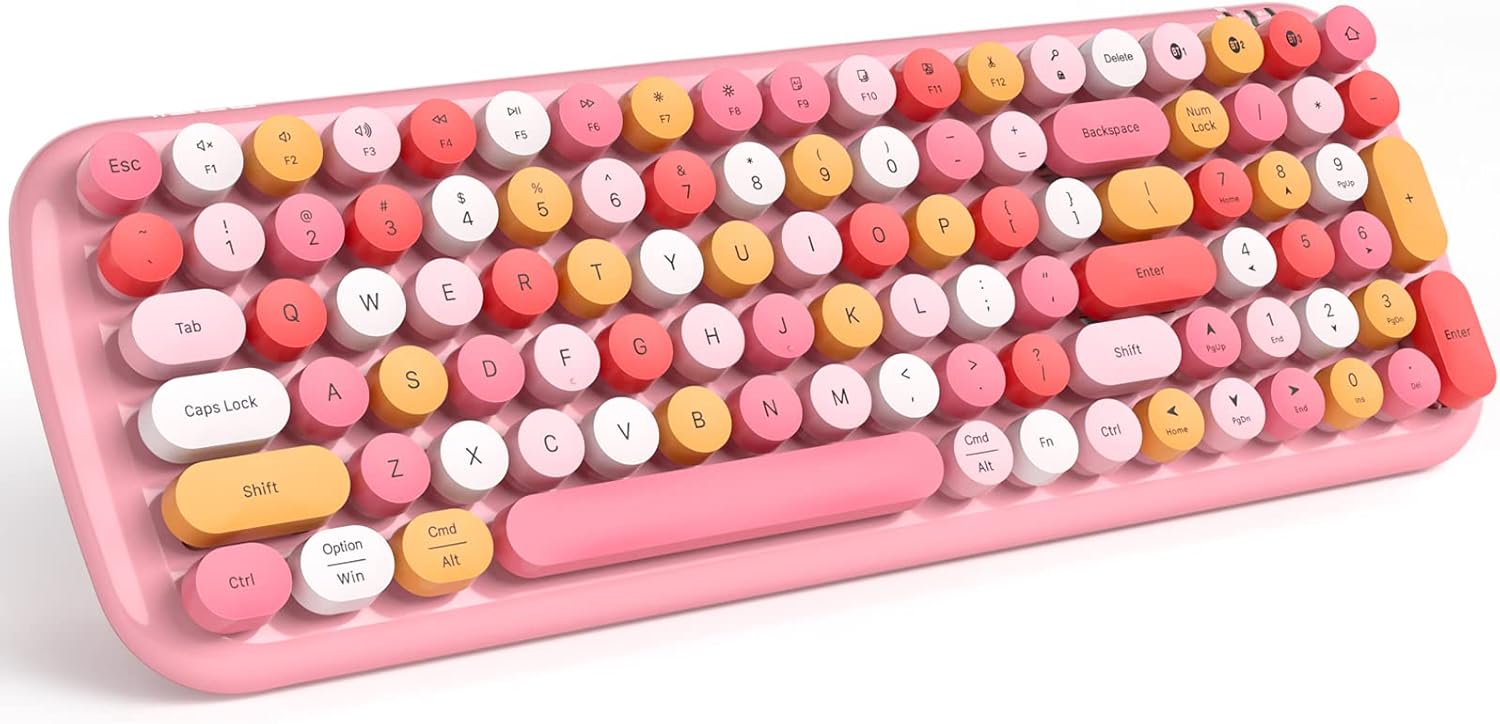
Image 1.1: MOFII Wireless Keyboard and Mouse Combo (Light Pink)
2. Kandungan Pakej
- 1 x Papan Kekunci Tanpa Wayar MOFII
- 1 x MOFII Optical Mouse
- 1 x USB Receiver (stored inside the mouse battery compartment)
- 1 x Manual Pengguna
3. Persediaan
3.1 Pemasangan Bateri
The keyboard and mouse require batteries for operation. Batteries are not included in the package.
- Untuk Tetikus: Open the battery compartment cover on the underside of the mouse. Insert one (1) AA battery, ensuring correct polarity. The USB receiver is typically stored in this compartment; remove it before closing.
- Untuk Papan Kekunci: Open the battery compartment cover on the underside of the keyboard. Insert two (2) AAA batteries, ensuring correct polarity.
- Close both battery compartments securely.
3.2 Menyambung melalui Tanpa Wayar 2.4G (Penerima USB)
This method provides a stable, interference-free connection up to 33 feet (10m).
- Locate the USB receiver stored in the mouse battery compartment.
- Plug the USB receiver into an available USB port on your computer (PC, desktop, or laptop).
- The keyboard and mouse should automatically connect to your device. No additional setup is required.
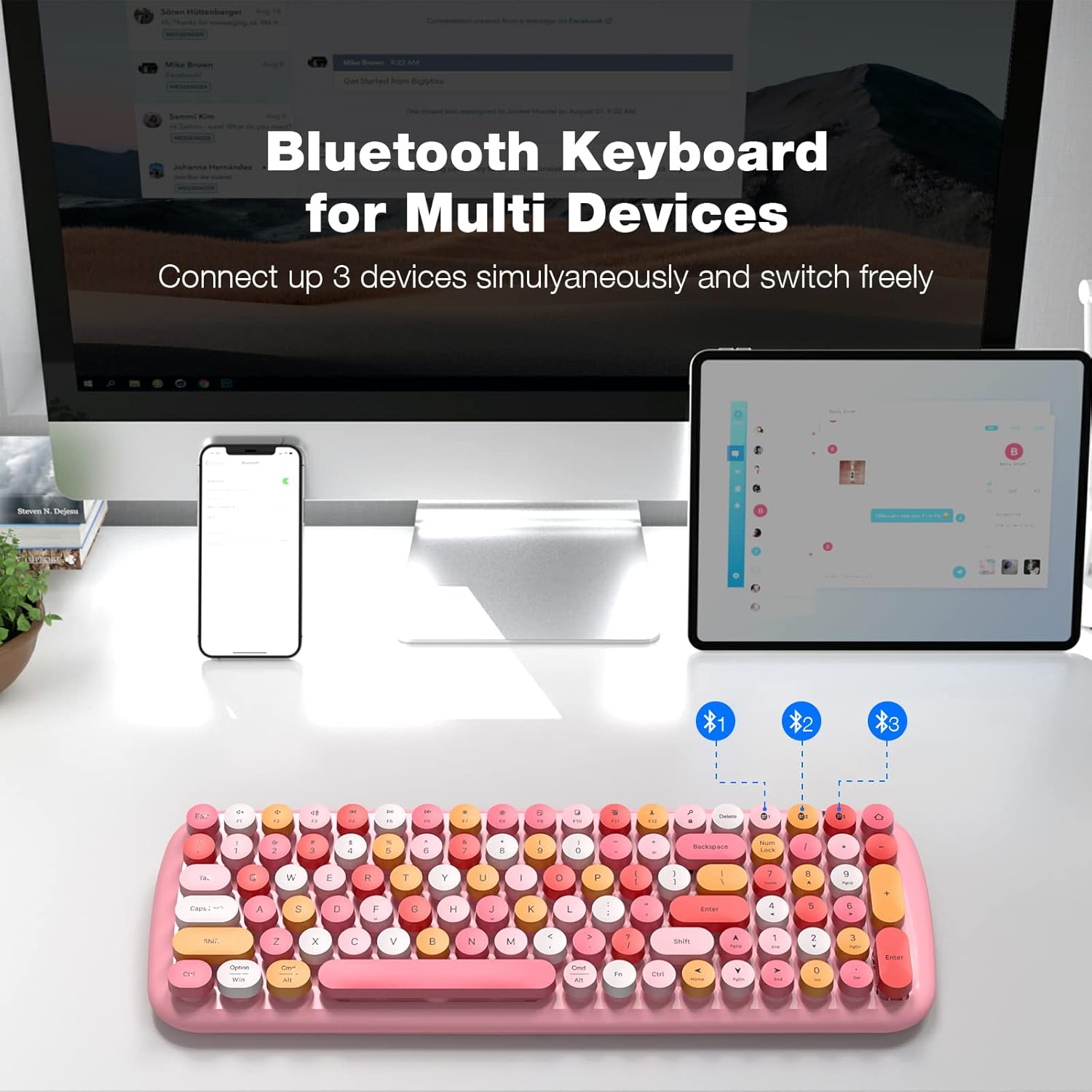
Image 3.1: Wireless connectivity for multiple devices.
3.3 Connecting via Bluetooth (Keyboard Only)
The keyboard supports Bluetooth connectivity for up to three devices. This is useful for switching between a computer, tablet, or smartphone.
- Ensure the keyboard has fresh batteries and is powered on.
- On the keyboard, press and hold one of the Bluetooth channel keys (BT1, BT2, or BT3) for approximately 3 seconds until the corresponding indicator light flashes. This indicates pairing mode.
- Pada peranti anda (komputer, tablet atau telefon pintar), dayakan Bluetooth dan cari peranti yang tersedia.
- Select "MOFII CANDY BT" from the list of available devices to pair.
- Once paired, the indicator light will stop flashing and remain solid for a few seconds.
- Repeat these steps for up to two additional devices using BT2 and BT3.

Image 3.2: Bluetooth connectivity for multiple devices.
4. Arahan Operasi
4.1 Kegunaan Asas
- Menaip: The keyboard features a full-size layout with a numeric keypad for efficient data entry.
- tetikus: The optical mouse provides precise tracking for navigation.
4.2 Kekunci Fungsi
The keyboard includes multimedia function keys (F1-F12) that can be accessed by pressing the Fn key simultaneously with the desired F-key. These keys control various functions such as volume, media playback, and more.
4.3 Switching Between Bluetooth Devices (Keyboard Only)
To switch between paired Bluetooth devices, simply press the corresponding Bluetooth channel key (BT1, BT2, or BT3) once. The keyboard will automatically connect to the selected device.
4.4 Fungsi Tidur Automatik
To conserve battery life, both the keyboard and mouse are equipped with an auto-sleep function. If inactive for 8-10 minutes, they will enter a power-saving sleep mode. To wake them up, simply press any key on the keyboard or move the mouse.

Image 4.1: Auto-sleep function for power saving.
5. Penyelenggaraan
5.1 Pembersihan
The keyboard features removable keycaps, simplifying the cleaning process. To clean the keyboard:
- Gently pull up the keycaps to remove them.
- Use a soft brush or compressed air to remove dust and debris from underneath the keycaps.
- Wipe the keycaps and keyboard surface with a soft, damp kain. Elakkan bahan kimia yang keras.
- Ensure all parts are dry before reattaching the keycaps.

Image 5.1: Detachable keycaps for easy cleaning.
For the mouse, wipe the surface with a soft, damp cloth. Ensure the optical sensor on the bottom is clean and free of obstructions.
5.2 Penggantian Bateri
Replace batteries when performance degrades or the low battery indicator illuminates. Follow the battery installation steps in Section 3.1.
6. Penyelesaian masalah
- Tiada Sambungan/Lag:
- Pastikan bateri dipasang dengan betul dan mempunyai cas yang mencukupi.
- For 2.4G wireless, ensure the USB receiver is securely plugged into your computer.
- For Bluetooth, ensure the keyboard is in pairing mode (flashing indicator) and your device's Bluetooth is enabled. Try re-pairing the device.
- Move the keyboard and mouse closer to the USB receiver or Bluetooth-enabled device to reduce interference.
- Kekunci/Tetikus Tidak Memberi Respons:
- Periksa tahap bateri dan ganti jika perlu.
- If in auto-sleep mode, press any key or move the mouse to wake it up.
- Ensure the correct Bluetooth channel (BT1, BT2, or BT3) is selected if using Bluetooth.
- Isu Keserasian:
- The combo is compatible with PCs, desktops, and laptops running Windows and Mac operating systems. Ensure your device meets these requirements.
7. Spesifikasi
| Ciri | Penerangan |
|---|---|
| Jenama | MOFII |
| Model | B09NN9BDR3 |
| Teknologi Ketersambungan | 2.4G Wireless (USB Receiver), Bluetooth (Keyboard only) |
| Peranti Serasi | Laptop, PC (Windows, Mac) |
| Penerangan Papan Kekunci | Multimedia, Full-Size, Retro Typewriter-Style, Round Keycaps |
| Jenis Tetikus | Tetikus Optik |
| Kuasa Papan Kekunci | 2 x Bateri AAA (tidak termasuk) |
| Mouse Power | 1 x Bateri AA (tidak termasuk) |
| Dimensi Produk (Papan Kekunci) | 15.39 x 5.31 x 1.38 inci |
| Berat Barang | 1.22 paun |
| bahan | Akrilonitril Butadiena Stirena |
| Ciri Khas | Foldable stand, Anti-slip pads, Removable keycaps, Auto-sleep function |

Image 7.1: Keyboard dimensions and layout.
8. Waranti dan Sokongan
Your MOFII Wireless Keyboard and Mouse Combo is covered by a manufacturer's warranty. For specific warranty details, claims, or technical support, please refer to the warranty information provided with your purchase or contact MOFII customer service directly through their official webtapak atau peruncit tempat produk itu dibeli.