1. Pengenalan
This manual provides detailed instructions for the setup, operation, and maintenance of your NETUM NT-W6-X Bluetooth CCD 1D Wireless Barcode Scanner. Please read this manual thoroughly before using the device to ensure proper functionality and to maximize its lifespan.
2. Kandungan Pakej
Sahkan bahawa semua item terdapat dalam pakej anda:
- NETUM NT-W6-X Barcode Scanner
- Kabel Pengecas USB
- Penerima USB 2.4G
- Manual Arahan

Image 2.1: Contents of the NETUM NT-W6-X package, including the scanner, stand, USB cable, 2.4G USB receiver, and manual.
3. Produk Lebihview
The NETUM NT-W6-X is a versatile CCD 1D barcode scanner designed for efficient data capture. It supports multiple connection modes and is compatible with various operating systems.

Imej 3.1: Depan view of the NETUM NT-W6-X barcode scanner, showing the scanning window, trigger button, USB receiver, and charging cables.
3.1 Ciri-ciri Utama
- CCD Image Scanning: Capable of reading 1D barcodes from various surfaces, including computer screens.
- Multiple Connection Modes: Supports 2.4G Wireless, Bluetooth, and Wired USB connections.
- Dua Mod Muat Naik: Instant Upload and Storage Mode for flexible data management.
- High Decoding Ability: Reads damaged or blurred 1D barcodes with precision.
- Keserasian Luas: Works with Mac, Windows, iOS, Android, and Linux operating systems.
- Reka bentuk tahan lasak: Eco-friendly ABS material with silicone protective cover for enhanced durability.

Image 3.2: Illustration of the CCD Image Scanning technology, showing the scanner reading a barcode from a smartphone screen.
4. Persediaan
4.1 Mengecas Pengimbas
Before initial use, fully charge the scanner. Connect the USB charging cable to the scanner and a power source (e.g., computer USB port, USB wall adapter). A full charge typically takes 3-4 hours.
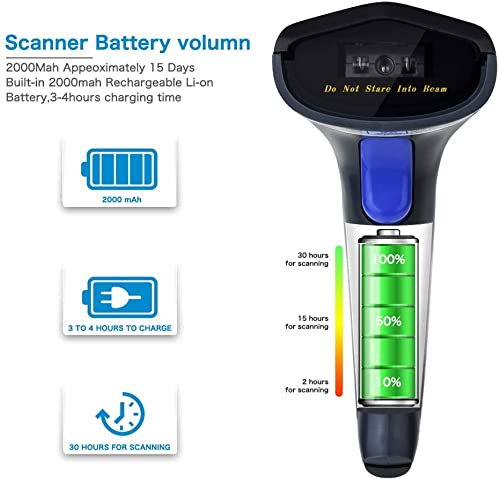
Image 4.1: Visual representation of the scanner's 2000mAh battery, indicating 3-4 hours for a full charge and approximately 30 hours of scanning time.
4.2 Mod Sambungan
The NT-W6-X scanner offers three connection options:

Image 4.2: Diagram illustrating the three connection methods: Bluetooth (max 50m), 2.4GHz Wireless (max 100m), and Wired USB (1m cable).
4.2.1 Sambungan Wayarles 2.4G
This mode uses the included USB receiver for wireless communication.
- Pasangkan penerima USB 2.4G ke port USB yang tersedia pada komputer anda.
- The scanner will automatically connect to the receiver. No software installation is required.
The 2.4G wireless connection provides a transmission range of up to 100 meters (328 feet) in an outdoor barrier-free environment and up to 30 meters (98 feet) indoors with obstacles.
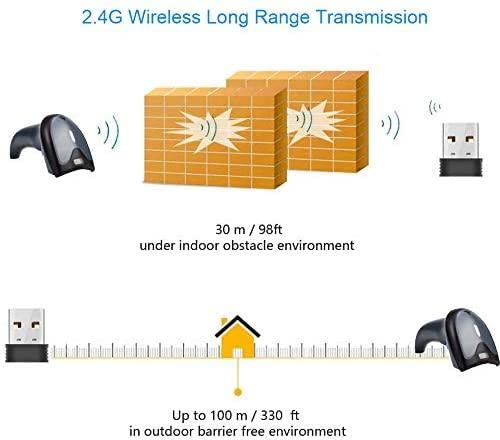
Image 4.3: Illustration of the 2.4G wireless transmission range, showing up to 30m indoors and 100m outdoors.
4.2.2 Sambungan Bluetooth
This mode allows connection to Bluetooth-enabled devices such as smartphones, tablets, and computers.
- Hidupkan pengimbas.
- Aktifkan Bluetooth pada peranti hos anda (cth., telefon pintar, tablet, komputer).
- Cari untuk available Bluetooth devices and select the scanner (usually named 'NETUM Scanner' or similar).
- Pair the devices. The scanner will indicate a successful connection.
The Bluetooth connection offers a range of up to 50 meters (164 feet).

Image 4.4: The NETUM NT-W6-X scanner with a Bluetooth logo, indicating its wireless connectivity capability.
4.2.3 Sambungan Berwayar
For a direct and stable connection, use the USB cable.
- Sambungkan pengimbas ke komputer anda menggunakan kabel USB yang disediakan.
- The scanner will function as a wired device, and data will be transmitted directly.
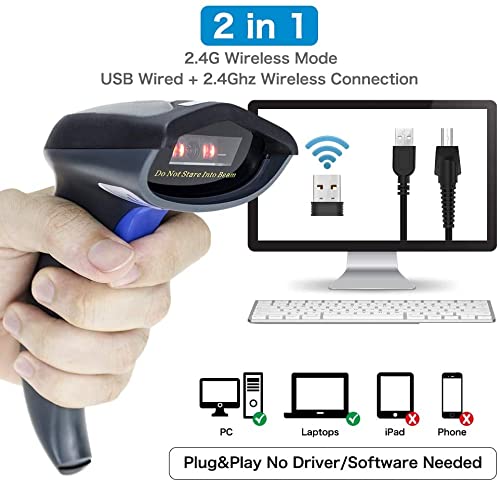
Image 4.5: Diagram showing the scanner connecting to a computer via both 2.4GHz wireless (USB dongle) and wired USB cable, highlighting compatibility with PC, Laptops, iPad, and Phones.
4.3 Keserasian
The scanner is compatible with a wide range of devices and operating systems, including:
- Windows (7/8/10)
- Mac OS
- Linux
- Android
- iOS

Image 4.6: Icons representing compatibility with Mac OS, Linux, Windows, Android, and iOS, as well as computer, smartphone, and tablet devices.
5. Arahan Operasi
5.1 Mengimbas Kod Bar
Point the scanner's beam at the barcode and press the trigger button. A successful scan will typically be indicated by a beep and/or a light indicator.
For optimal scanning performance, ensure the scanner is held at the correct angle: Yaw (Skew) 45°, Pitch 60°.
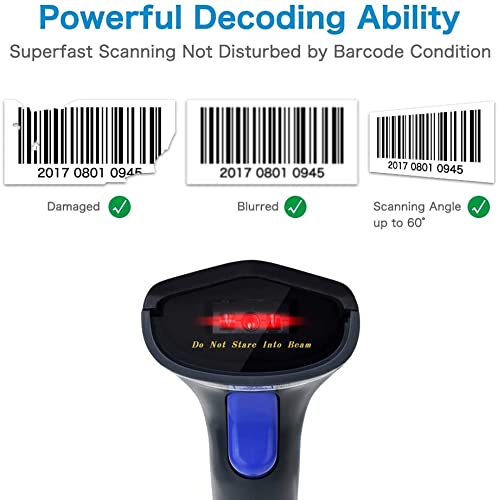
Image 5.1: Illustration demonstrating the scanner's ability to read damaged and blurred barcodes, and its effective scanning angle up to 60 degrees.
5.2 Mod Muat Naik
The scanner supports two data upload modes:
5.2.1 Mod Muat Naik Segera
In this mode, scanned barcodes are immediately transmitted to your connected device.
5.2.2 Mod Storan
This mode allows you to scan and store barcodes in the scanner's internal memory. Data can then be uploaded in a batch to your device at a later time. The internal storage can save up to 5000 barcodes.

Image 5.2: Comparison of Instant Upload Mode, where barcodes are sent synchronously to a computer, and Storage Mode, where barcodes are saved internally and uploaded in batch.

Image 5.3: Simplified diagram showing the two upload modes: Storage Mode (upload later) and Instant Upload Mode (upload immediately).
5.3 Decoding Capabilities
The scanner provides advanced decoding precision of ≥4mil (0.1mm) for 1D codes. It can achieve a fast decoding speed of up to 200 scans per second and supports various 1D barcode types, including:
- UPC/EAN
- Kod128
- Kod39
- ASCII penuh
- Bar Coda
- Industrial/Interleaved 2 of 5
- Kod93
- MSI
- Kod11
- ISBN
- ISSN
- China Post
- Pangkalan Data GS1
- Kod32
6. Ciri Lanjutan
6.1 Auto-Induction Scanning
The scanner can be configured for auto-induction scanning, where it automatically detects and scans barcodes without requiring a trigger press when a barcode is presented within its field of view.

Image 6.1: Close-up of the scanner's head, illustrating the auto-induction scanning capability with the red scanning beam active.
6.2 Adding Prefix/Suffix
The scanner allows for the addition of custom prefixes or suffixes to scanned barcode data. This feature can be configured by scanning specific programming barcodes found in the full user manual (not included here).

Imej 6.2: Cthample of adding a prefix (ABC) or suffix (ABC) to a scanned barcode number.
7. Penyelenggaraan
7.1 Penjagaan Bateri
The scanner is equipped with a 2000mAh built-in rechargeable Li-ion battery. To ensure optimal battery life:
- Cas bateri sepenuhnya sebelum penggunaan pertama.
- Elakkan daripada mengalirkan bateri sepenuhnya dengan kerap.
- Simpan pengimbas di tempat yang sejuk dan kering apabila tidak digunakan untuk tempoh yang lama.
A full charge provides approximately 20-30 hours of continuous scanning and up to 100 days of standby time.

Image 7.1: Details on the 2000mAh battery, showing 20 hours continuous scanning, 3-4 hours charging time, and 100 days standby time.
7.2 Cleaning and Durability
Clean the scanner's exterior with a soft, dry cloth. Avoid using harsh chemicals or abrasive materials. The scanner features an eco-friendly ABS material and a silicone protective cover, designed to withstand drops from up to 1.5 meters (5 feet).
8. Penyelesaian masalah
- Pengimbas tidak dihidupkan: Pastikan bateri telah dicas. Sambungkan ke sumber kuasa menggunakan kabel USB.
- Pengimbas tidak bersambung:
- For 2.4G wireless, ensure the USB receiver is properly inserted and recognized by the computer.
- For Bluetooth, ensure Bluetooth is enabled on your host device and the scanner is in pairing mode. Try re-pairing.
- For wired, ensure the USB cable is securely connected to both the scanner and the computer.
- Pengimbas tidak membaca kod bar:
- Ensure the barcode is not severely damaged or poorly printed.
- Check the scanning angle and distance.
- Verify that the barcode type is supported by the scanner.
- Data yang diimbas tidak muncul: Ensure the scanner is successfully connected to your device and the application receiving the input is active.
9. Spesifikasi
| Ciri | Spesifikasi |
|---|---|
| Jenama | NETUM |
| Model | NT-W6-X (W6X 1D wireless Barcode Scanner) |
| Teknologi Ketersambungan | Wireless (2.4G, Bluetooth), Wired (USB) |
| Peranti Serasi | Desktop, Komputer Riba, Telefon Pintar, Tablet |
| Sumber Kuasa | Battery Powered (2000mAh Li-ion) |
| Masa Mengecas | 3-4 jam |
| Masa Pengimbasan Berterusan | lebih kurang 20-30 jam |
| Masa Tunggu Sedia | Lebih kurang 100 hari |
| Decoding Precision | ≥4mil (0.1mm) |
| Decoding Speed | Up to 200 scans/second |
| Kod Bar yang Disokong | 1D: UPC/EAN, Code128, Code39, Coda bar, Industrial/Interleaved 2 of 5, Code93, MSI, Code11, ISBN, ISSN, China Post, GS1 Databar, Code32, etc. |
| Julat Wayarles 2.4G | Up to 100m (328ft) outdoor, 30m (98ft) indoor |
| Julat Wayarles Bluetooth | Sehingga 50m (164 kaki) |
| Storan Dalaman | Sehingga 5000 kod bar |
| Dimensi Produk | 20 x 10 x 5 cm |
| Berat Barang | 300 g |
10. Waranti dan Sokongan
The NETUM NT-W6-X Barcode Scanner comes with a Waranti 3 bulan from the date of purchase. This warranty covers manufacturing defects under normal use. For technical support or warranty claims, please contact your retailer or the manufacturer directly.


