1. Pengenalan
The TNVTEC CarPlay Wireless Adapter is designed to convert your vehicle's existing factory-wired Apple CarPlay system into a wireless connection. This device allows for a seamless and convenient integration of your iPhone with your car's infotainment system without the need for a physical cable connection.
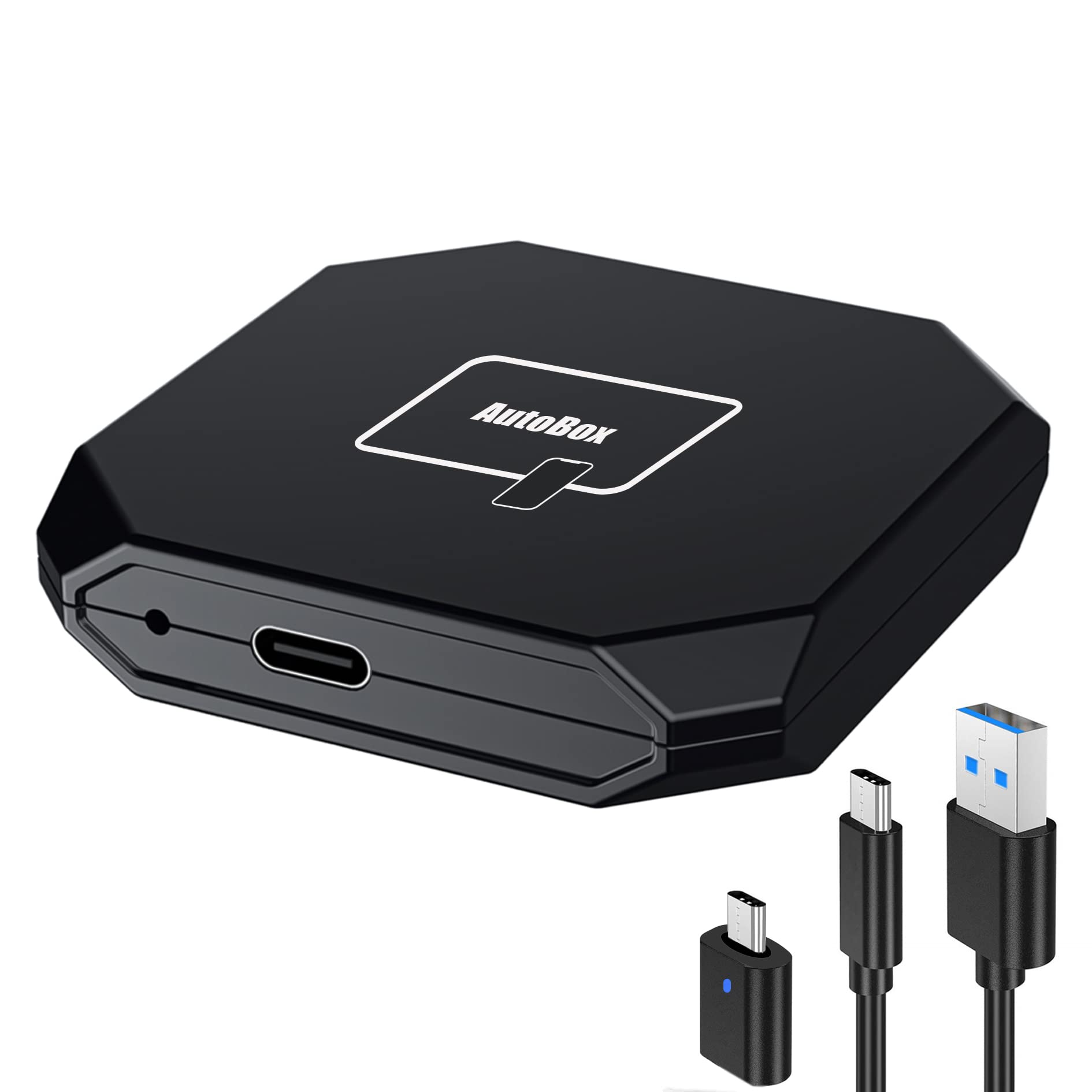
Image 1: TNVTEC CarPlay Wireless Adapter in a car environment, demonstrating wireless connectivity.
Enjoy features such as navigation, music playback, and hands-free calling directly on your car's display, maintaining the original car controls and a responsive user experience.

Image 2: Visual representation of wireless CarPlay features including navigation, music, and hands-free calls.
2. Kandungan Pakej
Sila sahkan bahawa semua item terdapat dalam pakej anda:
- 1 x TNVTEC CarPlay Wireless Adapter
- 1 x USB-A to USB-C Data Cable
- 1 x Penyesuai USB-C
- 1 x 3M Transfer Adhesive
- 1 x Manual Pengguna

Image 3: The TNVTEC CarPlay Wireless Adapter and its accompanying accessories.
3. Keserasian
This adapter is designed for vehicles equipped with factory-wired Apple CarPlay. To confirm compatibility, ensure your car supports wired CarPlay by connecting your iPhone directly via USB.
- Model Kereta: Compatible with 2019-2022 car models that have factory-wired CarPlay.
- Keserasian iPhone: Works with iPhone 6s (iOS 12.1) up to iPhone 13 Pro Max (iOS 15) and newer models.
4. Arahan Persediaan
Follow these steps to set up your TNVTEC CarPlay Wireless Adapter:
- Mulakan Kereta Anda: Turn on your car's engine.
- Sambungkan Penyesuai: Plug the TNVTEC Wireless CarPlay Adapter into your car's USB data port (the same port used for wired CarPlay). Use the provided USB-A to USB-C cable or the USB-C adapter if your car has a USB-C port.
- Access CarPlay Interface: On your car's infotainment screen, navigate to and select the CarPlay interface or press the 'App' button. The screen should display a 'CarPlayBox' interface.
- Enable iPhone Bluetooth: Pada iPhone anda, pergi ke tetapan > Bluetooth dan pastikan Bluetooth dihidupkan.
- Pasangkan dengan Penyesuai: Cari untuk the device named "CarPlayBox_xxxx" in your iPhone's Bluetooth devices list and tap to connect. Confirm any pairing requests.
- Allow CarPlay Sync: On your iPhone, a prompt will appear. Select "Use CarPlay" to allow the device to connect and sync.
The connection process typically takes 5-15 seconds. Once connected, your car's screen will display the Apple CarPlay interface.

Image 4: Step-by-step guide for connecting the TNVTEC CarPlay Wireless Adapter.
Video 1: Demonstrates the installation process for the TNVTEC Wireless CarPlay Adapter, showing how to connect the device and pair it with an iPhone.
5. Arahan Operasi
Once connected, the TNVTEC CarPlay Wireless Adapter provides a seamless wireless CarPlay experience, similar to your original wired connection.
5.1. CarPlay Functions
You can access all standard CarPlay features wirelessly:
- Navigasi: Use Apple Maps, Google Maps, or Waze for directions.
- Muzik: Play music from Apple Music, Spotify, or other audio apps.
- Panggilan & Mesej: Make and receive calls, and send/receive messages hands-free.
- Siri Voice Control: Activate Siri for various commands, including navigation, calls, and music control.
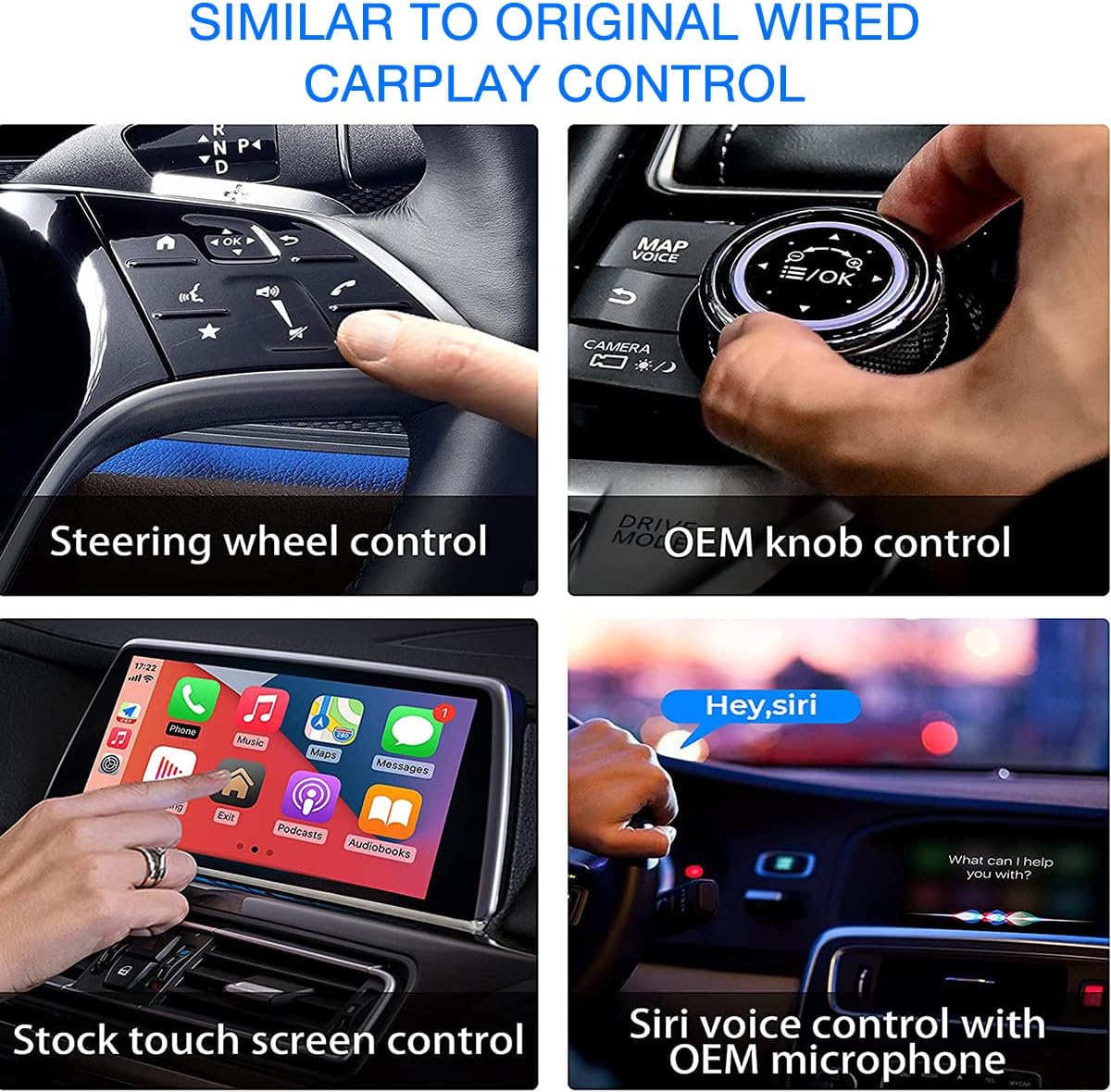
Image 5: Demonstrates various control methods for CarPlay, including steering wheel, knob, touchscreen, and Siri.
5.2. Kawalan
The adapter maintains compatibility with your car's original controls:
- Kawalan Roda Stereng: Use your car's steering wheel buttons to manage calls, music, and volume.
- Kawalan Tombol OEM: If your car has an infotainment control knob, it will function as usual.
- Kawalan skrin sentuh: Interact directly with the car's touchscreen display.
- Siri Voice Control: Use your car's OEM microphone to activate Siri for hands-free commands.
Video 2: Shows the TNVTEC Wireless CarPlay Adapter in use with an Audi, demonstrating various CarPlay functions.
Video 3: Demonstrates the TNVTEC Wireless CarPlay Adapter working with a Ford Sync3 car unit.
5.3. Fast Charging Support
While using wireless CarPlay, it is recommended to use a quick charger for your iPhone. Wired CarPlay connections may limit the charging speed, making a dedicated quick charger important for maintaining battery levels during use.
6. Online Update Instructions
To ensure optimal performance and access to the latest features, you can update the adapter's firmware online:
- Power the Adapter: Disconnect the adapter from your car and connect it to a USB power adapter (e.g., a wall charger).
- Connect iPhone WLAN: Pada iPhone anda, pergi ke tetapan > WLAN. Connect to the Wi-Fi network named "carplay_xxxx". The default password is "88888888".
- Access Update Page: Open Safari on your iPhone and enter the IP Address "192.168.2.1" in the address bar.
- Mulakan Kemas Kini: Scroll down the page to the bottom. You should find a section labeled "New version found, click me to upgrade". Tap this option.
- Tunggu Selesai: The update bar will show progress. Wait until it reaches 100%. The CarPlay adapter will be successfully upgraded.
Nota Penting: If the adapter is functioning normally, it is generally recommended not to upgrade the system unless specific issues arise or new features are desired. Unnecessary updates may not always perfectly work or could introduce unforeseen issues.
6.1. Advanced Settings (via 192.168.2.1)
The update page also provides access to advanced settings:
- Kelewatan Mula: Adjust the startup delay if there are conflicts with your car's stereo system.
- Media Sound Quality: Change audio quality settings (e.g., DVD, CD).
- AP Band: Change the Wi-Fi channel to avoid conflicts with other transmission signals in your car, potentially improving speed and stability.
- Persediaan Sambungan: Options to enable connection tips, automatically show CarPlay, and activate compatibility mode for resolving car system setup issues.
- Muat turun Log: Download logs to submit to support for troubleshooting.
- Tetapan semula kilang: Reset all options to their default settings.
Video 4: Detailed evaluation, settings, and OTA update process for the TNVTEC Wireless CarPlay Adapter.
Video 5: Guide on the upgrade process for the TNVTEC Wireless CarPlay Adapter.
7. Penyelesaian masalah
Berikut ialah penyelesaian kepada isu biasa yang mungkin anda hadapi:
- Connection Times Out: If the CarPlay connection times out, please ignore the Bluetooth device on your iPhone and re-pair it.
- Adapter Not Connecting Automatically: After the initial adaptation, the wireless CarPlay adapter should automatically match your iPhone's Bluetooth and Wi-Fi each time you start your car. If it doesn't, try re-pairing.
- Low Call Volume: Some users may experience lower call volume compared to direct Bluetooth connections. Check your car's audio settings and iPhone volume.
- Pemotongan Sambungan Sekejap-sekejap: Ensure the adapter is securely plugged into the USB port. If your car has Wi-Fi, ensure it's not conflicting with the adapter's signal. Adjusting the AP Band in the adapter's advanced settings (192.168.2.1) may help.
- Car Not Recognizing Adapter: Verify your car has factory-wired CarPlay. If it does, try a different USB port if available, or restart your car and iPhone.
- Static or Audio Degradation: If you experience static or audio quality issues, try closing and restarting the audio application on your iPhone. Consider checking for firmware updates.
- Multiple Phones in Car: The adapter primarily connects to the last paired device. If multiple phones are present, you may need to manually unpair and re-pair the desired phone.
8. Spesifikasi
| Ciri | Penerangan |
|---|---|
| Dimensi Produk | 2.36 x 2.36 x 0.51 inci |
| Berat Barang | 3.17 auns |
| Teknologi Ketersambungan | Bluetooth, USB, WLAN, Wi-Fi |
| Mod Keluaran Audio | Stereo |
| Input Antara Muka Manusia | Skrin sentuh |
| Kaedah Kawalan | Suara |
| Bateri Termasuk | Tidak |

Image 6: Internal components highlighting the responsive premium chip for stable performance.
9. Waranti dan Sokongan
TNVTEC is committed to providing high-quality products. Every item undergoes multiple quality inspections before shipment.
9.1. Hubungi Sokongan
For any questions, technical assistance, or support inquiries, please feel free to contact TNVTEC Support via Amazon email.


