1. Pengenalan
The FLYDIGI Vader 2 Pro is a versatile wireless game controller designed for an enhanced gaming experience across multiple platforms. This manual provides essential instructions for setting up, operating, and maintaining your controller.
The controller is compatible with Nintendo Switch, iOS, PC, and Android devices, offering a seamless transition between your preferred gaming systems.
2. Produk Lebihview
The Vader 2 Pro controller integrates advanced features to optimize gameplay. Key components include dual vibration motors, a 6-axis gyroscope for motion sensing, and customizable RGB lighting.

Imej 2.1: Depan view of the FLYDIGI Vader 2 Pro Game Controller, showcasing reka bentuk ergonomik dan susun atur butangnya.
Ciri-ciri Utama:
- Keserasian Pelbagai Platform: Supports Nintendo Switch, iOS, PC, and Android.
- Motor Getaran Dwi: Provides immersive haptic feedback with 3 adjustable levels.
- Giroskop 6-Paksi: Enables precise motion sensing for compatible games.
- Pencahayaan RGB yang boleh disesuaikan: Personalize the controller's aesthetic with millions of color options.
- Butang Boleh Dikonfigurasi: Four additional M1-M4 buttons on the rear for personalized controls.
- Multiple Connection Modes: Bluetooth, 2.4GHz wireless (with dongle), and wired USB connection.

Image 2.2: The Vader 2 Pro controller shown with various compatible devices including a Nintendo Switch, PC laptop, iOS phone, and Android phone, illustrating its multi-platform support.

Image 2.3: The controller highlighting its built-in 6-axis gyro sensor for motion control.
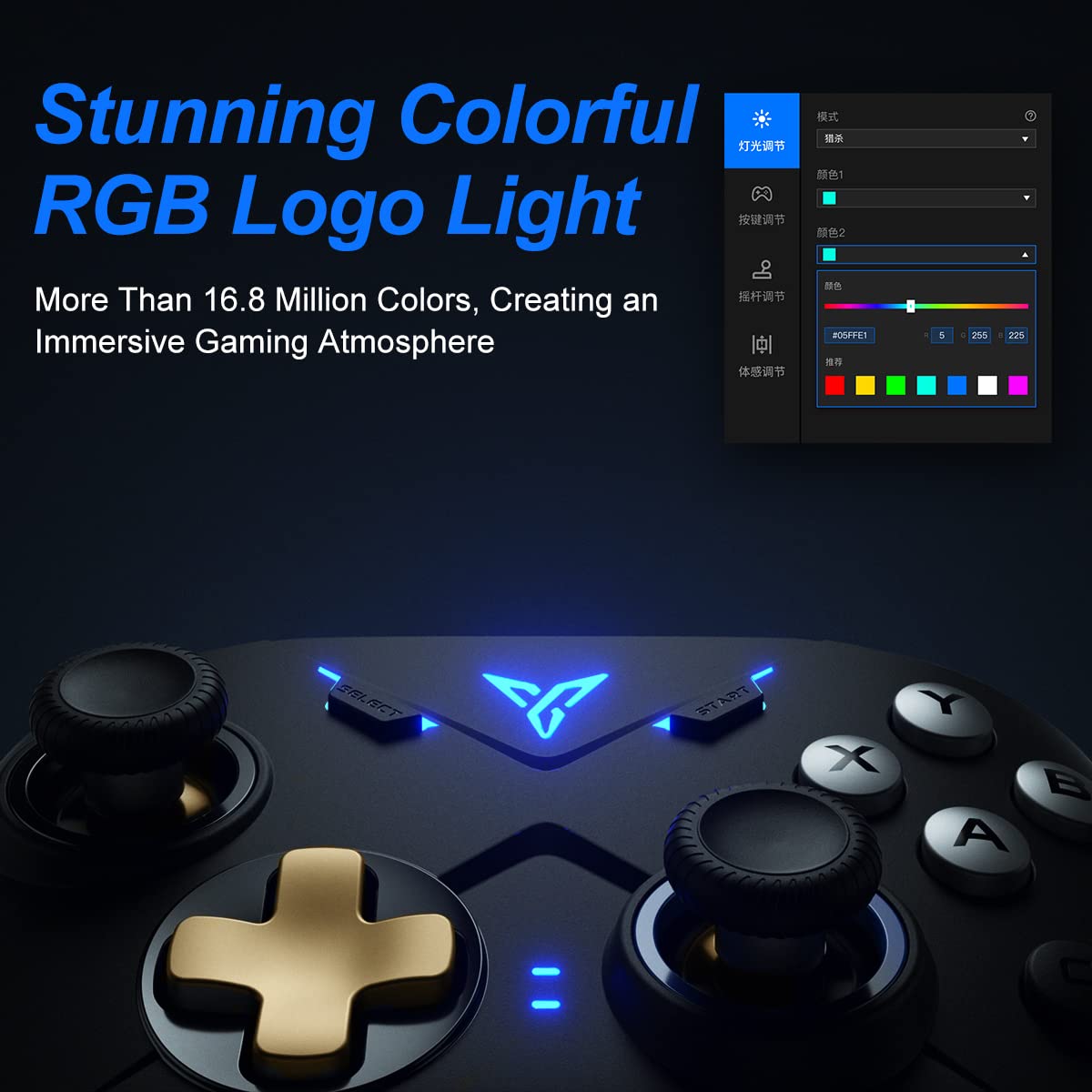
Image 2.4: Close-up of the controller's RGB logo light, demonstrating its customizable color options.

Imej 2.5: Belakang view of the controller, showing the M1-M4 configurable buttons for personalized gameplay.

Image 2.6: Illustration of the controller's asymmetric dual motor design, indicating vibration feedback.
3. Persediaan dan Sambungan
The Vader 2 Pro controller offers multiple connection methods depending on your gaming platform. Refer to the table below for specific instructions.

Image 3.1: A table detailing connection instructions for Phone/Tablet, PC/Mac, and Nintendo Switch.
Arahan Sambungan:
| Arahan | Connect to Phone/Tablet | Connect to PC/Mac | Sambung ke Suis |
|---|---|---|---|
| Kaedah Beralih | Press "+" and "B" buttons simultaneously for 3 seconds. | Press "+" and "A" buttons simultaneously for 3 seconds. | Press "+" and "X" buttons simultaneously for 3 seconds. |
| Kaedah Sambungan | Sambungan Bluetooth | 2.4GHz connector connection or USB wired connection | Sambungan Bluetooth |
| Mod Sokongan | Mod Bluetooth | 360 mode, Android mode (Press "+" and "SELECT" to switch) | Tukar mod |
| Status Lampu Penunjuk | No. 1 Indicator light on blue | No. 1 Indicator light on white (No. 2 red for Android mode) | No. 1 Indicator light on orange |
Additional Connection Notes:
- For PC/Mac, a 2.4GHz USB dongle is included for wireless connection. A USB-C to A cable is also provided for wired play.
- Ensure your device's Bluetooth is enabled when connecting wirelessly to phones, tablets, or Nintendo Switch.
- For iOS devices running iOS 13.4 or higher, follow the specific pairing instructions: Press and hold '+' and 'C' until the first light blinks orange and the second light stays red. Then, long press '+' for more than 3 seconds until the first light flashes orange. Go to your iOS Bluetooth settings and select the device to connect.

Image 3.2: The included USB wireless dongle and USB-C charging/data cable.
4. Arahan Operasi
4.1. Button Mapping and Customization
The FLYDIGI Vader 2 Pro controller supports extensive customization through the dedicated FLYDIGI PC Space Station software. This software allows you to:
- Remap buttons, including the M1-M4 rear buttons.
- Adjust joystick curves for precision control.
- Fine-tune motion sensing sensitivity.
- Program macro combos for complex actions.
- Change RGB light settings and effects.
Up to 4 sets of custom configurations can be saved directly on the controller. Download the software from the official FLYDIGI webtapak: flydigi.com/index/down?nav_id=2
4.2. Motion Sensing
The integrated 6-axis gyroscope provides accurate motion control in games that support this feature, enhancing your interactive experience.
4.3. Maklum Balas Getaran
The asymmetric dual vibration motors offer tactile feedback. You can adjust the vibration intensity to one of three levels to suit your preference.
4.4. Pencahayaan RGB
The controller features a customizable RGB logo light, offering over 16.8 million colors. Use the FLYDIGI PC Space Station software to select your preferred lighting modes and colors.
5. Pengecasan dan Hayat Bateri
The Vader 2 Pro controller is equipped with a rechargeable battery designed to provide up to 80 hours of gameplay on a single charge. To charge the controller, connect it to a USB power source using the provided USB-C cable.

Image 5.1: The controller positioned above a charging indicator, symbolizing its rechargeable battery.
Nota: Actual battery life may vary based on usage patterns, vibration intensity, and RGB lighting settings.
6. Penyelesaian masalah
If you encounter issues with your FLYDIGI Vader 2 Pro controller, refer to the following common solutions:
- Pengawal Tidak Bersambung:
- Ensure the controller is in the correct switching mode for your platform (Phone/Tablet, PC/Mac, Switch) as per Section 3.
- Verify that Bluetooth is enabled on your device or that the 2.4GHz dongle is properly inserted into your PC/Mac.
- Cuba mulakan semula kedua-dua pengawal dan peranti anda.
- For PC connections, if Bluetooth fails, try using the 2.4GHz dongle or a wired USB connection.
- Buttons Not Responding/Mapping Issues:
- Ensure the FLYDIGI PC Space Station software is correctly installed and updated.
- Check your custom profiles within the software to ensure buttons are mapped as intended.
- Reset the controller to factory settings if custom mappings are causing issues (refer to software documentation for this process).
- Hayat Bateri Pendek:
- Pastikan pengawal dicas sepenuhnya sebelum digunakan.
- Reduce vibration intensity or RGB lighting brightness/effects to conserve battery power.
- Jika hayat bateri merosot dengan ketara dari semasa ke semasa, hubungi khidmat pelanggan.
- Unstable Wireless Connection:
- Ensure there are no significant obstructions or sources of interference between the controller and your device/dongle.
- Keep the controller within the recommended operating range.
- Update controller firmware via the FLYDIGI PC Space Station software.
7. Spesifikasi
| Ciri | Perincian |
|---|---|
| Nombor Model | VADER2PRO |
| ASIN | B09LCYB48V |
| Dimensi Produk | 3.5 x 7.59 x 5.5 inci |
| Berat Barang | 15.84 auns |
| Ketersambungan | Bluetooth, Tanpa Wayar 2.4GHz, Berwayar USB |
| Keserasian | Nintendo Switch, iOS, PC, Android |
| Ciri Khas | Dual Vibration Motors, 6-Axis Gyroscope, RGB Lighting, Configurable M1-M4 Buttons |
| Hayat Bateri | Sehingga 80 jam (anggaran) |
| Tarikh Mula-mula Tersedia | 21 Disember 2021 |
8. Penyelenggaraan
To ensure the longevity and optimal performance of your FLYDIGI Vader 2 Pro controller, follow these maintenance guidelines:
- Pembersihan: Gunakan kain lembut dan kering untuk membersihkan pengawal. Elakkan menggunakan bahan kimia yang keras atau bahan yang melelas.
- Storan: Simpan pengawal di tempat yang sejuk dan kering jauh dari cahaya matahari langsung dan suhu yang melampau.
- Pengendalian: Elakkan daripada menjatuhkan pengawal atau dikenakan hentaman kuat, kerana ini boleh merosakkan komponen dalaman.
- mengecas: Do not overcharge the battery. Disconnect the charging cable once the controller is fully charged.
9. Waranti dan Sokongan
For warranty information, technical support, or further assistance, please visit the official FLYDIGI webtapak atau hubungi perkhidmatan pelanggan mereka. Simpan resit pembelian anda untuk tuntutan waranti.
Official FLYDIGI Webtapak: www.flydigi.com