1. Pengenalan
The Tera D5100 is a versatile barcode scanner designed for efficient and reliable data capture. It supports both wireless (2.4 GHz) and wired (USB) connectivity, making it suitable for various environments. This scanner is capable of reading a wide range of 1D, 2D, and QR codes from both printed labels and digital screens. Its ergonomic design and robust construction ensure comfortable and durable use.

Figure 1: Tera D5100 Barcode Scanner with Accessories
2. Ciri-ciri Utama
- Battery Level Indicator & 2000mAh Capacity: Features a unique battery indicator light to show remaining power, offering extended continuous use.
- Reka bentuk ergonomik: The curved, elongated, and thickened handle provides a comfortable and secure grip, specifically designed for user comfort during prolonged operation.
- Anti-Shock Silicone Protection: Equipped with an orange anti-shock silicone cover to prevent scratches and damage from drops up to 2 meters (6.5 feet). IP54 technology protects against dust.
- Dual Connectivity (2.4 GHz Wireless + USB 2.0 Wired): Offers flexible connection options. Simply plug and play with the USB receiver for wireless use or connect directly via USB cable, requiring no driver installation. Wireless transmission range up to 100 meters in obstacle-free environments.
- Supports 1D/2D/QR Codes: Capable of scanning a wide variety of barcode symbologies, including:
- 1D: Codabar, Code 11, Code93, MSI, Code 128, UCC/EAN-128, Code 39, EAN-8, EAN-13, UPC-A, ISBN, Industrial 25, Interleaved 25, Standard25, Matrix.
- 2D: QR, DataMatrix, PDF417, Aztec, Hanxin, Micro PDF417.

Figure 2: Battery Level Indicator
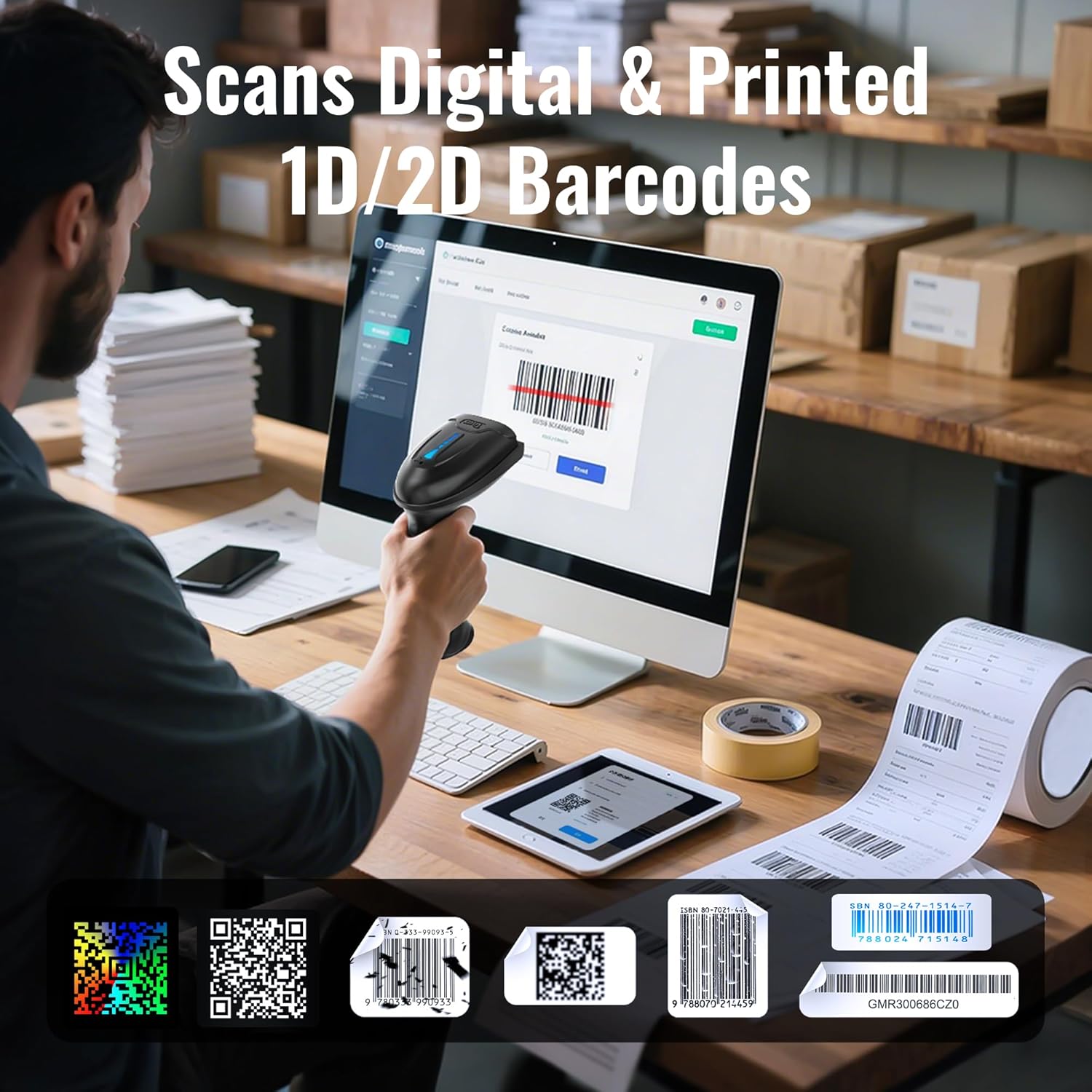
Figure 3: Rugged Design with Drop Resistance

Figure 4: Two Connectivity Options

Figure 5: Scanning Digital & Printed Barcodes
3. Panduan Persediaan
3.1 Kandungan Pakej
Sebelum anda memulakan, sila pastikan semua item terdapat dalam pakej:
- Tera D5100 Barcode Scanner
- Kabel Pengecas USB/Data
- 2.4 GHz Wireless USB Receiver (Dongle)
- Manual Pengguna (dokumen ini)
3.2 Pengecasan Awal
For optimal performance, fully charge the scanner before first use. Connect the scanner to a USB power source (e.g., computer USB port, USB wall adapter) using the provided USB cable. The battery indicator lights will show charging progress.
3.3 Menyambung Pengimbas
The Tera D5100 offers two primary connection methods:
- Wired Mode (USB Connection):
- Sambungkan satu hujung kabel USB ke port USB pengimbas.
- Connect the other end of the USB cable to an available USB port on your computer or host device.
- The scanner will be recognized automatically as a HID keyboard device. No additional drivers are required.
- Wireless Mode (2.4 GHz Connection):
- Insert the 2.4 GHz USB wireless receiver into an available USB port on your computer or host device.
- Turn on the barcode scanner. It will automatically pair with the receiver.
- The scanner is now ready for wireless operation. The wireless transmission distance can reach up to 100 meters in open areas.
4. Arahan Operasi
4.1 Mengimbas Kod Bar
To scan a barcode, point the scanner's window at the barcode and press the trigger button. A successful scan will typically be indicated by a beep and/or a green light. Ensure the barcode is within the scanner's field of view and properly illuminated.
4.2 Mod Muat Naik
The Tera D5100 supports two data upload modes:
- Mod Muat Naik Segera: In this mode, scanned barcode data is immediately transmitted to the connected device (computer, laptop, etc.). This is the default and most common mode for real-time data entry.
- Mod Storan: When operating out of range or without a connected device, the scanner can store scanned barcode data internally. Once reconnected, the stored data can be uploaded in bulk. This mode is useful for inventory taking or scanning in remote locations.

Figure 6: Instant Upload and Storage Modes
4.3 Keyboard Language Support
The scanner supports multiple keyboard languages to ensure accurate data input across different regional settings. You can configure the scanner to match your system's keyboard layout, including English, Italian, German, Japanese, Spanish, and French.

Figure 7: Multiple Keyboard Languages Supported
5. Penyelenggaraan dan Penjagaan
5.1 Ketahanan
The Tera D5100 is built with a robust design, featuring an anti-shock silicone cover and IP54 protection. This makes it resistant to drops from up to 2 meters and protects against dust ingress, ensuring long-term reliability in various working conditions.
5.2 Pembersihan
To maintain optimal scanning performance, keep the scanner's window clean. Use a soft, lint-free cloth, slightly dampened with water or a mild, non-abrasive cleaning solution. Avoid using harsh chemicals or abrasive materials that could scratch the scanning window.
5.3 Penjagaan Bateri
Untuk memanjangkan hayat bateri:
- Elakkan menyahcas sepenuhnya bateri dengan kerap.
- Simpan pengimbas di tempat yang sejuk dan kering apabila tidak digunakan untuk tempoh yang lama.
- Charge the battery regularly, even if the scanner is not in active use, to prevent deep discharge.
6. Penyelesaian masalah
If you encounter issues with your Tera D5100 barcode scanner, please refer to the following common problems and solutions:
| Masalah | Kemungkinan Punca | Penyelesaian |
|---|---|---|
| Scanner not connecting or recognized by computer. | Loose cable connection, faulty USB port, un-paired wireless receiver. | Ensure USB cable is securely connected. Try a different USB port. For wireless, ensure the USB receiver is plugged in and the scanner is powered on and within range. Re-pair if necessary (refer to quick start guide for pairing barcode). |
| Scanned data appears as garbled characters (e.g., "çè!ééçàé&é&ç§"). | Incorrect keyboard language setting on the scanner or host device. | Ensure the scanner's keyboard language setting matches your computer's keyboard layout (e.g., English, French, German). Refer to the programming barcodes in the quick start guide to change the language setting. |
| Scanner does not read certain barcodes (e.g., QR codes or codes from screens). | Scanner model limitation (1D only), damaged barcode, screen glare, specific barcode type not enabled. | Verify your D5100 model supports 2D/QR codes. Ensure the barcode is clear and not damaged. Adjust scanning angle to avoid glare on screens. Some specific barcode types might need to be enabled via programming barcodes (refer to the quick start guide). |
| USB wireless dongle is missing from the package. | Packaging error or accidental oversight. | Contact Tera customer support immediately for assistance and replacement. |
| Scanner not charging or holding a charge. | Faulty cable, power adapter, or battery. | Try a different USB cable and power adapter. If the issue persists, the battery may need service. Contact customer support. |
7. Spesifikasi Teknikal
| Spesifikasi | Nilai |
|---|---|
| Jenama | Tera |
| Nombor Model | D5100 |
| warna | Hitam |
| Teknologi Ketersambungan | USB, 2.4 GHz Wireless |
| Peranti Serasi | Computer, Laptop |
| Sumber Kuasa | Dikuasakan Bateri |
| Kadar Imbasan | 200 Scans/Second |
| Peringkat Perlindungan Ingress (IP). | IP54 |
| Nyata View sudut | 20 darjah |
| Kapasiti Bateri | 2000mAh |
| Jarak Penghantaran Tanpa Wayar | Up to 100 meters (obstacle-free) |
8. Waranti dan Sokongan Pelanggan
Tera is committed to providing high-quality products and excellent customer service. For any questions, technical assistance, or warranty claims, please contact Tera customer support. Our team is ready to assist you with any issues you may encounter.

Figure 8: Tera Customer Support Team
For more information or to reach support, please visit the official Tera webtapak atau rujuk butiran hubungan yang diberikan bersama pembungkusan produk anda.


