1. Pengenalan
This manual provides essential information for the proper use and maintenance of your Gateway 15.6-inch FHD Ultra Slim Laptop, Model GTW15G. This device is equipped with an AMD Ryzen 5 3450U Mobile Processor, 8GB of DDR4 RAM, and a 256GB Solid State Drive (SSD). It features a 15.6-inch Full HD (1920x1080) IPS display, a built-in fingerprint scanner, and runs on Windows 10, with an available free upgrade to Windows 11.
Please read this manual thoroughly before operating your laptop to ensure optimal performance and longevity.
2. Persediaan
2.1 Membongkar dan Pemeriksaan Awal
Carefully remove the laptop and all accessories from the packaging. Verify that all components are present and undamaged. The package should include the laptop, power adapter, and this user manual.
2.2 Menyambungkan Penyesuai Kuasa
Before first use, connect the power adapter to the laptop's charging port and then to a power outlet. Allow the battery to charge for at least 30 minutes before powering on for the first time.

Figure 2.1: Gateway 15.6-inch Ultra Slim Laptop overview.
2.3 First Power On and Windows Setup
Press the power button located on the keyboard. The laptop will boot up and guide you through the Windows 10 initial setup process. Follow the on-screen instructions to configure your region, language, network connection, and user account.
2.4 Fingerprint Scanner Setup (Windows Hello)
During or after the initial Windows setup, you can configure the built-in fingerprint scanner for secure login using Windows Hello. Navigate to Tetapan > Akaun > Pilihan log masuk and follow the prompts to set up your fingerprint.
3. Arahan Operasi
3.1 Mod Hidup/Mati dan Tidur
- Hidupkan kuasa: Tekan butang kuasa.
- Tutup: Klik pada Mulakan butang, kemudian Power > Shut down.
- Mod tidur: Close the lid or click the Mulakan butang, kemudian Kuasa > Tidur.
3.2 Using the Precision Touchpad
The laptop features a precision touchpad for navigation. It supports multi-touch gestures for scrolling, zooming, and other functions. Refer to Windows settings for customizing touchpad gestures.
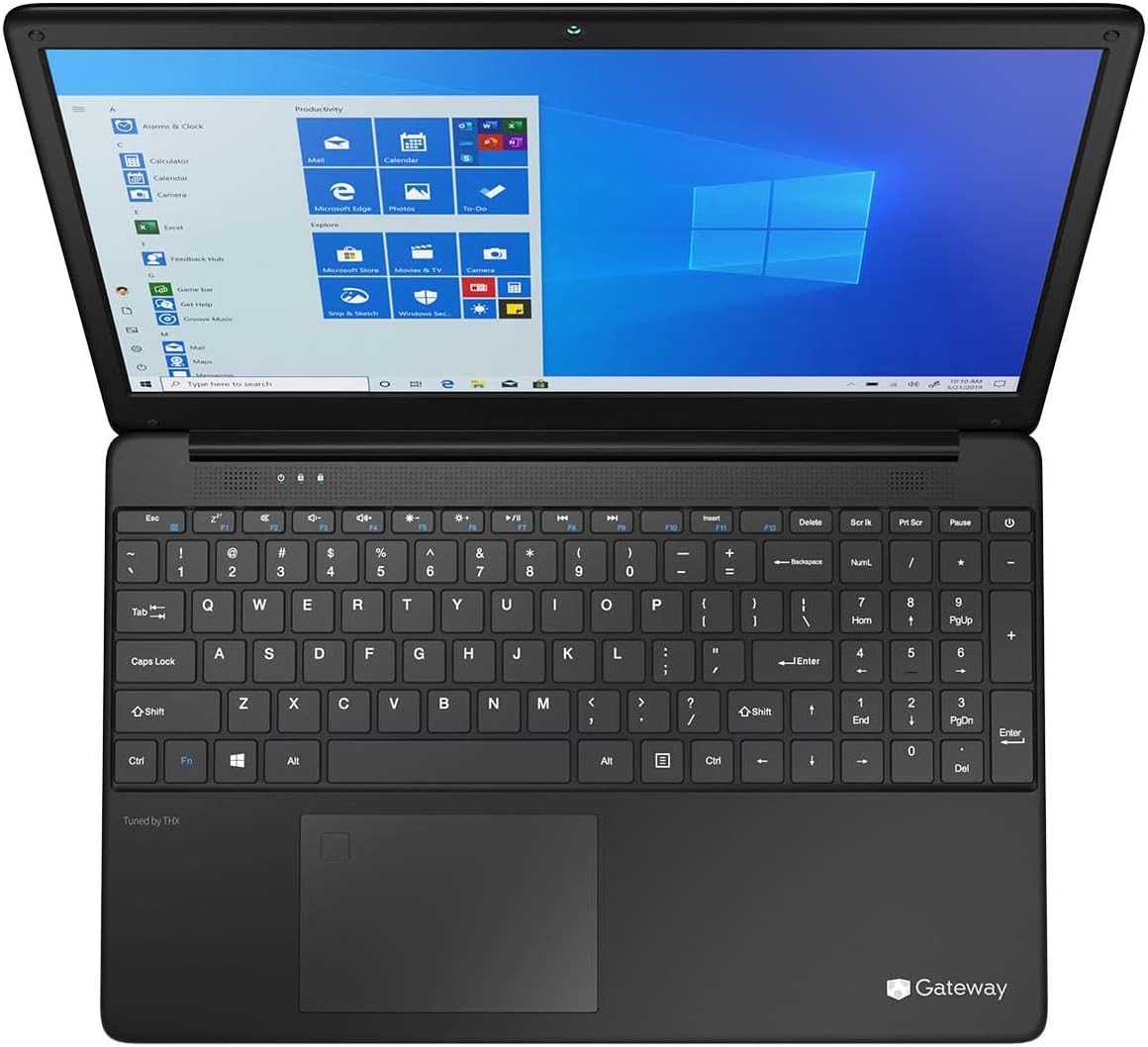
Figure 3.1: Keyboard and Precision Touchpad layout.
3.3 Menyambung Peranti Luaran
The laptop provides various ports for connecting peripherals:
- Port USB 3.0 (x2): For connecting USB devices such as external hard drives, mice, or keyboards.
- Port USB Jenis-C (x1): Supports both charging and data transfer.
- Output HDMI (x1): Sambungkan ke monitor luaran atau TV.
- Slot Micro SD (x1): Menyokong kad Micro SD sehingga 512 GB untuk storan yang diperluaskan.
- Kunci Kensington: Untuk keselamatan fizikal.
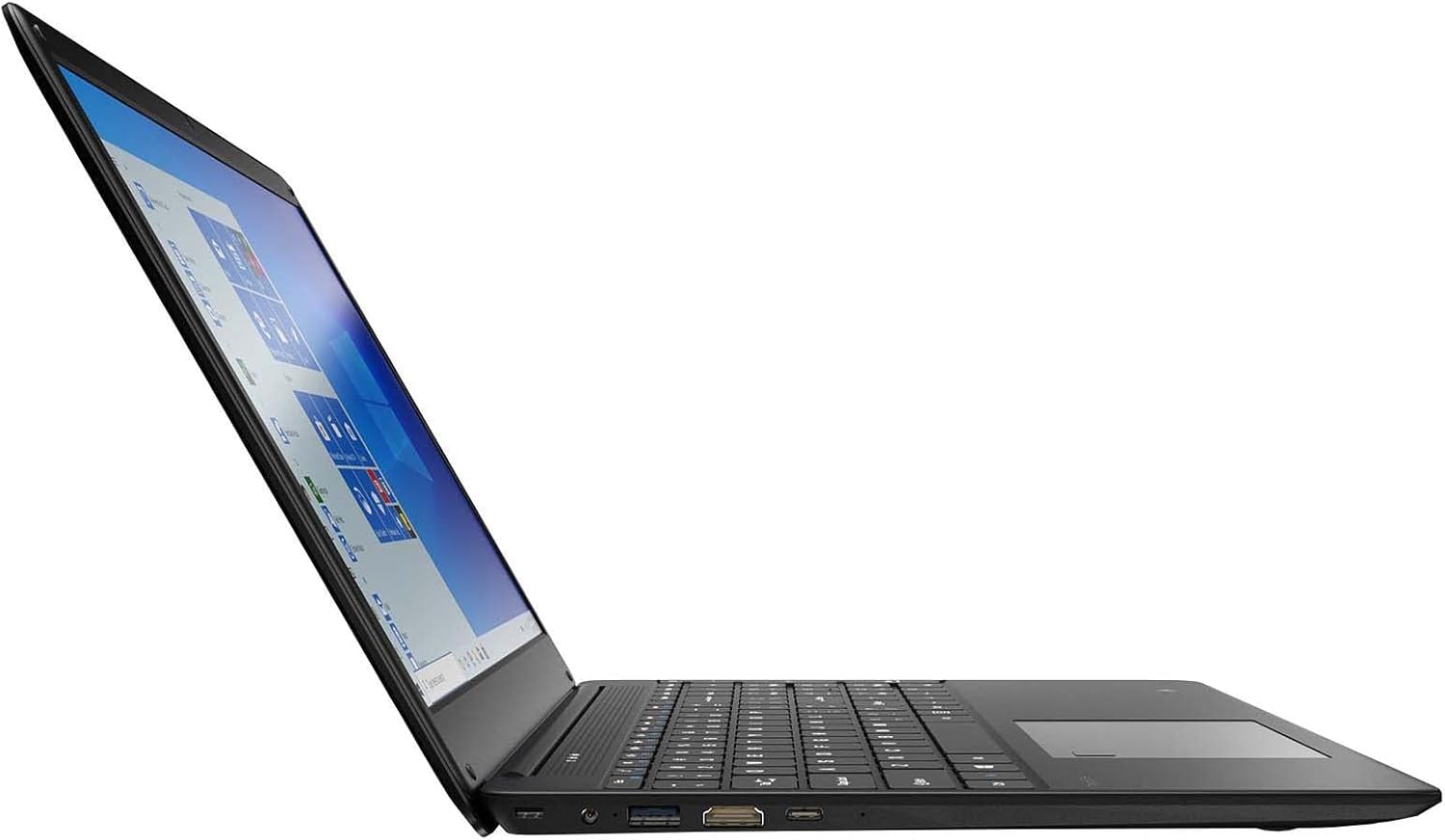
Figure 3.2: Left side ports (USB, HDMI, USB Type-C).
3.4 Kesambungan Wayarles
The laptop supports Wi-Fi and Bluetooth 5.1 for wireless connections. Access network settings via the Windows taskbar or Tetapan> Rangkaian & Internet to connect to Wi-Fi networks or pair Bluetooth devices.
3.5 Ciri Audio
The built-in stereo speakers are tuned by THX Audio, providing enhanced sound quality. Adjust volume using the function keys on the keyboard or through Windows sound settings.
4. Penyelenggaraan
4.1 Membersihkan Komputer Riba
- Skrin: Gunakan kain lembut dan tidak berbulu sedikit dampdiisi dengan air atau pembersih skrin. Jangan sembur cecair terus ke skrin.
- Casis dan Papan Kekunci: Gunakan kain lembut dan kering. Untuk kotoran degil, sedikit damp kain boleh digunakan. Elakkan bahan kimia yang keras.
- Pengudaraan: Periodically clean the ventilation openings with compressed air to prevent dust buildup, which can affect cooling.
4.2 Penjagaan Bateri
Untuk memaksimumkan hayat bateri dan jangka hayat:
- Elakkan menyahcas bateri sepenuhnya dengan kerap.
- Jangan dedahkan komputer riba kepada suhu yang melampau.
- Jika menyimpan komputer riba untuk tempoh yang lama, pastikan bateri dicas pada kira-kira 50-70%.
- Optimize power settings in Windows to conserve battery power.
4.3 Kemas Kini Perisian
Regularly check for and install Windows updates to ensure your system has the latest security patches and performance improvements. Navigate to Tetapan > Kemas Kini & Keselamatan > Kemas Kini Windows.
4.4 Sandaran Data
Sandarkan data penting anda secara kerap ke pemacu luaran atau storan awan untuk mengelakkan kehilangan data.
5. Penyelesaian masalah
Bahagian ini menangani isu biasa yang mungkin anda hadapi dengan komputer riba anda.
5.1 Komputer Riba Tidak Dihidupkan
- Pastikan penyesuai kuasa disambungkan dengan selamat pada kedua-dua komputer riba dan salur keluar kuasa yang berfungsi.
- Sahkan alur keluar kuasa berfungsi dengan memasang peranti lain.
- Allow the laptop to charge for some time before attempting to power it on again.
5.2 Isu Ketersambungan Wi-Fi
- Semak sama ada Wi-Fi didayakan dalam tetapan Windows.
- Mulakan semula penghala dan modem anda.
- Ensure you are within range of the Wi-Fi network and have entered the correct password.
- Jalankan Penyelesai Masalah Rangkaian Windows (Tetapan > Rangkaian & Internet > Status > Penyelesai masalah rangkaian).
5.3 Prestasi Perlahan
- Tutup aplikasi yang tidak perlu berjalan di latar belakang.
- Semak dan pasang sebarang kemas kini Windows yang belum selesai.
- Ensure there is sufficient free space on your SSD.
- Imbas untuk perisian hasad atau virus.
5.4 Terlalu panas
If the laptop feels excessively warm, ensure that the ventilation vents are not blocked. Operate the laptop on a hard, flat surface to allow for proper airflow. Avoid using it on soft surfaces like beds or couches that can obstruct vents.
5.5 Isu Lain
For issues not covered here, refer to the Windows help documentation or contact Gateway customer support.
6. Spesifikasi
| Ciri | Spesifikasi |
|---|---|
| Nama Model | Gateway GWTN156 (GTW15G) |
| Saiz Paparan | 15.6 Inci |
| Resolusi Skrin | 1920 x 1080 piksel (FHD) |
| Pemproses | AMD Ryzen 5 3450U (2.1 GHz, Up to 3.50 GHz) |
| RAM | 8 GB DDR4 |
| Penyimpanan | 256 GB SSD |
| Pemproses bersama Grafik | Grafik AMD Radeon Vega 8 |
| Sistem Operasi | Windows 10 (Free Upgrade to Windows 11) |
| Jenis Wayarles | Wi-Fi, Bluetooth 5.1 |
| Pelabuhan | 1x HDMI, 1x USB Type-C (Charge + Data), 2x USB 3.0, 1x Micro SD Slot (Up to 512 GB) |
| Ciri Khas | Built-in Fingerprint Scanner (Windows Hello), Stereo Speakers Tuned by THX Audio, HD Webcam |
| Berat Barang | 5.5 paun |
| Dimensi Pakej | 16.65 x 11.73 x 2.8 inci |
7. Waranti dan Sokongan
For warranty information and technical support, please refer to the official Gateway website or contact Gateway customer service directly. Keep your proof of purchase for warranty claims.
This product may be eligible for separate protection plans. Details regarding these plans are available from your retailer at the time of purchase.


