1. Pengenalan
This manual provides detailed instructions for the installation, operation, and maintenance of your j5create USB-C Dual HDMI Docking Station (Model JCD542). This docking station is designed to expand the connectivity of your USB-C enabled laptop, offering dual display output, multiple USB ports, network connectivity, and power delivery.
Sila baca manual ini dengan teliti sebelum menggunakan produk untuk memastikan kefungsian yang betul dan untuk mengelakkan kerosakan.
2. Produk Lebihview
2.1 Kandungan Pakej
- j5create USB-C Dual HDMI Docking Station (JCD542)
- Manual Arahan
2.2 Susun Atur dan Port Peranti
The JCD542 docking station features a comprehensive array of ports to enhance your workstation. Refer to the images below for a visual guide to the port layout.

Imej 1: Atas-bawah view of the j5create JCD542 USB-C Dual HDMI Docking Station, showcasing its sleek design and various ports.

Image 2: Diagram illustrating the 10 available ports on the j5create JCD542 docking station, including USB-C Power In, USB 3.0, Mic/Speaker, SD/microSD, Gigabit Ethernet, 4K HDMI, HDMI, and Security Slot.
- USB-C Host Connector: Connects to your laptop's USB-C port.
- USB-C Power In (PD 3.0): Supports up to 100W Power Delivery for charging your laptop.
- HDMI 1 (4K): Connects to a display for up to 4K (3840 x 2160) resolution.
- HDMI2: Connects to a display for up to 2K (2048 x 1152) or 1080p resolution.
- USB 3.0 (5Gbps) x3: Connects to USB peripherals such as keyboards, mice, or external drives.
- RJ45 Gigabit Ethernet: Menyediakan sambungan rangkaian berwayar yang stabil.
- Pembaca Kad SD: Untuk membaca kad memori SD standard.
- Pembaca Kad microSD: For reading microSD memory cards.
- Combo Audio Jack (Mic/Speaker): Connects to headphones or speakers with a microphone.
- Slot Kunci Keselamatan: Untuk memasang kabel keselamatan bagi mengelakkan kecurian.
3. Persediaan
3.1 Keperluan Sistem
- Available USB-C port with DisplayPort Alternate Mode (Alt Mode) support.
- Windows 10 / 8.1 / 7 or macOS X 10.8 or later (macOS 11 & 12 supported).
- For Mac users, driver installation is required for display functionality. Please visit the j5create webtapak untuk pemandu terkini.
- For Power Delivery, your laptop must support USB-C Power Delivery.
3.2 Menyambungkan Stesen Dok
- Connect the integrated USB-C host cable from the docking station to an available USB-C port on your laptop.
- If you wish to charge your laptop via the docking station, connect your laptop's USB-C power adapter to the USB-C Power In port on the docking station.
- Connect your external monitors to the HDMI ports on the docking station using HDMI cables.
- Connect any USB peripherals (keyboard, mouse, external hard drive) to the USB 3.0 ports.
- For a wired network connection, connect an Ethernet cable from your router/modem to the RJ45 Gigabit Ethernet port.
- Insert SD or microSD cards into the respective card reader slots if needed.
- Connect headphones or speakers to the Combo Audio Jack.

Image 3: A laptop connected to the j5create JCD542 docking station via its integrated USB-C cable, demonstrating a typical setup.

Image 4: Illustration showing compatibility with both Windows and Mac operating systems, highlighting the need for driver installation for Mac users.
4. Arahan Operasi
4.1 Dual Display Configuration
The docking station supports extending your laptop's display to two external monitors. One HDMI port supports up to 4K (3840 x 2160) resolution, and the other supports up to 2K (2048 x 1152) or 1080p. You can also use your laptop screen for a total of three displays.

Image 5: A workstation demonstrating a dual-monitor setup connected via the j5create JCD542 docking station, enhancing productivity.
After connecting your monitors, you may need to configure display settings in your operating system (Windows Display Settings or macOS System Preferences > Displays) to extend or mirror your desktop.
4.2 Penyampaian Kuasa
The USB-C Power In port allows you to charge your laptop while using the docking station, supporting up to 100W Power Delivery. Ensure your laptop's original power adapter is connected to this port for charging.

Image 6: A USB-C power cable connected to the 'Power In' port of the j5create JCD542 docking station, indicating support for up to 100W Power Delivery to the connected laptop.
4.3 Data Transfer and Peripherals
The three USB 3.0 ports provide SuperSpeed 5Gbps data transfer rates for connecting various USB peripherals. The RJ45 Gigabit Ethernet port ensures a reliable and fast wired internet connection, while the SD and microSD card readers allow for convenient access to memory card data.

Imej 7: Jarak dekat view of the three SuperSpeed USB 3.0 ports on the j5create JCD542 docking station, with a USB device connected.

Imej 8: Jarak dekat view of the RJ45 Gigabit Ethernet port on the j5create JCD542 docking station, showing an Ethernet cable connected for a stable network connection.

Imej 9: Jarak dekat view of the SD and microSD card reader slots on the j5create JCD542 docking station, with a memory card being inserted.

Imej 10: Jarak dekat view of the combo audio jack (Mic/Speaker) on the j5create JCD542 docking station, with a 3.5mm audio plug inserted.
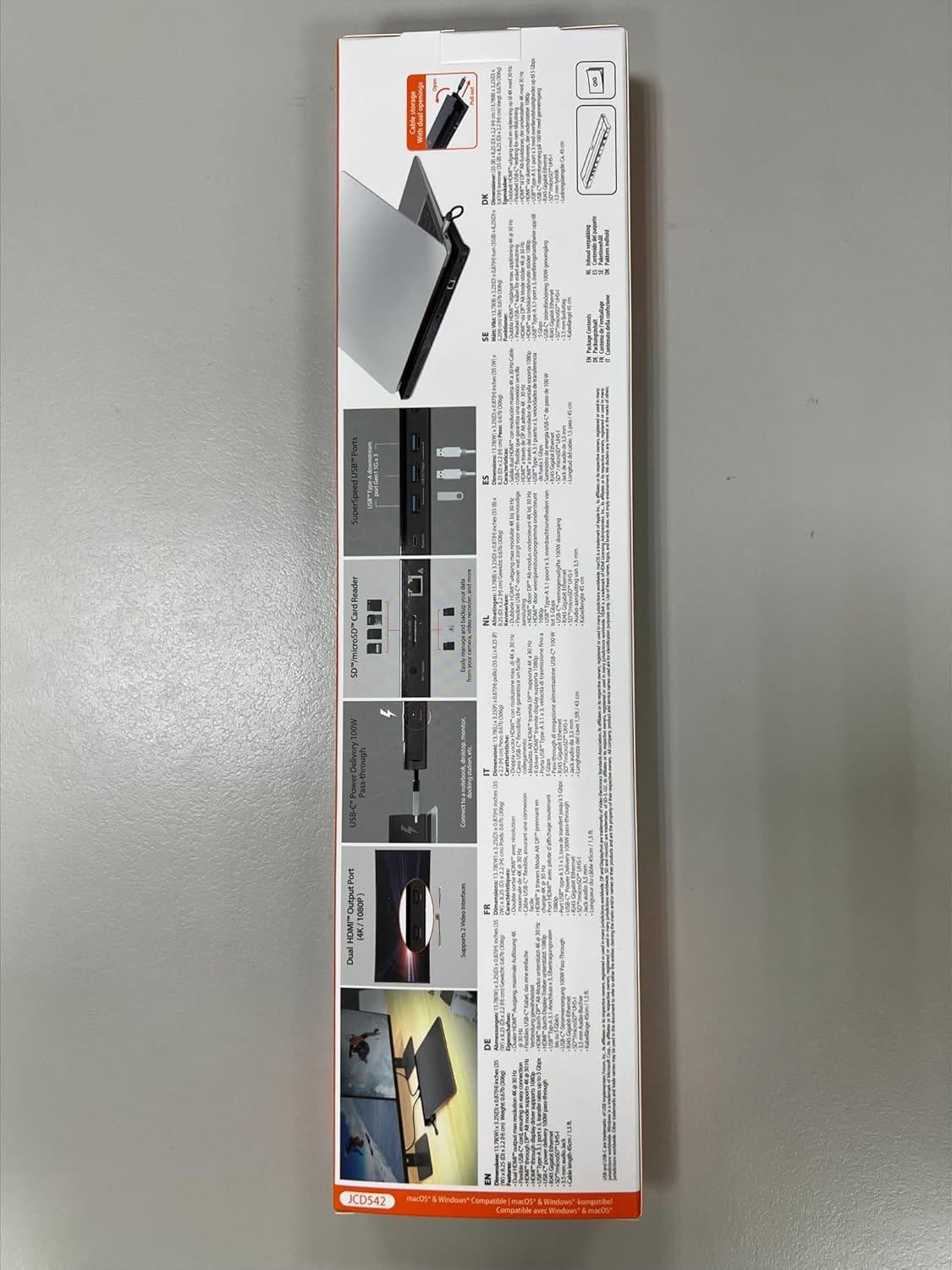
Imej 11: Jarak dekat view of the security lock slot on the j5create JCD542 docking station, showing a security cable being attached.
5. Penyelenggaraan
Untuk memastikan jangka hayat dan prestasi optimum stesen dok anda, ikut garis panduan penyelenggaraan ini:
- Keep the device clean by wiping it with a soft, dry cloth. Avoid using liquid cleaners or solvents.
- Jangan dedahkan peranti kepada suhu yang melampau, kelembapan atau cahaya matahari langsung.
- Elakkan daripada menjatuhkan atau meletakkan peranti kepada kesan yang kuat.
- Pastikan pengudaraan yang betul di sekitar stesen dok untuk mengelakkan terlalu panas.
6. Penyelesaian masalah
If you encounter issues with your j5create JCD542 docking station, refer to the following common problems and solutions:
- Tiada Output Paparan:
- Pastikan port USB-C komputer riba anda menyokong Mod Alt DisplayPort.
- Verify that all HDMI cables are securely connected to both the docking station and the monitors.
- For Mac users, ensure the necessary display drivers are installed. Visit the j5create support webtapak untuk muat turun pemandu.
- Check your operating system's display settings to ensure monitors are detected and configured correctly (extended or mirrored).
- Try disconnecting and reconnecting the docking station from your laptop.
- Komputer riba tidak dicas:
- Confirm that your laptop supports USB-C Power Delivery.
- Ensure your laptop's original USB-C power adapter is connected to the USB-C Power In port on the docking station.
- Verify the power adapter is functioning correctly and connected to a power outlet.
- Peranti Periferal USB Tidak Berfungsi:
- Pastikan stesen dok disambungkan dengan betul ke komputer riba anda.
- Try connecting the peripheral directly to your laptop to confirm it is functional.
- Test the peripheral in a different USB 3.0 port on the docking station.
- No Internet Connection via Ethernet:
- Sahkan kabel Ethernet disambungkan dengan selamat ke stesen dok dan penghala/modem anda.
- Check your network settings in your operating system.
- Pastikan penghala/modem anda berfungsi dengan betul.
- Stesen Dok Terasa Hangat:
- It is normal for the docking station to generate some heat during operation, especially when multiple ports are in use or when charging a laptop. Ensure it has adequate ventilation and is not covered.
7. Spesifikasi
| Nombor Model | JCD542 |
| Dimensi Produk | 13.78 x 3.25 x 0.86 inci (350 x 82.5 x 21.8 mm) |
| Berat Barang | 14.3 auns (405 gram) |
| Antara Muka Hos | USB-C |
| Output Video | 2 x HDMI (1x 4K, 1x 2K/1080p) |
| Port USB | 3 x USB 3.0 (5Gbps) |
| Ethernet | RJ45 Gigabit Ethernet |
| Pembaca Kad | SD / microSD |
| Audio | Combo Audio Jack (Mic/Speaker) |
| Penghantaran Kuasa | Up to 100W via USB-C Power In port |
| Keserasian | Windows 10/8.1/7, macOS X 10.8 or later (macOS 11 & 12) |
8. Waranti dan Sokongan
j5create products are designed and manufactured with quality in mind. For warranty information and technical support, please refer to the official j5create webtapak atau hubungi perkhidmatan pelanggan mereka.
Pengeluar: j5create
Maklumat Hubungan:
Kaijet Technology International BV
Address: Zomerdroom 20, 3068 MZ Rotterdam, Netherlands
Phone Number: +31 (0)6-2880 2882
E-mel: service@j5create.com
Sila simpan bukti pembelian anda untuk tuntutan waranti.


