1. Pengenalan
This user manual provides detailed instructions for the TOTU USB-C Hub, model TT-HB001C. This versatile 8-in-1 hub is designed to expand the connectivity of your USB Type-C enabled devices, offering a comprehensive solution for data transfer, video output, network connection, and power delivery.
The TOTU USB-C Hub is compact and portable, making it an ideal companion for laptops and other compatible devices, whether for business travel or daily use.
2. Ciri-ciri Produk
- Multiport Connectivity: Includes 1 Ethernet/RJ-45 Port, 1 USB Type-C Female PD charging port, 1 HDMI port, 1 TF (Micro SD) card slot, 1 SD card slot, 1 USB 2.0 Type-A port, and 2 USB 3.0 Type-A ports.
- Effortless Data Transfer: Connect smartphones, tablets, hard drives, or other USB peripherals via USB 3.0 ports for high-speed data transfer (up to 5Gbps). The USB 2.0 port is optimized for low-rate devices like mice and keyboards.
- Dual Card Reading: Built-in SD and TF slots allow simultaneous access to files from universal SD and Micro SD memory cards.
- Sambungan Rangkaian Stabil: The 1000Mbps Ethernet port ensures a more stable and faster wired network connection compared to Wi-Fi.
- Penghantaran Kuasa (PD): Supports PD charging at a maximum of 87W, allowing you to securely charge your connected MacBook or other Type-C laptops through the hub.
- Output HDMI 4K: Provides high-definition video output, supporting resolutions up to 4K.
- Reka bentuk padat dan mudah alih: Lightweight and small, designed for easy transport.
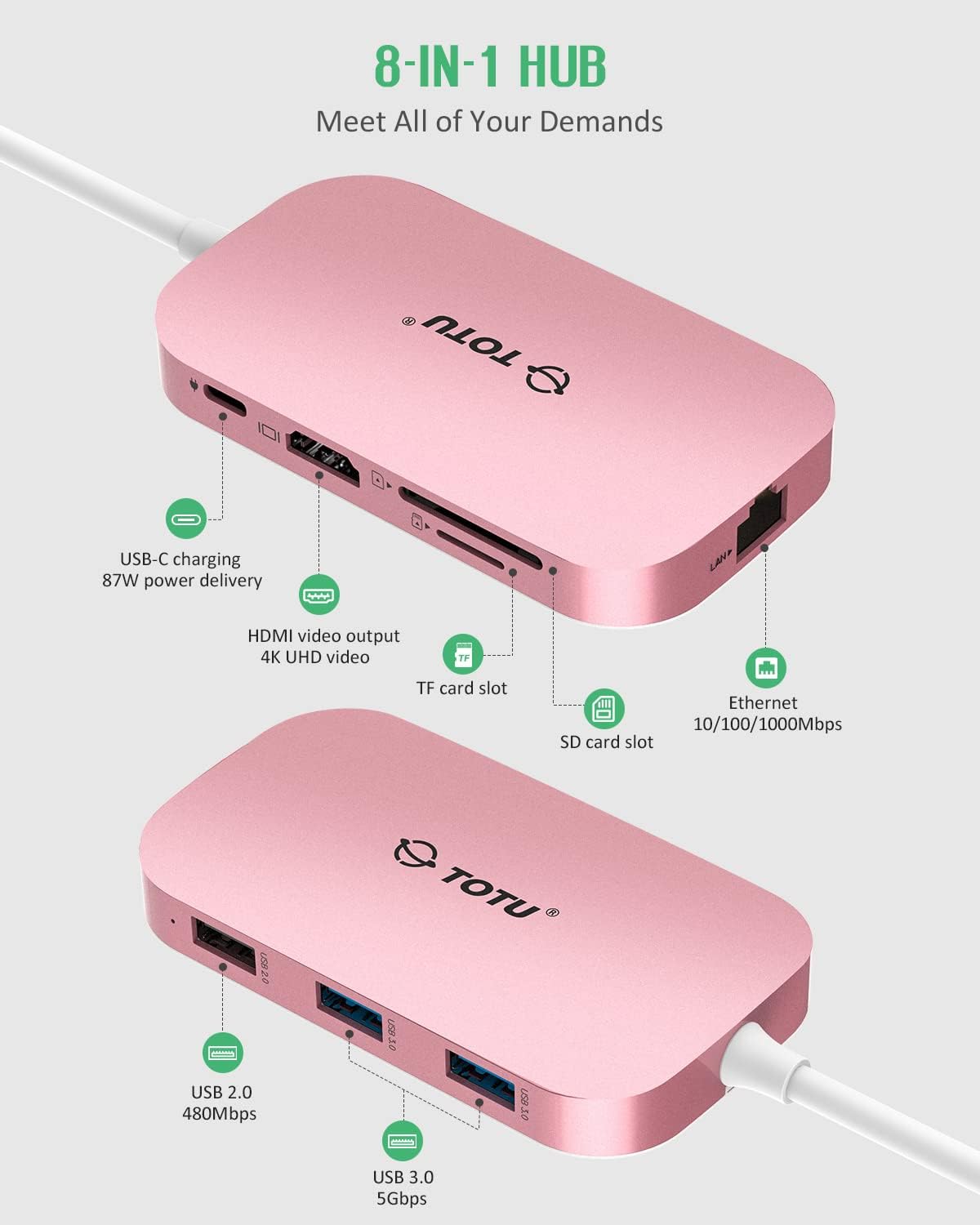
Gambar 2.1: Lebihview of the TOTU USB-C Hub's 8-in-1 port configuration, including USB-C PD, HDMI, TF/SD card slots, Ethernet, USB 2.0, and USB 3.0 ports.
3. Panduan Persediaan
Follow these steps to set up your TOTU USB-C Hub:
- Sambung ke Peranti Hos: Plug the USB-C connector of the hub into the USB Type-C port on your laptop, tablet, or smartphone. Ensure your device's USB-C port supports Display Alt Mode and Power Delivery for full functionality.
- Sambungan Kuasa (Pilihan): For charging your host device through the hub, connect your original power adapter to the USB Type-C Female PD charging port on the hub.
- Sambungan persisian:
- HDMI: Connect an HDMI cable from the hub's HDMI port to your external monitor, TV, or projector for video output.
- Ethernet: For a wired network connection, plug an Ethernet cable into the RJ-45 port on the hub.
- Peranti USB: Connect USB flash drives, external hard drives, keyboards, mice, or other USB peripherals to the USB 3.0 or USB 2.0 Type-A ports.
- Kad SD/TF: Insert your SD or Micro SD (TF) memory cards into the corresponding slots for data access.
Video 3.1: A demonstration of connecting the TOTU USB-C Hub to a laptop and utilizing its various ports for internet, data transfer, charging, and HDMI output.
4. Arahan Operasi
4.1. Output Video HDMI
The HDMI port supports resolutions up to 4K. You can use it in two primary modes:
- Mod Cermin: Duplicates your laptop's screen onto the external display. This is useful for presentations or sharing content.
- Mod Sambungan: Extends your desktop across multiple screens, allowing for increased workspace and multitasking.
To configure display settings, refer to your operating system's display preferences (e.g., System Preferences > Displays on macOS, Display Settings on Windows).
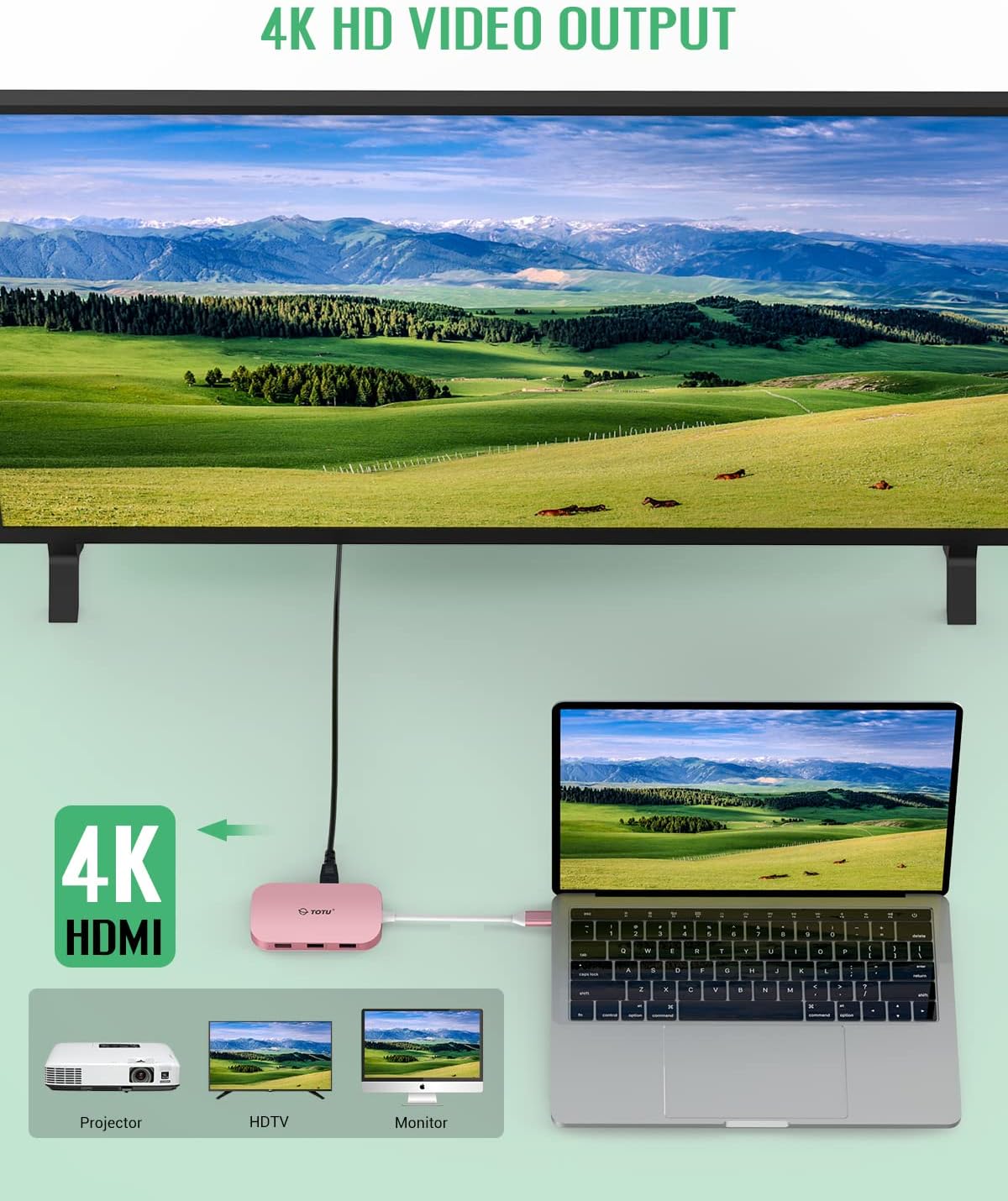
Figure 4.1: The hub facilitating 4K HD video output from a laptop to an external monitor, demonstrating its display capabilities.
4.2. Data Transfer (USB Ports & Card Readers)
The USB 3.0 ports offer high-speed data transfer for compatible devices. The USB 2.0 port is suitable for devices that do not require high bandwidth, such as keyboards and mice, to prevent interference with high-speed data transfers.
The SD and TF card slots allow for quick and easy access to photos and files from your memory cards. Both slots can be used simultaneously.

Figure 4.2: The hub's USB 3.0 and USB 2.0 ports in use, demonstrating compatibility with both high-speed and low-speed devices like thumb drives, keyboards, mice, and phones.
4.3. Sambungan Ethernet
The Gigabit Ethernet port provides a stable and reliable wired internet connection, ideal for situations where Wi-Fi is unstable or unavailable. Simply plug in an Ethernet cable, and your device should automatically detect the connection.

Figure 4.3: The hub providing instant Ethernet connectivity to a laptop, supporting speeds up to 1 Gbps.
4.4. Penghantaran Kuasa
The USB-C PD port allows for pass-through charging of your host device while using the hub. Connect your laptop's original USB-C power adapter to this port. The hub supports up to 87W power delivery.

Figure 4.4: The hub enabling fast charging and data transfer simultaneously, with a laptop and smartphone connected and receiving power.
5. Penyelenggaraan
To ensure the longevity and optimal performance of your TOTU USB-C Hub, please follow these maintenance guidelines:
- Pembersihan: Use a soft, dry cloth to wipe the exterior of the hub. Avoid using liquid cleaners, aerosols, or abrasive solvents.
- Storan: Store the hub in a cool, dry place away from direct sunlight and extreme temperatures. When not in use, it is recommended to disconnect it from your device.
- Pengendalian: Avoid dropping the hub or subjecting it to strong impacts. Do not attempt to disassemble or modify the device, as this will void the warranty.
- Penjagaan Pelabuhan: Ensure that all ports are free from dust and debris before inserting cables or cards.
6. Penyelesaian masalah
If you encounter issues with your TOTU USB-C Hub, please refer to the following common troubleshooting steps:
| Masalah | Kemungkinan Punca | Penyelesaian |
|---|---|---|
| Tiada output paparan melalui HDMI. |
|
|
| USB devices not recognized or slow. |
|
|
| Ethernet connection unstable or not working. |
|
|
| Komputer riba tidak dicas melalui port PD. |
|
|
7. Spesifikasi
| Ciri | Perincian |
|---|---|
| Nombor Model | TT-HB001C |
| Jenama | TOTU |
| warna | Merah jambu |
| Ketersambungan | USB Type-C (Host Connection) |
| Pelabuhan |
|
| Berat Barang | 4.1 auns |
| Dimensi Pakej | 5.91 x 3.27 x 1.22 inci |
| Peranti Serasi | Laptops with USB Type-C port supporting Display Alt mode and Power Delivery (e.g., MacBook/MacBook Pro 2016+, MacBook Air 2018+, Google Pixelbook, DELL XPS, HP Spectre, Surface Book 2/Pro 7/Go), Smartphones (e.g., Samsung Galaxy S8/S8 Plus/S9/S9 Plus/Note 8/Note 9, LG G5/V20 and Huawei high-end series). |
8. Waranti dan Sokongan
Your TOTU USB-C Hub comes with a user manual included in the package. For further assistance, technical support, or warranty information, please visit the official TOTU brand store or contact customer service.
Manual Pengguna Rasmi (PDF): Muat turun Manual PDF
TOTU Brand Store: Lawati Kedai


