1. Pengenalan
This manual provides detailed instructions for the setup, operation, and maintenance of your MOES Smart Temperature Humidity Monitor with IR Remote Control. This device integrates temperature and humidity sensing with universal infrared remote control capabilities, allowing you to monitor your environment and control various IR-enabled appliances via a smartphone application or voice commands.
2. Produk Lebihview
The MOES Smart Temperature Humidity Monitor is a compact device designed to provide real-time environmental data and smart control. It features an LCD display for immediate readings and connects to your home Wi-Fi network for remote access and automation.

Image 2.1: MOES Smart Temperature Humidity Monitor displaying temperature and humidity, alongside a smartphone showing the companion app interface.
Ciri-ciri Utama:
- Pemantauan masa nyata: Displays current temperature and humidity on an LCD screen.
- Kawalan Jauh IR: Controls various infrared appliances such as TVs, air conditioners, and fans.
- Kesambungan Wi-Fi: Connects to 2.4GHz Wi-Fi for remote access via the Tuya Smart or Smart Life app.
- Automasi Pintar: Create rules to automatically control IR devices based on temperature and humidity changes.
- Kawalan Suara: Serasi dengan Amazon Alexa dan Google Assistant untuk operasi bebas tangan.
- Suis Unit Suhu: Tukar antara Celsius dan Fahrenheit dengan mudah.
3. Spesifikasi
Detailed technical specifications for the MOES Smart Temperature Humidity Monitor.

Image 3.1: Product dimensions and component labels for the MOES Smart Temperature Humidity Monitor.
| Ciri | Spesifikasi |
|---|---|
| Nama Produk | Kawalan Jauh IR Pintar |
| Nombor Model | WR-TY-THR-BK-MS |
| Dimensi | 65mm x 65mm x 17mm (2.56 x 2.56 x 0.67 inci) |
| Berat Barang | 3.2 auns |
| Input Kuasa | DC 5V/1A (Micro USB, adapter not included) |
| Penunjuk LED | Biru |
| Ketepatan Suhu | ±1°C |
| Julat Pengukuran Suhu | 0°C – 60°C |
| Kelembapan Kerja | ±5% RH |
| Kekerapan inframerah | 38KHz |
| Jarak IR | <10m |
| Sambungan | Wi-Fi 2.4GHz |
| Peranti Serasi | Air Conditioner, Humidifier, Fan, TV, Set-top Box, Projector, etc. |
| Ciri Khas | Voice Search, App Control, Automation |
4. Persediaan
4.1 Apa yang ada di dalam Kotak
- MOES Smart Temperature Humidity Monitor
- Kabel USB Mikro
- Manual Pengguna (dokumen ini)
4.2 Persediaan Fizikal
- Sambungan Kuasa: Connect the provided Micro USB cable to the Micro USB port on the device and plug the other end into a 5V/1A USB power adapter (not included). The device will power on and the LCD display will activate.
- penempatan: Place the monitor in a central location within the room where you intend to measure temperature and humidity and control IR devices. Ensure there are no obstructions between the monitor and the IR-controlled appliances. The IR distance is typically up to 10 meters.
4.3 Pemasangan Apl dan Berpasangan
The MOES Smart Temperature Humidity Monitor works with the Tuya Smart or Smart Life app.
- Muat turun Apl: Cari untuk "Tuya Smart" or "Smart Life" in your smartphone's app store (iOS App Store or Google Play Store) and download it.
- Daftar/Log Masuk: Buka aplikasi dan daftar untuk akaun baharu atau log masuk jika anda sudah memilikinya.
- Tambah Peranti:
- Pastikan telefon pintar anda disambungkan ke rangkaian Wi-Fi 2.4GHz.
- In the app, tap the "+" icon in the top right corner to add a device.
- Select "Sensor" or "Universal Remote Control" from the device list, or use the auto-scan feature.
- Masukkan Mod Berpasangan: On the MOES monitor, press and hold the "Reset Button" (located at the back, often labeled 'C/F Switch' or 'Reset') for 5-7 seconds until the Wi-Fi icon on the LCD display starts blinking rapidly.
- Follow the on-screen instructions in the app to connect the device to your Wi-Fi network. This usually involves confirming the blinking indicator and entering your Wi-Fi password.
- Once successfully paired, the Wi-Fi icon on the monitor will stop blinking and remain solid.
5. Arahan Operasi
5.1 Paparan LCD Lebihview
The LCD display provides essential information at a glance:

Imej 5.1: Terperinci view of the LCD display and its indicators.
- Paparan suhu: Shows the current temperature (in °C or °F).
- Paparan Kelembapan: Shows the current relative humidity (%).
- Isyarat Wi-Fi: Menunjukkan status sambungan Wi-Fi.
- Masa dan Tarikh: Memaparkan masa dan tarikh semasa.
- Week/AM/PM: Shows the day of the week and AM/PM indicator.
5.2 Menukar Unit Suhu (°C/°F)
To switch between Celsius and Fahrenheit, briefly press the "Reset Button" on the back of the device. The unit on the LCD display will change accordingly. This can also be adjusted within the Tuya Smart/Smart Life app.

Image 5.2: Switching temperature units via the Smart Life app.
5.3 IR Remote Control Functionality
The device can learn and emit IR signals to control various home appliances.
- Adding IR Devices:
- In the Tuya Smart/Smart Life app, navigate to your MOES monitor device.
- Look for an option like "IR Remote Control" or "Add Remote".
- Select the type of appliance you want to control (e.g., TV, Air Conditioner, Fan, Set-top Box).
- Follow the app's instructions to either select from a pre-programmed library of remote codes or use the "DIY" (Do It Yourself) function to learn commands from your original remote control.
- For DIY learning, point your original remote at the MOES monitor and press the desired button when prompted by the app.
- Mengawal Peranti: Once an IR device is added, you can control it directly from the app interface, even when you are away from home.
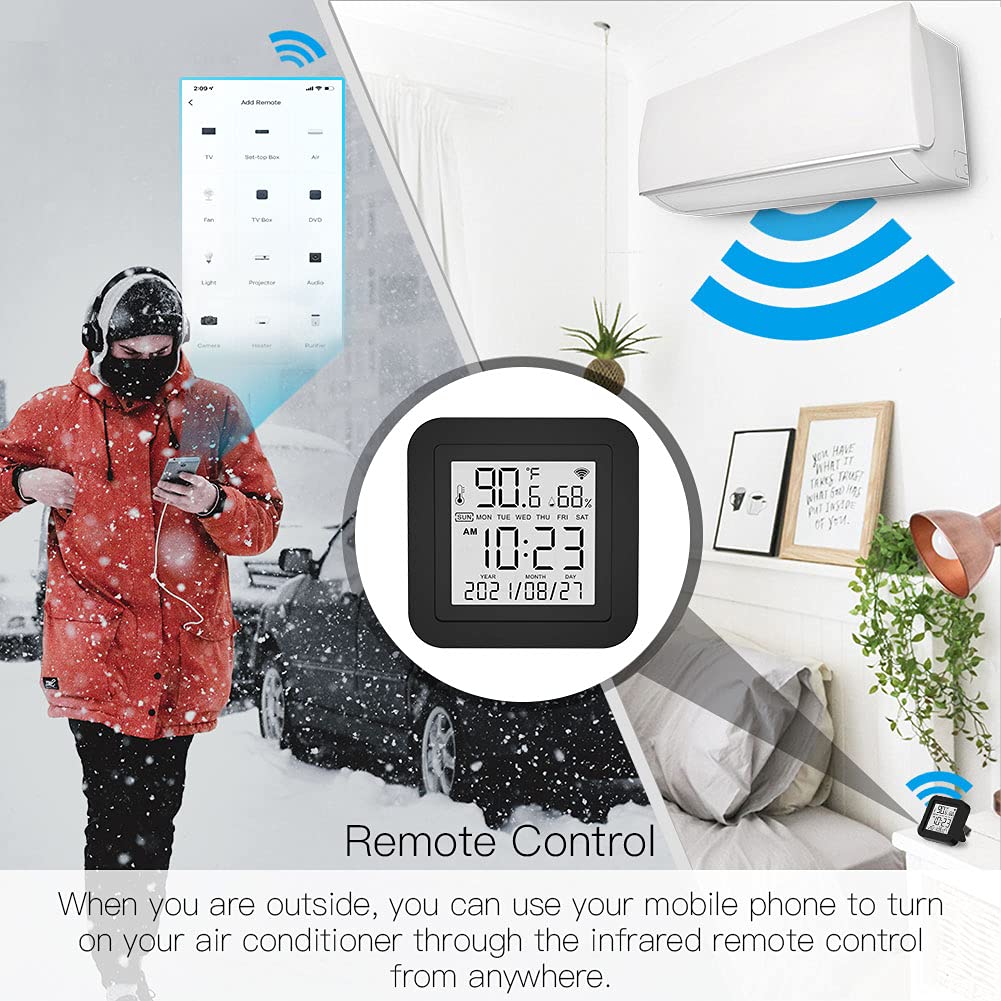
Image 5.3: Remote control functionality via the smartphone app.
5.4 Automasi Pintar
Leverage the temperature and humidity data to create automated routines for your IR-controlled devices.
- Access Automation: In the Tuya Smart/Smart Life app, go to the "Smart" or "Automation" section.
- Create a Scene/Automation:
- Select "When device status changes" or "Schedule" as the condition.
- Choose your MOES monitor and set a condition based on temperature or humidity (e.g., "Temperature rises above 26°C" or "Humidity drops below 50%").
- For the task, select "Run the device" and choose the IR-controlled appliance (e.g., Air Conditioner, Humidifier). Set the desired action (e.g., "Turn On", "Set Temperature to 24°C").

Imej 5.4: Cthample of temperature-based automation for an air conditioner.

Imej 5.5: Cthample of humidity-based automation for a humidifier.
5.5 Kawalan Suara
The MOES Smart Temperature Humidity Monitor is compatible with Amazon Alexa and Google Assistant.
- Pautkan Akaun: In the Alexa or Google Home app, enable the "Tuya Smart" or "Smart Life" skill/service and link your account.
- Cari Peranti: Once linked, ask your voice assistant to discover new devices. Your MOES monitor and any configured IR devices will appear.
- Perintah Suara: You can now use voice commands to control your IR appliances. Examples:
- "Alexa, turn on the TV."
- "Hey Google, set the AC to 22 degrees."
- "Alexa, turn off the fan."

Image 5.6: Voice control integration with Amazon Alexa and Google Assistant.
6. Penyelenggaraan
- Pembersihan: Use a soft, dry cloth to clean the device. Do not use liquid cleaners or sprays, as they may damage the internal components.
- penempatan: Avoid placing the device in direct sunlight, near heat sources, or in areas with high humidity to ensure accurate readings and optimal performance.
- Kemas kini Firmware: The device's firmware may be updated periodically via the Tuya Smart/Smart Life app. Ensure your app is up-to-date and follow any prompts for device firmware updates.
7. Penyelesaian masalah
| Masalah | Penyelesaian yang Mungkin |
|---|---|
| Peranti tidak dihidupkan | Ensure the Micro USB cable is securely connected and the power adapter is working. Try a different USB port or adapter. |
| Tidak dapat menyambung ke Wi-Fi |
|
| IR remote control not working |
|
| Bacaan suhu/kelembapan tidak tepat |
|
| Kawalan suara tidak bertindak balas |
|
| Device unresponsive / needs reset | Press and hold the "Reset Button" on the back of the device for approximately 10 seconds until the device restarts or enters pairing mode. You may need to re-pair it with the app. |
8. Waranti dan Sokongan
MOES products are designed for reliability and performance. For warranty information, technical support, or further assistance, please refer to the official MOES webtapak atau hubungi perkhidmatan pelanggan mereka secara langsung. Simpan resit pembelian anda sebagai bukti pembelian untuk tuntutan waranti.
Sumber Dalam Talian:
- Lawati MOES Store on Amazon for product updates and related accessories.


