1. Pengenalan
This manual provides comprehensive instructions for the installation, operation, and maintenance of your TP-Link Archer C5 AC1200 Dual-Band Gigabit Wireless Wi-Fi Router. The Archer C5 is designed to provide seamless Wi-Fi coverage with its dual-band capabilities, offering speeds up to 750Mbps on the 5GHz band and up to 300Mbps on the 2.4GHz band. It features four external antennas for stable wireless connections and full Gigabit ports for high-speed wired connections.
Please read this manual carefully before using the device to ensure proper setup and optimal performance.
2. Kandungan Pakej
Sahkan bahawa pakej anda mengandungi item berikut:
- Penghala TP-Link Archer C5
- Power Adapter (DC Adapter)
- Kabel Ethernet (RJ45)
- Quick Installation Guide (may be a separate document)
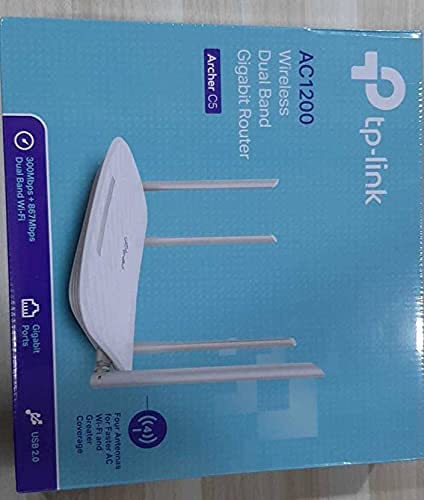
3. Produk Lebihview
3.1 Panel Depan

The front panel features LED indicators that provide information about the router's status, including power, internet connectivity, Wi-Fi status for both 2.4GHz and 5GHz bands, and LAN port activity.
3.2 Panel Belakang

The rear panel includes all physical connection ports and buttons:
- Input Kuasa: Menyambung kepada penyesuai kuasa yang disediakan.
- Butang Kuasa: Menghidupkan atau mematikan penghala.
- Port USB: Untuk menyambungkan peranti storan USB untuk dikongsi files merentasi rangkaian.
- Pelabuhan WAN (Biru): Connects to your modem for internet access. This is a Gigabit port.
- Port LAN (Kuning): Four Gigabit Ethernet ports for connecting wired devices such as computers, gaming consoles, or smart TVs.
- Butang Tetapkan Semula: Digunakan untuk memulihkan penghala kepada tetapan lalai kilang.
- Butang WPS/Wi-Fi: Press to enable WPS (Wi-Fi Protected Setup) for easy connection, or press and hold to turn Wi-Fi on/off.
4. Panduan Persediaan
Follow these steps to set up your TP-Link Archer C5 router:
- Matikan Modem Anda: Putuskan sambungan kuasa dari modem sedia ada anda.
- Sambungkan Penghala:
- Connect one end of the provided Ethernet cable to the WAN port (blue) on your Archer C5 router.
- Sambungkan hujung kabel Ethernet yang satu lagi ke port Ethernet modem anda.
- Hidupkan Peranti:
- Sambungkan penyesuai kuasa ke input kuasa penghala dan palamkannya ke salur keluar kuasa.
- Power on your modem, then wait for it to fully boot up (usually indicated by stable LED lights).
- Power on the Archer C5 router. Wait for the LED indicators to stabilize, particularly the Internet LED.
- Sambungkan ke Rangkaian Wi-Fi Penghala:
- Cari nama rangkaian Wi-Fi (SSID) dan kata laluan yang dicetak pada label di bahagian bawah penghala anda.
- On your computer or mobile device, select the router's Wi-Fi network and enter the password to connect.
- Akses ke Web Antara Muka Pengurusan:
- Buka a web browser (e.g., Chrome, Firefox) and type
http://tplinkwifi.netor192.168.0.1ke dalam bar alamat. - Log masuk menggunakan nama pengguna dan kata laluan lalai (biasanya
adminuntuk kedua-duanya, atau seperti yang dinyatakan pada label penghala). - Follow the Quick Setup wizard to configure your internet connection and personalize your Wi-Fi network name and password.
- Buka a web browser (e.g., Chrome, Firefox) and type
- Optional: Use the TP-Link Tether App: Download the TP-Link Tether app from your mobile device's app store for easy setup and management.
5. Arahan Operasi
Once your router is set up, you can manage its functions through the web antara muka pengurusan atau aplikasi TP-Link Tether.
5.1 Wi-Fi Dwi-Jalur
The Archer C5 operates on two Wi-Fi bands:
- Jalur 2.4 GHz: Provides wider coverage and better penetration through walls, suitable for general internet use and older devices.
- Jalur 5 GHz: Offers faster speeds and less interference, ideal for bandwidth-intensive activities like online gaming and HD video streaming.
You can configure separate SSIDs (network names) and passwords for each band or use a single SSID with Band Steering enabled (if available in your firmware) to allow the router to automatically assign devices to the best band.
5.2 Pengurusan Rangkaian
Melalui web antara muka, anda boleh:
- Change Wi-Fi settings (SSID, password, security type).
- Set up a Guest Network for visitors.
- Configure parental controls to manage internet access for children.
- Prioritize devices or applications using Quality of Service (QoS).
- Urus peranti yang disambungkan.
- Access advanced settings like port forwarding, VPN server, and dynamic DNS.
6. Penyelenggaraan
Penyelenggaraan tetap membantu memastikan jangka hayat dan prestasi optimum penghala anda.
- Kemas kini Firmware: Periksa pegawai TP-Link secara berkala weblaman web untuk kemas kini perisian tegar. Mengemas kini perisian tegar boleh meningkatkan prestasi, menambah ciri baharu dan membetulkan kelemahan keselamatan.
- Penempatan Fizikal: Place the router in a central location, away from obstructions and devices that emit electromagnetic interference (e.g., microwaves, cordless phones). Elevating the router can also improve signal distribution.
- Pembersihan: Keep the router clean and free from dust. Ensure ventilation holes are not blocked to prevent overheating.
- But semula: If you experience slow speeds or connectivity issues, try rebooting the router by unplugging its power adapter for 10 seconds and then plugging it back in.
7. Penyelesaian masalah
Bahagian ini menangani isu biasa yang mungkin anda hadapi dengan penghala Archer C5 anda.
7.1 Tiada Akses Internet
- Semak Sambungan Kabel: Ensure the Ethernet cable from your modem is securely connected to the router's blue WAN port.
- Status Modem: Pastikan modem anda berfungsi dengan betul dan mempunyai sambungan internet yang aktif.
- LED penghala: Check the Internet LED on the router. If it's off or red, there might be an issue with your internet service provider (ISP) or modem connection.
- But Semula Peranti: Power cycle your modem and then your router.
- Klon Alamat MAC: Sesetengah ISP memerlukan pengklonan alamat MAC. Akses penghala web interface and check WAN settings for this option.
7.2 Wi-Fi Signal Drops or is Weak
- Peletakan Penghala: Alihkan penghala ke lokasi pusat, jauh daripada halangan dan sumber gangguan.
- Orientasi Antena: Laraskan empat antena luaran untuk penerimaan isyarat yang optimum.
- Gangguan Saluran: Dalam penghala web interface, try changing the Wi-Fi channel for both 2.4GHz and 5GHz bands to a less congested one.
- Kemas kini Firmware: Pastikan perisian tegar penghala anda dikemas kini.
7.3 Forgot Router Login Password
Sekiranya anda terlupa kata laluan untuk web management interface, you will need to reset the router to its factory default settings. Locate the Reset button on the rear panel, press and hold it for about 10 seconds until the LEDs flash, then release. The router will reboot with default settings (usually admin for username and password).
8. Spesifikasi
| Ciri | Perincian |
|---|---|
| Jenama | TP-Link |
| Nama Model | Pemanah C5 |
| Standard Tanpa Wayar | IEEE 802.11ac/n/a 5 GHz, IEEE 802.11n/b/g 2.4 GHz |
| Kelajuan Wi-Fi | AC1200 (867 Mbps pada 5 GHz, 300 Mbps pada 2.4 GHz) |
| Kelas Band Kekerapan | Dwi-Jalur (2.4 GHz dan 5 GHz) |
| Pelabuhan Ethernet | 1x Port WAN Gigabit, 4x Port LAN Gigabit |
| Port USB | 1x Port USB 2.0 |
| Antena | 4x Antena Luaran |
| Protokol Keselamatan | WPA2-PSK |
| Sistem Operasi | RouterOS (as per product data, typically TP-Link custom firmware) |
| Ciri Khas | Akses Jauh |
| Berat Barang | 710 g |
| Komponen yang Disertakan | Router, DC Adapter, RJ45 Ethernet Cable |
9. Waranti dan Sokongan
9.1 Maklumat Waranti
The TP-Link Archer C5 router typically comes with a Waranti 1 Tahun. Please refer to the warranty card included in your product packaging or visit the official TP-Link webtapak untuk terma dan syarat waranti terperinci khusus untuk wilayah anda.
9.2 Sokongan Teknikal
For technical assistance, firmware updates, or further information, please visit the official TP-Link support website. You can usually find FAQs, troubleshooting guides, and contact information for customer support there.
Rasmi TP-Link Webtapak: www.tp-link.com


