1. Pengenalan
This manual provides detailed instructions for the installation, operation, and maintenance of your BrosTrend WiFi 6 AX1800Mbps USB WiFi Adapter (Model AX1). This device is designed to upgrade your PC, laptop, or desktop to the latest WiFi 6 standard, offering faster speeds and improved network efficiency. It supports Windows 11 and Windows 10 operating systems only.
2. Maklumat Keselamatan
- Jangan dedahkan peranti kepada air atau kelembapan berlebihan.
- Elakkan suhu yang melampau.
- Jangan cuba membuka atau membaiki peranti sendiri. Rujuk kepada kakitangan perkhidmatan yang berkelayakan.
- Jauhkan daripada kanak-kanak.
- Pastikan pengudaraan yang betul semasa digunakan.
3. Kandungan Pakej
Sahkan bahawa pakej anda mengandungi item berikut:
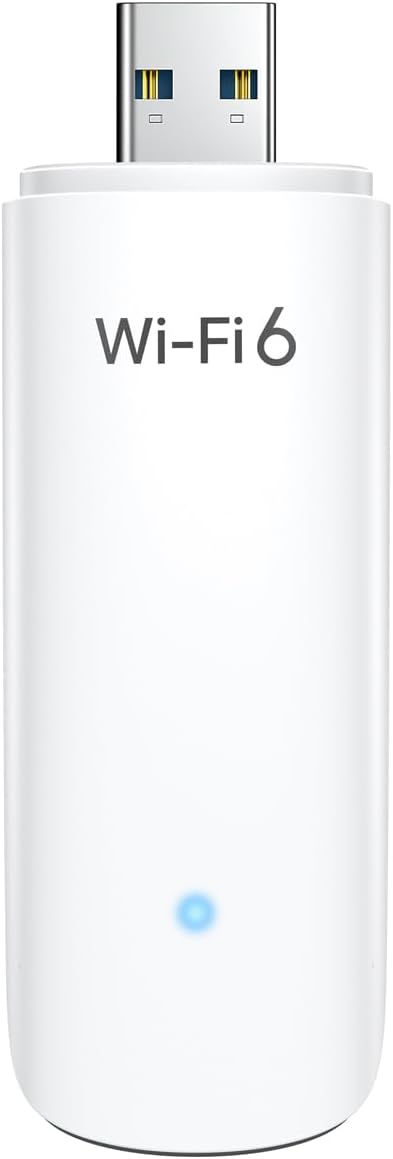
- 1 x BrosTrend AX1800Mbps USB WiFi 6 Adapter (Model AX1)
- 1 x Panduan Pemasangan Pantas

4. Persediaan dan Pemasangan
Follow these steps to install your BrosTrend WiFi 6 USB Adapter:
- Keperluan Sistem: Ensure your computer is running Windows 11 or Windows 10. Linux operating systems are not supported.
- Pemasangan Pemandu: The adapter comes with a pre-loaded driver. When you plug it into your computer for the first time, the system should automatically detect the device and initiate driver installation. If automatic installation does not occur, you may need to access the adapter's internal storage (which appears as a virtual CD-ROM drive) and run the setup executable.
- Sambungkan Penyesuai: Insert the BrosTrend AX1800Mbps USB WiFi 6 Adapter into an available USB 3.0 port on your PC, laptop, or desktop. For optimal performance, use a USB 3.0 port (typically blue inside).
- Sahkan Pemasangan: After installation, a new wireless network adapter should appear in your computer's Device Manager. The blue LED indicator on the adapter will illuminate when it is properly connected and functioning.

5. Arahan Operasi
Setelah penyesuai dipasang, anda boleh menyambung ke rangkaian tanpa wayar:
- Akses Tetapan Rangkaian: Klik pada ikon Wi-Fi dalam dulang sistem anda (biasanya di penjuru kanan bawah skrin anda).
- Pilih Rangkaian: A list of available wireless networks will appear. Select your desired network (SSID).
- Sambung: Klik "Sambung" dan masukkan kunci keselamatan rangkaian (kata laluan) jika digesa.
- Operasi Jalur Dwi: The adapter supports both 5GHz and 2.4GHz bands. For higher speeds and less interference, connect to a 5GHz network if available. For broader coverage, the 2.4GHz band is suitable.
- Ciri Lanjutan: The adapter utilizes UL/DL MU-MIMO and OFDMA technologies for improved network throughput and efficiency, especially in environments with multiple devices. Beamforming technology enhances signal strength and coverage.


6. Penyelenggaraan
To ensure the longevity and optimal performance of your adapter:
- Pastikan penyesuai bersih dan bebas daripada habuk. Gunakan kain lembut dan kering untuk pembersihan.
- Elakkan hentaman fizikal atau menjatuhkan peranti.
- When not in use, you may unplug the adapter and store it in a safe place. The adapter includes a protective cap for the USB connector.
- Periodically check the BrosTrend website for updated drivers, although the pre-loaded driver is generally sufficient.

7. Penyelesaian masalah
If you encounter issues with your BrosTrend WiFi 6 USB Adapter, consider the following:
- Adapter Not Detected / No Indicator Light:
- Pastikan penyesuai dimasukkan sepenuhnya ke dalam port USB 3.0.
- Cuba port USB lain pada komputer anda.
- Mulakan semula komputer anda.
- Verify that your operating system is Windows 11 or Windows 10.
- Slow Speeds / Frequent Disconnections:
- Ensure you are connected to a 5GHz network if available and within range for optimal speed.
- Check for obstacles between your computer and the wireless router.
- Kemas kini firmware penghala anda.
- Temporarily disable any VPN or firewall software to see if it resolves the issue.
- Reinstall the adapter drivers.
- Isu Pemasangan Pemacu:
- If the driver does not install automatically, open "This PC" or "My Computer", locate the virtual CD-ROM drive associated with the adapter, and run the setup file.
- Ensure your antivirus software is not blocking the driver installation.
- Download the latest drivers from the official BrosTrend support webtapak jika perlu.
8. Spesifikasi
| Ciri | Perincian |
|---|---|
| Nombor Model | AX1 |
| Standard Tanpa Wayar | IEEE 802.11ax (WiFi 6) |
| Kadar Pemindahan Data | Sehingga 1800Mbps (1201Mbps pada 5GHz, 574Mbps pada 2.4GHz) |
| Jalur Frekuensi | 2.4GHz dan 5GHz (Jalur Dwi) |
| Antara muka | USB 3.0 |
| Sistem Operasi yang Serasi | Windows 11, Windows 10 (Linux NOT supported) |
| Jenis Antena | Internal On-Board Antennas |
| Dimensi (L x W x H) | 3.62 x 1.18 x 0.51 inci (9.2 x 3.0 x 1.3 cm) |
| Berat Barang | 0.635 auns (18 Gram) |
| warna | putih |
| Ciri Lanjutan | UL/DL MU-MIMO, OFDMA, Beamforming, WPA3 Encryption |
9. Waranti dan Sokongan
BrosTrend products come with a manufacturer's warranty. Please refer to the official BrosTrend website or the Quick Installation Guide for specific warranty terms and conditions.
For technical support, driver downloads, or further assistance, please visit the BrosTrend support page or contact their customer service. Contact information is typically provided in the Quick Installation Guide or on the official BrosTrend webtapak.
Sokongan dalam talian: www.brostrend.com/support (Cthamppautan, sila sahkan sokongan sebenar URL)


