1. Pengenalan
This manual provides detailed instructions for the setup, operation, and maintenance of your TECLAST Mini PC N10. This compact desktop computer features an Intel Celeron N4000 processor, 6GB DDR4 RAM, 128GB SSD, and comes pre-installed with Windows 11 Pro. It is designed for various applications including office work, multimedia playback, and general computing tasks.
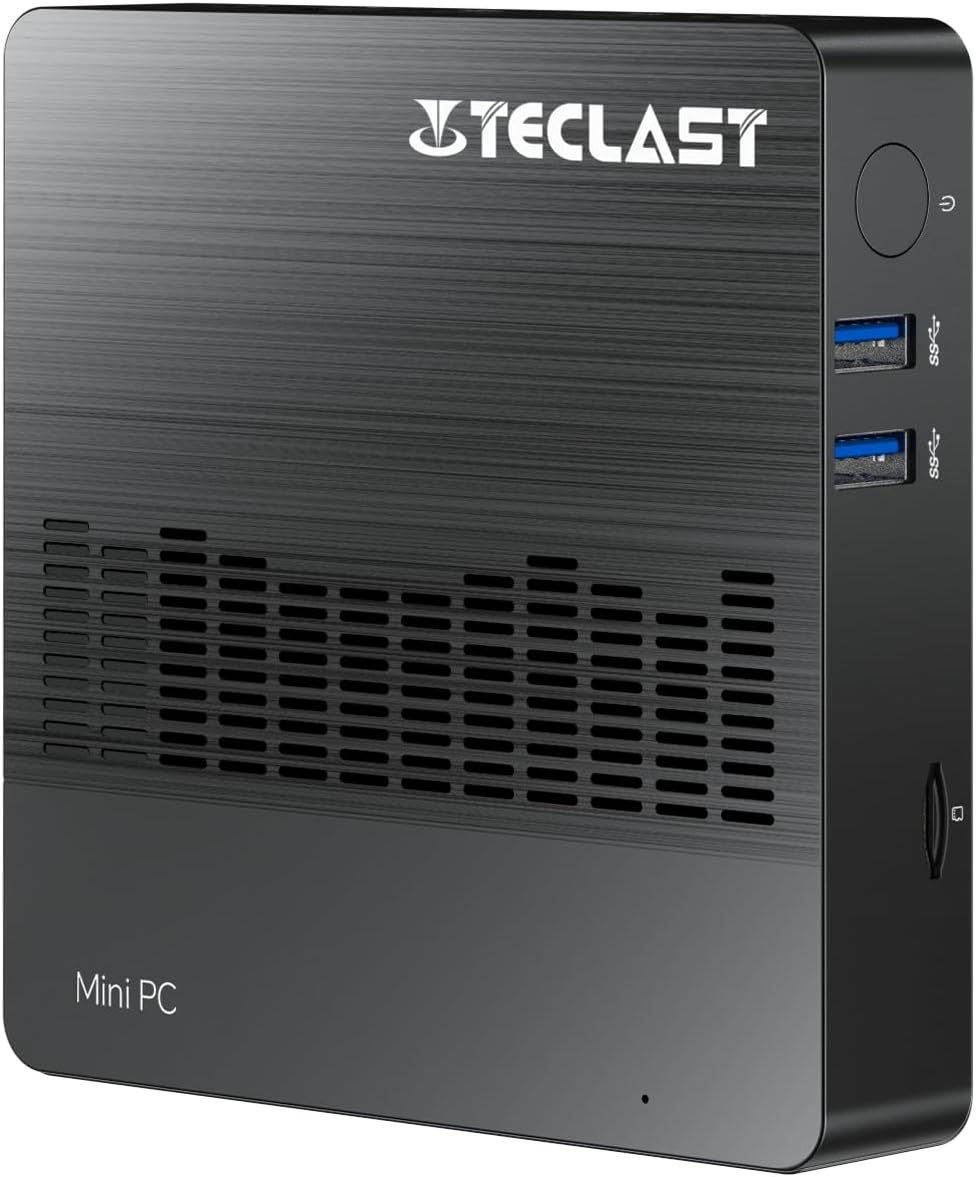
Imej 1.1: Depan view of the TECLAST Mini PC N10, showing its compact design and front ports.
2. Kandungan Pakej
Sila semak pakej untuk item berikut:
- TECLAST Mini PC N10 Unit
- Penyesuai Kuasa
- Manual Pengguna
Jika ada item yang hilang atau rosak, sila hubungi sokongan pelanggan.
3. Produk Lebihview
3.1. Physical Dimensions and Design
The TECLAST Mini PC N10 is designed to be compact and lightweight, making it suitable for various environments. Its dimensions are approximately 11.9 x 11.9 x 2.4 cm, and it weighs around 700g.

Image 3.1: Illustration of the TECLAST Mini PC N10's compact dimensions (120mm x 120mm x 24mm) and lightweight design (200g, note: product specifications state 700g).
3.2. Reka Letak Pelabuhan
The Mini PC N10 features a variety of ports for connectivity, located on its right, left, and back sides.

Imej 3.2: Terperinci view of the TECLAST Mini PC N10's expansion ports.
- Sebelah Kanan: TF (MicroSD) Card Reader x 1, USB 3.2 x 2, Power Button x 1
- Bahagian Kiri: VGA Port x 1
- Bahagian Belakang: Reset Button x 1, DC Power Input x 1, USB 3.2 x 1, HDMI Port x 1, RJ45 Ethernet Port x 1, 3.5mm Headphone Output x 1
4. Persediaan Awal
Follow these steps to set up your TECLAST Mini PC N10:
- Sambung ke Paparan: Connect your monitor or TV to the Mini PC using either the HDMI port or the VGA port. For optimal resolution, use the HDMI port.
- Sambung Peranti: Plug in your keyboard and mouse to the available USB 3.2 ports.
- Sambung ke Kuasa: Connect the power adapter to the DC power input port on the back of the Mini PC, then plug the adapter into a power outlet.
- Hidupkan kuasa: Press the power button located on the right side of the Mini PC. The system will boot up.
- Persediaan Windows Awal: Ikut arahan pada skrin untuk melengkapkan persediaan Windows 11 Pro, termasuk bahasa, wilayah, sambungan rangkaian dan penciptaan akaun pengguna.
5. Arahan Operasi
5.1. Menyambung ke Internet
- Sambungan Berwayar: Connect an Ethernet cable from your router or modem to the RJ45 Ethernet port on the back of the Mini PC.
- Sambungan Wayarles: The Mini PC supports 2.4GHz and 5GHz Wi-Fi. During Windows setup or via Windows settings, select your Wi-Fi network and enter the password.
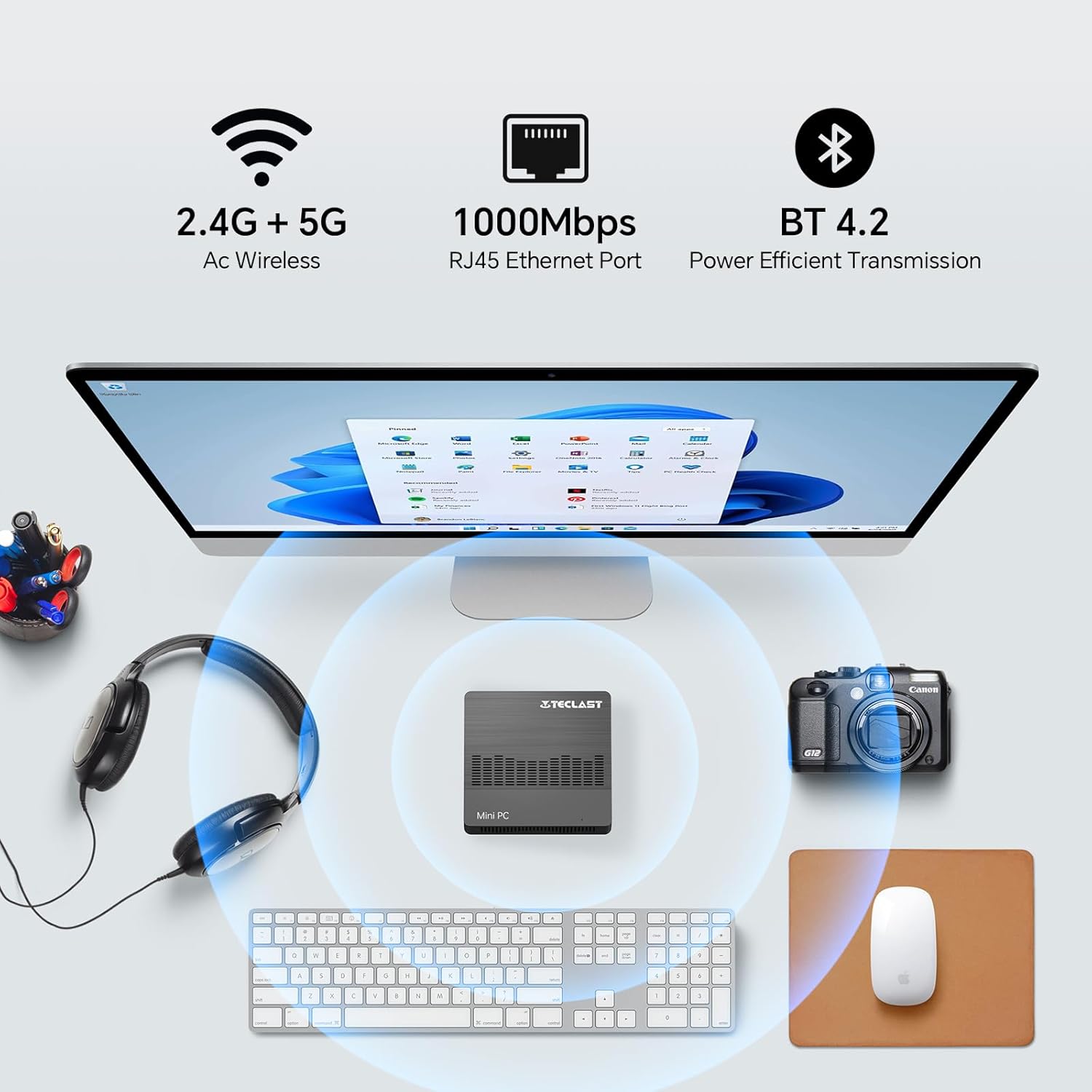
Image 5.1: The Mini PC N10 supports 2.4G+5G Wi-Fi, 1000Mbps RJ45 Ethernet, and Bluetooth 4.2 for versatile connectivity.
5.2. Persediaan Paparan Dwi
The TECLAST Mini PC N10 supports dual display output via its HDMI and VGA ports, allowing you to extend your desktop across two screens or duplicate your display.
- Connect your primary monitor to the HDMI port.
- Connect your secondary monitor to the VGA port.
- Once both monitors are connected and powered on, Windows 11 should automatically detect them.
- To configure display settings (extend, duplicate, resolution), right-click on the desktop, select 'Display settings', and adjust as needed. The HDMI port supports up to 4K@60Hz resolution.

Image 5.2: The Mini PC N10 connected to two monitors via HDMI and VGA for dual display output.
5.3. Peluasan Storan
The Mini PC N10 includes 128GB of internal SSD storage. For additional storage, it supports SATA protocol for M.2 SSD expansion (2242 length, M.2 interface, not included). A TF (MicroSD) card reader is also available for removable storage.
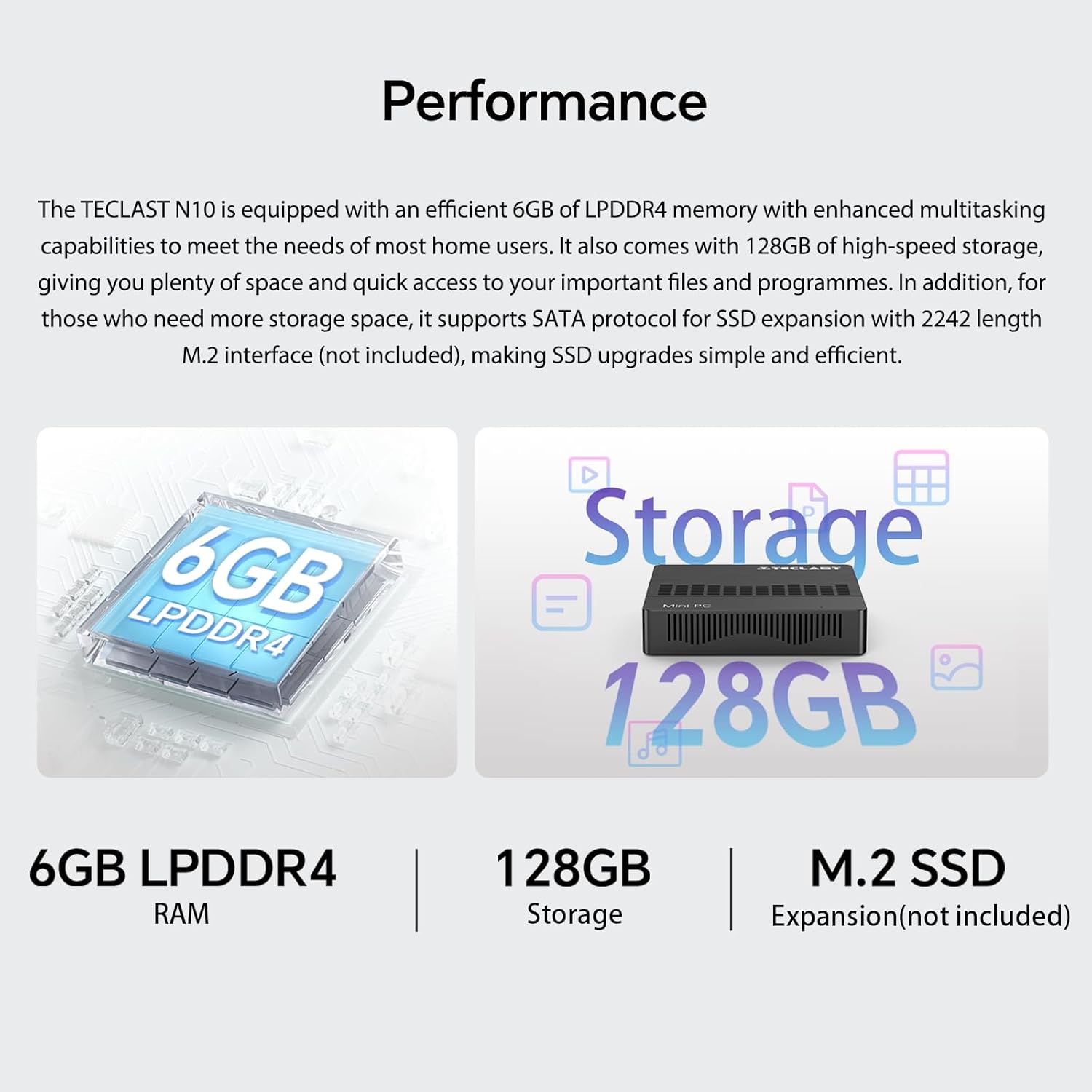
Imej 5.3: Selesaiview of the Mini PC N10's 6GB LPDDR4 RAM, 128GB storage, and M.2 SSD expansion capability.
6. Spesifikasi
| Ciri | Perincian |
|---|---|
| Jenama | TECLAST |
| Nama Model | N10 |
| Dimensi Produk | 11.9 x 11.9 x 2.4 cm |
| Berat Produk | 700 g |
| warna | Hitam |
| Sistem Operasi | Windows 11 Pro |
| Pengeluar pemproses | Intel |
| Jenis Pemproses | Intel Celeron N4000 |
| Kelajuan Pemproses | 2.6 GHz (Turbo Frequency) |
| Bilangan Pemproses | 2 |
| Kapasiti RAM | 6 GB |
| Teknologi Memori | DDR4 |
| Hard Drive Description | SSD |
| Kapasiti Penyimpanan Memori | 128 GB |
| Pemproses bersama Grafik | Grafik Intel UHD 600 |
| Penerangan Kad Grafik | Bersepadu |
| Resolusi Maksimum | 3840 x 2160 (4K) |
| Jenis Kesambungan | Wi-Fi, Bluetooth |
| Jenis Sambungan Wayarles | 2.4GHz + 5GHz Wi-Fi, Bluetooth 5.0 |
| Pelabuhan | HDMI x 1, VGA x 1, USB 3.2 x 3, RJ45 Ethernet x 1, 3.5mm Audio x 1, TF (MicroSD) x 1 |

Image 6.1: Details of the Intel Celeron N4000 processor, featuring 14nm process, Gemini Lake Architecture, 4MB cache, and up to 2.6GHz turbo frequency.
7. Penyelenggaraan
- Pembersihan: Use a soft, dry cloth to clean the exterior of the Mini PC. Avoid using liquid cleaners or sprays directly on the device.
- Pengudaraan: Ensure the ventilation openings are not blocked to prevent overheating. Place the Mini PC on a flat, stable surface.
- Kemas Kini Perisian: Semak dan pasang kemas kini Windows secara kerap untuk memastikan kestabilan dan keselamatan sistem.
- Sandaran Data: Sandarkan data penting secara berkala ke pemacu luaran atau storan awan untuk mengelakkan kehilangan data.
8. Penyelesaian masalah
8.1. Tiada Kuasa
- Pastikan penyesuai kuasa disambungkan dengan selamat ke PC Mini dan salur keluar kuasa yang berfungsi.
- Sahkan alur keluar kuasa berfungsi dengan memasang peranti lain.
8.2. Tiada Paparan
- Check that the HDMI or VGA cable is securely connected to both the Mini PC and the monitor.
- Pastikan monitor dihidupkan dan ditetapkan kepada sumber input yang betul (HDMI/VGA).
- Cuba sambungkan ke paparan yang berbeza atau gunakan kabel yang berbeza untuk menolak komponen yang rosak.
8.3. Tiada Sambungan Internet
- Berwayar: Check the Ethernet cable connection. Verify your router/modem is working correctly.
- wayarles: Ensure Wi-Fi is enabled in Windows settings. Check if you are connected to the correct network and have entered the password correctly. Restart your router/modem.
8.4. System Slowdown
- Tutup aplikasi yang tidak perlu berjalan di latar belakang.
- Semak dan pasang sebarang kemas kini Windows yang belum selesai.
- Pastikan terdapat ruang kosong yang mencukupi pada SSD.
- Jalankan imbasan virus untuk memeriksa perisian hasad.
9. Waranti dan Sokongan
9.1. Maklumat Waranti
The TECLAST Mini PC N10 comes with a 2-year warranty, valid immediately after purchase. Please retain your proof of purchase for warranty claims.
9.2. Sokongan Pelanggan
If you require assistance or have any questions regarding your TECLAST Mini PC N10, please contact our customer support team. Send us a message, and our specialists will respond within 1 business day. We are committed to providing support for our products.


